Applications to be installed
- Node JS v22.18.0 (prerequisite)
- Oloid Workflow application
Installation Procedure
Steps to Install Node JS
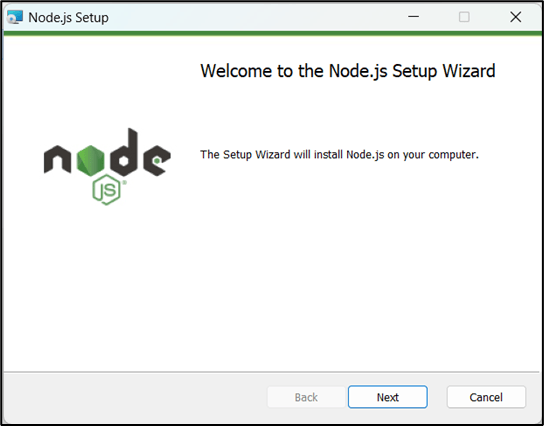
- Double-click on node-v22.18.0 and click Next on the pop-up screen to continue with the installation.
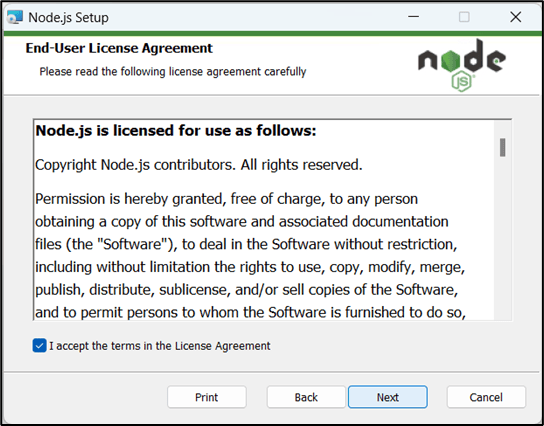
- Accept the license agreement and click Next.
- Click Next on Destination Folder screen.

- Click Next on Custom Setup screen.
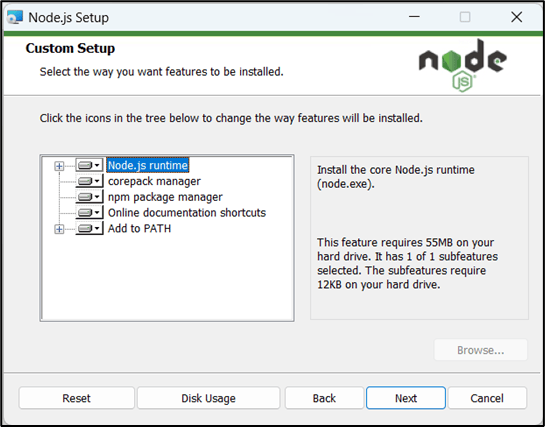
- Click Next.

- Click Install.

- Click Finish.
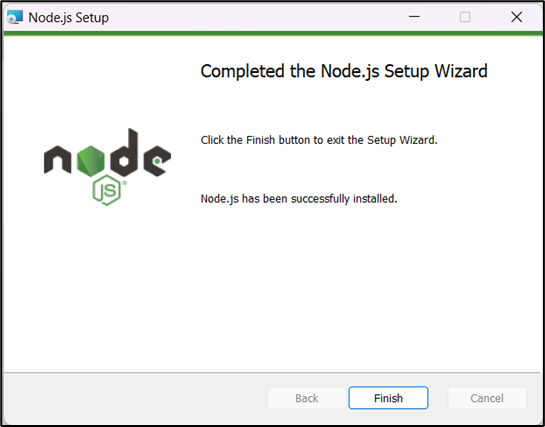
Steps to Install Oloid-Workflow
- Right-click & open Oloid Workflow Installer with Run as Administrator option.
-
Select Installation mode and click Initiate Installation.
(In Online mode, the installer will fetch necessary install files from internet)
(In Offline mode, the installer will fetch necessary install files from build.zip file shared by Oloid executive)

-
Click Continue.
Note: The installer will do various checks and show the status here. In case, installer detects any failure, please contact Oloid executive with screenshot.

-
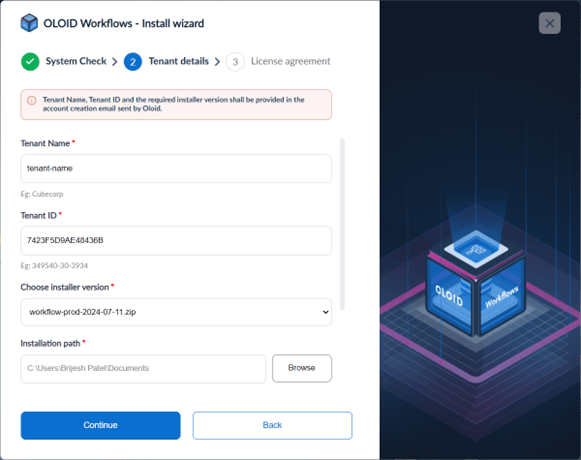
Fill in the required details – Please talk to Oloid executive for this information.
- Tenant Name – Please talk to Oloid executive for this information
- Tenant ID – Please talk to Oloid executive for this information
- Choose Installer version – Please talk to Oloid executive for this information
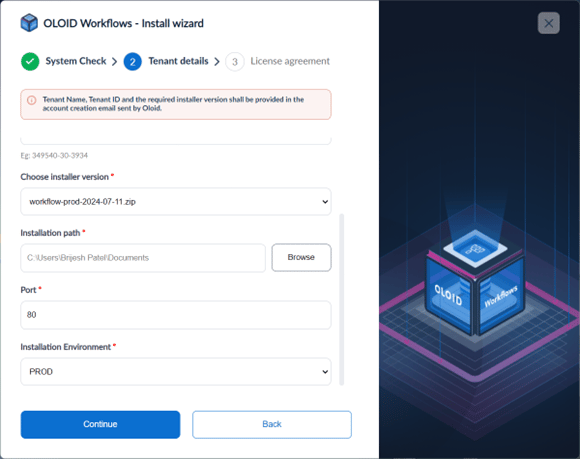
- Installation Path – local path where application will be installed
- Port – default is 80
- Installation environment – UAT for sandbox, Prod for Production
-
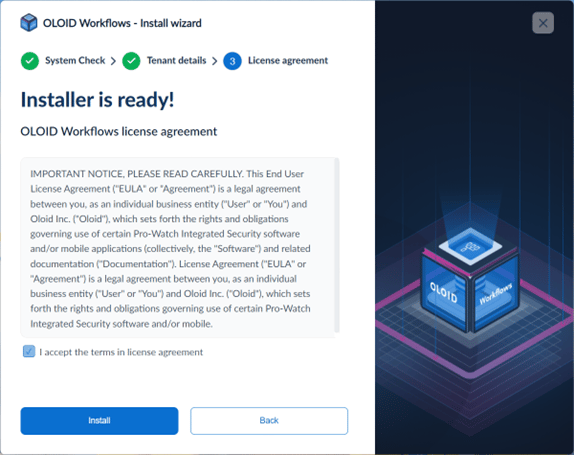
Check the license agreement and Click Install.
-
Wait till the installation is complete.
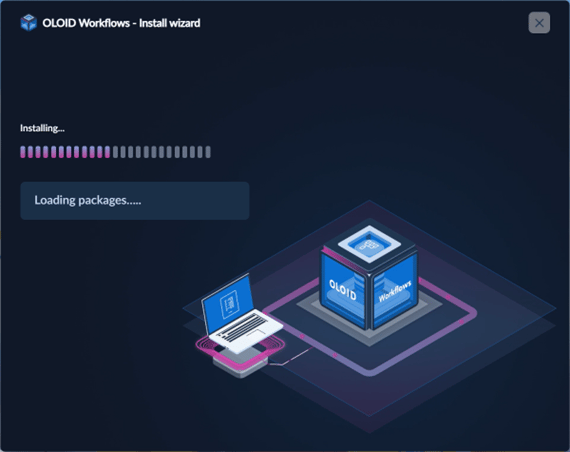
-
Installation Progress will be shown here.
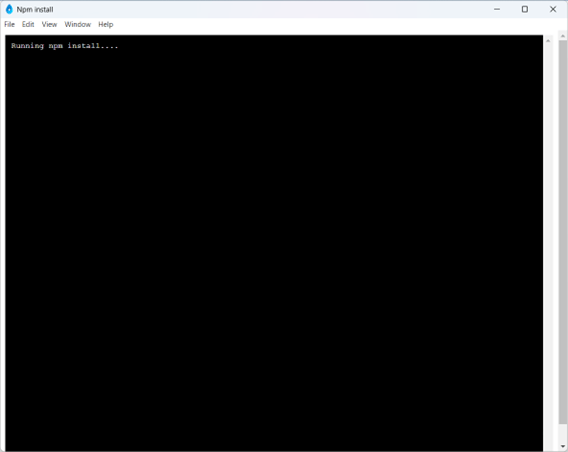
- Installation is complete.
-
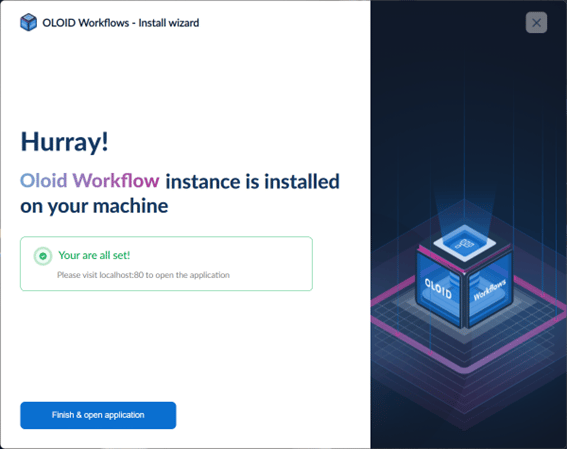
Click Finish and Open Application.