

- Launch your chrome browser.
-
Enter localhost: port number in your browser address bar. Then, press Enter on your keyboard.
Default port number: 80 The Workflow Login page is displayed.Note: Port number should be same as used during installation.
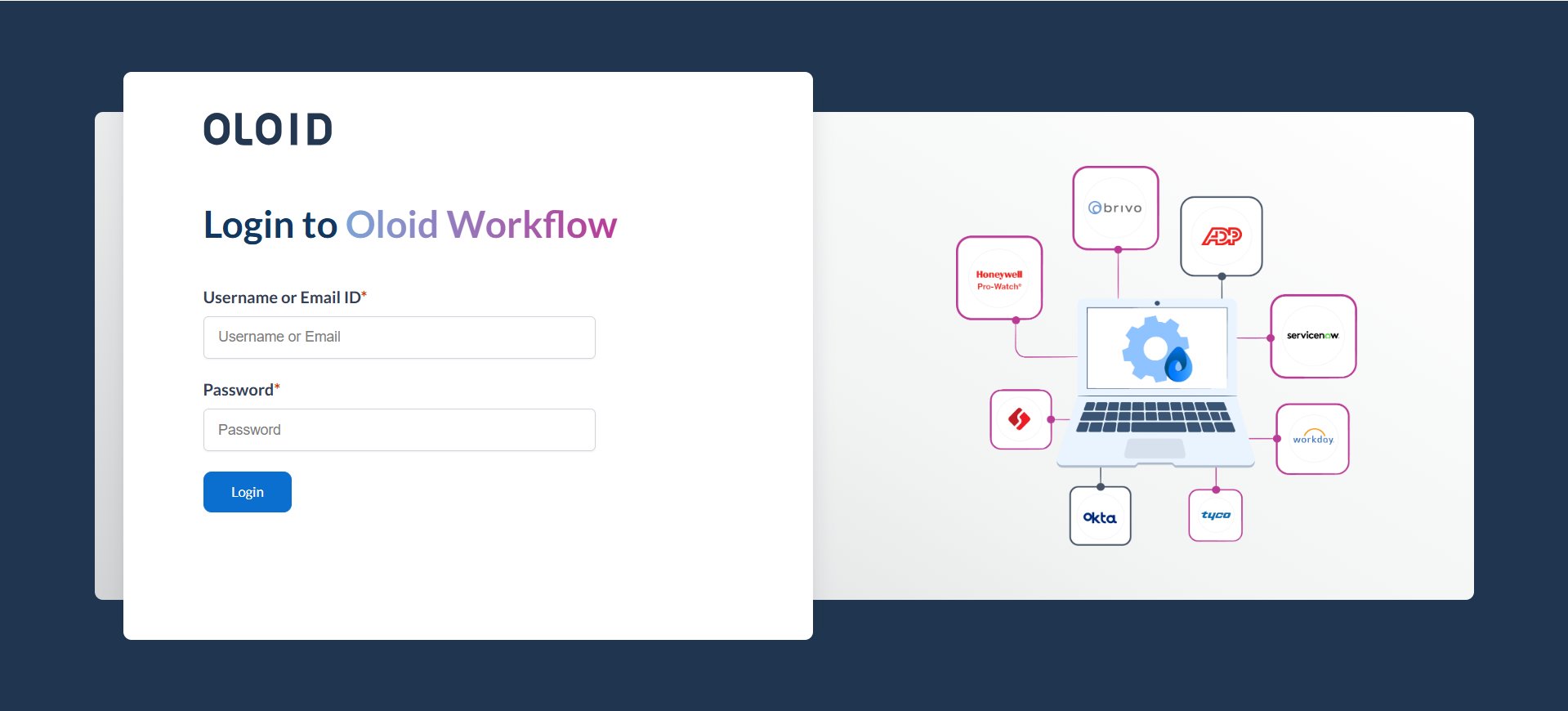
- Enter username and password in the appropriate fields.
-
Click Login.
The Oloid Workflow application page is displayed.

-
Double click on the flow to edit .
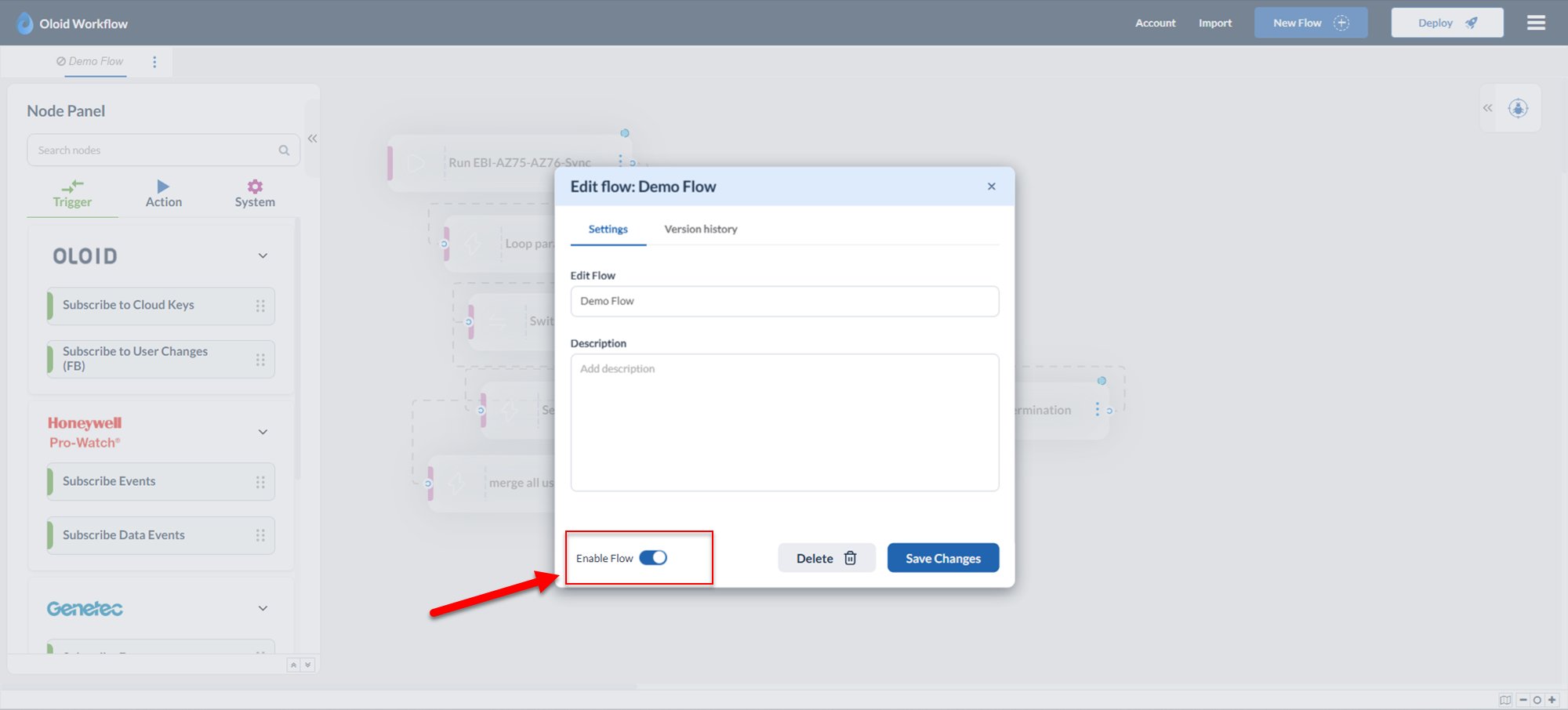
The edit flow pop-up box is displayed.

-
Turn on /off Enable Flow toggle button to enable or disable the flow.
Note: By default the toggle button is enabled.
- Click Save Changes.
- Next, click Deploy. The changes are saved successfully.
How to enable/disable flow
Pre-requisite: Flow should be imported to the application. For instructions on importing flow, see How to import a flow?
Pre-requisite: Flow should be imported to the application. For instructions on importing flow, see How to import a flow?
Steps to enable/disable flow:
⌘I