Introduction
The Tenant Admin Portal allows admin to invite users to add their face as an authentication method via email. This feature includes a customizable email invite template that can be tailored to your organization’s messaging standard.Prerequisite
You must have a Tenant Admin account.Steps to customize email invite template
- Log in to the Tenant Admin Portal.
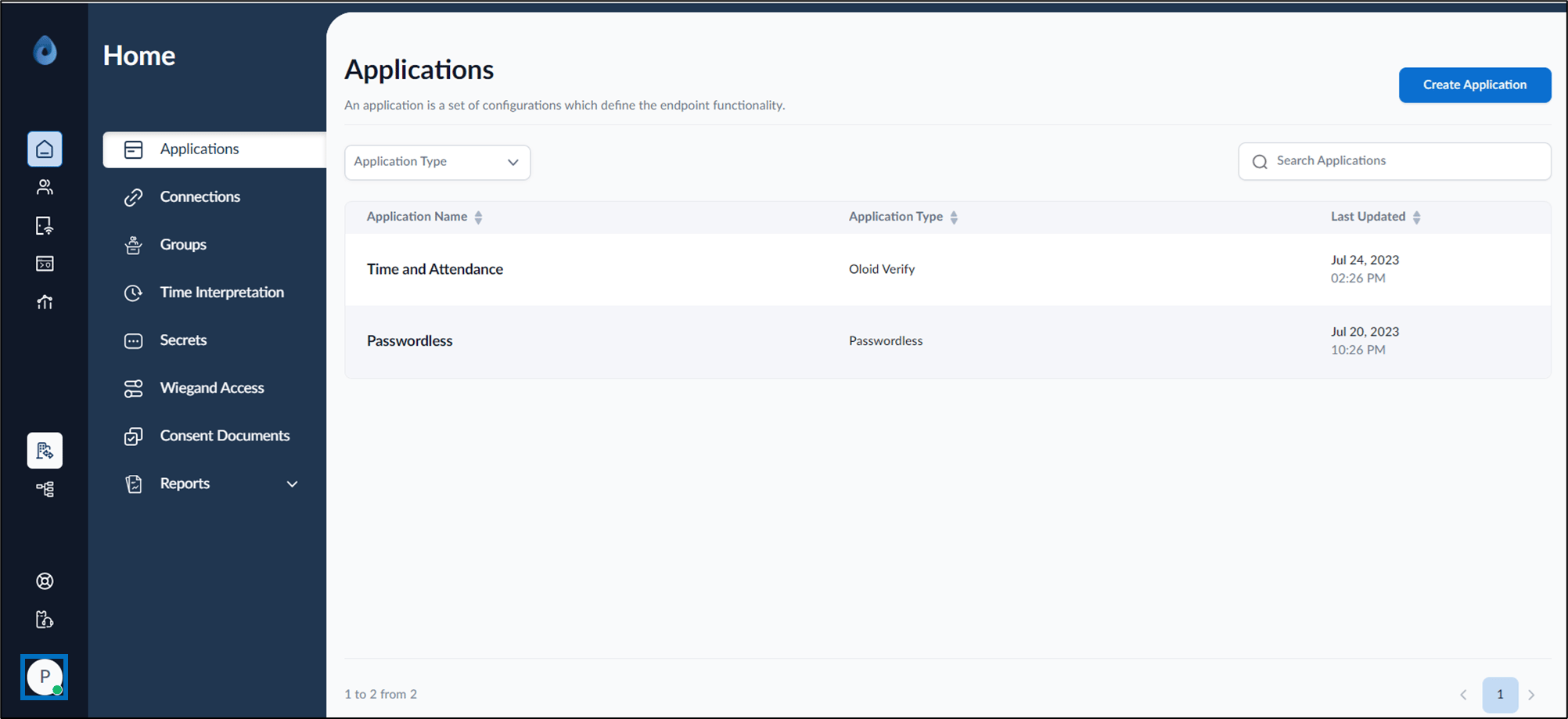
- On the homepage of the portal, click user profile icon on the bottom left.
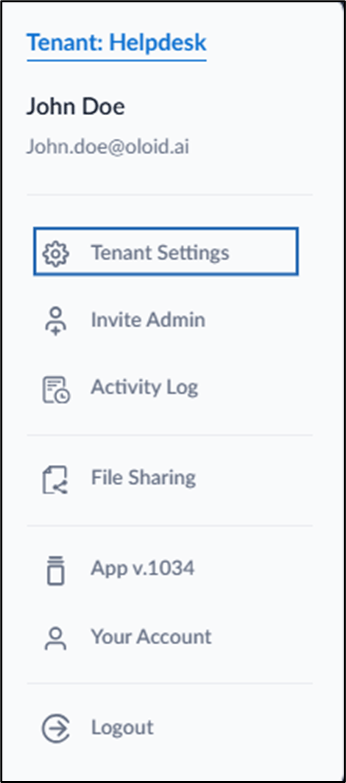
- Select Tenant Settings.
- Go to Advanced tab > select Face from the left menu panel.
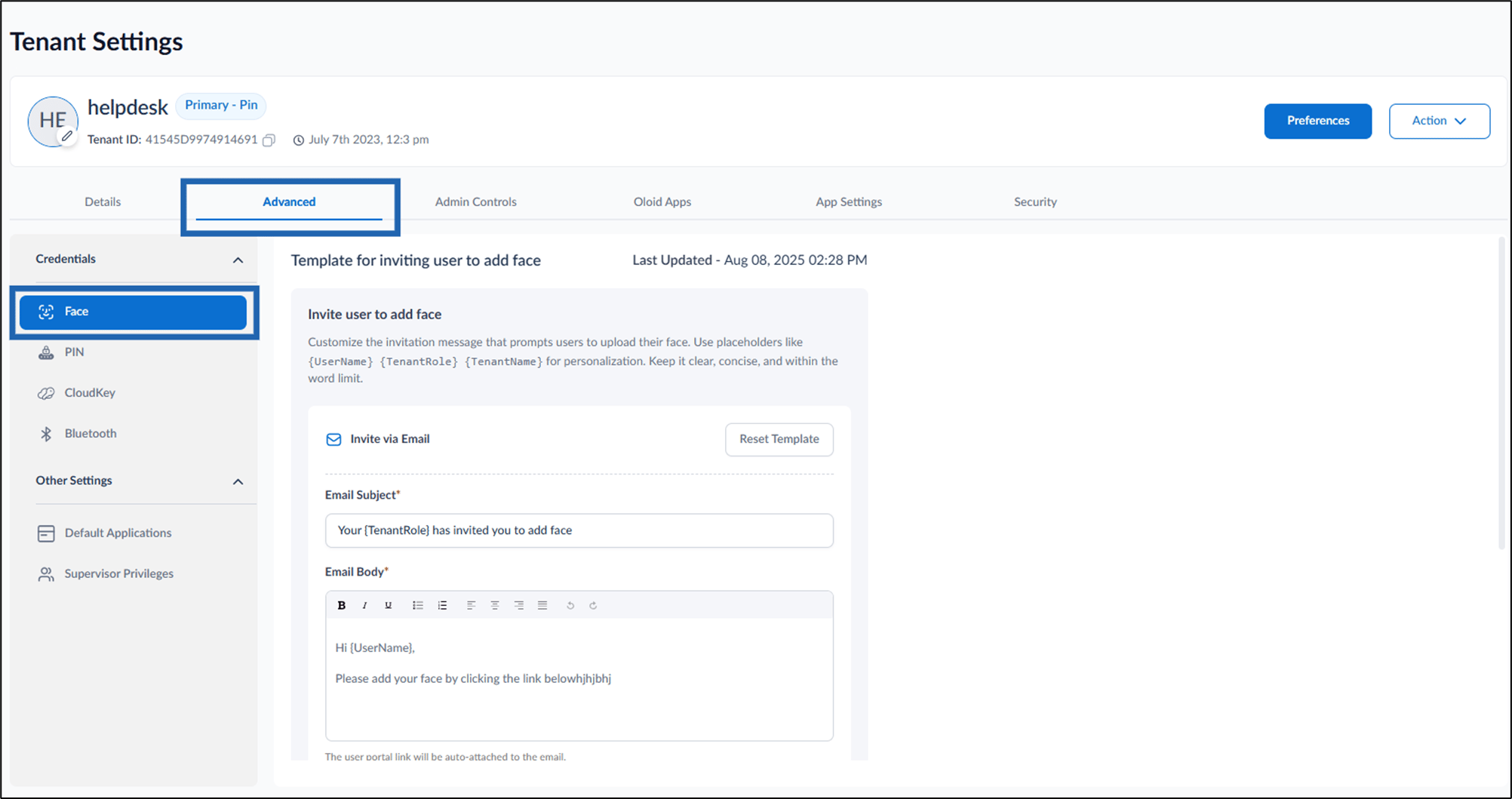
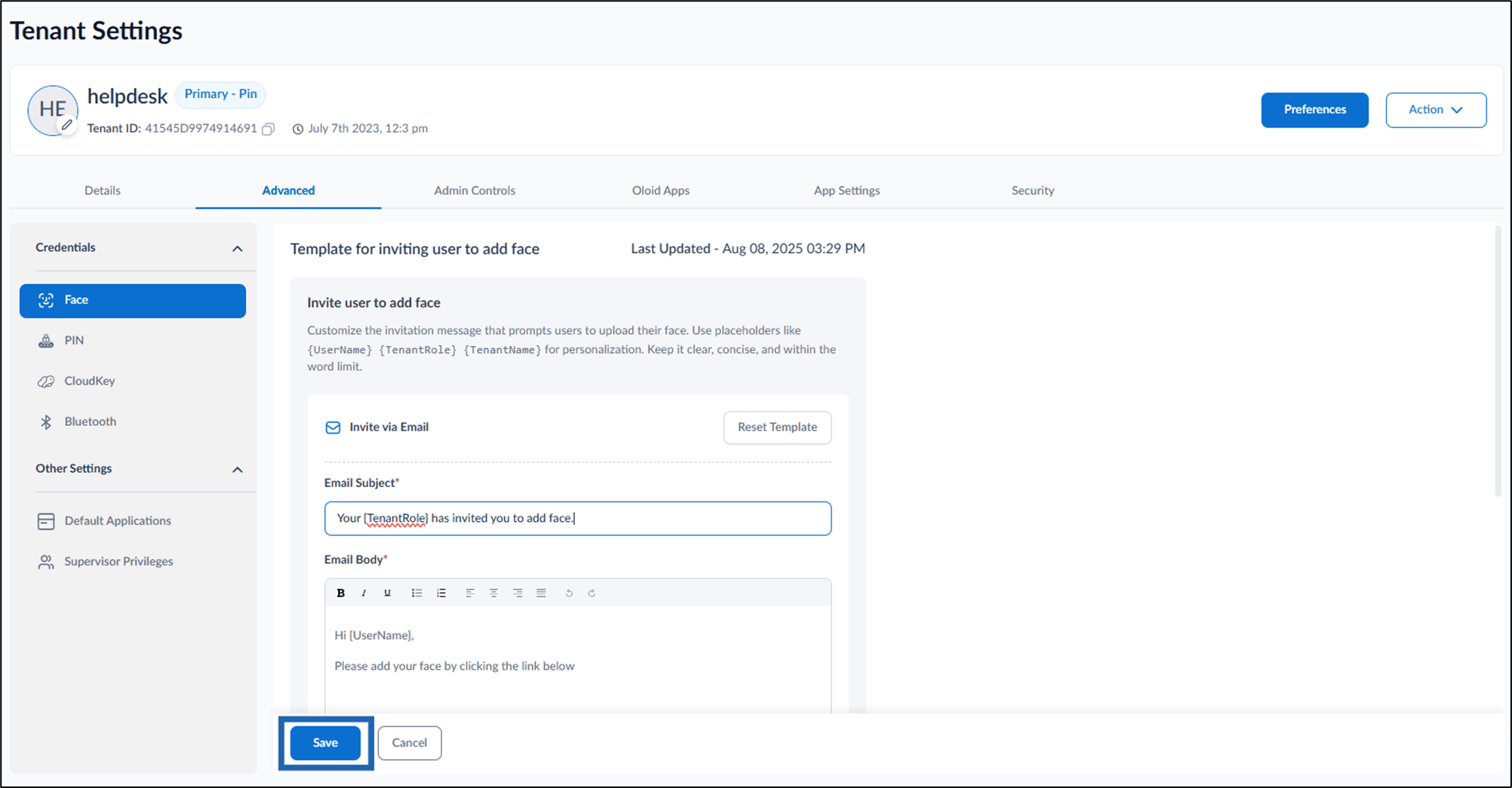
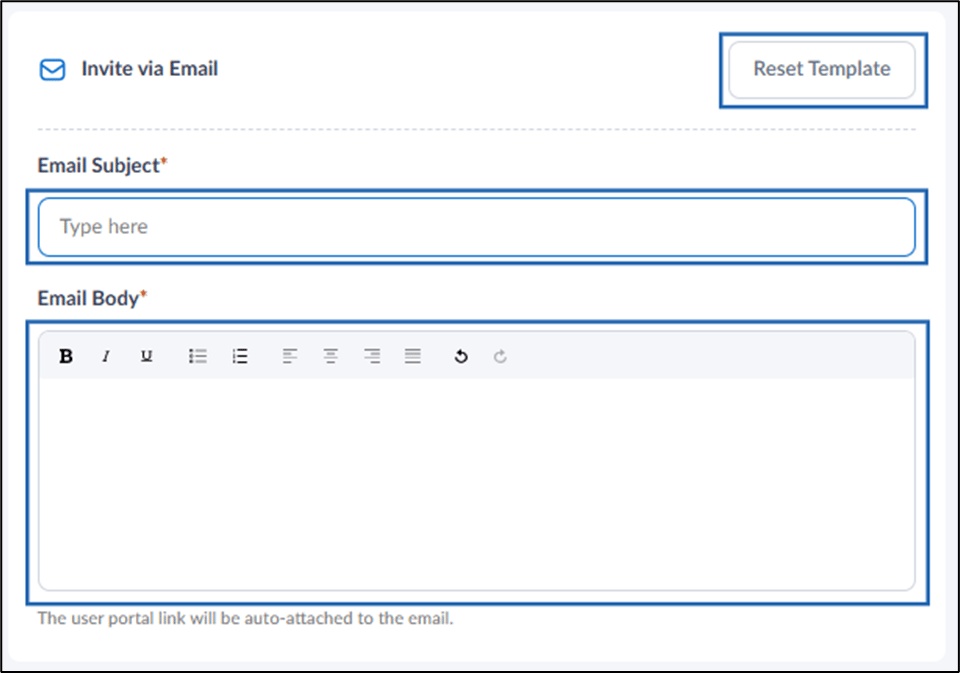
- Do the following under Invite via Email:
- Enter email subject.
-
Enter message content in email body text field.
Note:
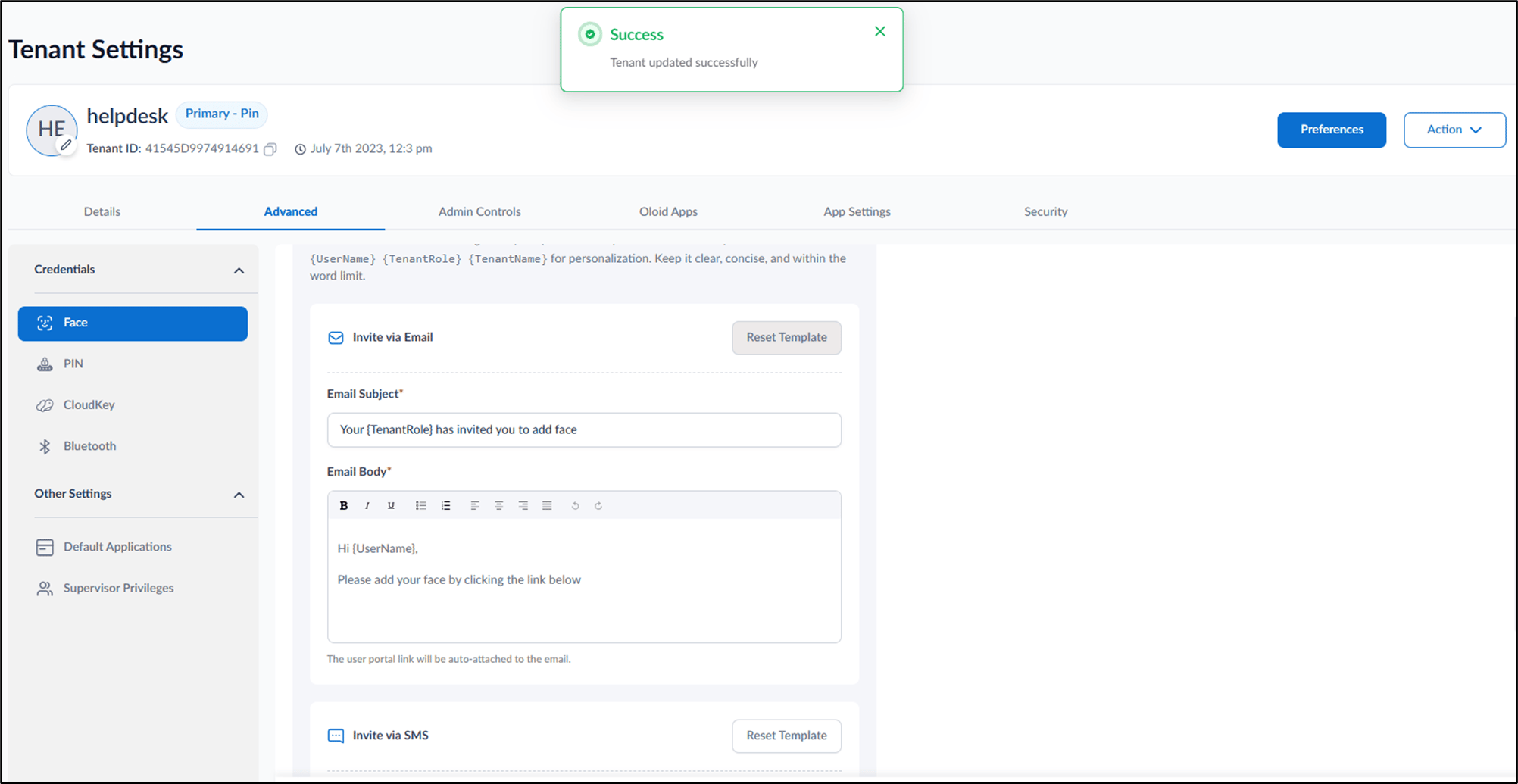
- The User Portal link will be auto-attached to the email.
- To restore the default email subject and email body, click Reset Template.
- Click Save.