

Introduction
The Endpoint Report under Insights > Reports provides admin with a detailed view of Windows Login application endpoints in the organization.Prerequisite
- You must have Tenant Admin account.
Steps to access Endpoint Report
- Log in to the Tenant Admin Portal.
- From the left navigation menu, click Insights Icon.
- Select Reports > Endpoints.

Filter Endpoints
-
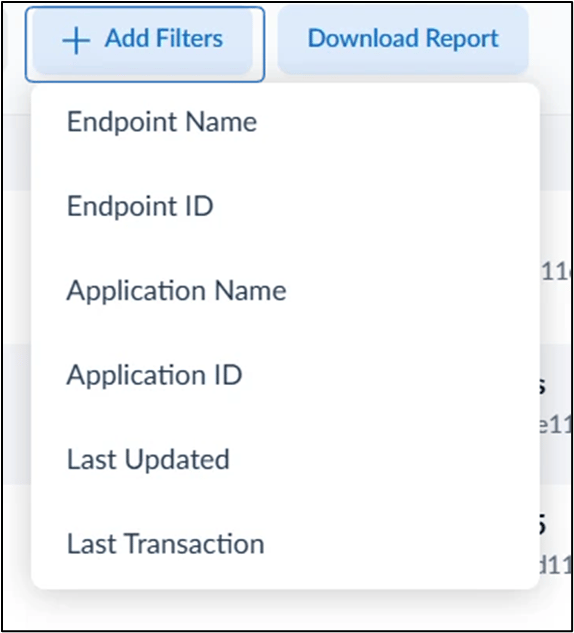
- Click Add Filter.
- Select the required filter from the dropdown.
- Enter the filter value to refine the endpoint results.
Download Endpoint Report
-

- Select the Endpoint Name checkbox for the required endpoint(s).
- Click Download.

- Enter the Report Name (required).
- From the Add Table Columns dropdown, select the columns you want to include in the report.
- Click Download. The endpoint report is downloaded successfully.