

- Log in to the Oloid Portal.
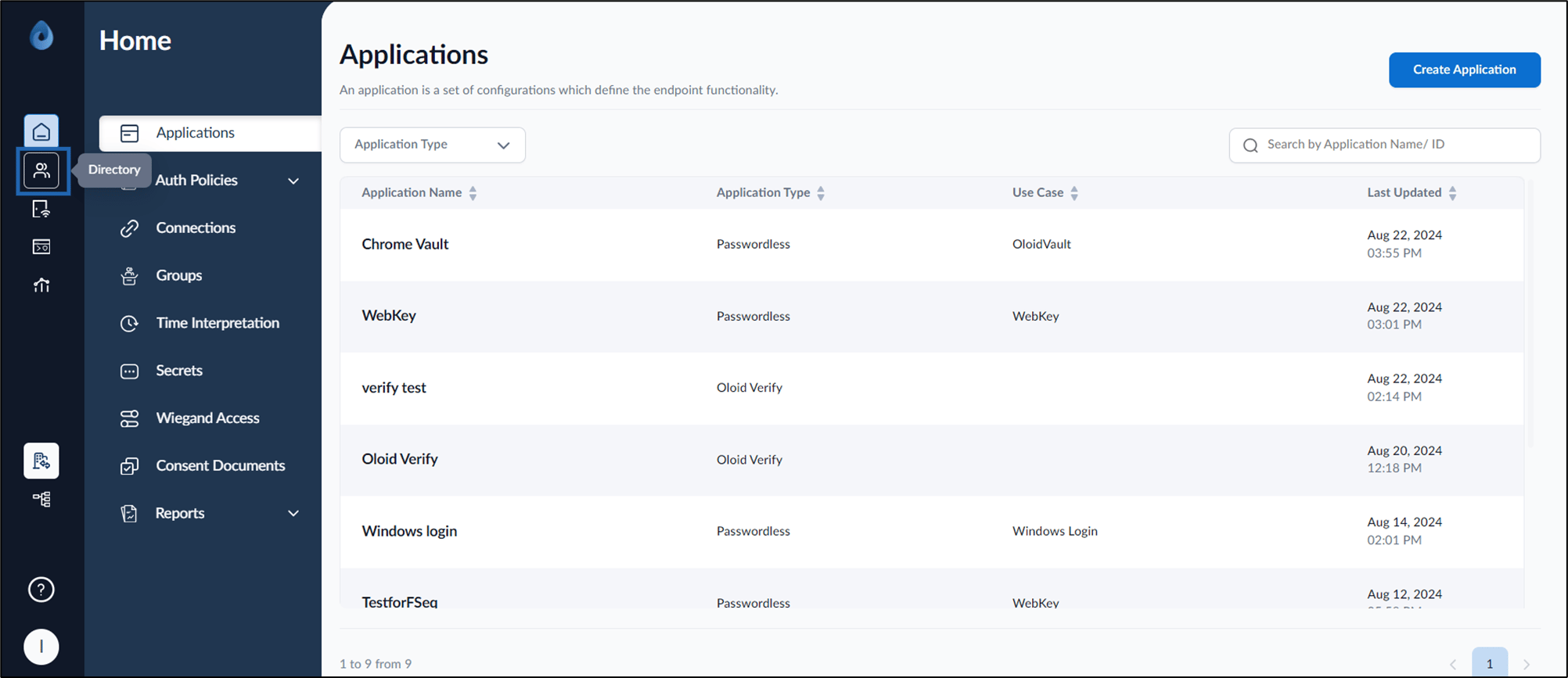
- On the home page of the portal, click Directory on the left menu panel.
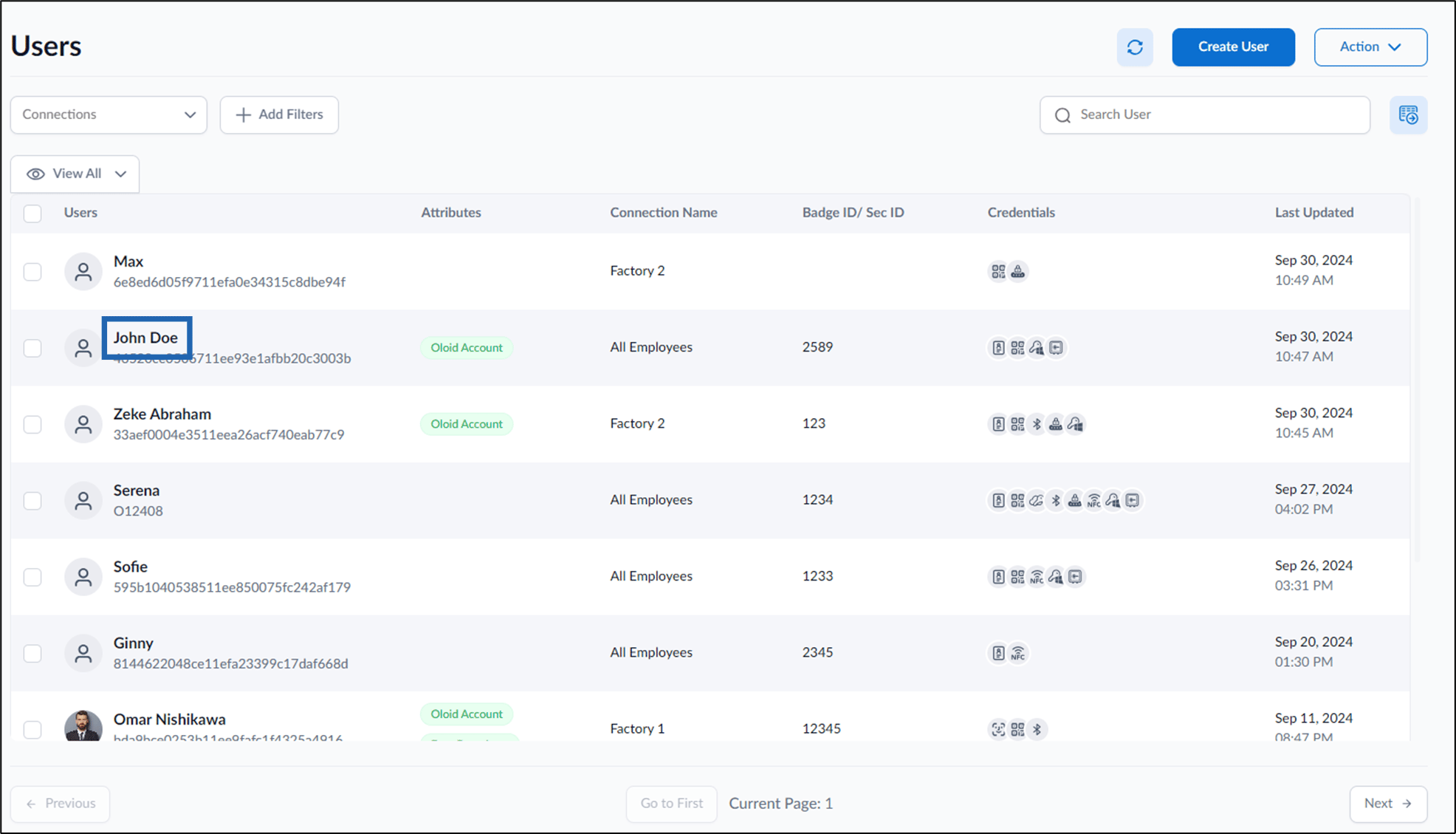
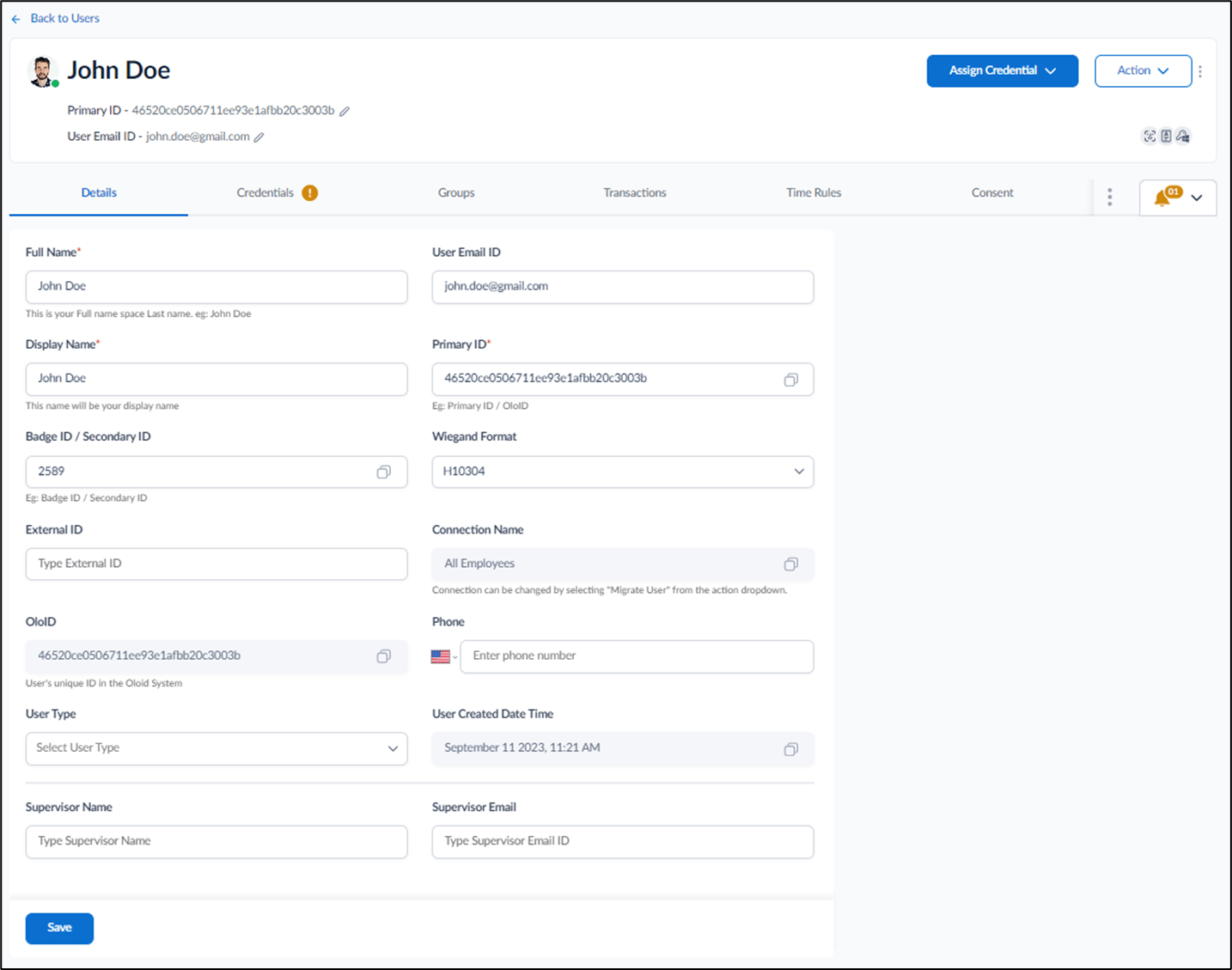
- Click user name to edit.
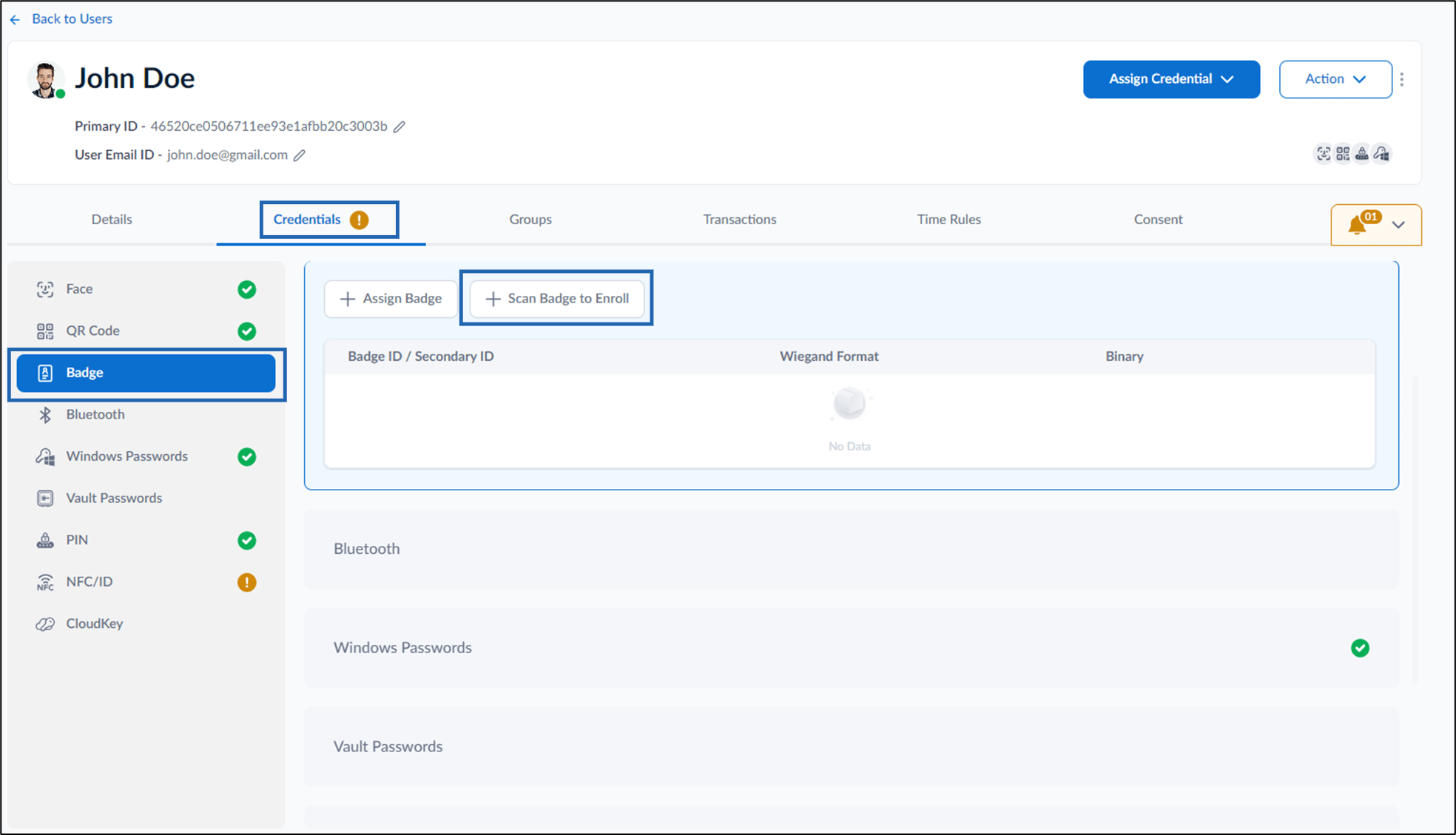
- Go to Credentials tab > Badge > + Scan Badge to Enroll.
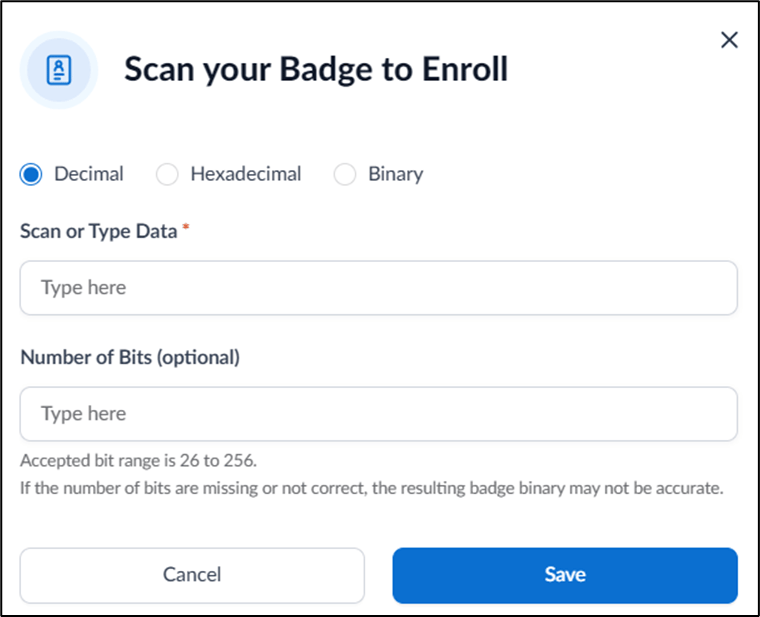
- On the pop-up box, do the following:
- Select the badge setting as configured in the badge reader.
-
Enter your badge ID by scanning your badge or manually type it in the Scan or Type Data field.
Note: To scan the badge, card reader should be connected to your device.
- Enter the bits in the Number of Bits field. (Optional)
-
Click Save.
The badge is assigned to the user and listed on the badge tab.

How to enroll users using badge scan in Oloid Portal
Steps to enroll user using badge scan:
Steps to enroll user using badge scan:
⌘I