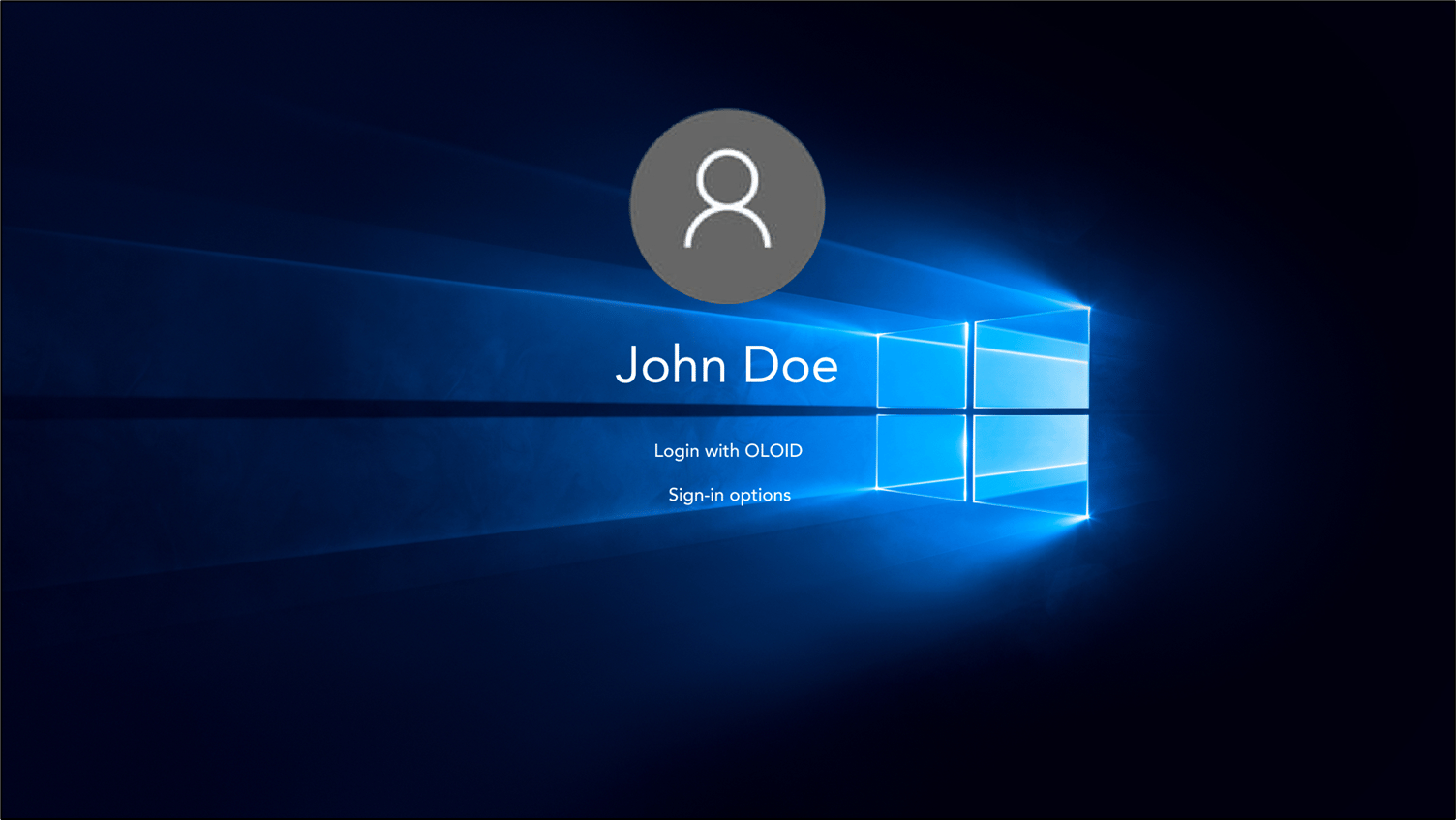
Introduction
The presence detection feature in Windows devices helps to monitor user activity. This feature only works when the system is unlocked.Note: If you cannot find the Windows Alert tab on the Windows endpoint in the Oloid Portal, contact Oloid Support for assistance.
Prerequisites
- You must have access to the Tenant Admin Portal.
- Ensure that your system is unlocked
- Ensure that your system’s camera is working properly
Steps to configure Windows Alert
- Log in to Tenant Admin Portal.
- On the home page of the portal, click Endpoints on the left menu panel.
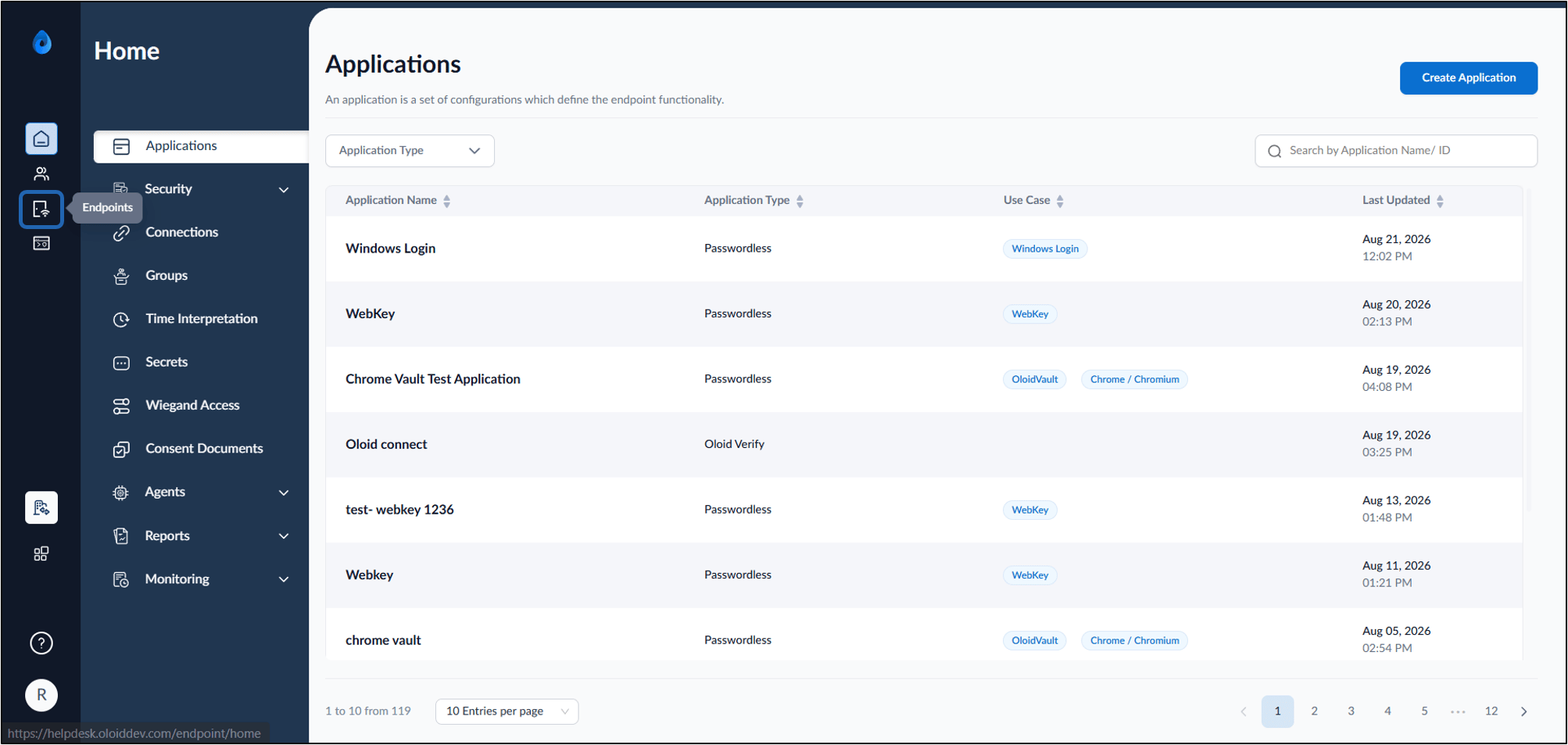
- Click endpoint name (Windows Login) to edit from the listed endpoints.
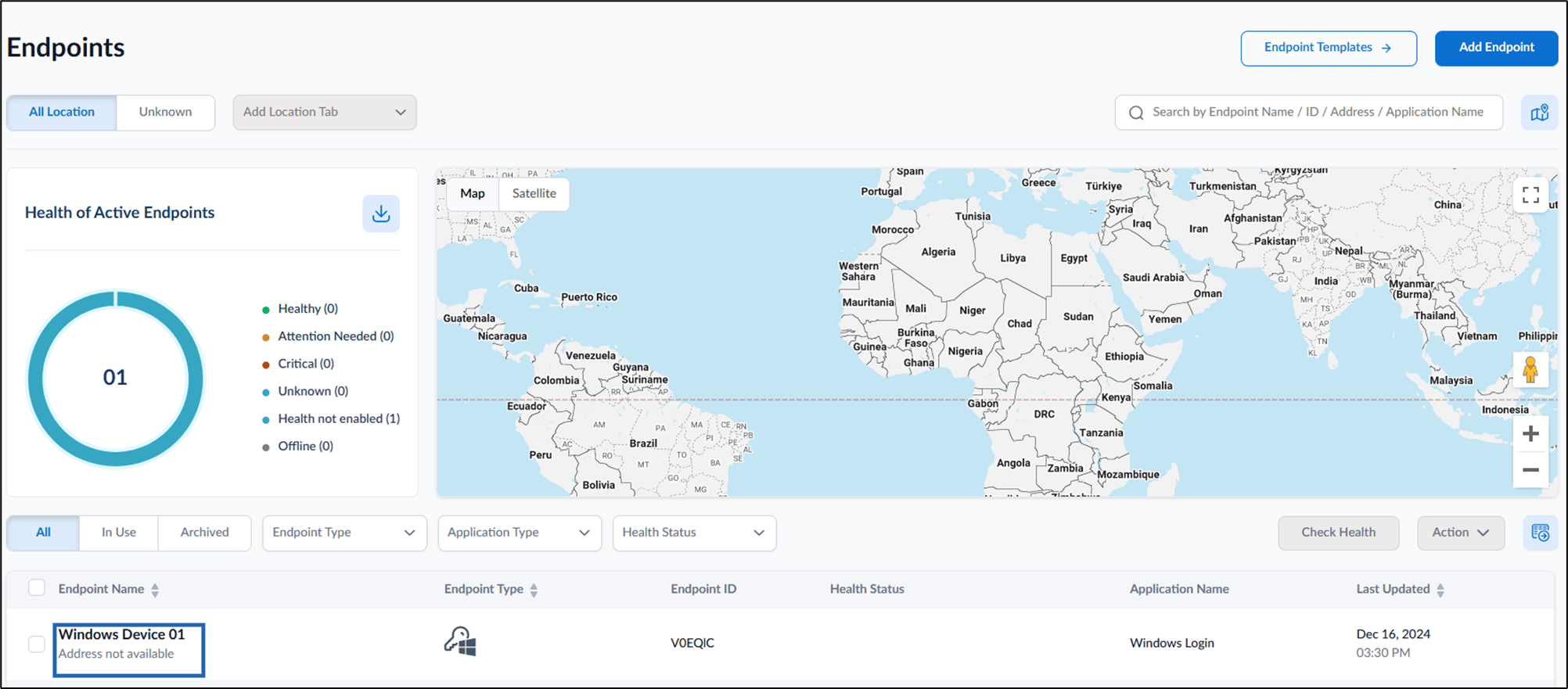
- Go to Windows Alert tab.
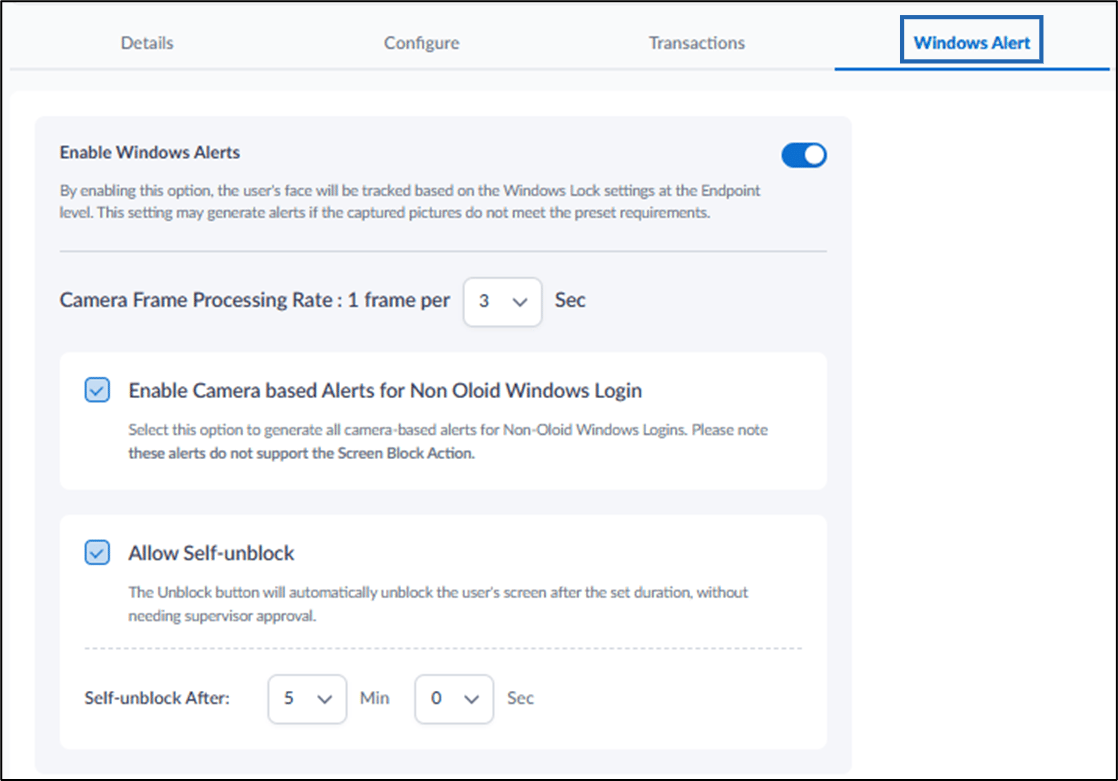
- Do the following:
-
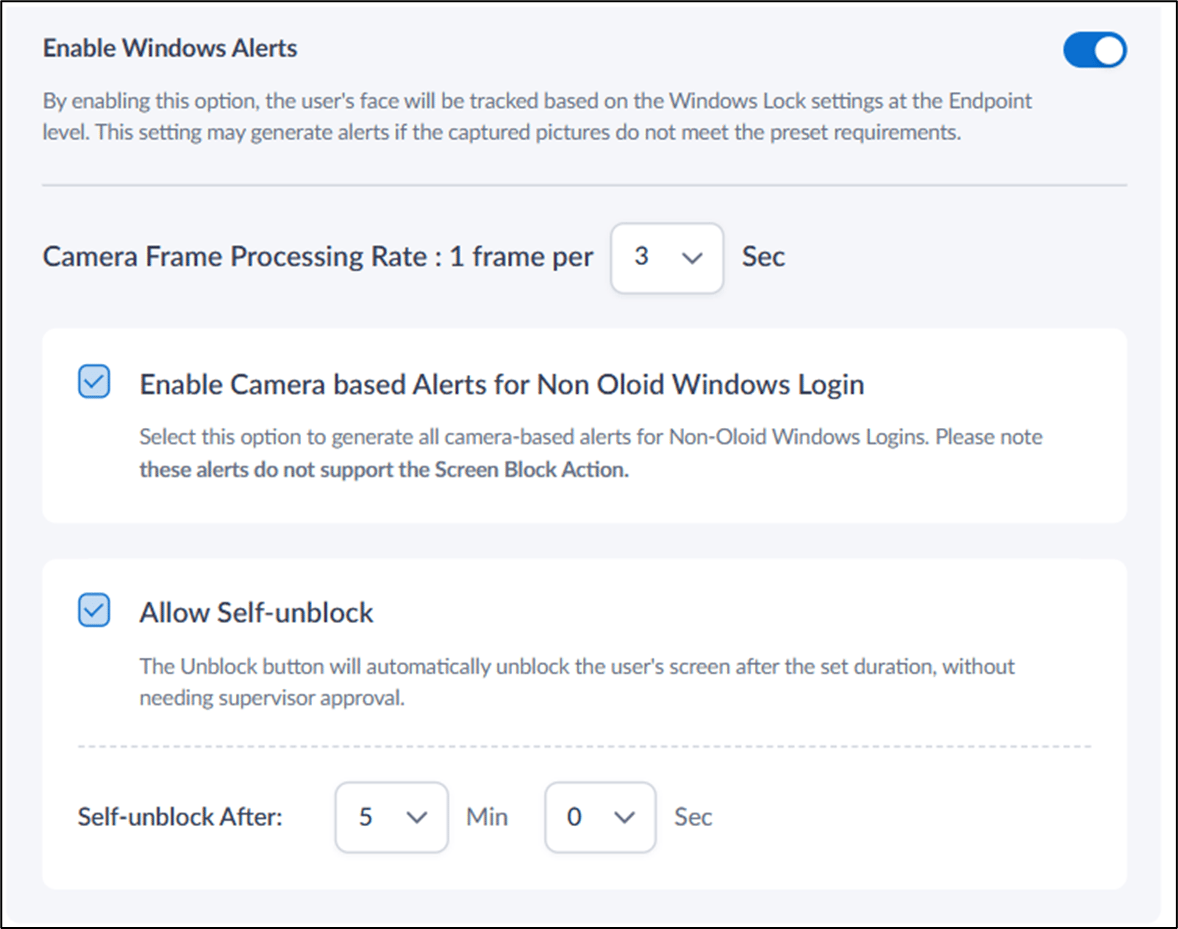
Enable Windows Alerts: Turn on this button to track the user’s face based on Windows Lock settings. It generates alerts when captured images fail to meet preset requirements.
Note: Turn on this feature to enable the rest of the settings on the Windows tab.
- Enable Camera-based Alerts for Non-Oloid Windows Login: Select this option to generate alerts for Non-Oloid Windows Logins.
- Allow Self-Unblock: Select this option to let users automatically unblock their screen after a specified duration, without supervisor approval.
Set Self-Unblock Duration: Set the duration (in minutes and seconds) after which the screen is automatically unblocked.
Default Setting: 5 minutes and 0 seconds
-
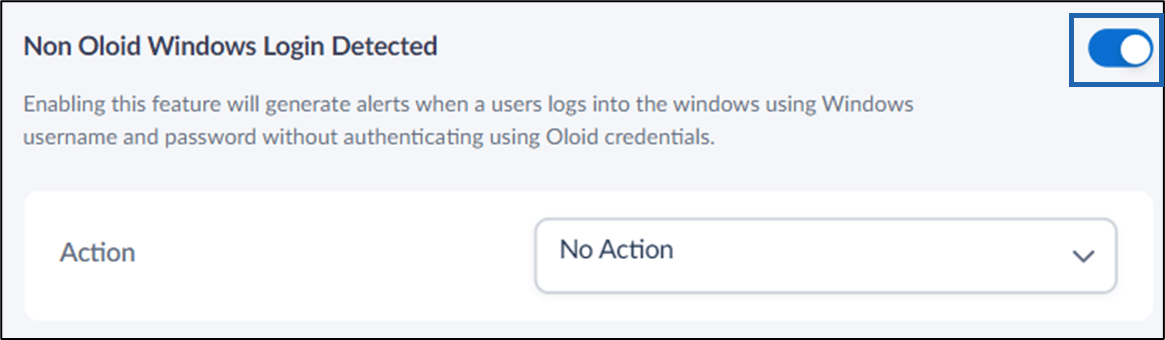
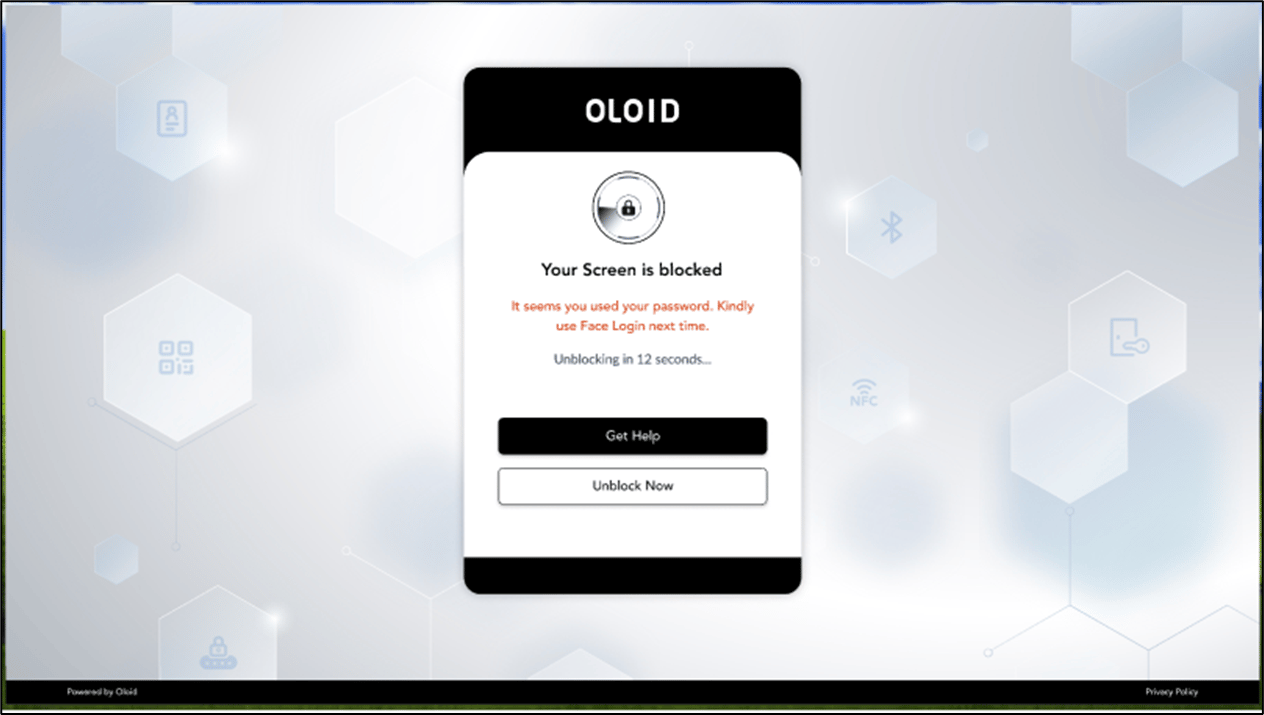
Non Oloid Windows Login Detected: Turn on this button to generate alerts when users log in to the Windows device using their Windows username and password without authenticating through Oloid credentials.
- Do any of the following:
- Screen Block: The user’s screen is blocked, but they are not logged out of their session. See Sample screen for a blocked user
- Windows Lock: The user’s screen is locked, but they are not logged out of their session. See, Sample screen for a locked user
- No Action: No immediate response from the system, but a desktop notification is sent if notifications are enabled in the browser settings. See
- Do any of the following:
-
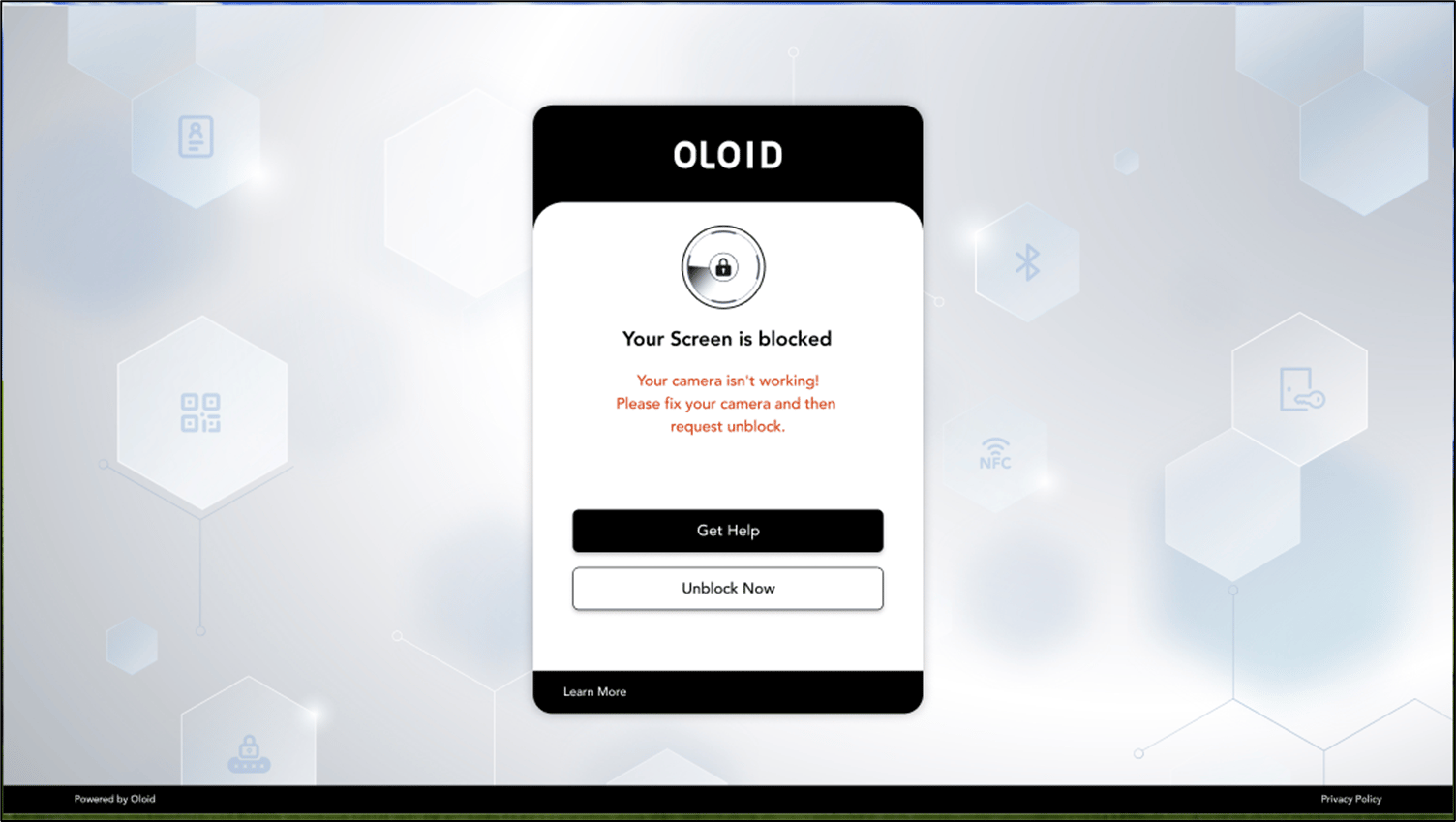
Camera Block Detected: Turn on this button to monitor the device’s camera and detect if it’s blocked. You can also configure face tracking, multi-face detection, and gadget detection.
Note: Ensure that the system (endpoint) camera is not blocked.
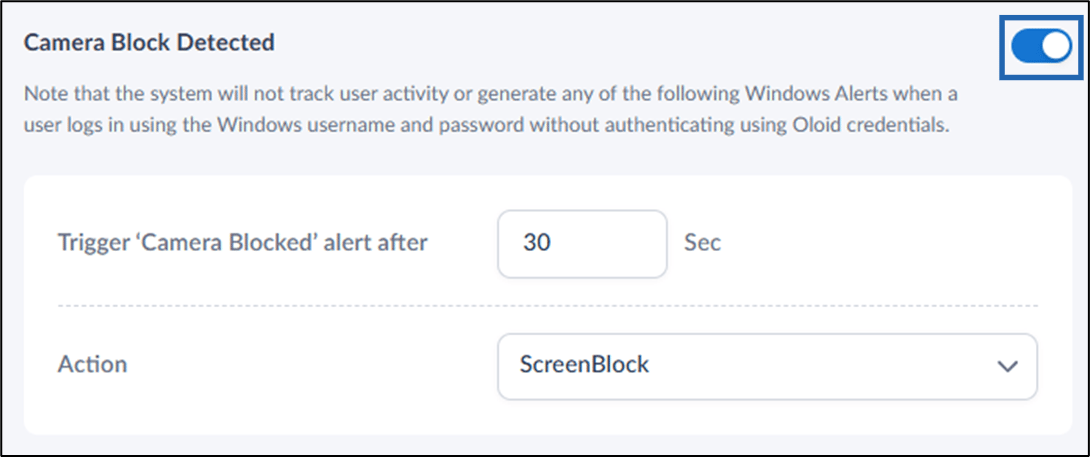
- Trigger ‘Camera Blocked’ alert after: Set the number of seconds after which an alert will be triggered.
- Action: Choose from the dropdown list of actions upon detecting a camera block.
- Screen Block: The user’s screen is blocked, but they are not logged out of their session. See, Sample screen for a blocked user
- Windows Lock: The user’s screen is locked, but they are not logged out of their session. See, Sample screen for a locked user
- No Action: No immediate response from the system, but a desktop notification is sent if notifications are enabled in the browser settings.
-
Enable Windows Alerts: Turn on this button to track the user’s face based on Windows Lock settings. It generates alerts when captured images fail to meet preset requirements.
- Configure the following section:
- Click Save to apply your changes. The presence detection is configured.
Face Tracking Violation
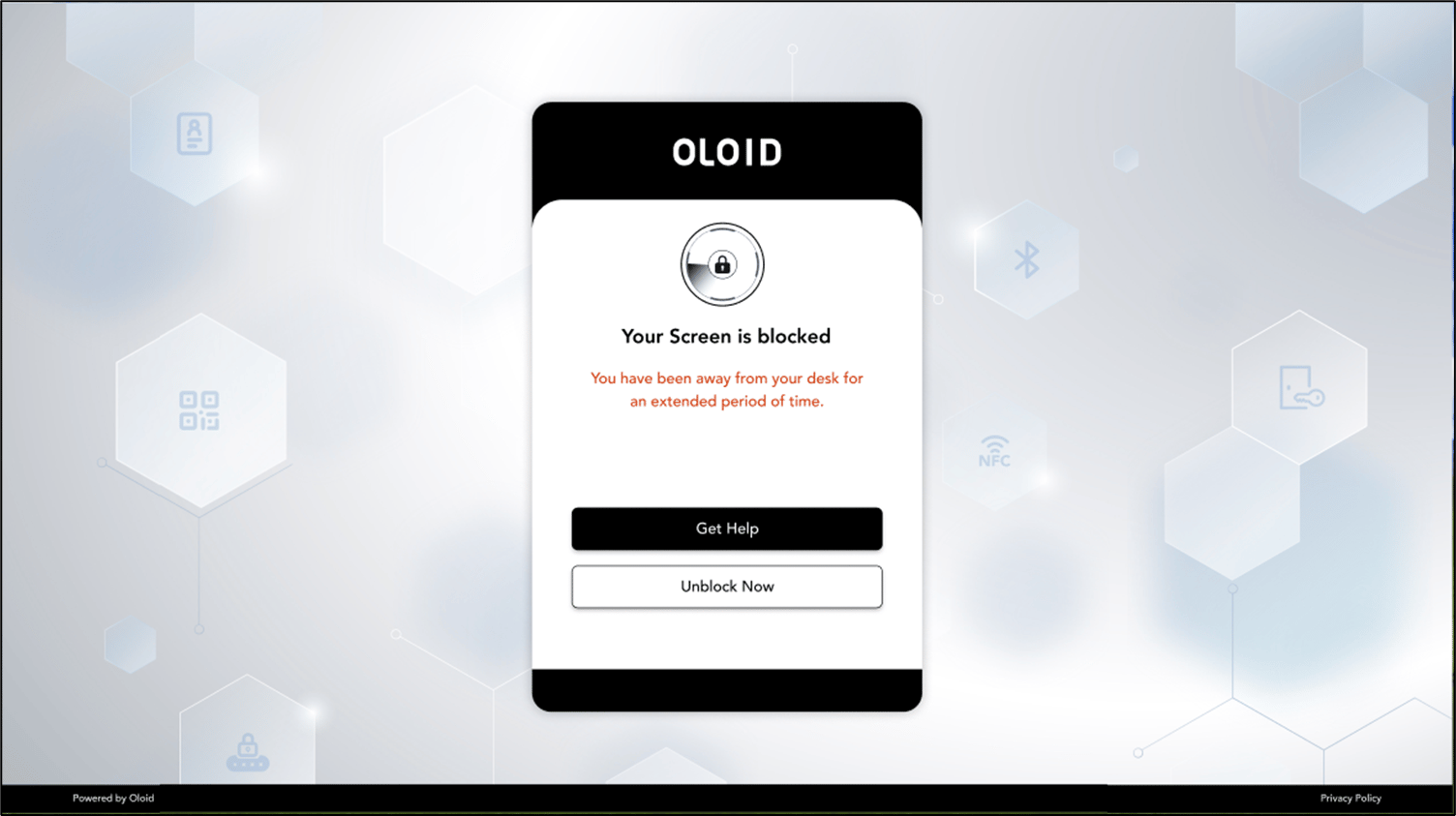
Face Tracking Violation: Turn on this button to detect if the system cannot track a face, which may indicate a security issue.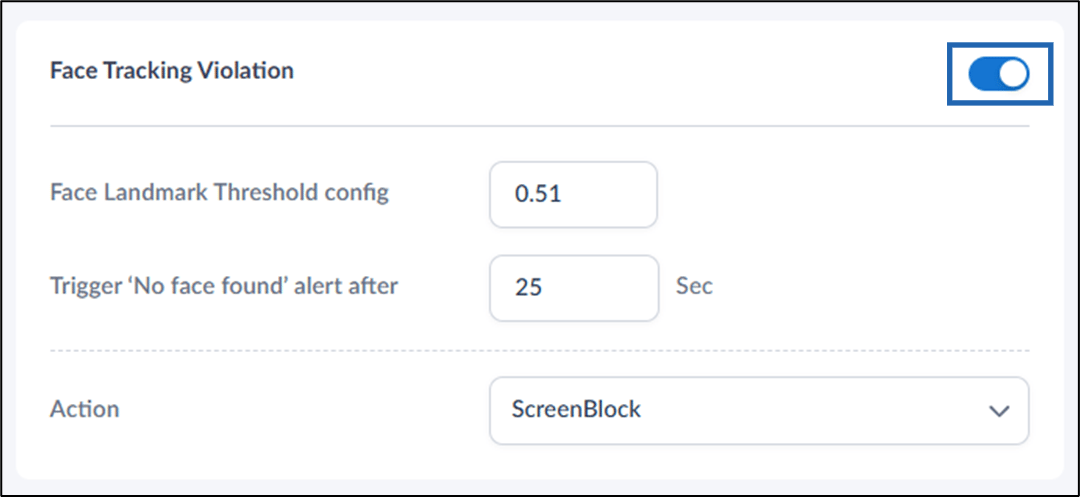
- Min required Face Landmark config: Set the required percentage of face visibility for face detection.
- Trigger ‘No Face Found’ alert after: Define the time (in seconds) after which an alert will be generated if no face is found.
- Action: Select a predefined action to take when a face tracking violation occurs.
- Screen Block: The user’s screen is blocked, but they are not logged out of their session. See, Sample screen for a blocked user
- Windows Lock: The user’s screen is locked, but they are not logged out of their session. See, Sample screen for a locked user
- No Action: No immediate response from the system, but a desktop notification may be sent if notifications are enabled in the browser settings.
Multiple Faces Detected
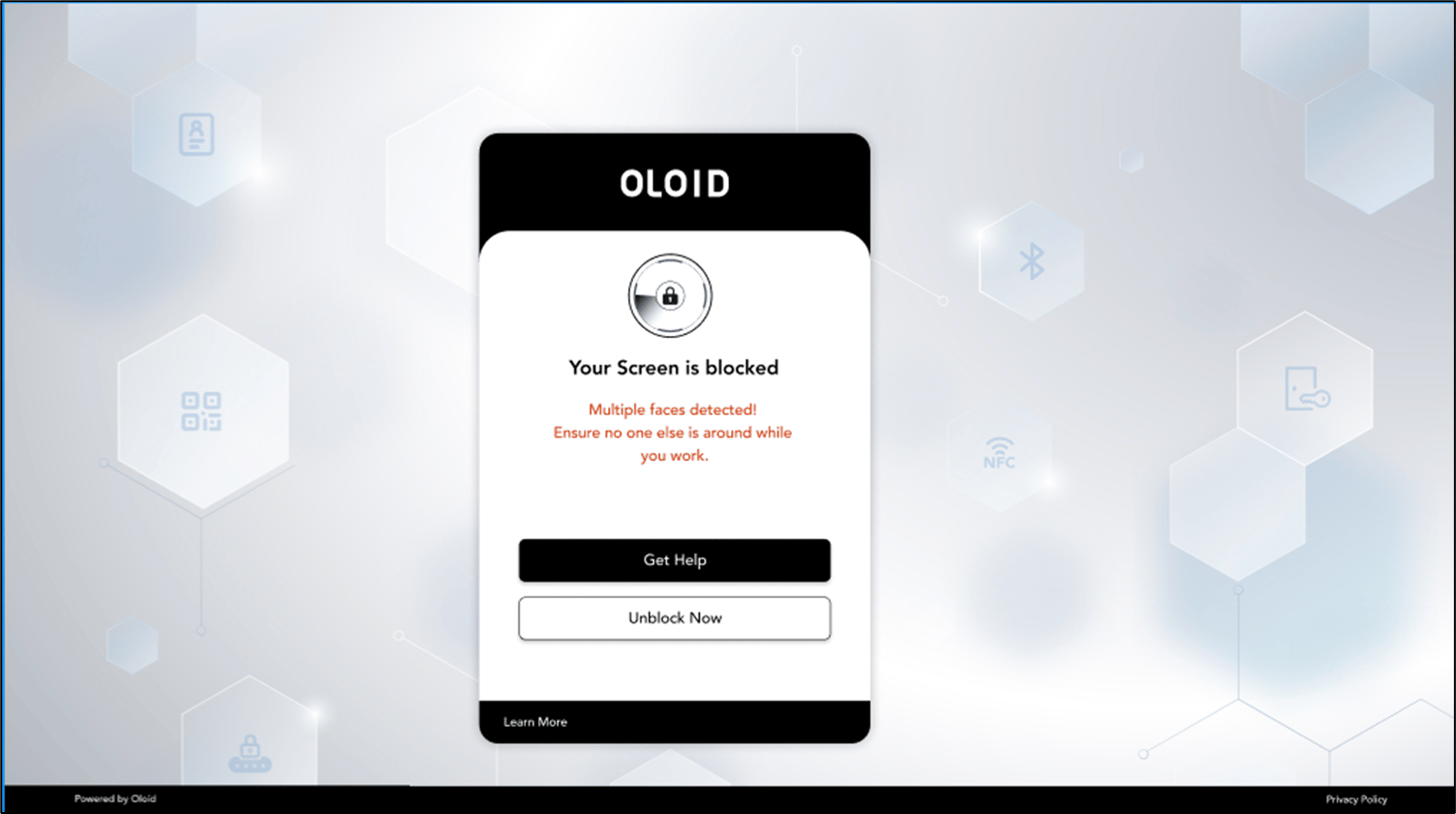
Multiple Faces Detected: Turn on this button to set an alert when more than one face is detected.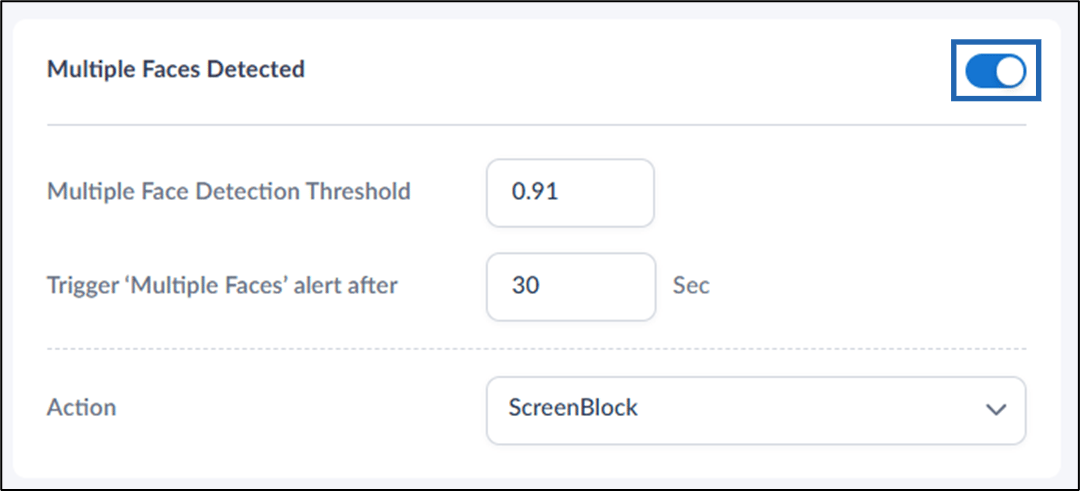
- Multiple Face Detection Threshold: Set the threshold level required to confirm the detection of multiple faces.
- Trigger ‘Multiple Faces’ alert after: Set the number of seconds after which an alert is triggered when multiple faces are detected.
- Action: Choose an action from a drop-down list in response to multiple face detection.
- Screen Block: The user’s screen is blocked, but they are not logged out of their session. See, Sample screen for a blocked user
- Windows Lock: The user’s screen is locked, but they are not logged out of their session. See, Sample screen for a locked user
- No Action: No immediate response from the system, but a desktop notification may be sent if notifications are enabled.
Gadget Detected
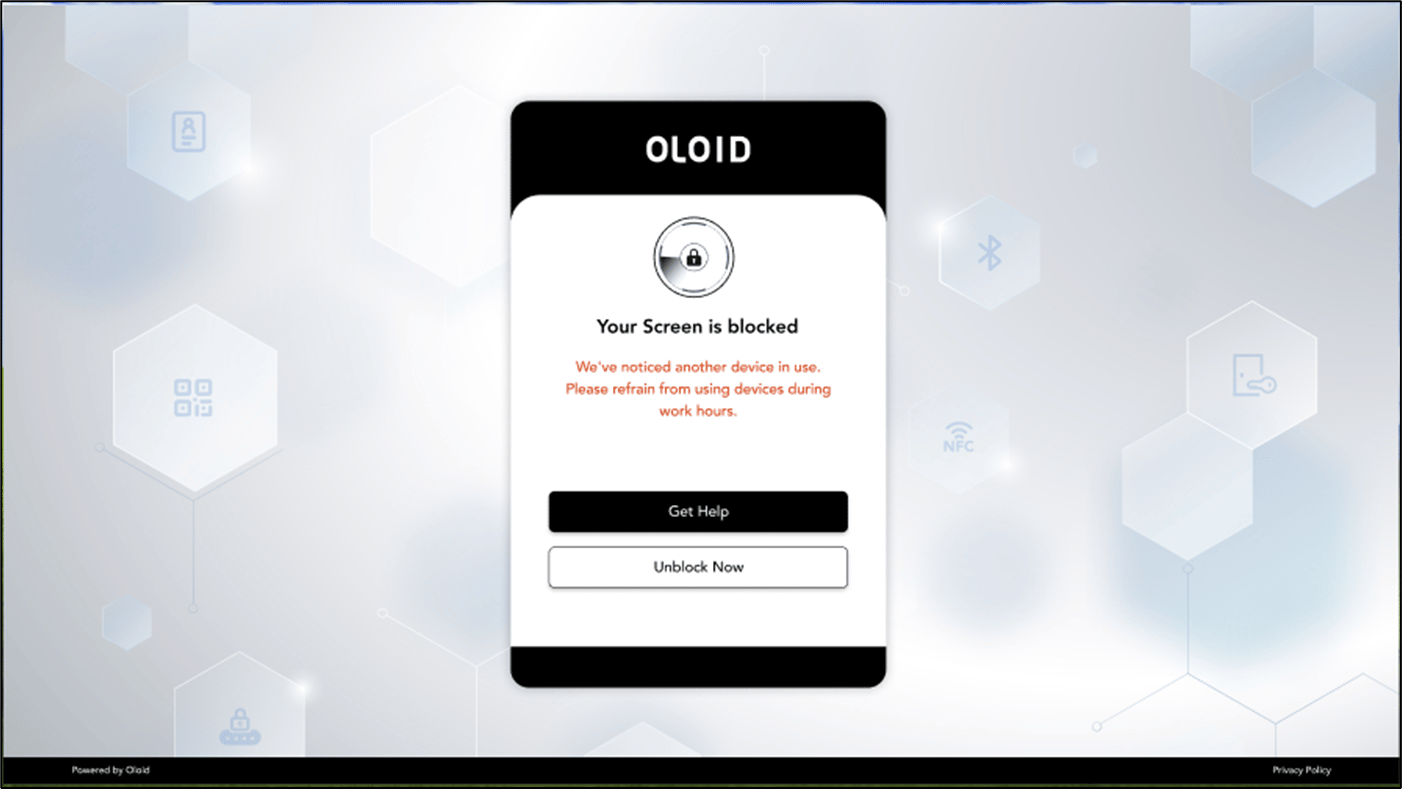
Gadget Detected: Turn on this button to set an alert when an unauthorized gadget is detected.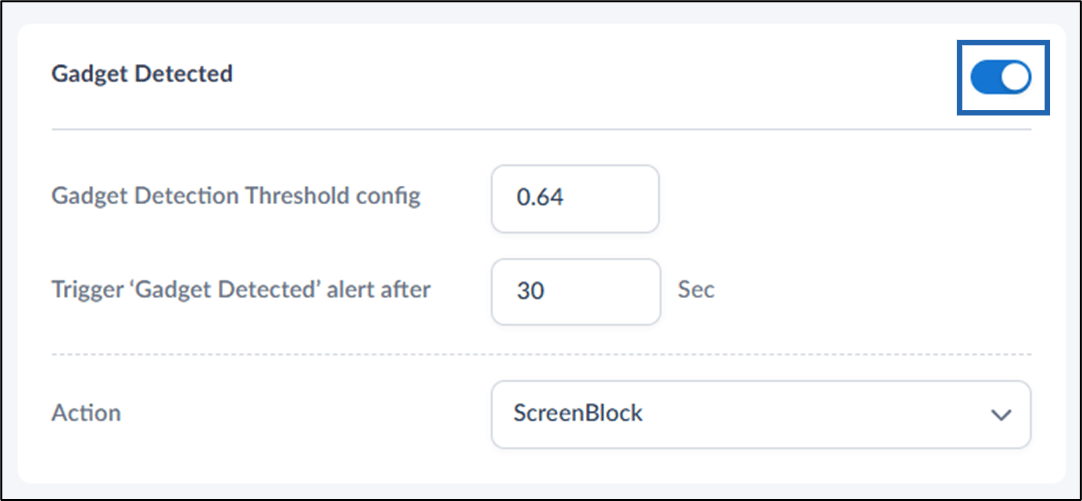
- Gadget Detection Threshold config: Set the threshold level based on the desired detection sensitivity for detecting gadgets.
- Trigger ‘Gadget Detected’ Alert After: Define the time (in seconds) after which an alert is generated when a gadget is detected.
- Action: Select the action to perform when an unauthorized gadget is detected.
- Screen Block: The user’s screen is blocked, but they are not logged out of their session. See, Sample screen for a blocked user
- Windows Lock: The user’s screen is locked, but they are not logged out of their session. See, Sample screen for a locked user
- No Action: No immediate response from the system, but a desktop notification may be sent if notifications are enabled.
Video Tutorial
Watch the video How to configure Windows alert for presence detection in Oloid PlatformSample User Screens
Scenario 1: User Blocked screenScreen block as Non-Oloid Login detected
Screen block as Camera issue detected
Screen block on Multiple faces detected
Screen block on Face Tracking Violation
Screen block on Gadgets detected
Windows Lock Screen