

- Log in to Oloid Portal.
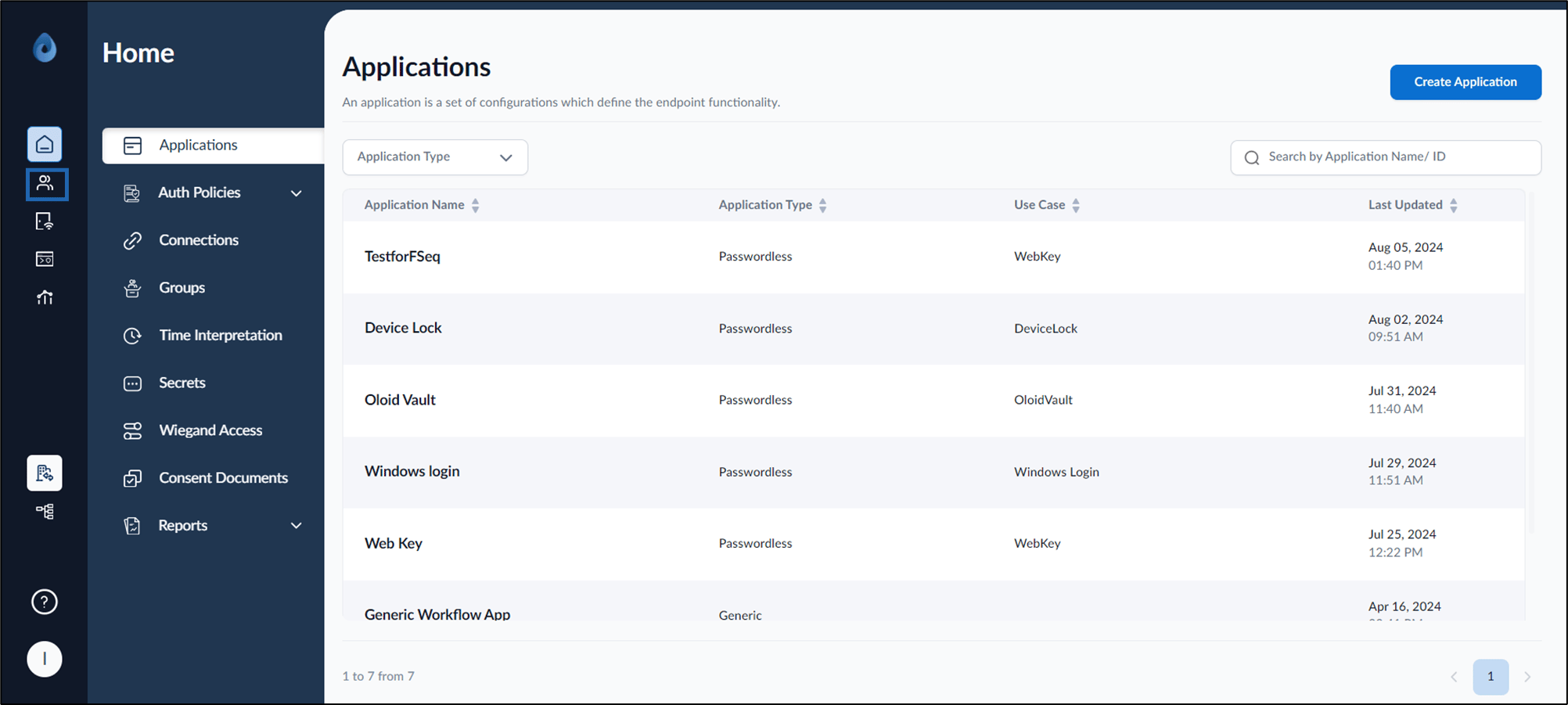
- On the homepage, click Directory from the left menu panel.
- Do one of the followings.
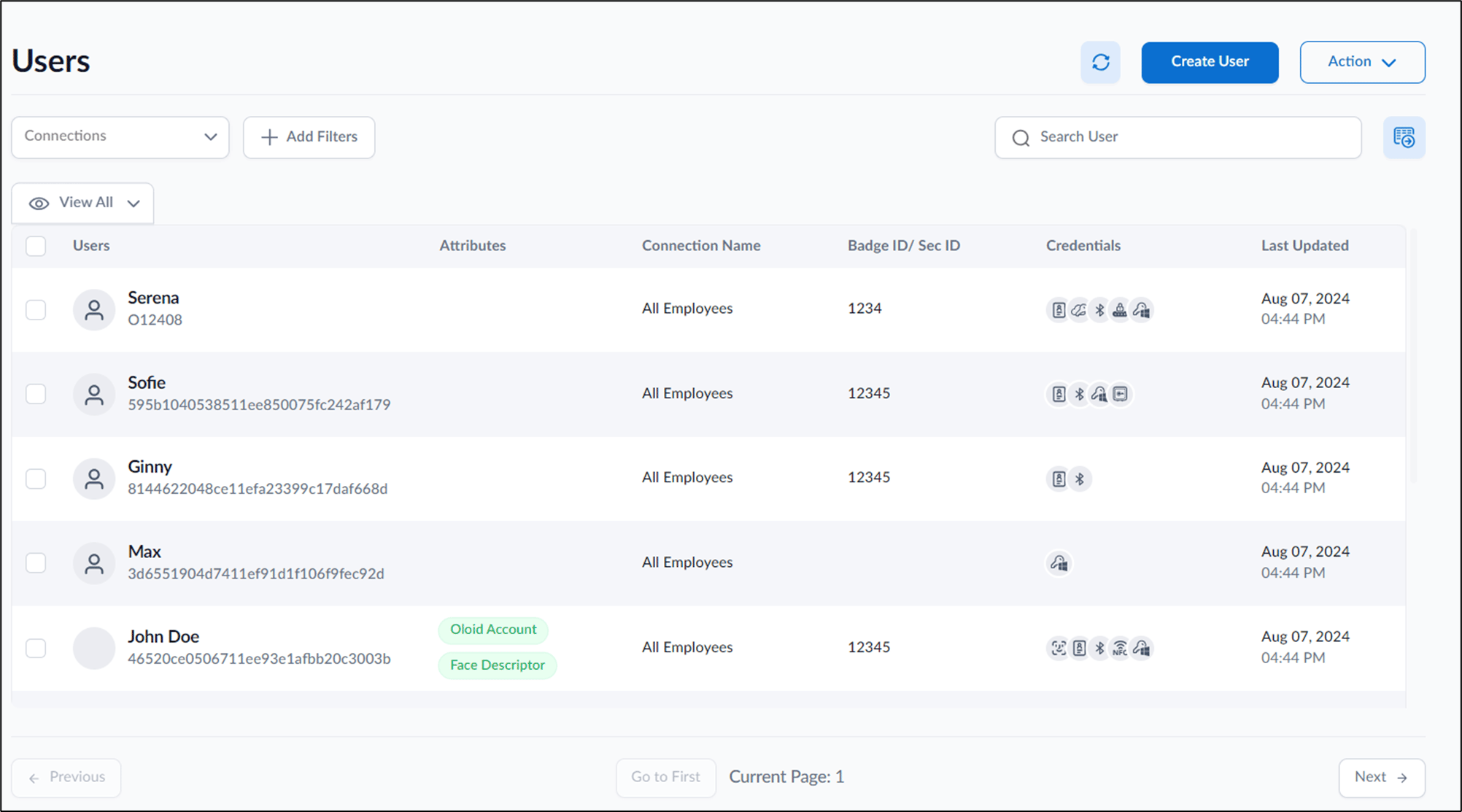
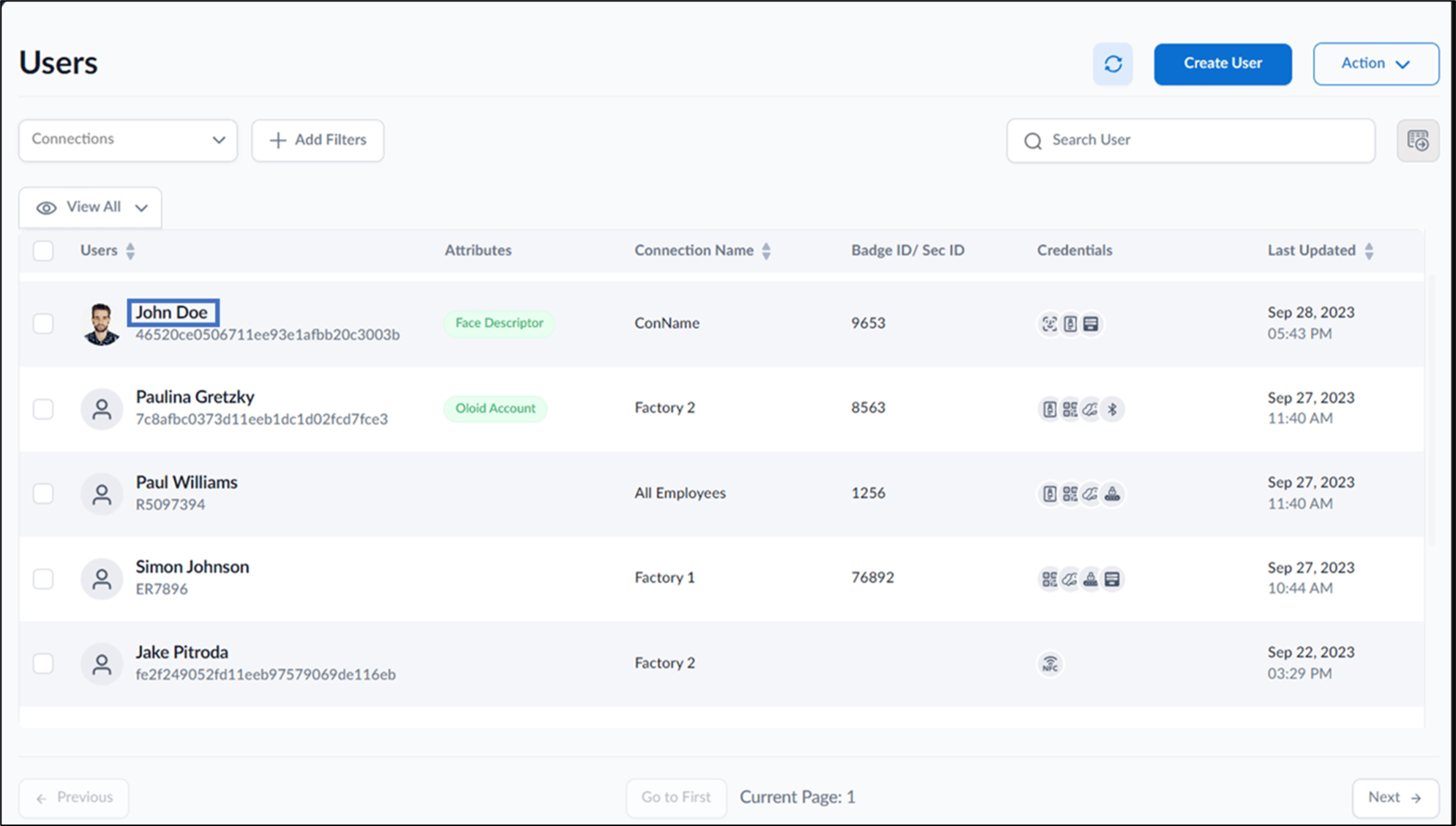
- Select user (s) and then click Action > Send Email > Send QR code link.

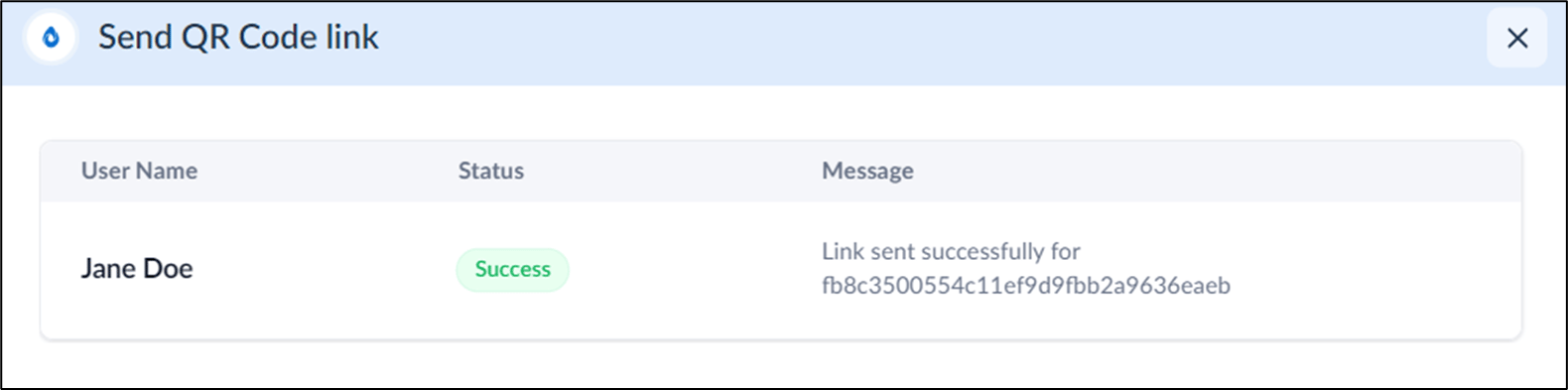
- Click user name to edit.
- Go to Credentials tab > QR Code > select Send User Portal Link.

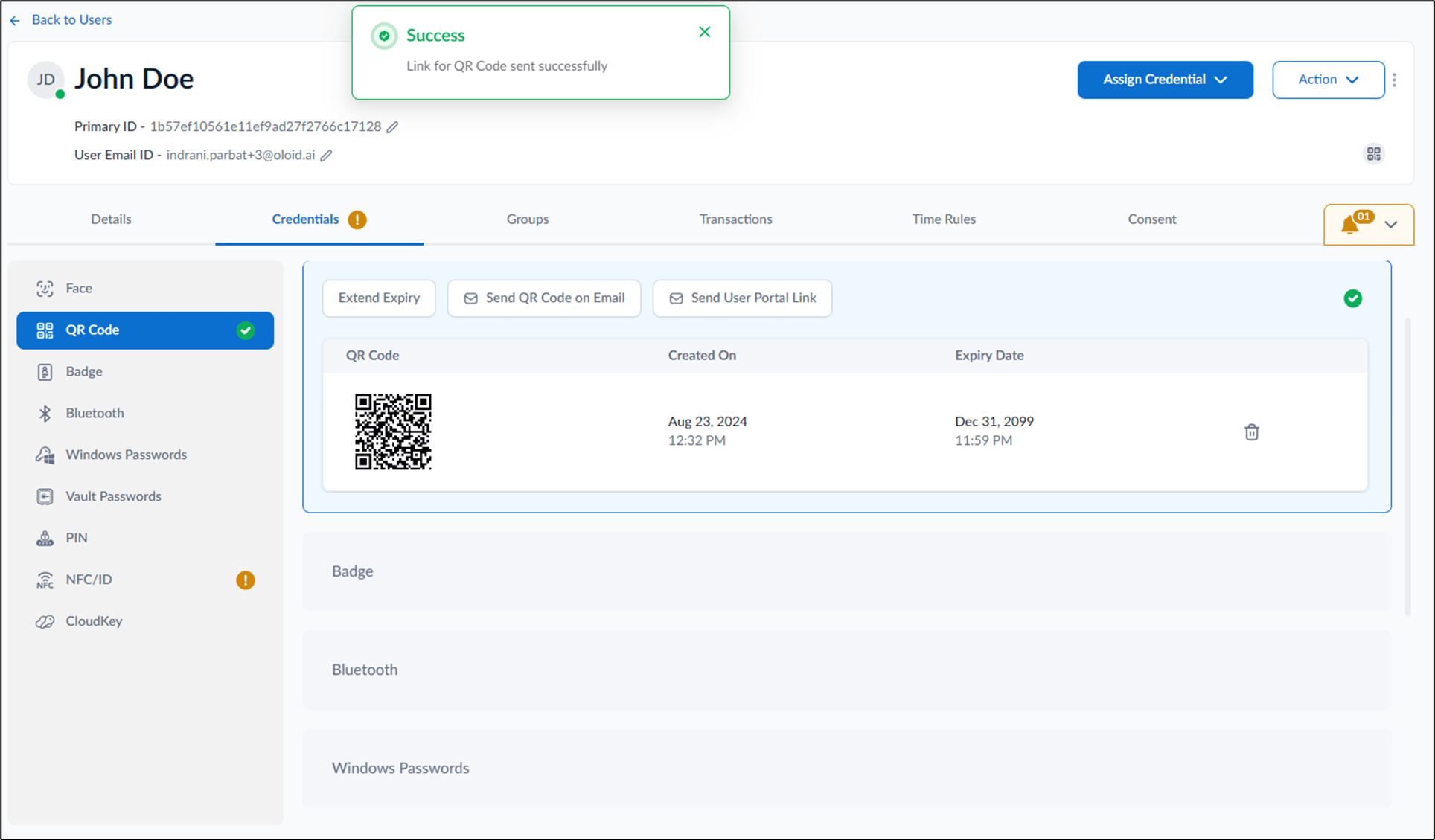
- Go to Credentials tab > QR Code > select Send User Portal Link.
- Select user (s) and then click Action > Send Email > Send QR code link.
- Click the link.

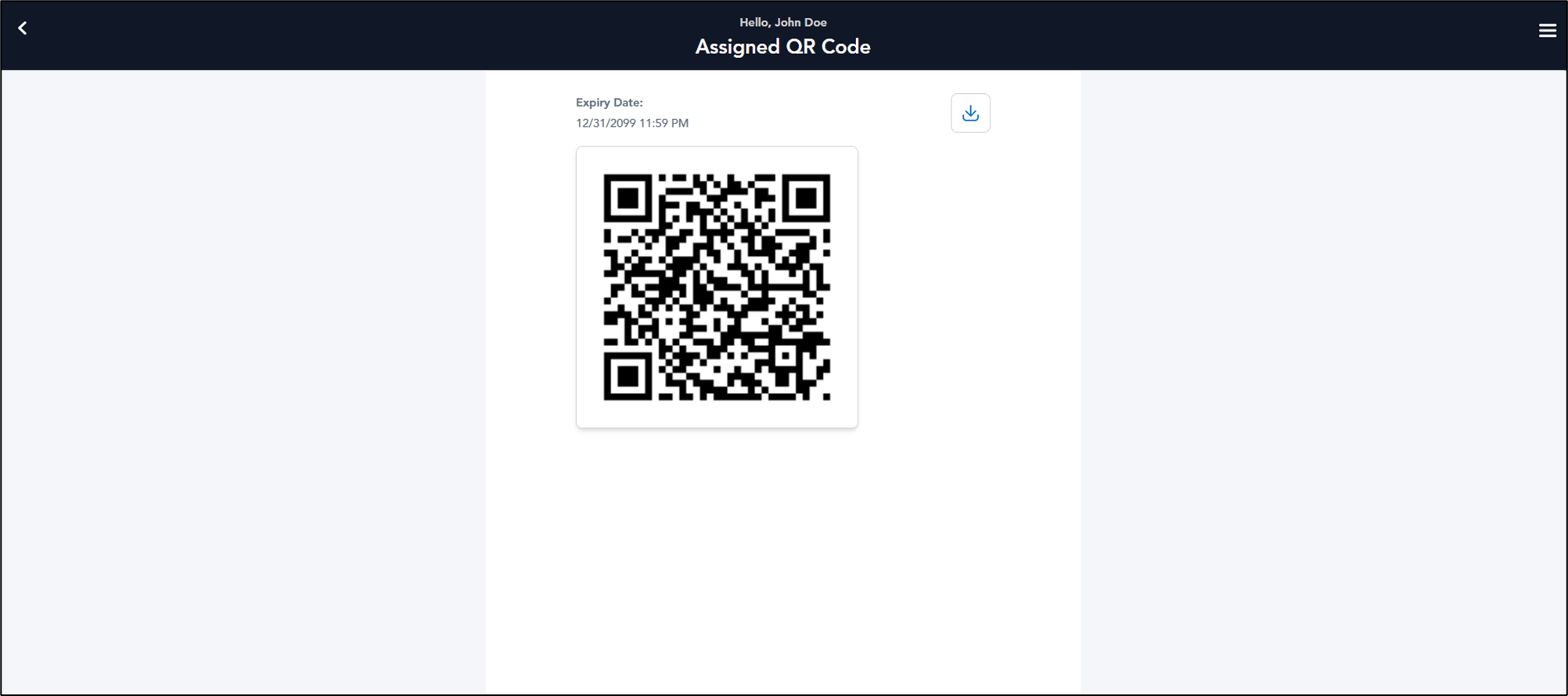
How to send QR code link using Oloid Portal
The document provides step-by-step instructions to send QR code link using Oloid Portal.
Steps to send QR code link:
⌘I