Introduction
The Tenant Admin Portal allows Admin to reset a user’s PIN for secure login. Admin can either update the PIN directly or send a reset PIN email to the user. These options enable quick PIN recovery and help maintain uninterrupted user access.Steps to reset PIN
- Log in to the Tenant Admin Portal.
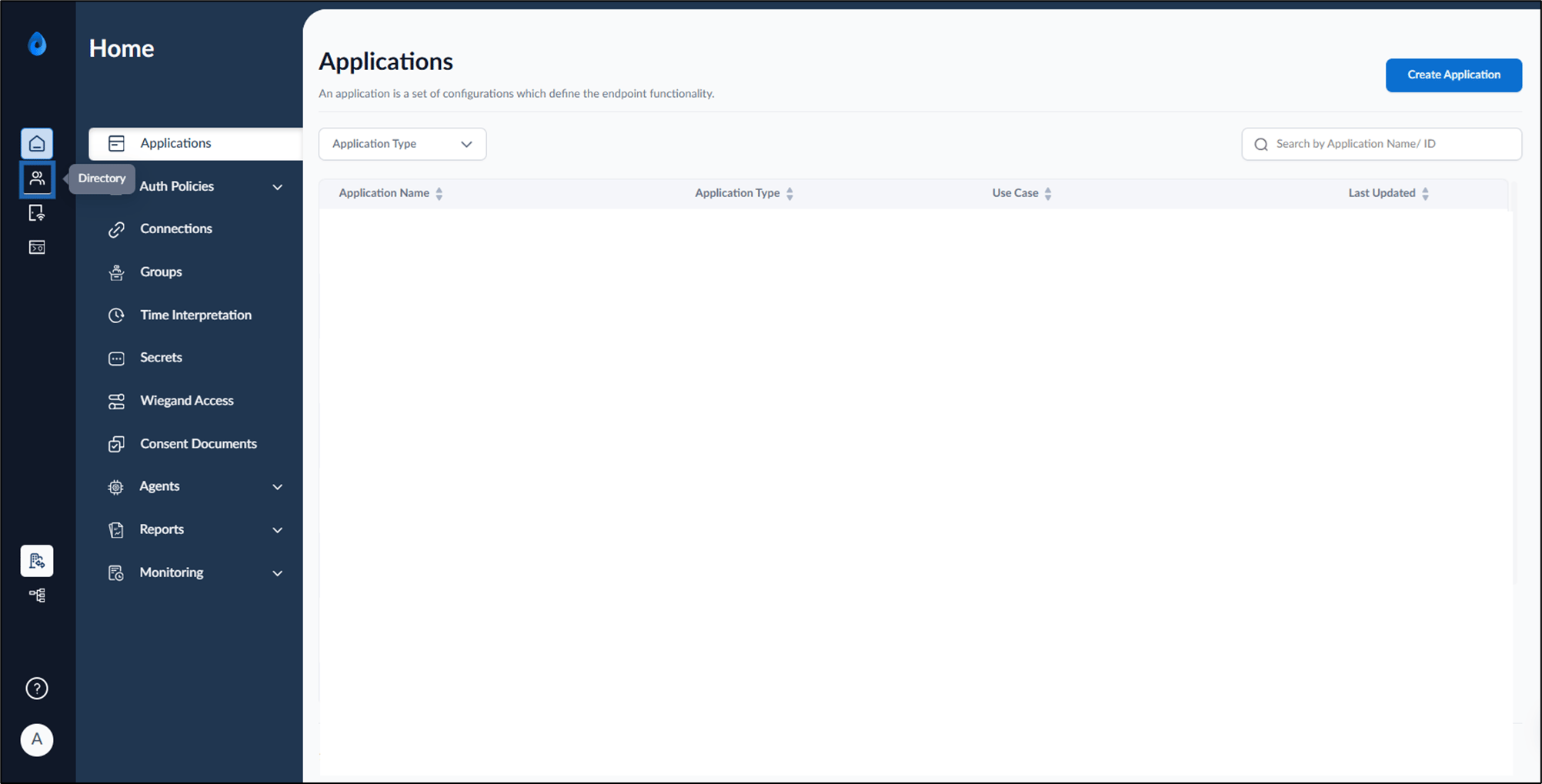
- On the homepage of the portal, click Directory on the left menu panel.
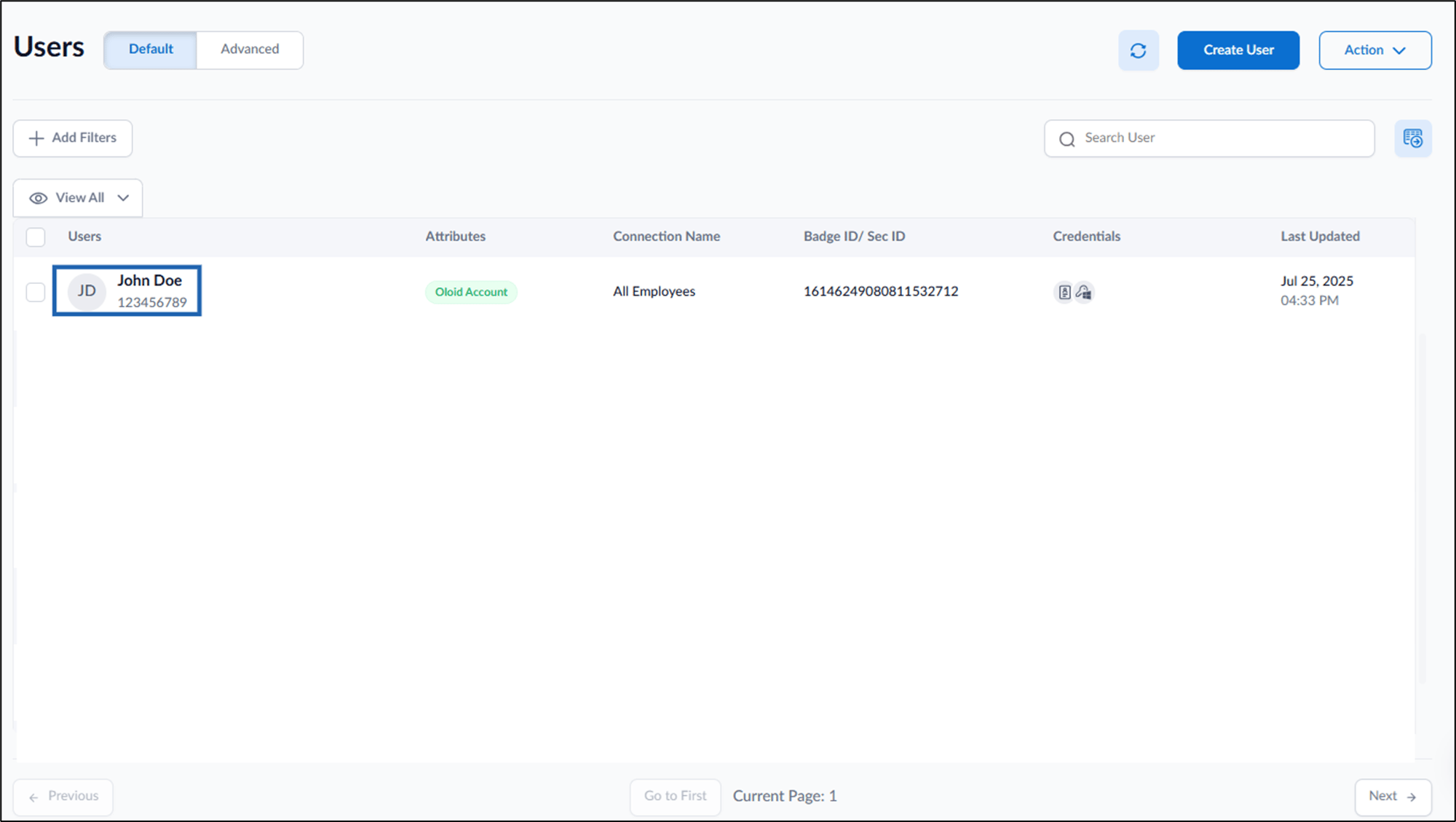
- Click user name to edit.
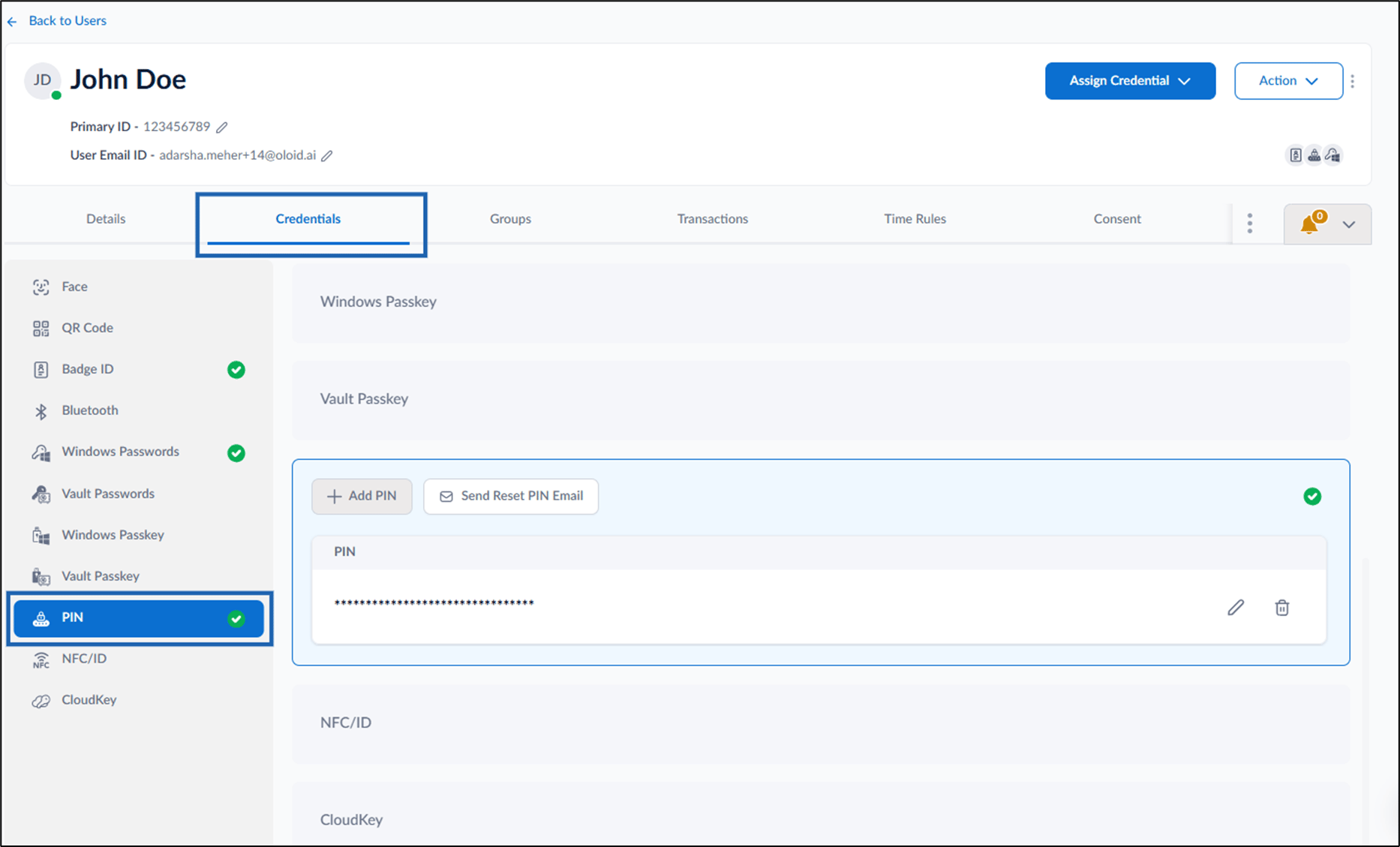
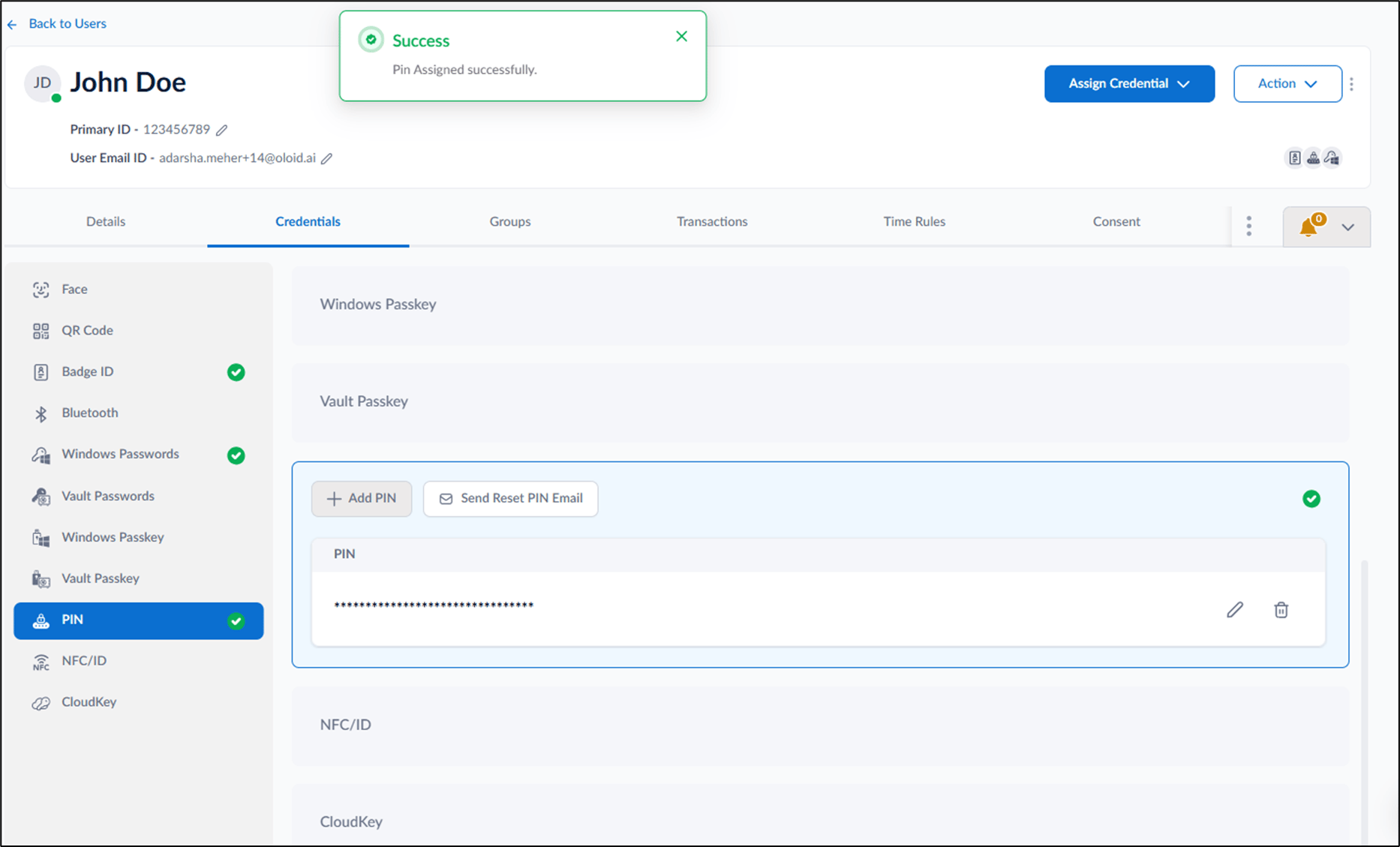
- Go to Credentials tab > select PIN from the left menu panel.
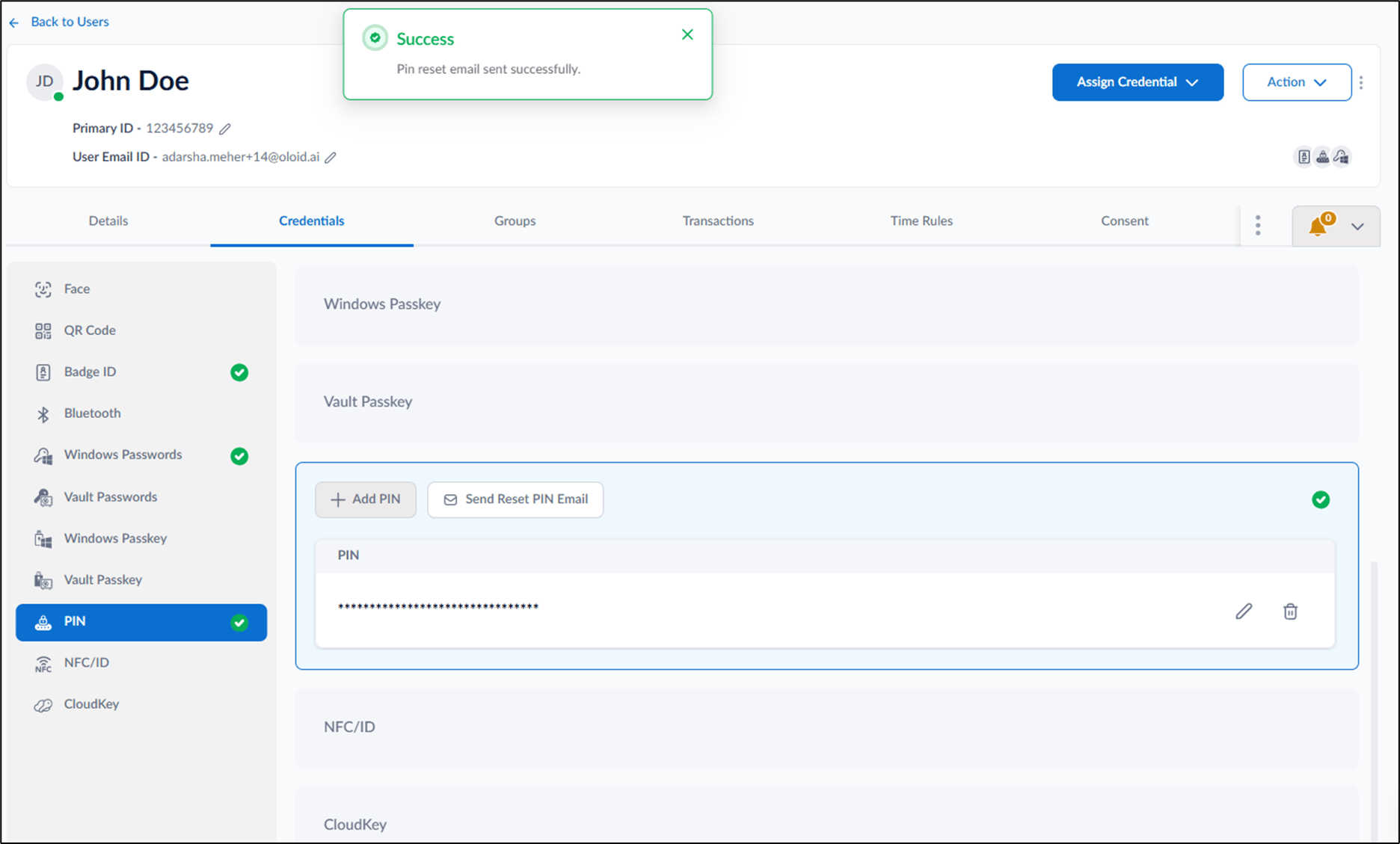
- Do one of the following: a. Edit PIN or b. Send reset PIN email The pin is updated successfully.
Edit PIN
- Select Edit icon.

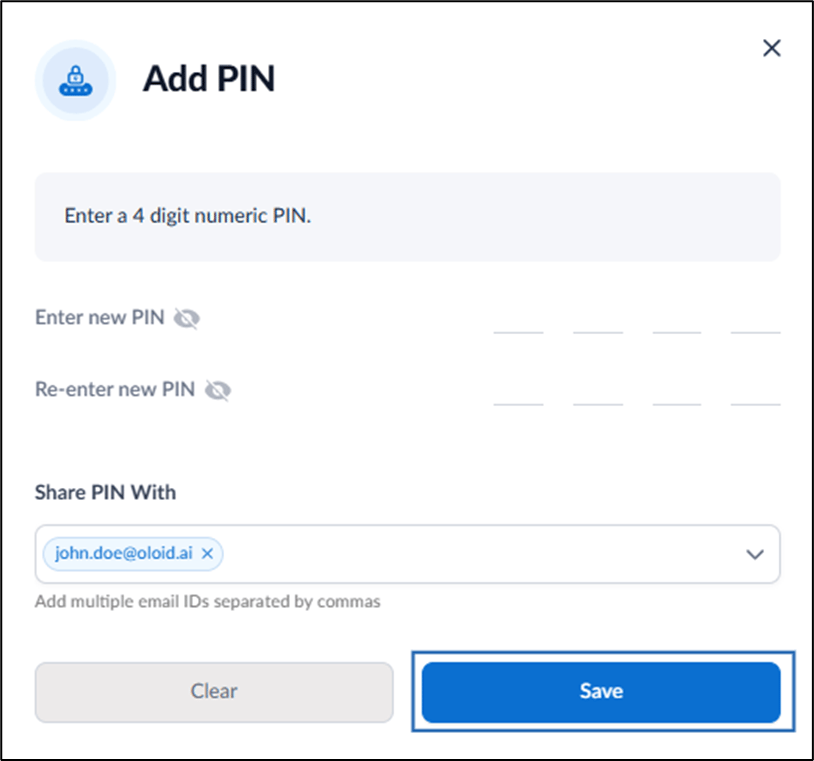
- On the pop-up box, do the following:
- Enter new PIN.
- Re-enter new PIN.
- Enter the recipient’s email address to share the PIN.
- Click Save.
Send reset PIN email
- Select Send Reset PIN Email.

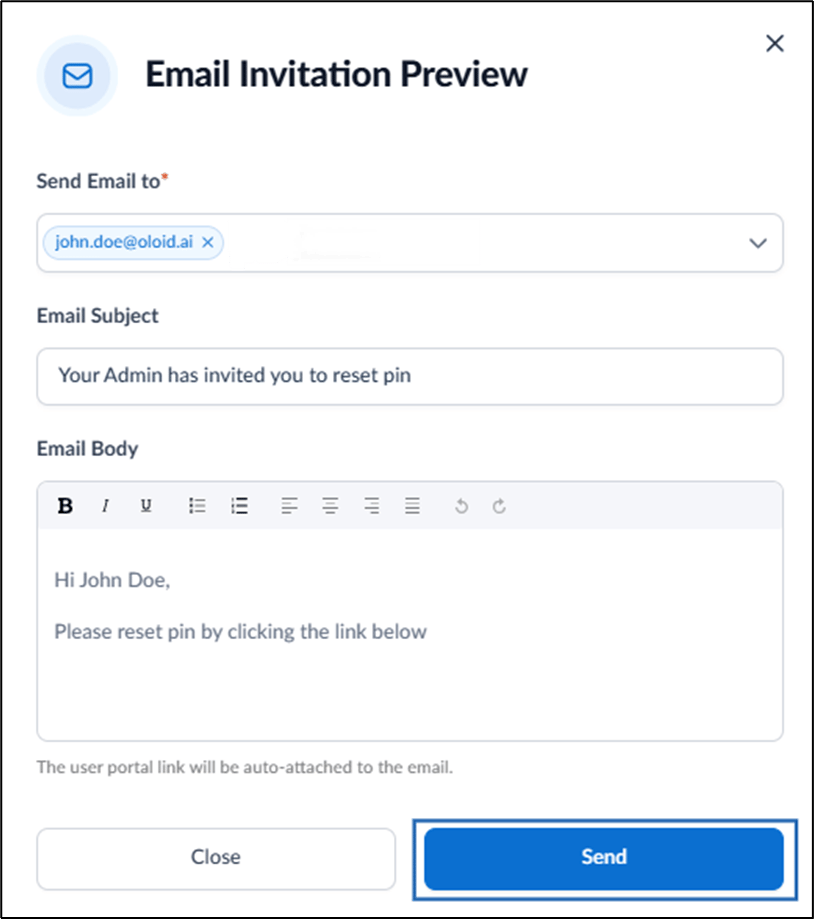
- On the pop-up box, do the following:
-
Enter recipient email address.
Note: The registered email ID will appear as the default.
- Enter Email Subject.
- Enter message in the Email Body.
-
Click Save.
Note: The user portal link will be auto-attached to the email.
-
Enter recipient email address.