

Introduction
The Tenant Admin Portal allows admins to configure a consent template to obtain user approval before capturing and storing facial data.Prerequisites
- You must create a Consent template. To create refer How to create a Consent Template.
- You must have a Tenant Admin Account.
Steps to add Consent
- Log in to the Tenant Admin Portal.
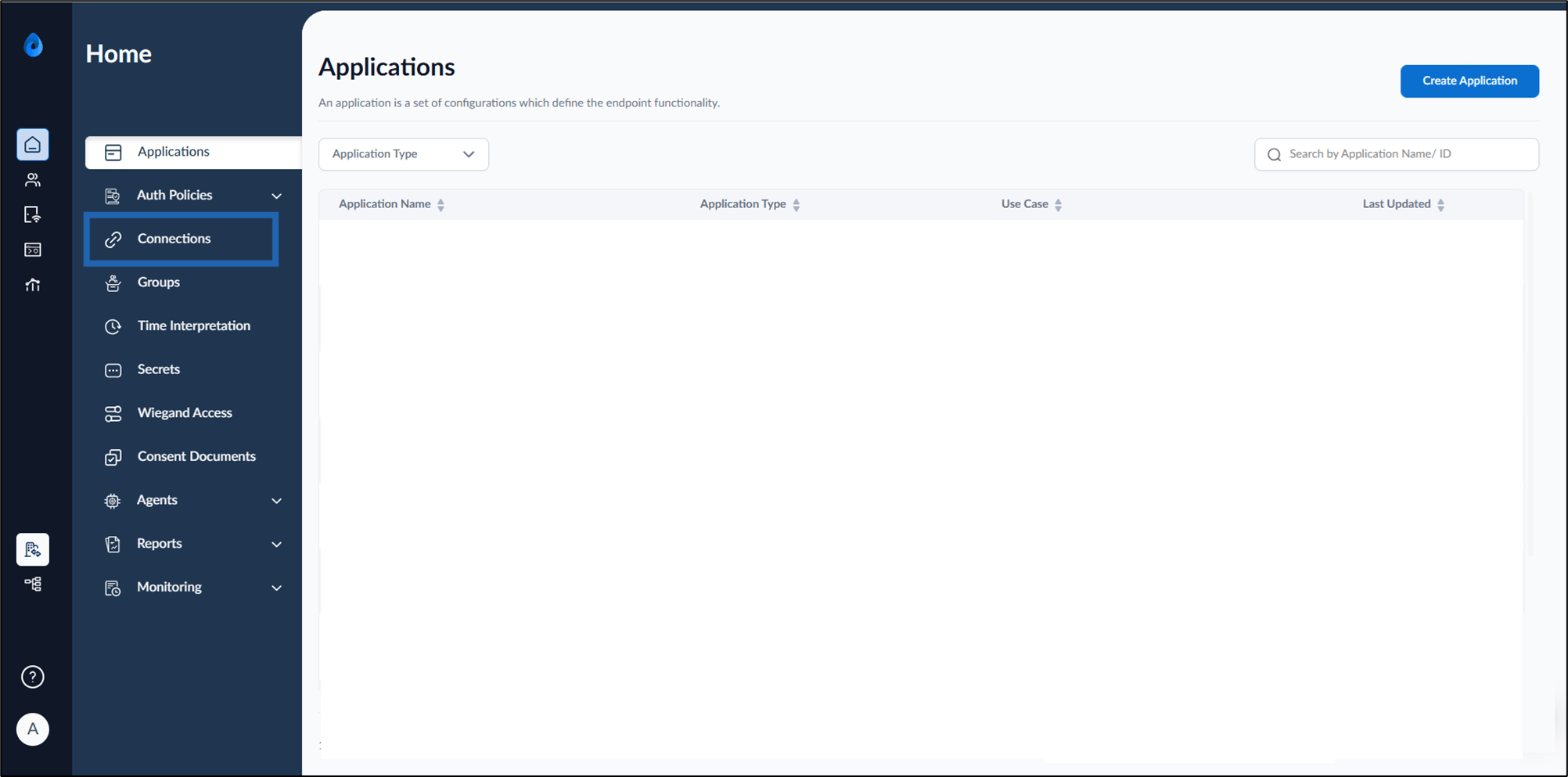
- On the home page of the portal, click Connections on the left menu panel.
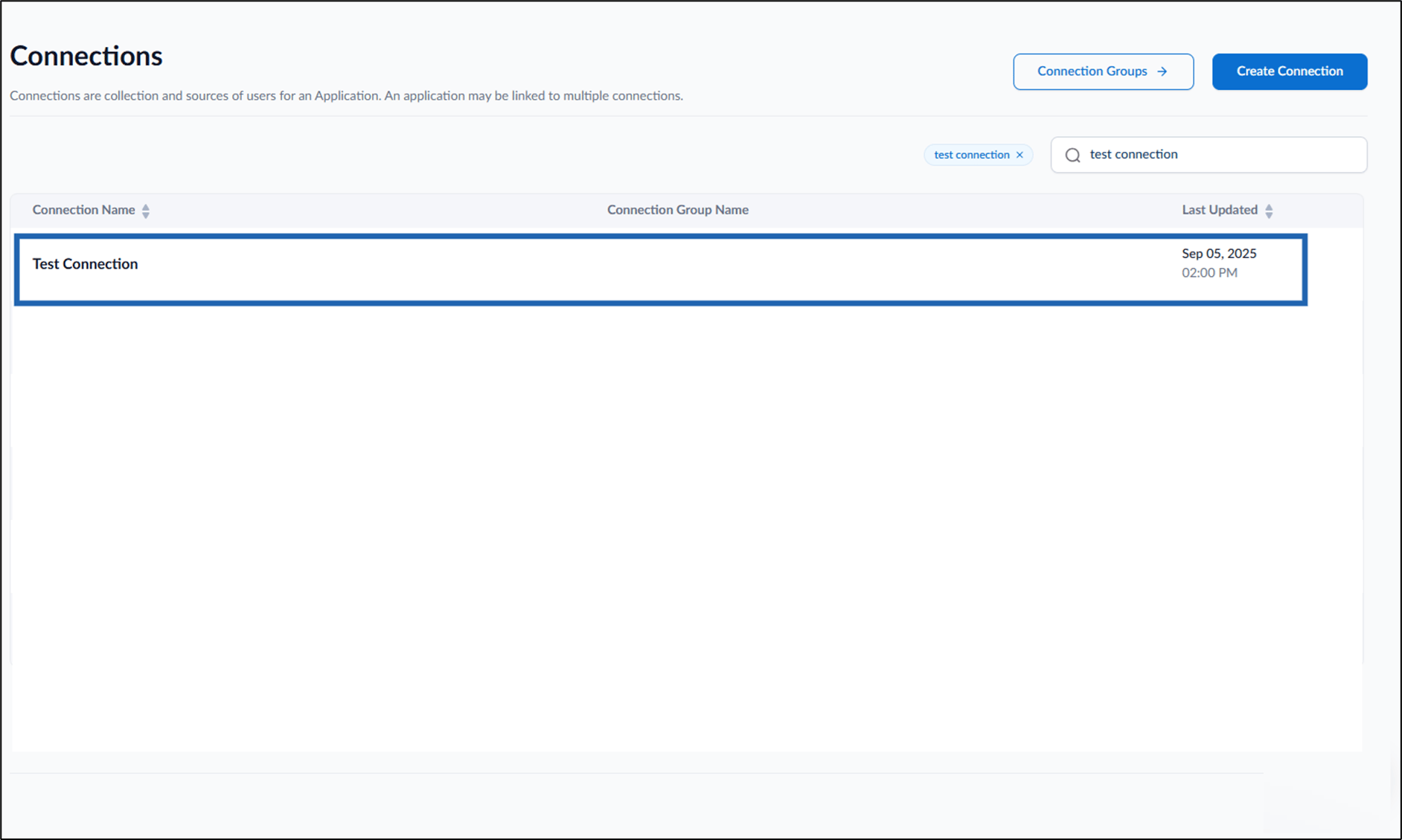
- Select a connection name to edit.
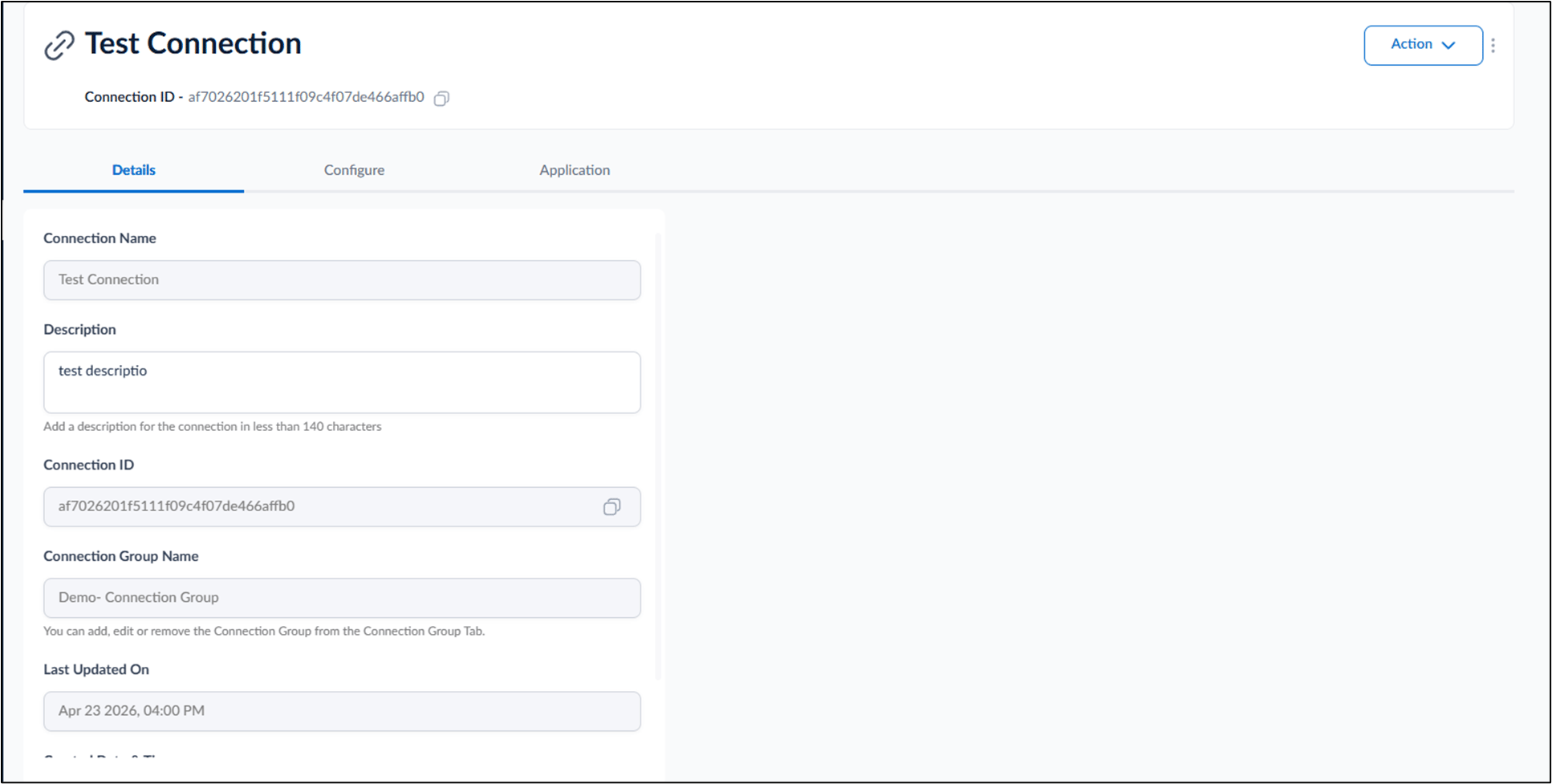
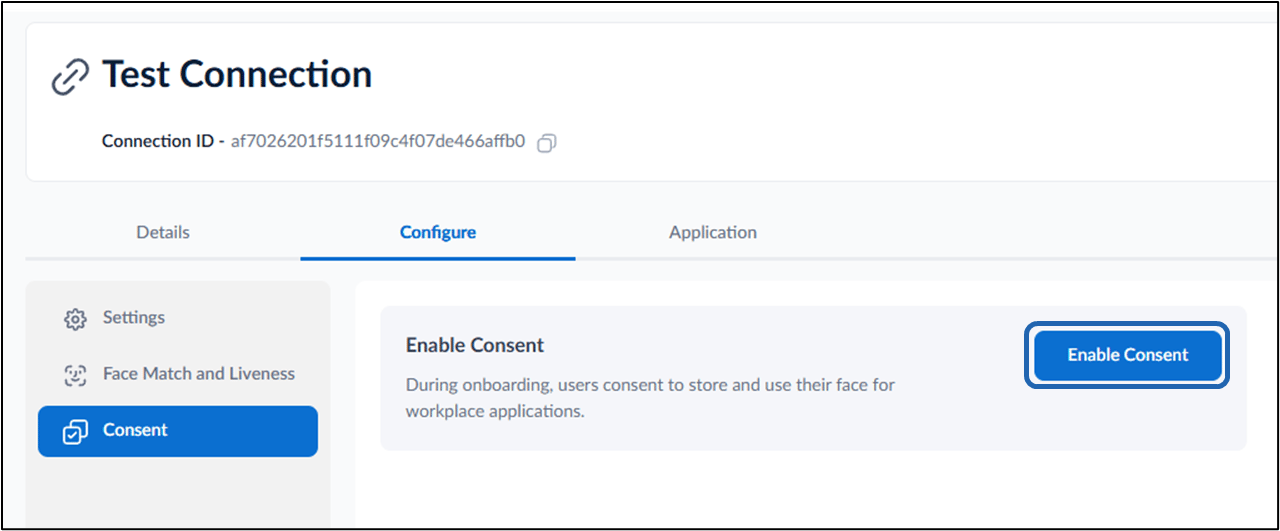
- Click Configure tab then select Consent tab.
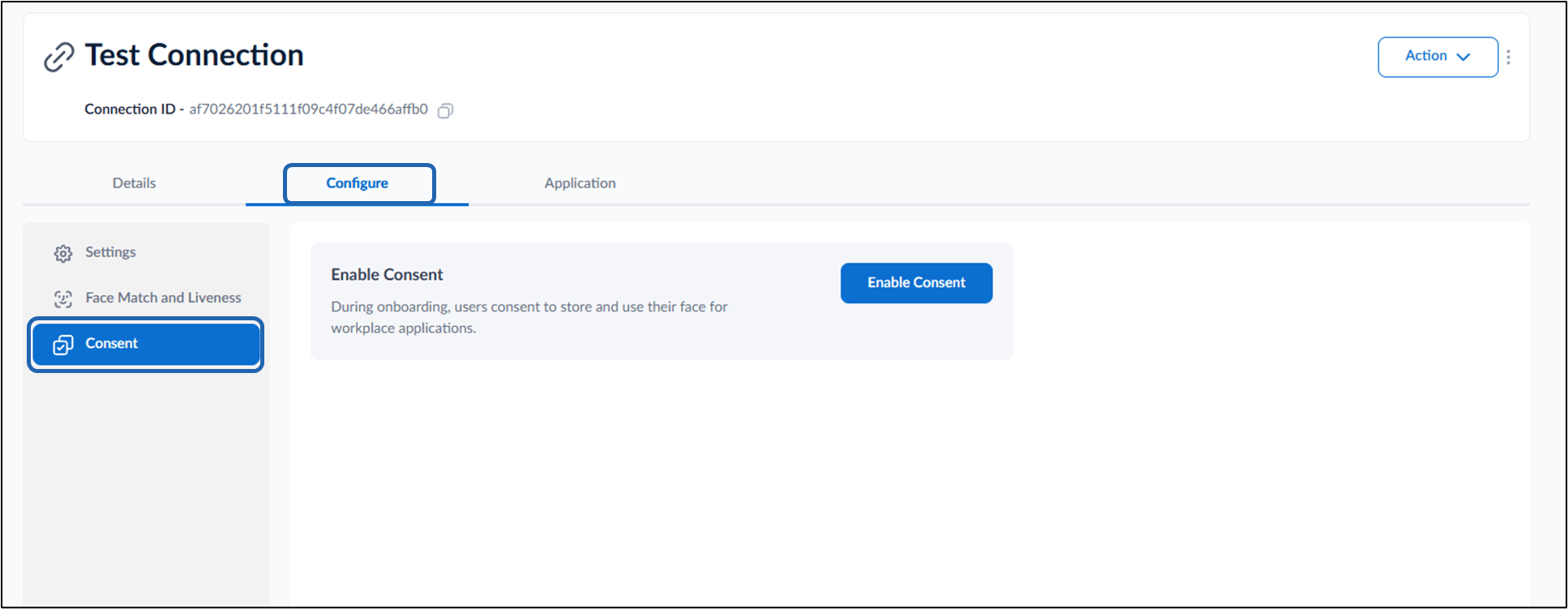
- Click Enable Consent.
- Do the following:
-
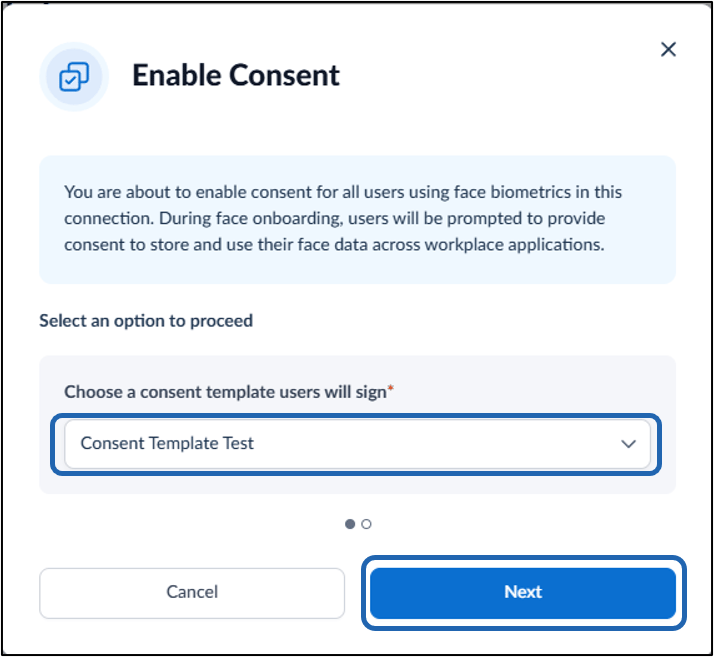
Select the applicable Consent Template from the dropdown list.
Note: To create a consent template, refer How to create a Consent Template.
-
Click Next.
-
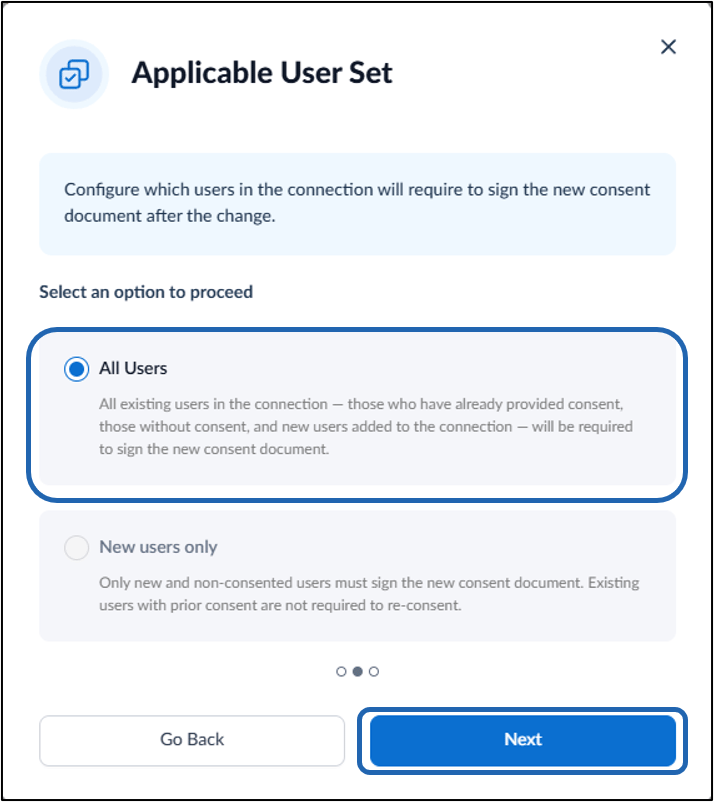
Select All Users > Click Next.
-
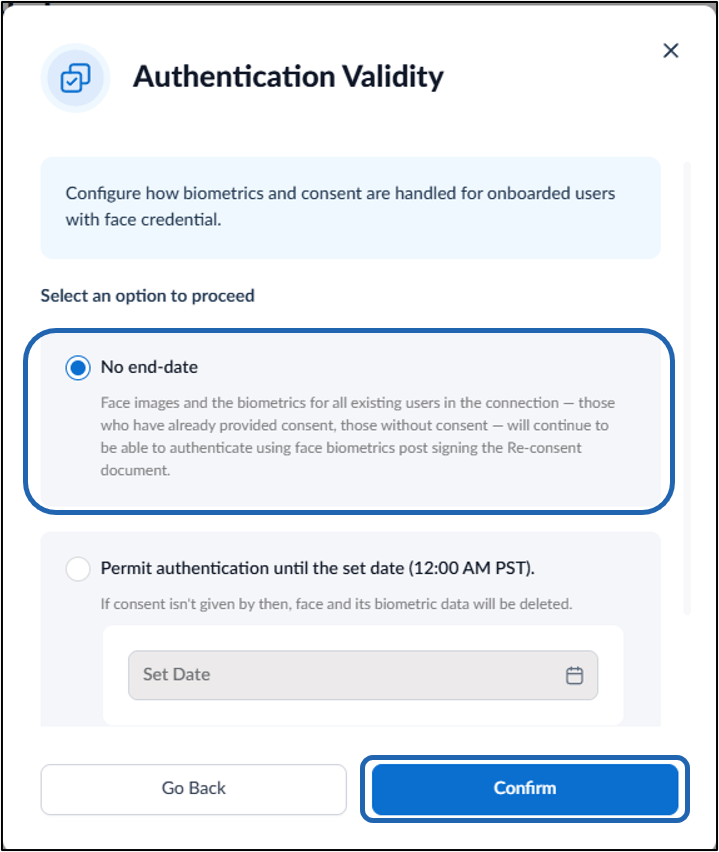
Do one of the following:
- No end-date: Select this option to allow authentication without a defined end date. Face images and biometric data for all users in the connection whether they have already provided consent or have not yet provided will remain valid, and users will continue to authenticate using face biometrics after signing the re-consent document. OR
-
Permit authentication until the Set Date: Select this option and enter the preferred date.
Note: If consent is not provided by the selected date, the face data and associated biometric information will be deleted.
-
Click Confirm.
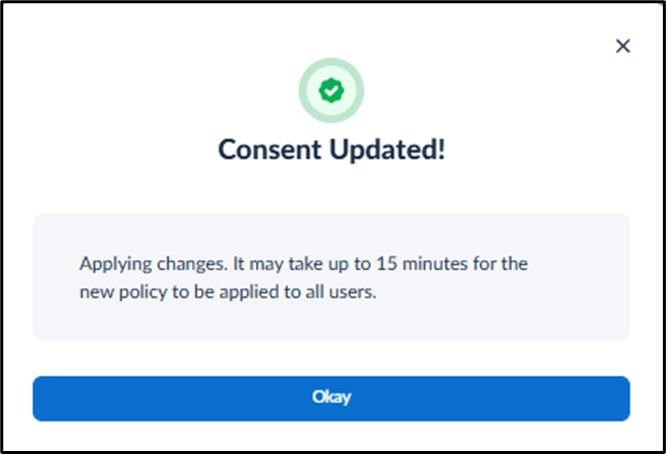
- Consent Updated popup box is displayed.
-
Click Okay.
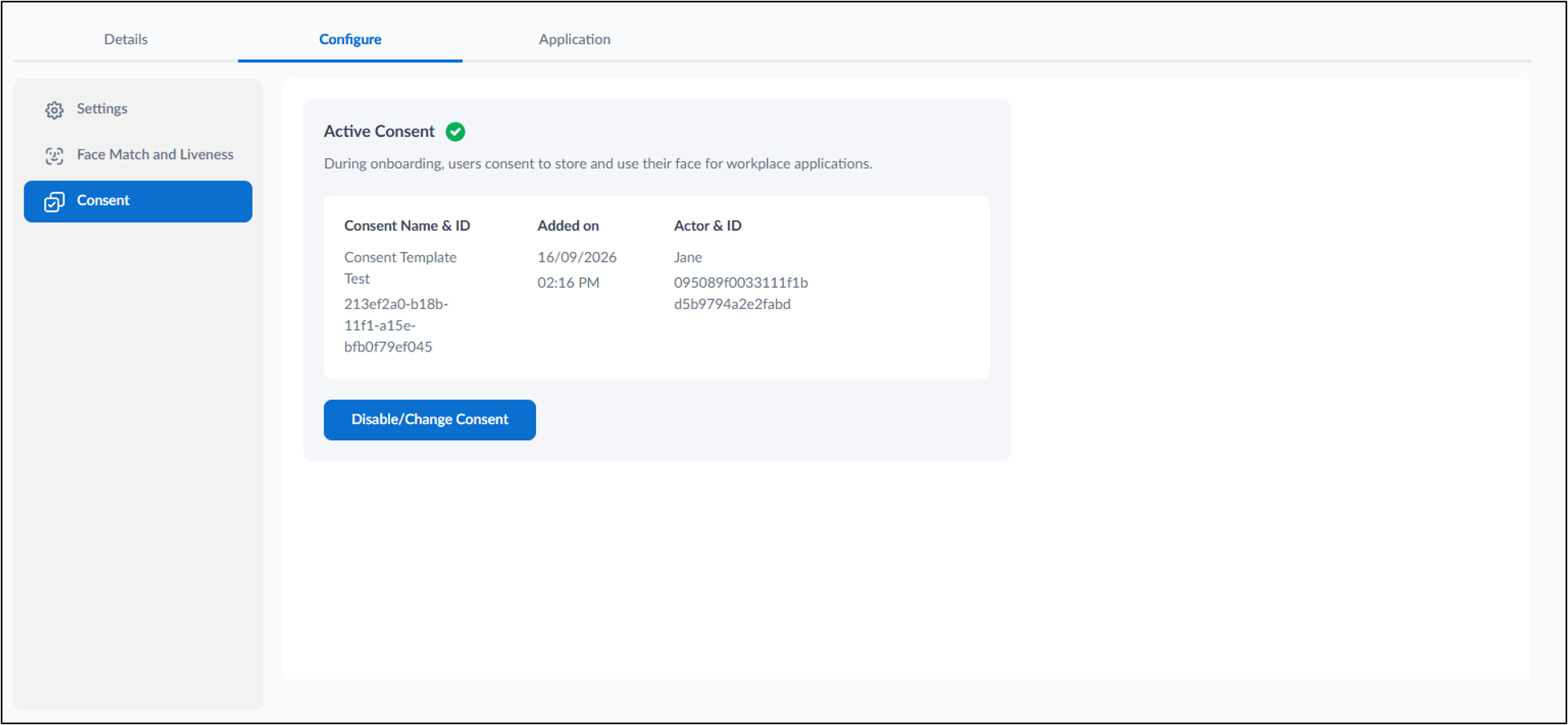
-
Select the applicable Consent Template from the dropdown list.