Introduction
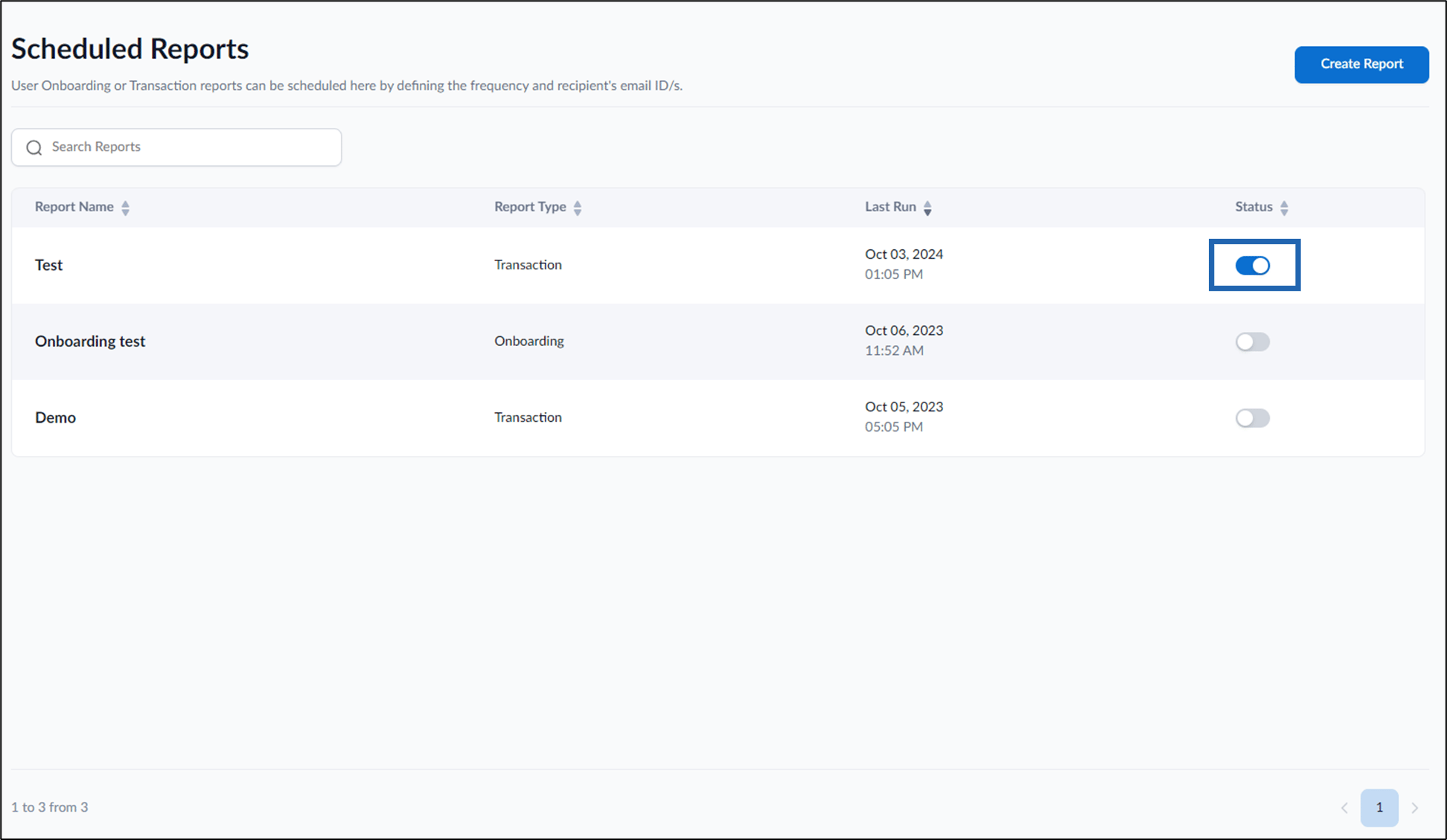
A Scheduled Transaction Report can be configured to schedule the report generation frequency and send it to the customers through email.Prerequisite
- You must have a Tenant Admin account.
- The Scheduled Transaction Report must be created. Refer: How to create a scheduled Transaction Report
Steps to configure Scheduled Transaction Report
- Log in to the Tenant Admin Portal.
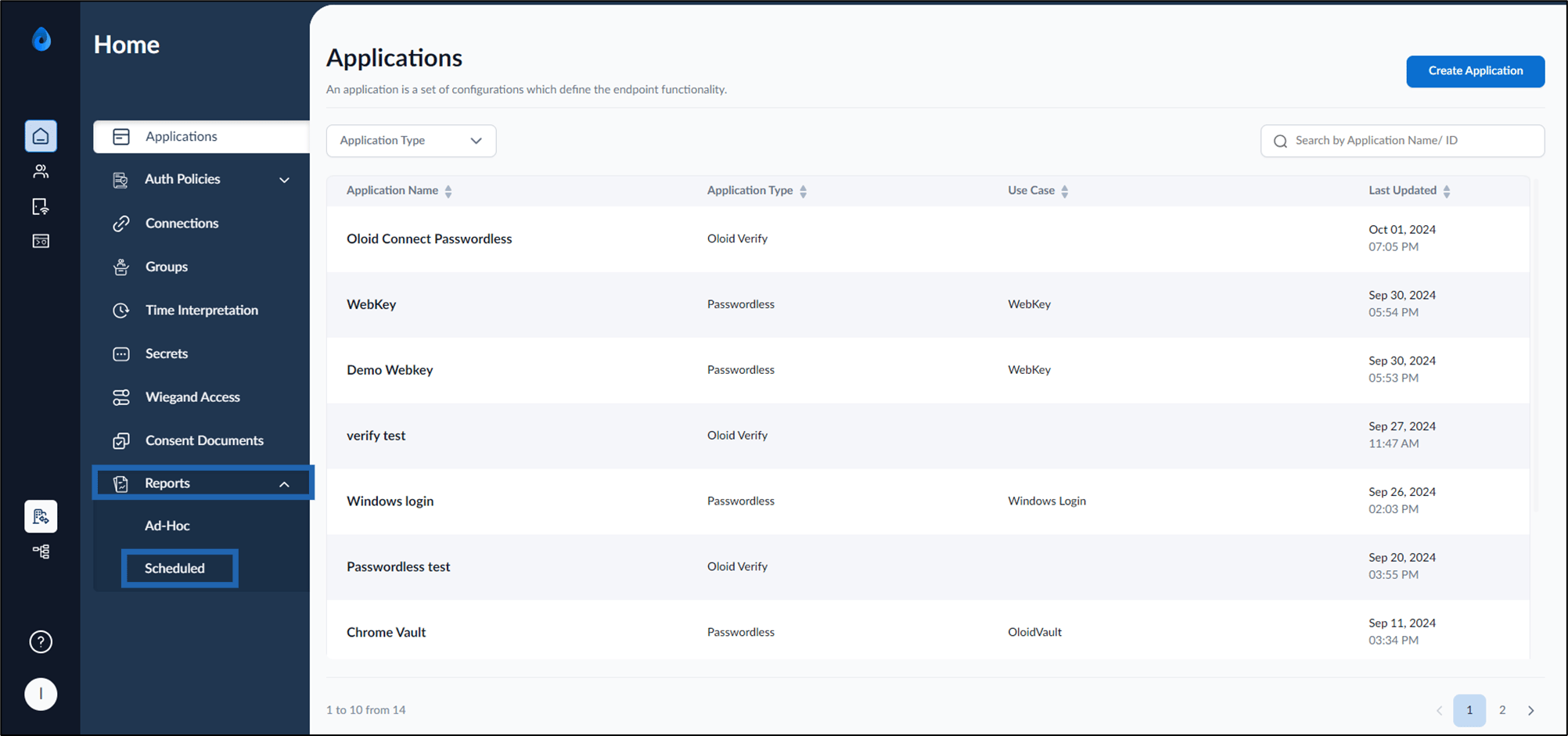
- On the homepage, click Reports > Scheduled on the left menu panel.
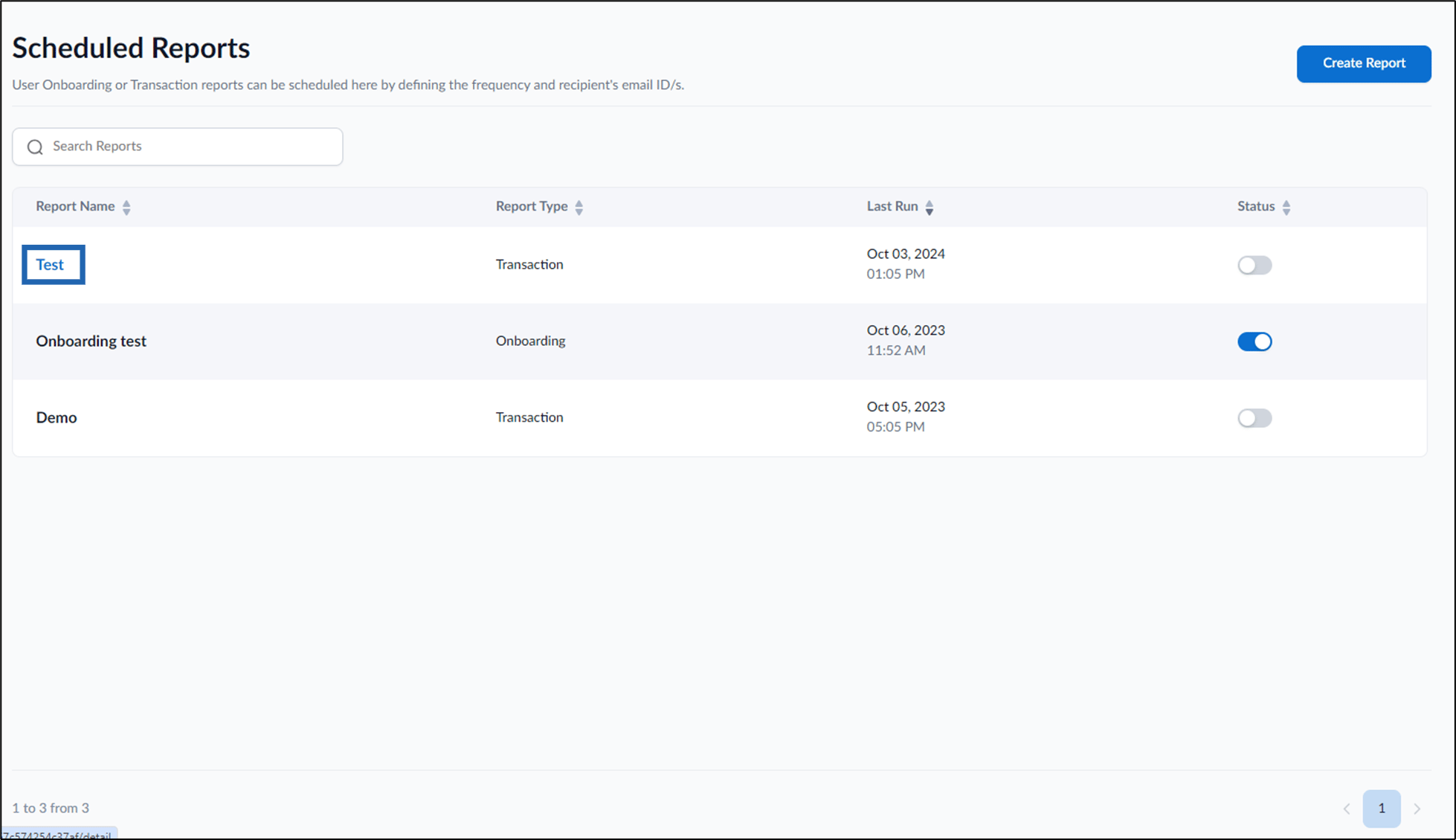
- Select a report name of transaction Report Type to edit.
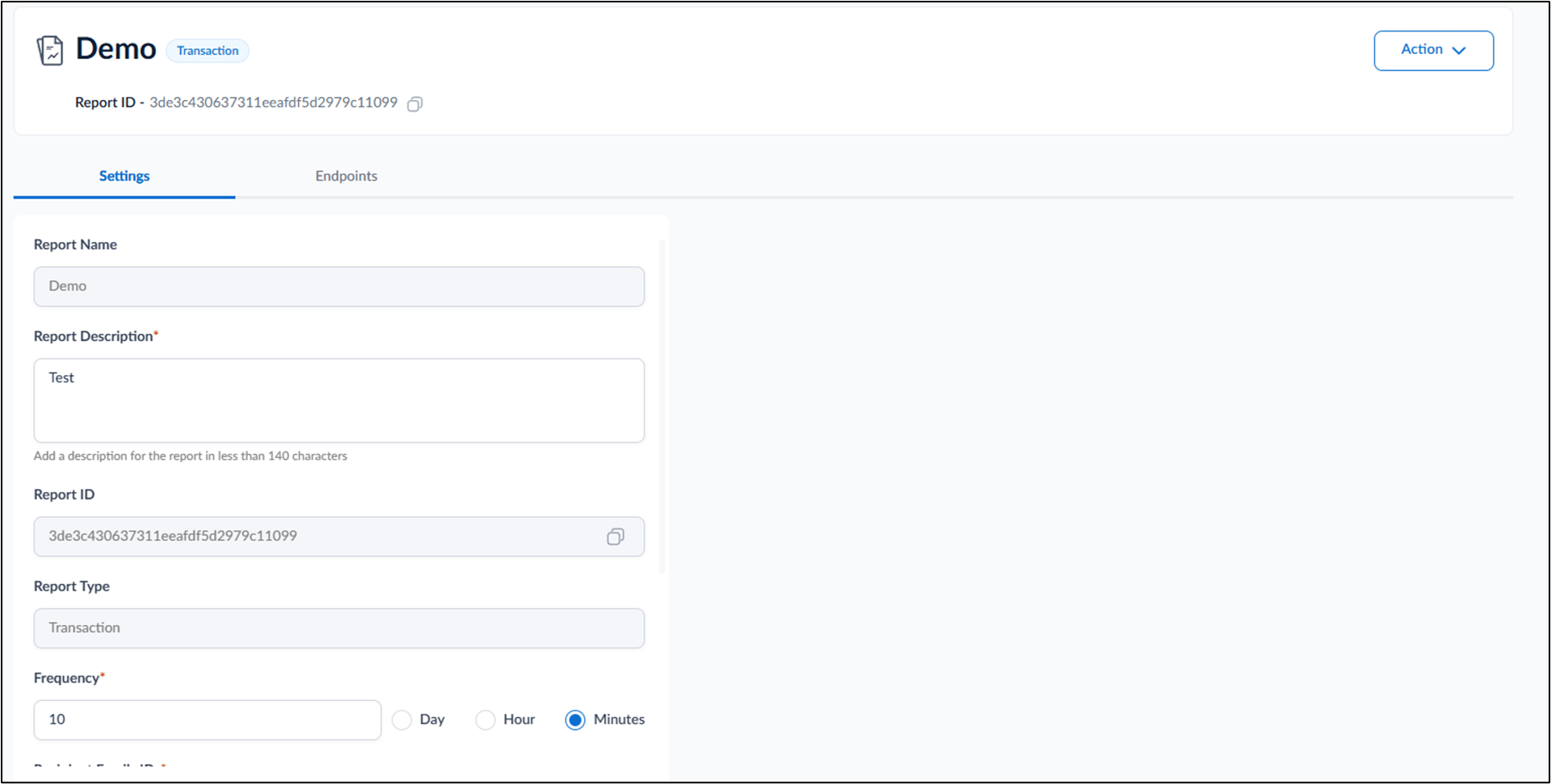
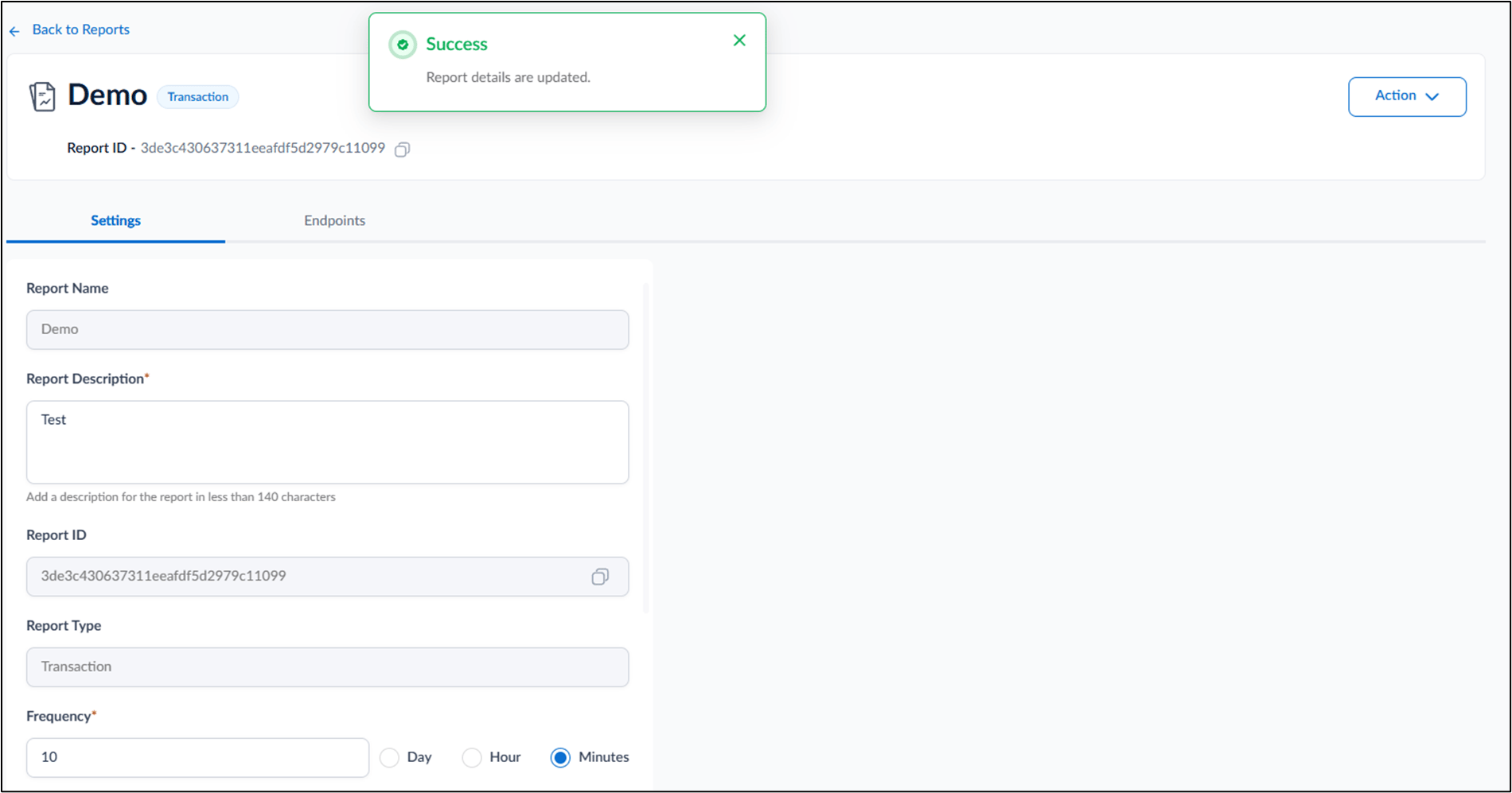
- Do the following:
- Settings tab:
- Enter Report Description.
- Enter time unit for Frequency.
- Select a supported frequency: Day, Hour, Minutes.
- Enter Recipient Emails.
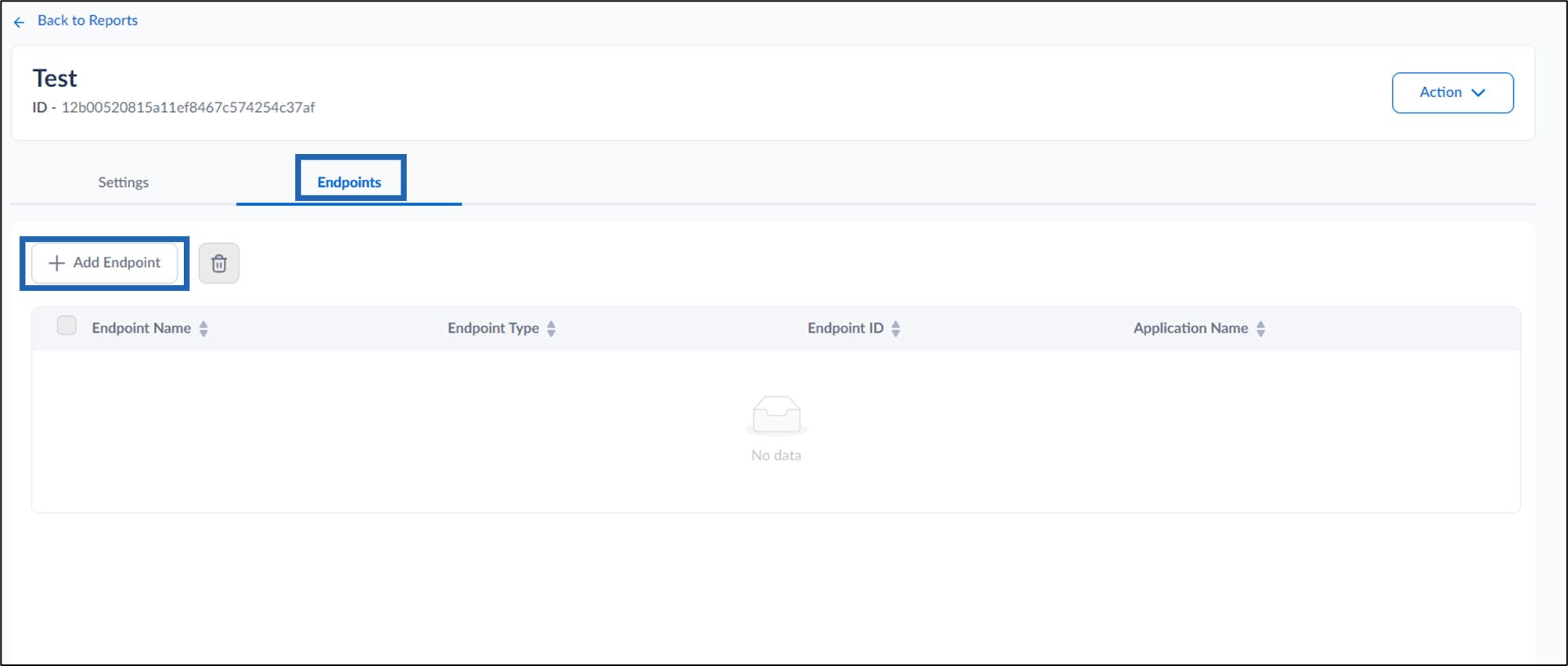
- Endpoints tab:
-
Click + Add Endpoint.
-
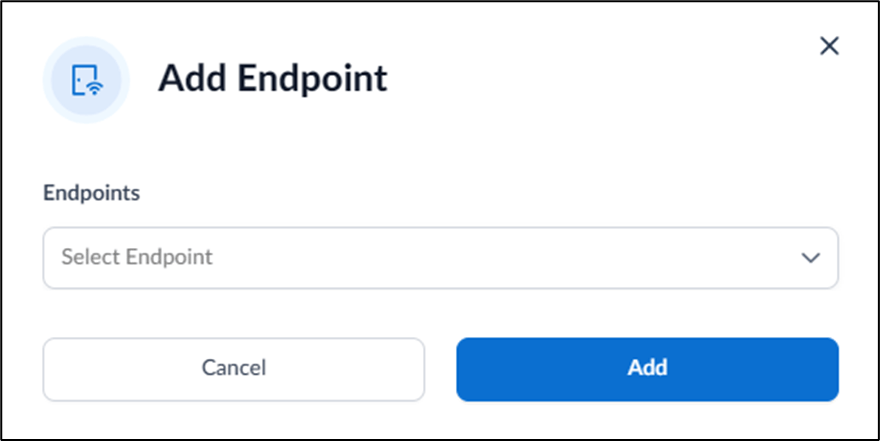
Select Endpoint(s) to send transaction reports to the recipient emails.
Note: Multiple endpoints can be added from the dropdown.
-
Click Add.
-
Click + Add Endpoint.
- Settings tab:
- Click Save.
The transaction report is configured.