Introduction

This document provides instructions to create a scheduled Transaction Report in the Tenant Admin Portal.

Prerequisite

You must have admin access to the Tenant Admin Portal. How to Create a Scheduled Transaction... - screenshot 1
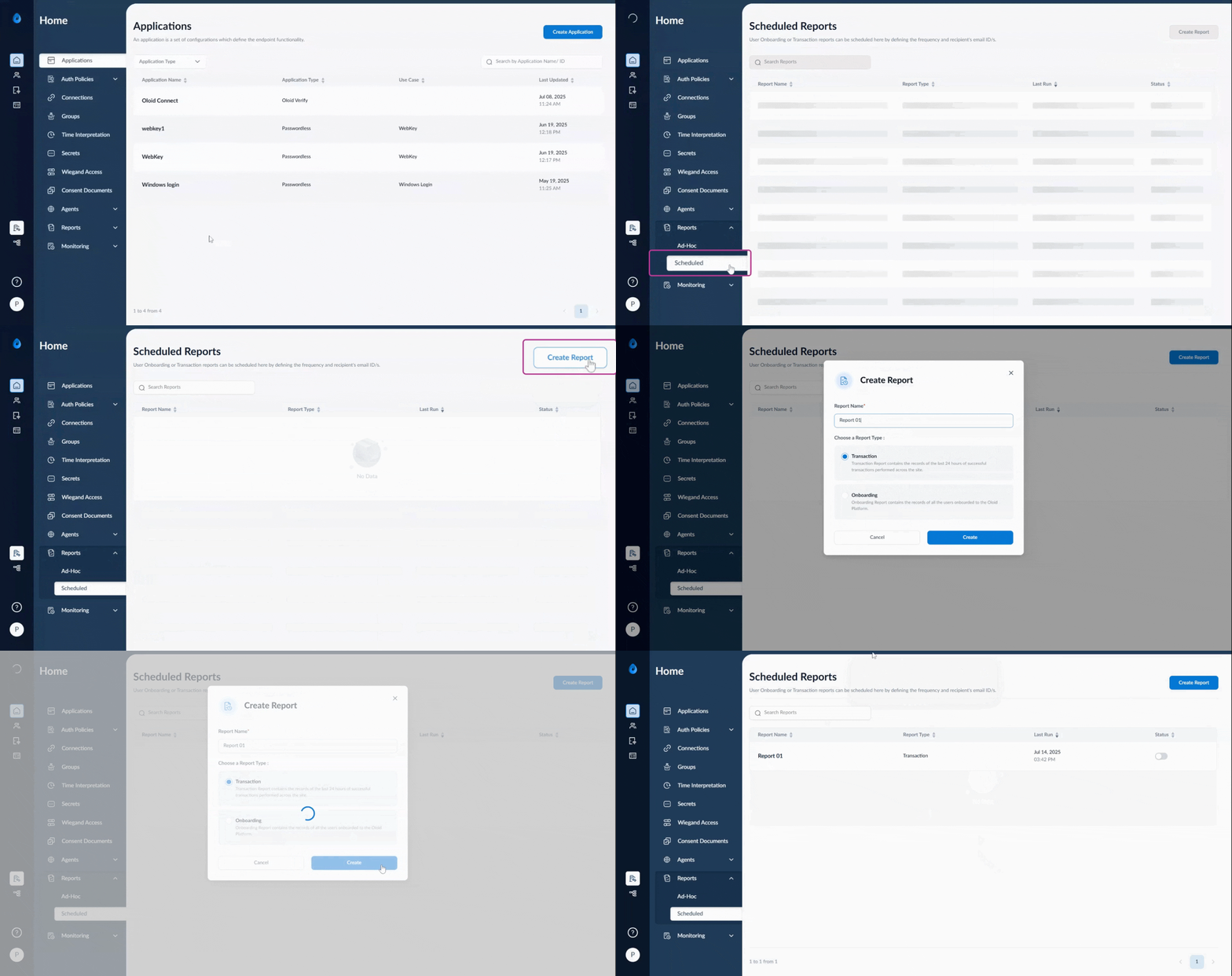
Steps to Create Transaction Report

  1. Log in to the Tenant Admin Portal.
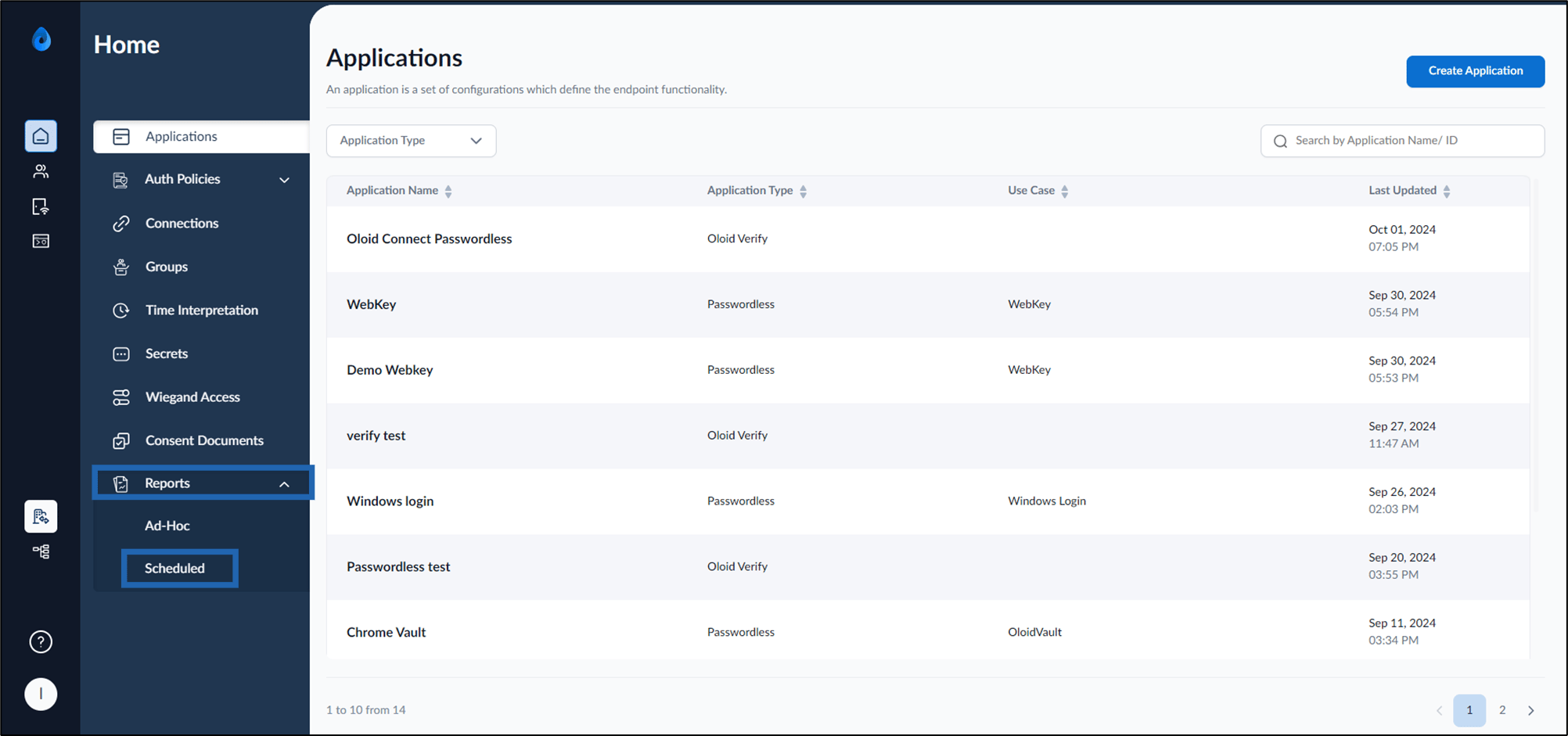
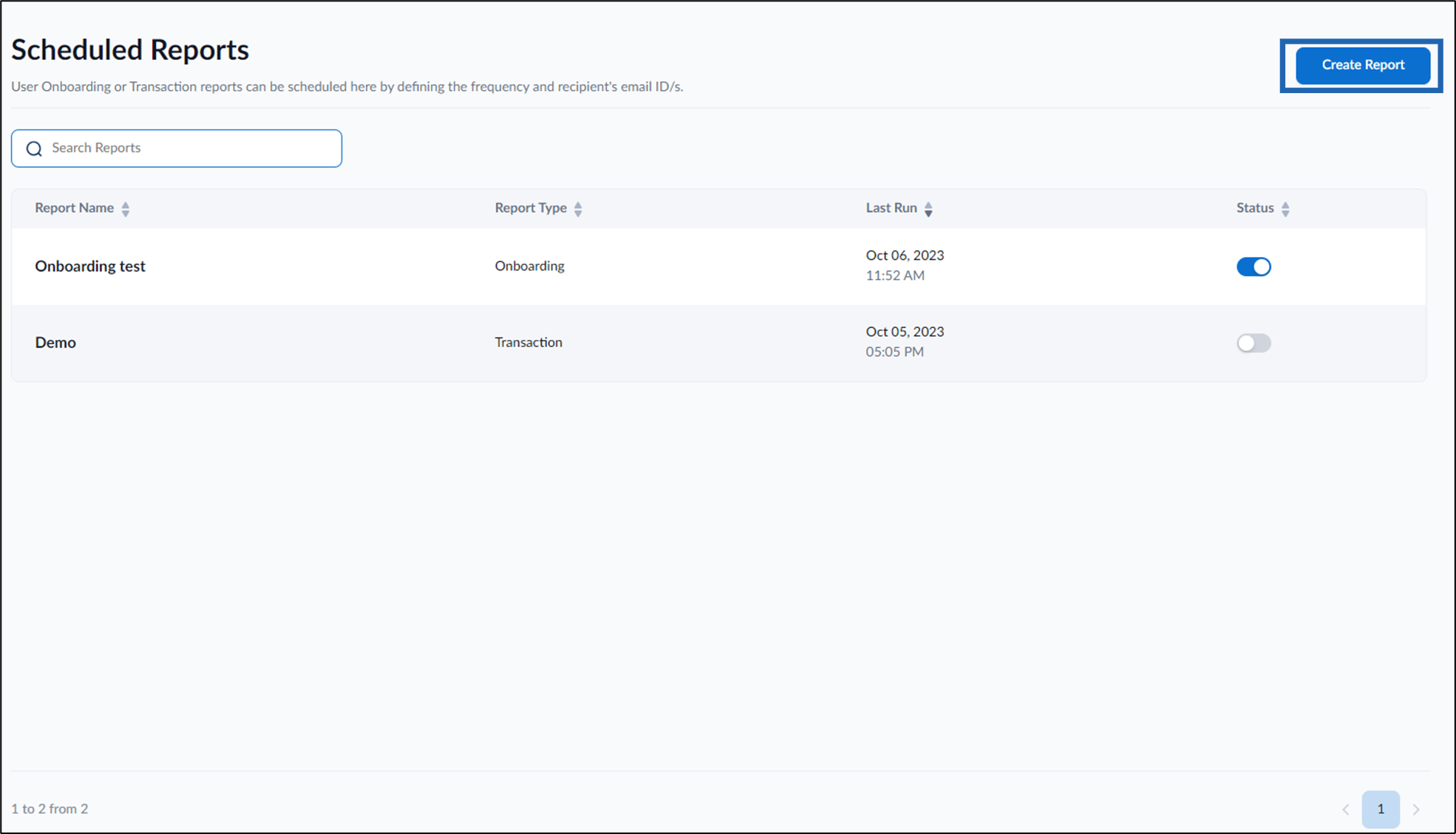
  2. On the homepage, click Reports > Scheduled on the left menu panel. Image The Scheduled Reports page is displayed.
  3. On the top right, click Create Report. Image The Create Report pop-up box is displayed.
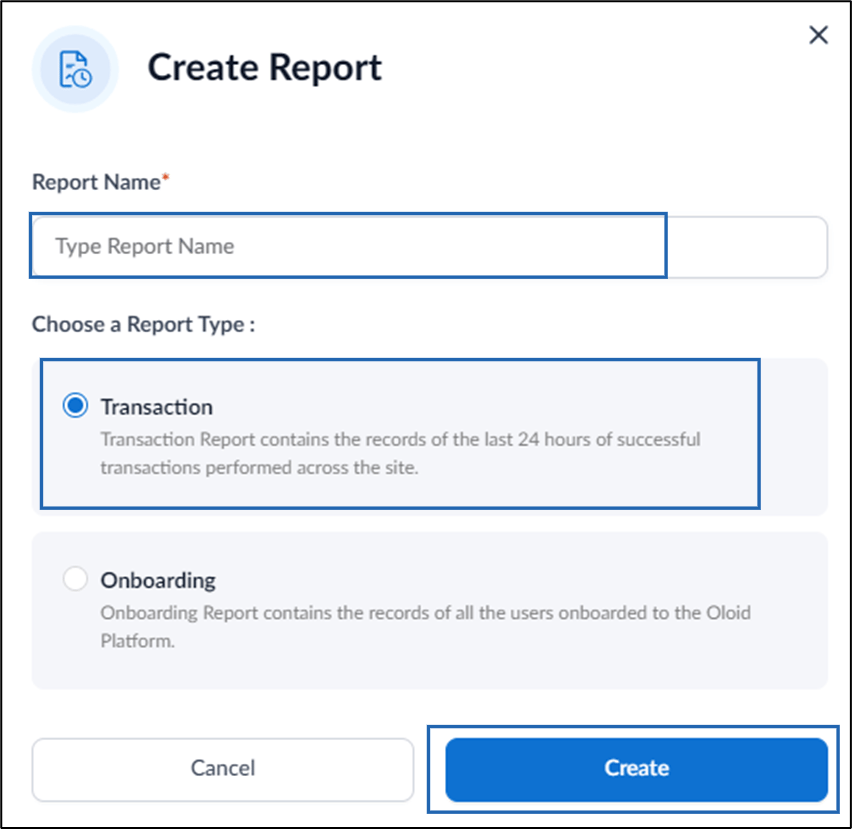
  4. Do the following:
    1. Enter Report Name.
    2. Select Transaction report type.
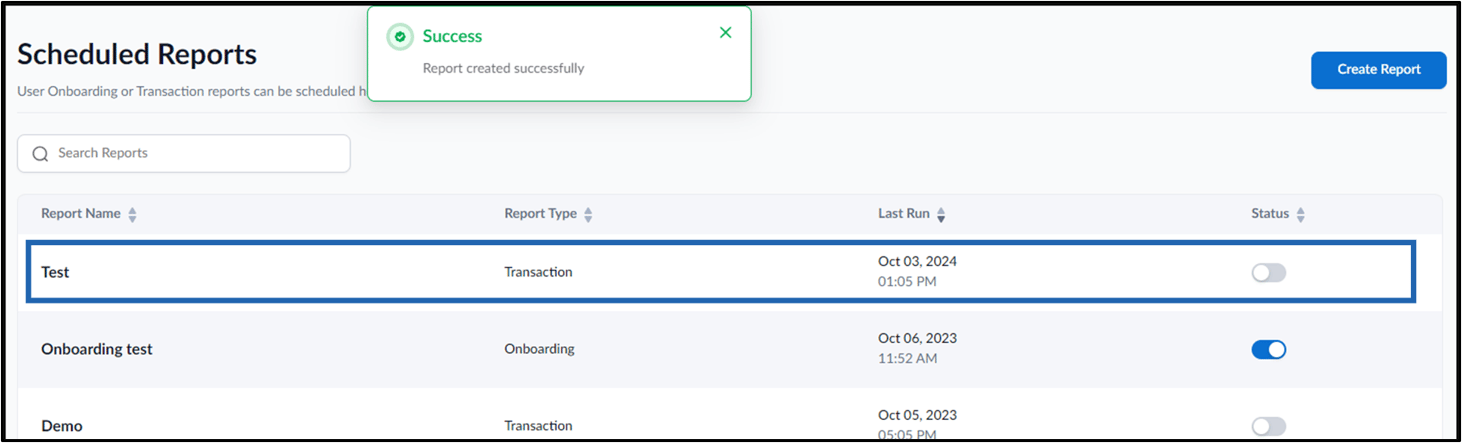
    3. Click Create. How to Create a Scheduled Transaction... - screenshot 2 The Transaction report type is created and listed on the Scheduled Reports page. How to Create a Scheduled Transaction... - screenshot 3 The Transaction report can be configured to schedule the report generation frequency and send it to the customers through email. For details see, How to configure a scheduled transaction report.