Introduction
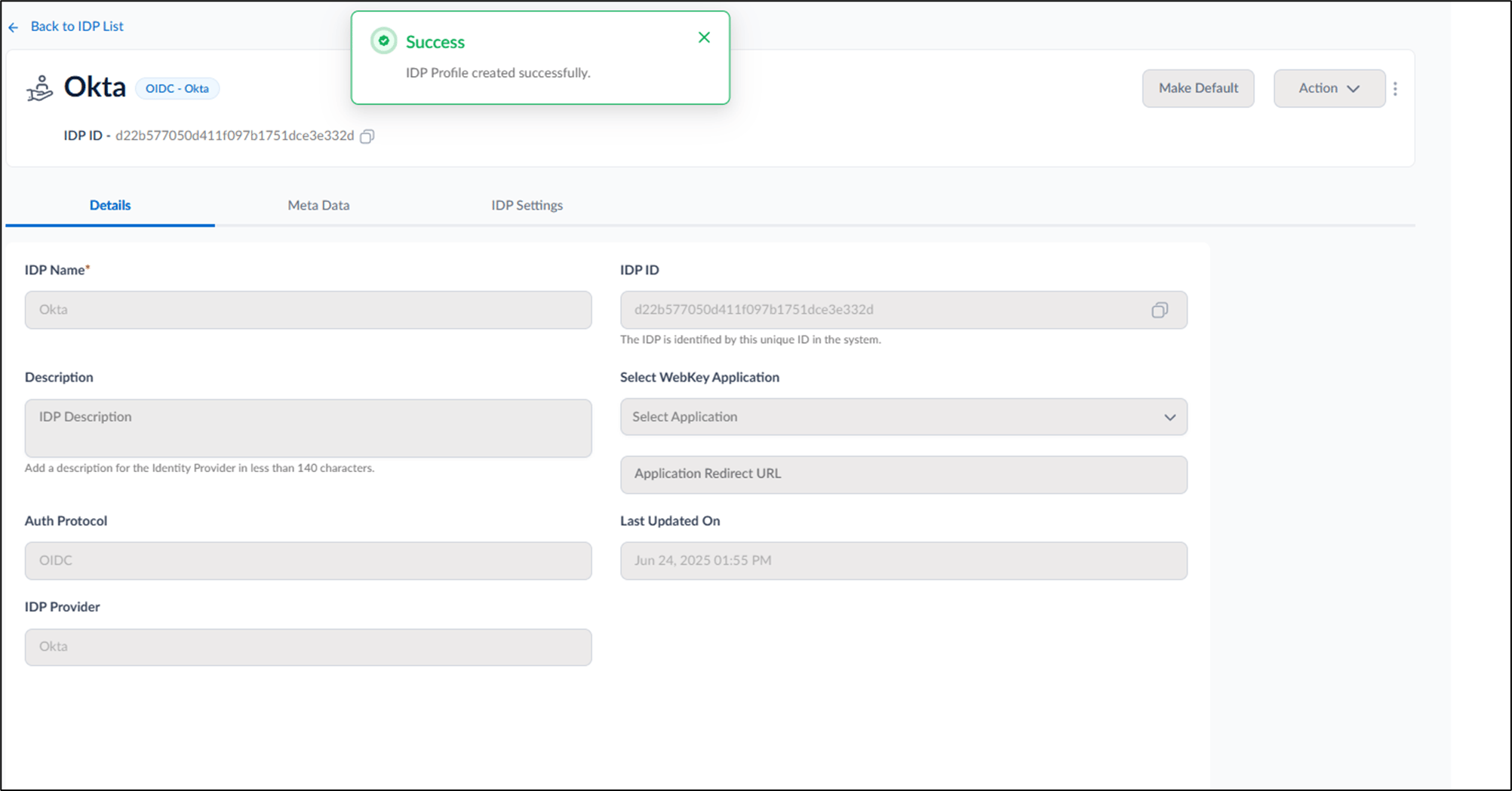
This document provides instructions to create an Okta IdP profile in the Oloid Portal. An IdP profile enables passwordless SSO authentication using Okta.Prerequisites
You must have Admin access to the Tenant Admin Portal.Steps to Create an Okta Idp Profile
- Log in to the Tenant Admin Portal.
-
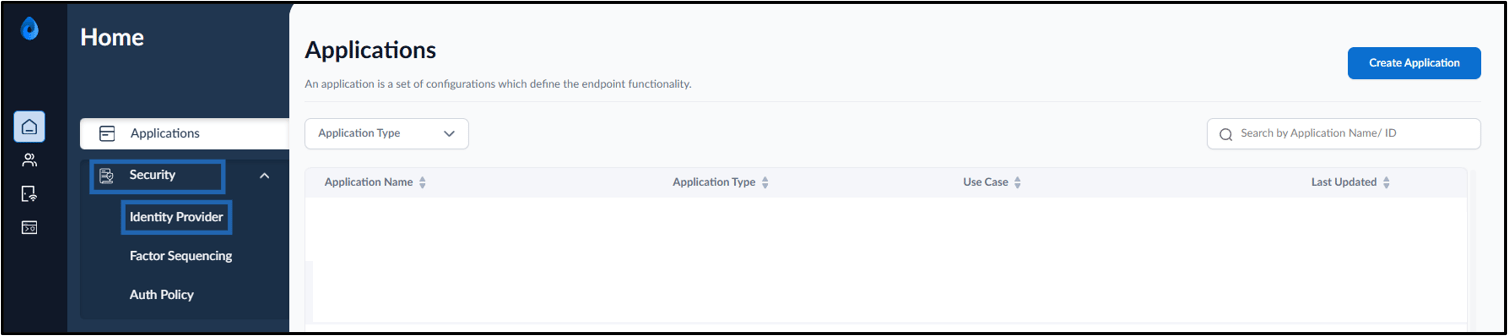
On the home page, select Security > Identity Provider.
-
Click Create IDP.
 Note: You cannot create a new Idp unless a default Idp is already set. Please open an existing Idp and mark it as default before proceeding. For more details refer How to make an IDP default.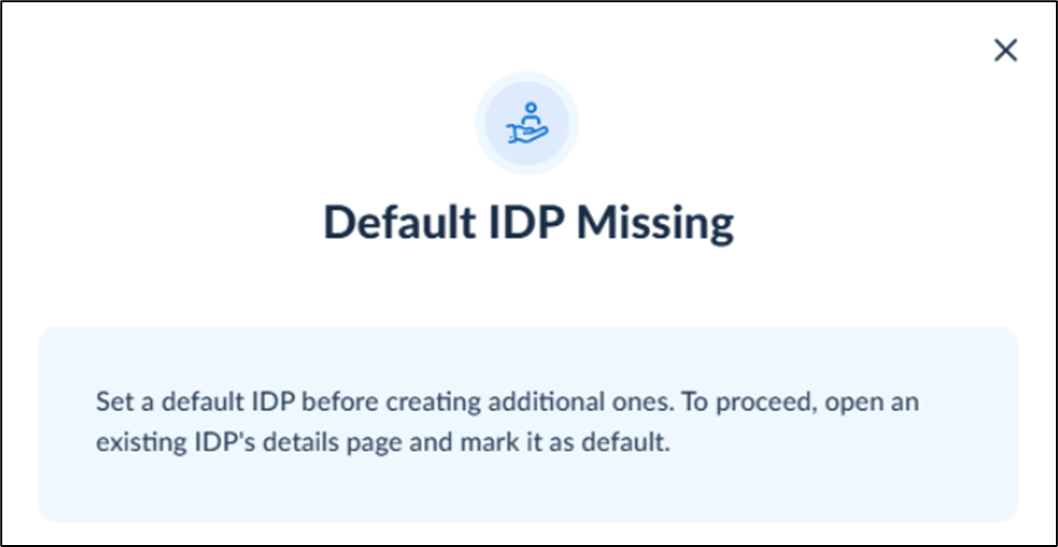
-
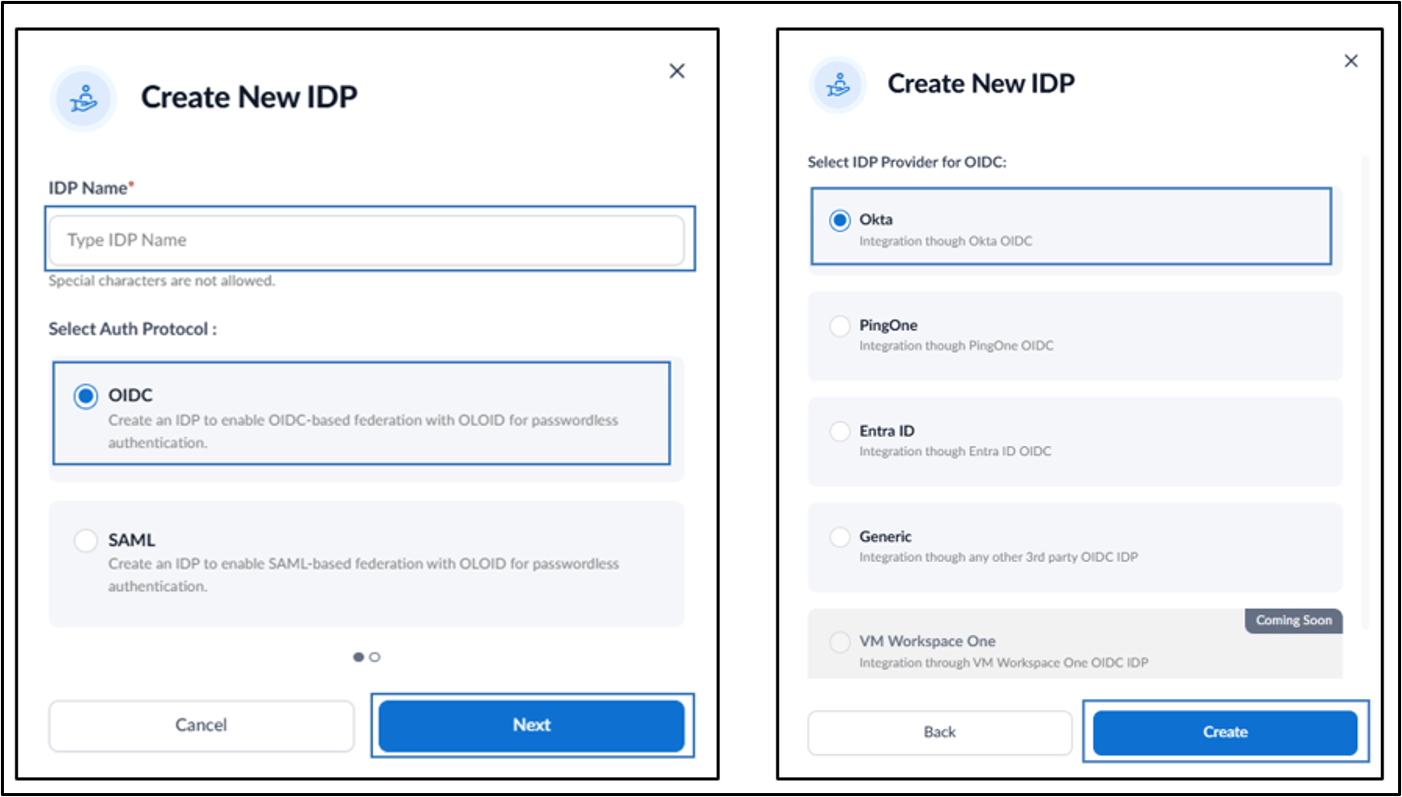
Do the following:
- Enter the IDP Profile Name.
- Select OIDC asanAuth Protocol.
- Click Next.
- Select Okta as the IDP Provider for OIDC.
- Click Create.