

- Log in to the Oloid Portal.
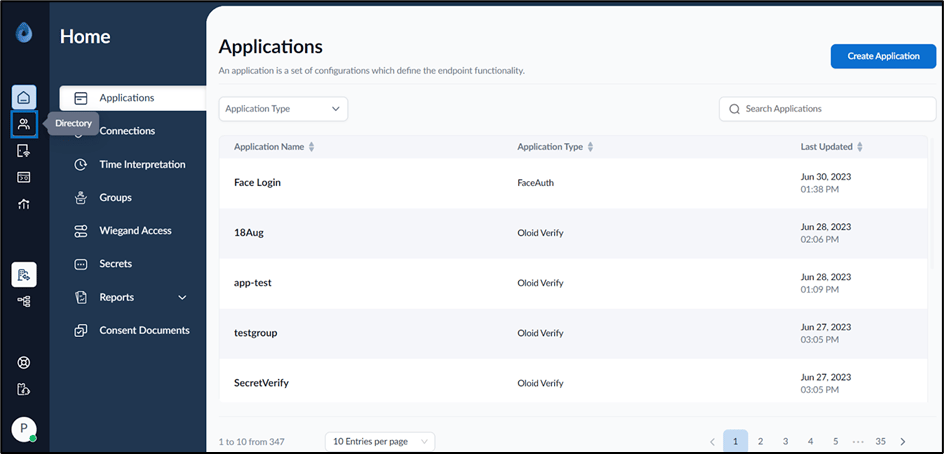
- On the home page of the portal, click Directory on the left panel menu.
- Click user name to edit.
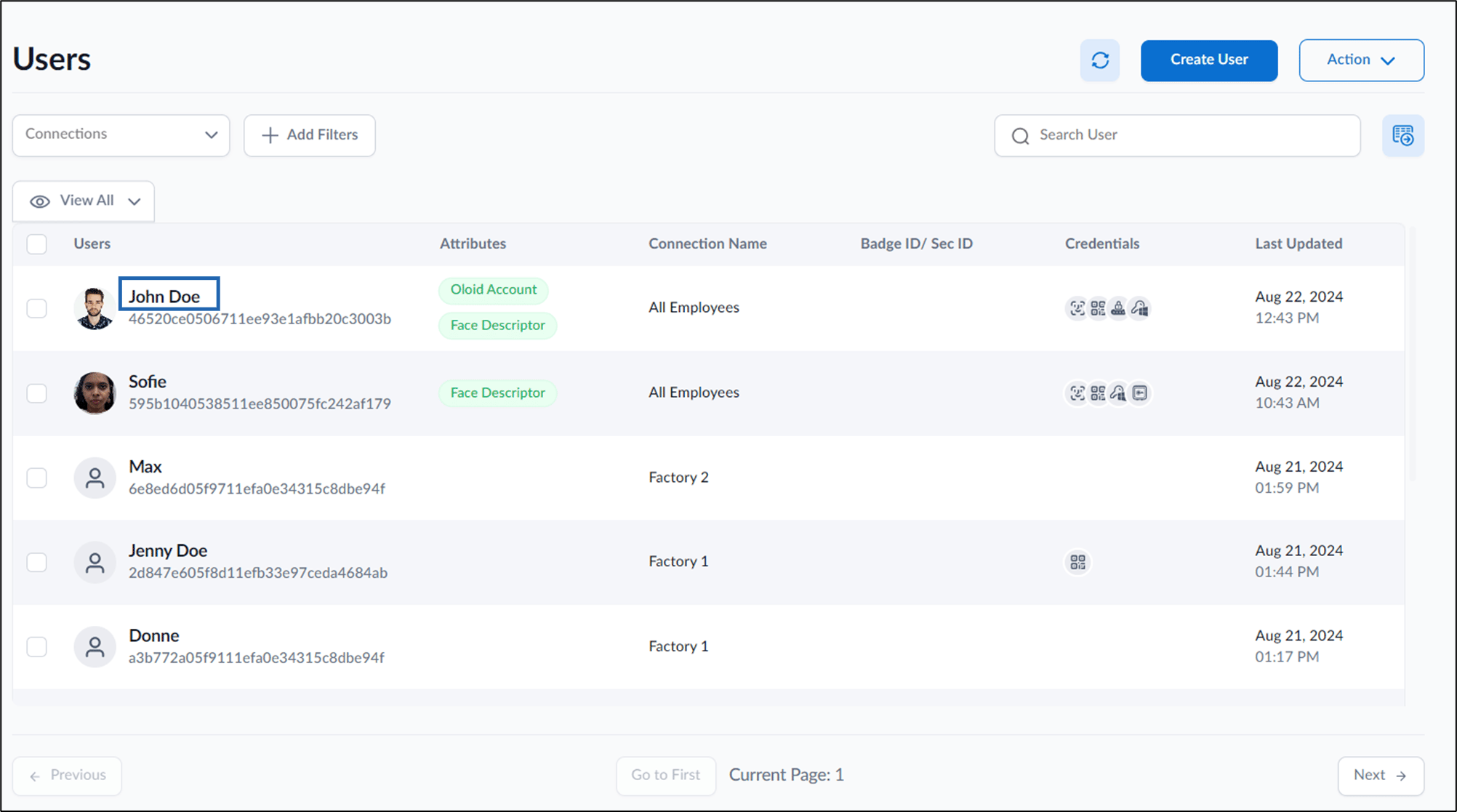

- Do one of the following on Action dropdown:
-
Select Deactivate.
 The De-activate User pop-up box is displayed.Note:Deactivate button is visible for active users in the action dropdown.
-
Click Confirm De-activate.
The user status is changed from active to inactive.

-
Select Activate.


-
Click Confirm Activate.
The user status is changed from inactive to active.

-
Select Deactivate.
How to activate or deactivate user
This document provides step-by-step instructions to activate or deactivate User in the Oloid Portal.
Steps to Activate or Deactivate User:
⌘I