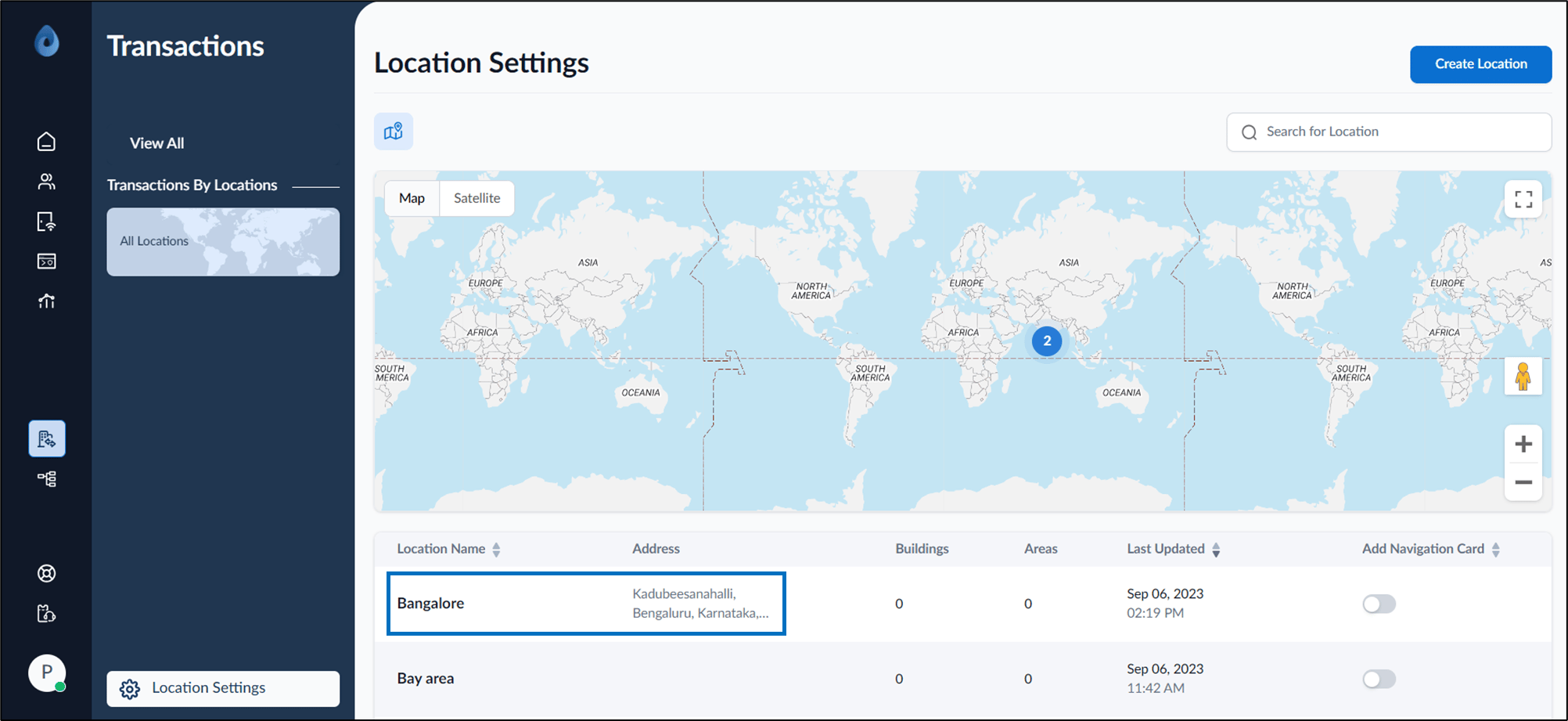
Create location using Transaction
Steps to create a new location through transaction:- Log in to the Oloid Portal.
-
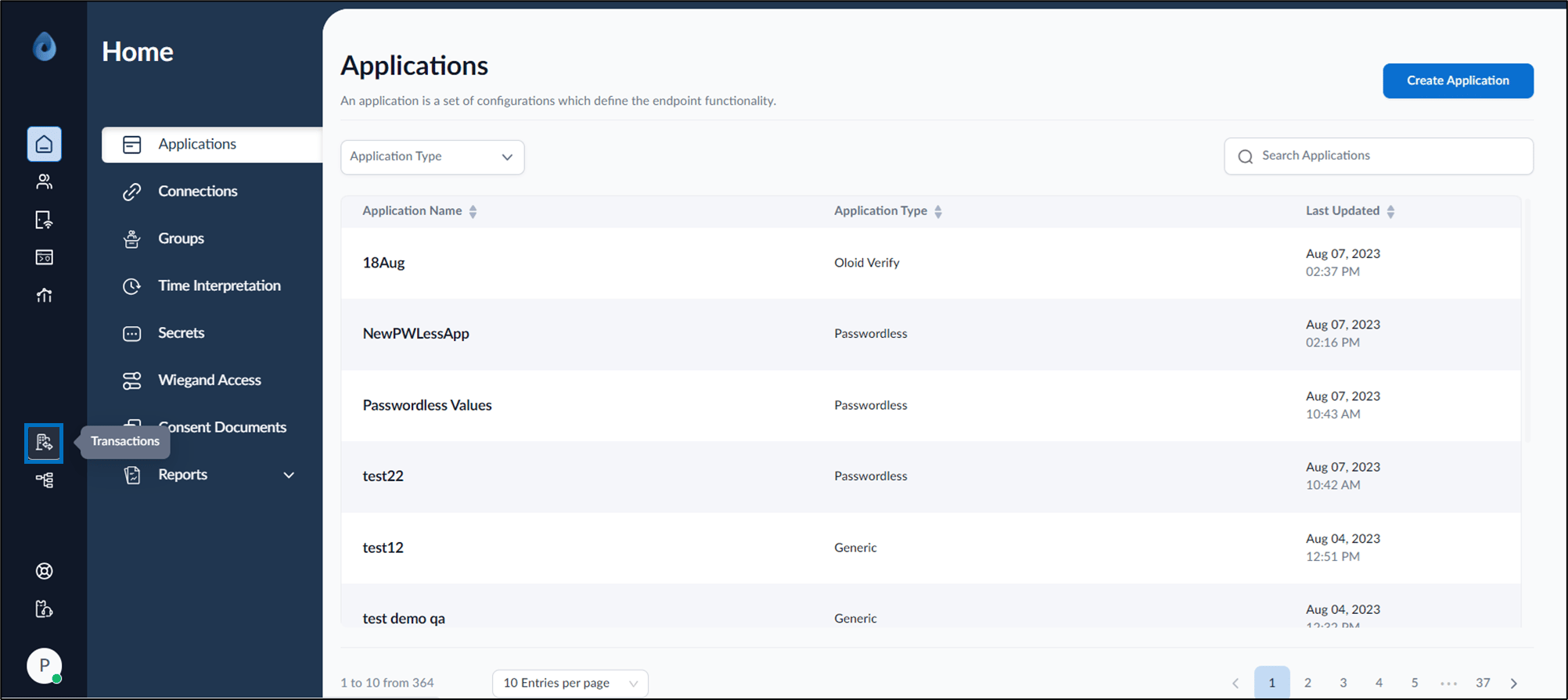
On the home page of the portal, click Transactions on the left menu panel.
-
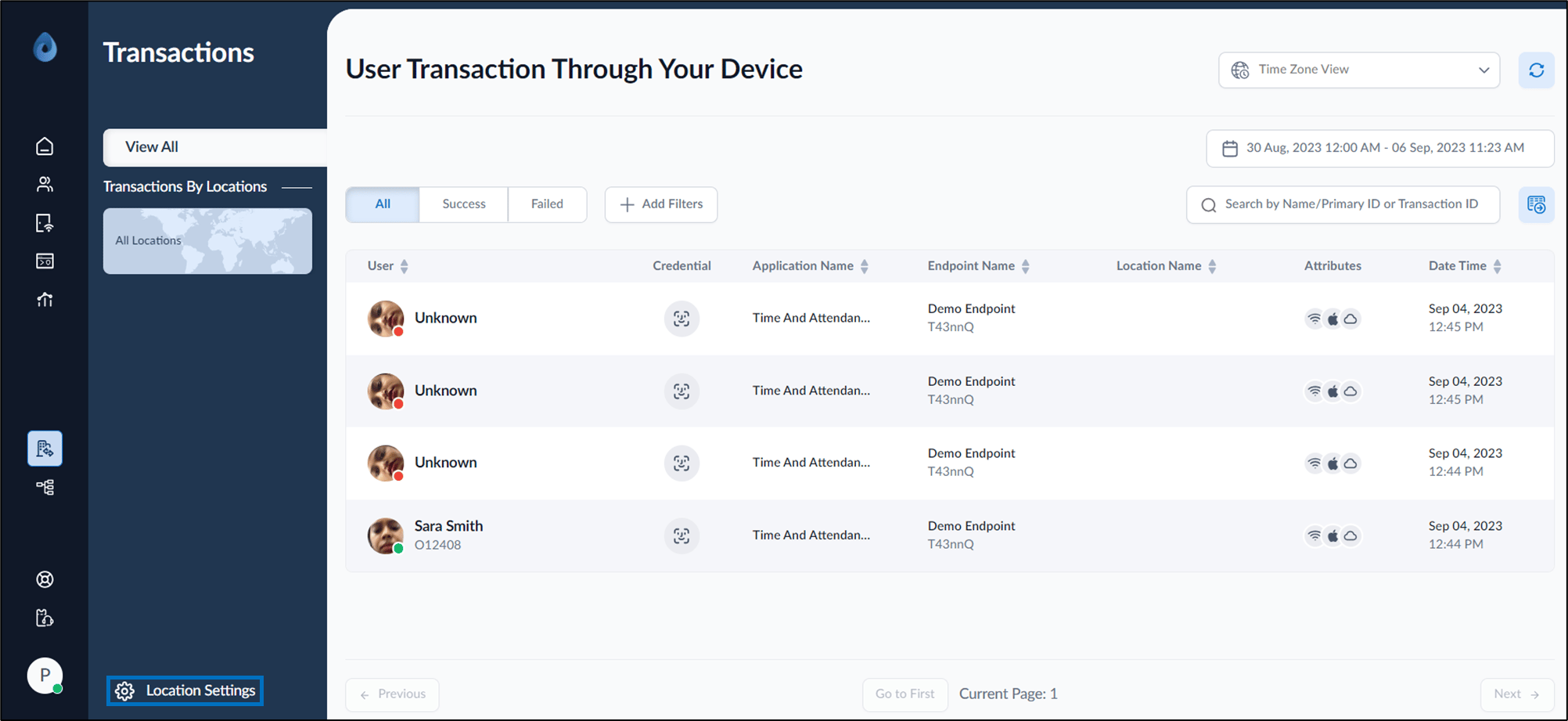
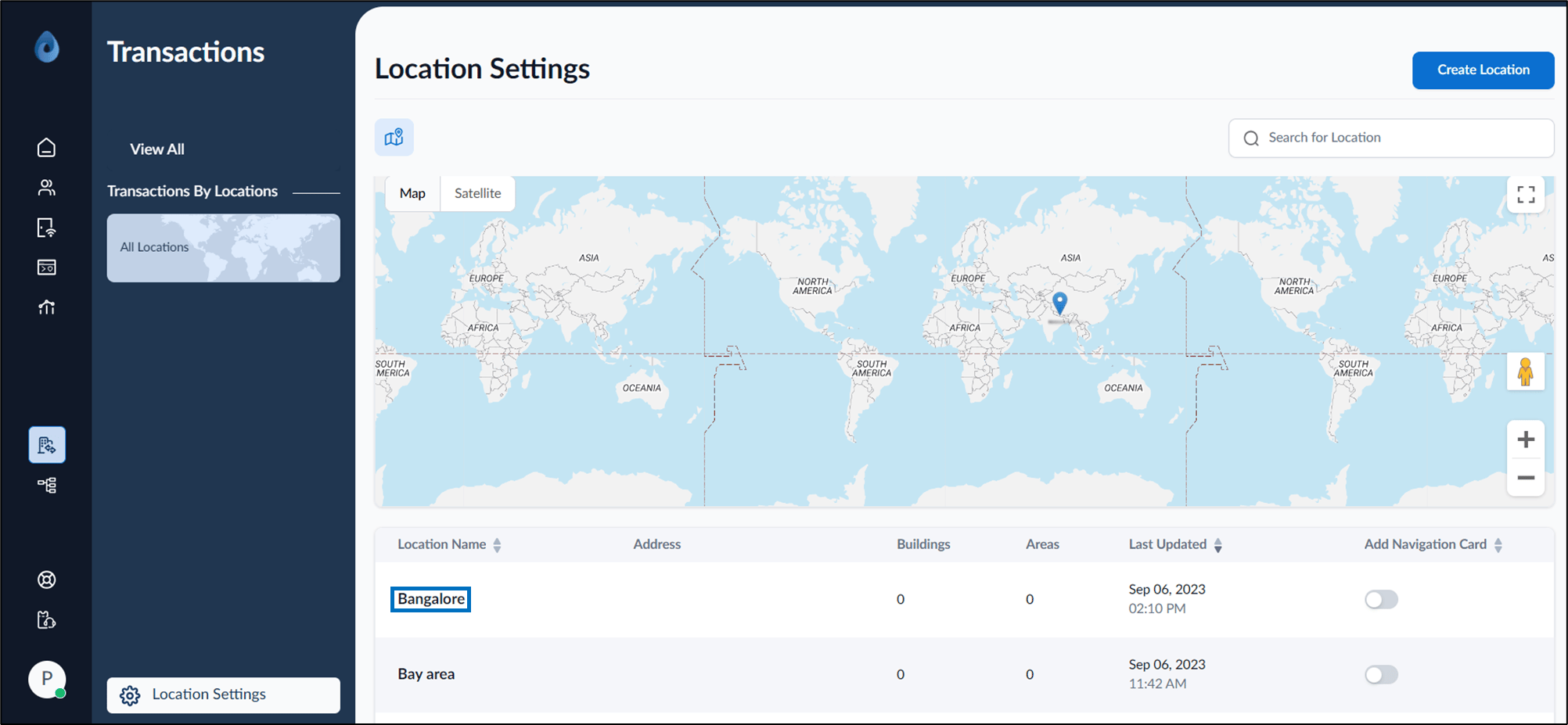
Click Location Settings at the bottom of the left menu panel.
-
Click Create Location on the right corner of the page.
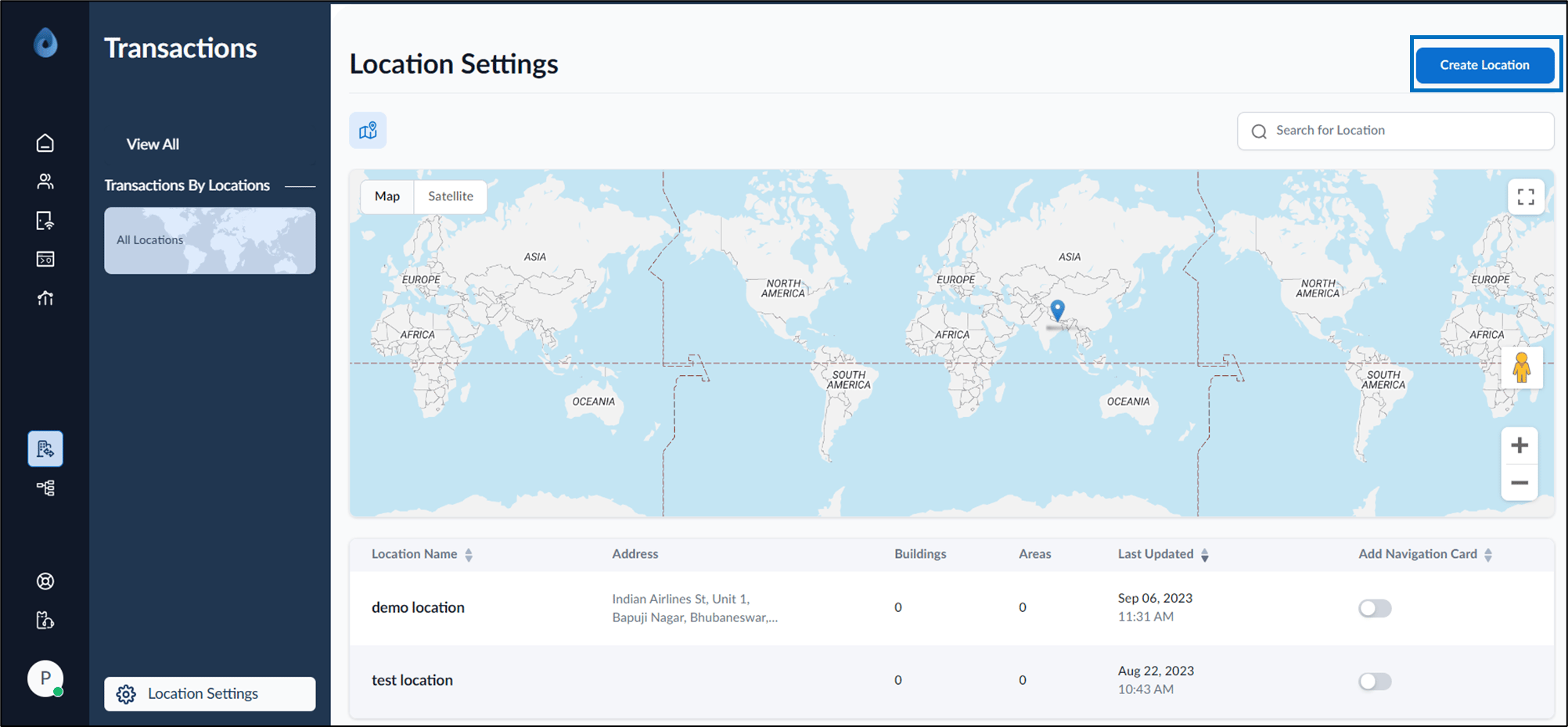
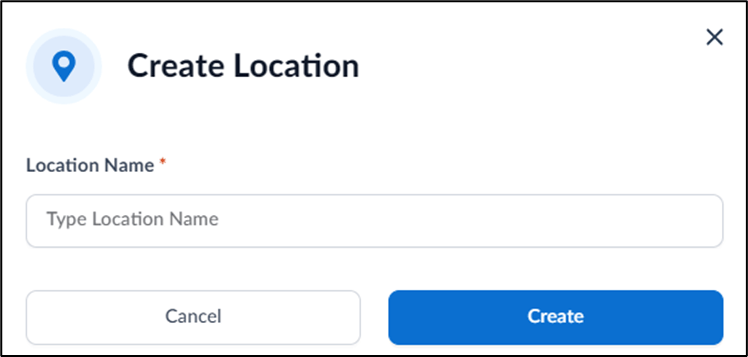
- Enter Location Name.
-
Click Create.
The location is created and listed on the Location Settings page.
 Note: You can enable the toggle button for Add Navigation Card. This creates a card view on the right menu panel for that location.
Create location using Endpoint
Steps to create a new location through endpoint:- Log in to the Oloid Portal.
- On the home page of the portal, click Endpoints on the left menu panel.
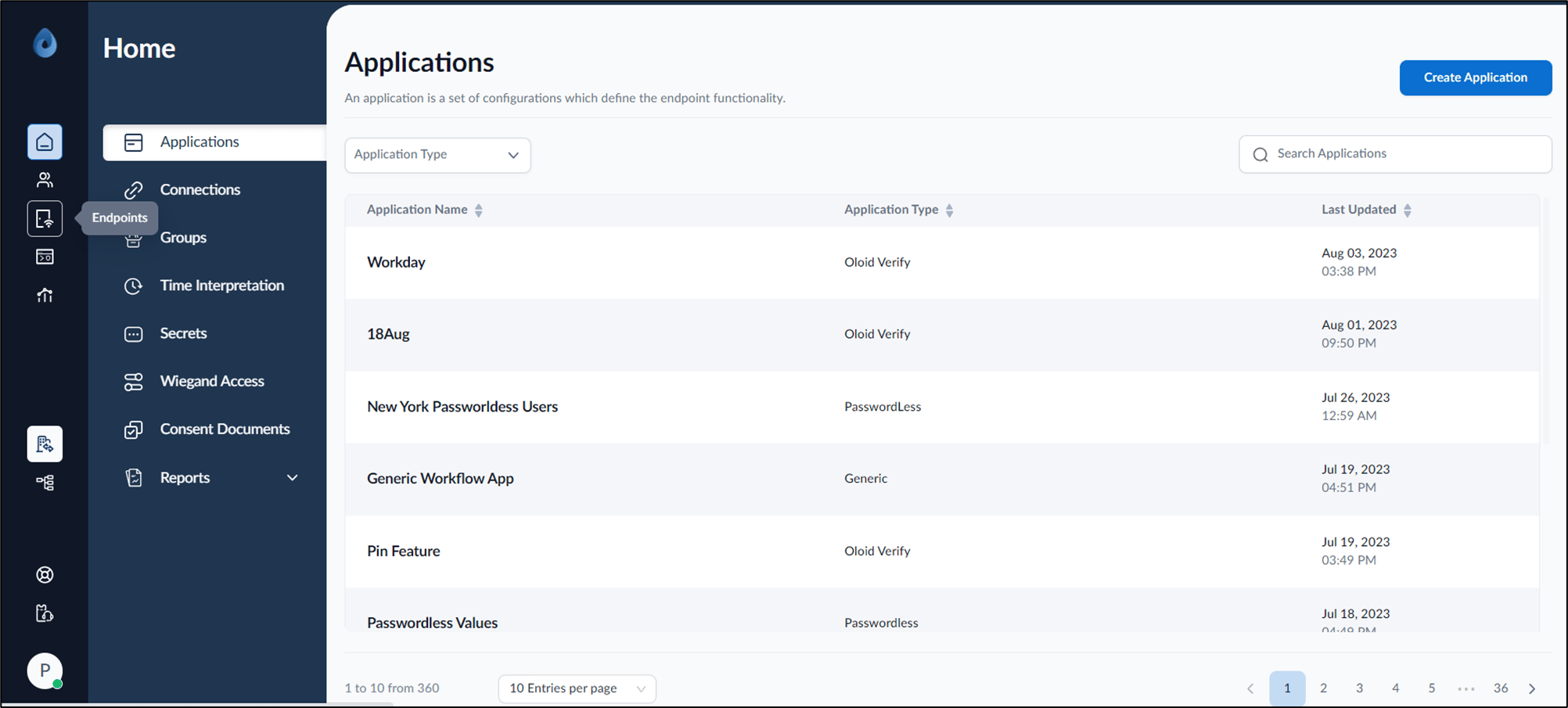
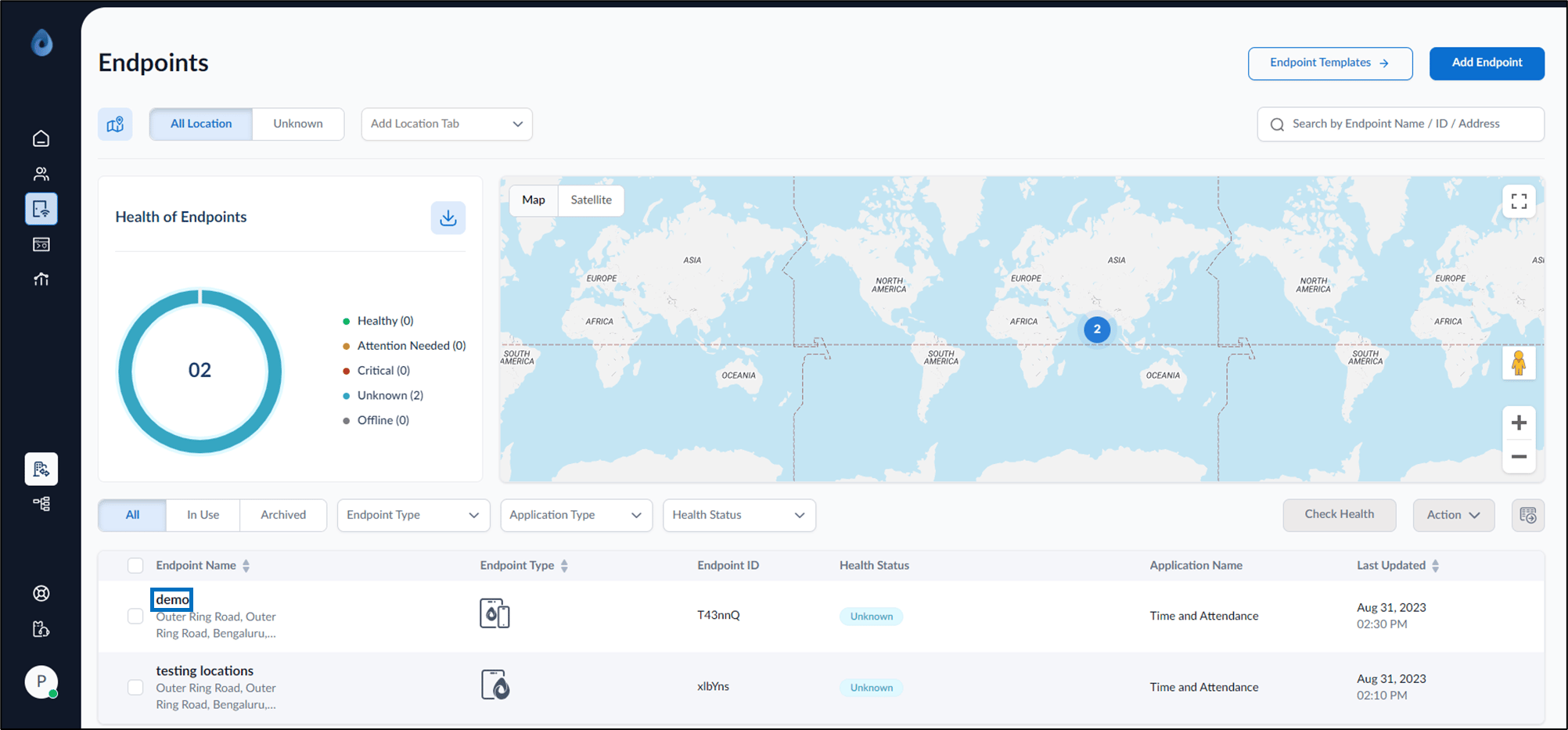
- Select endpoint name(s) from the listed endpoints.
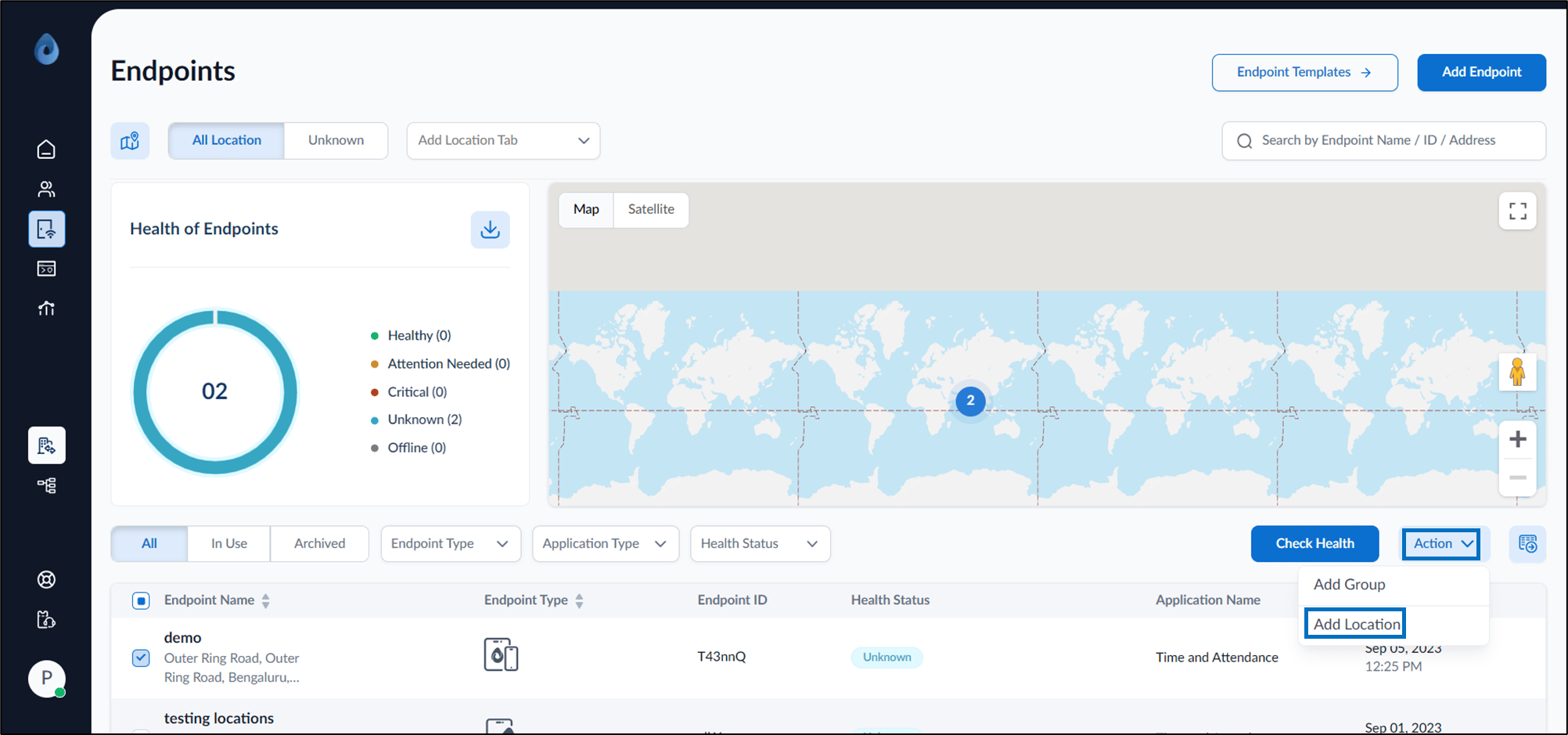
- Go to Action dropdown and select Add Location.
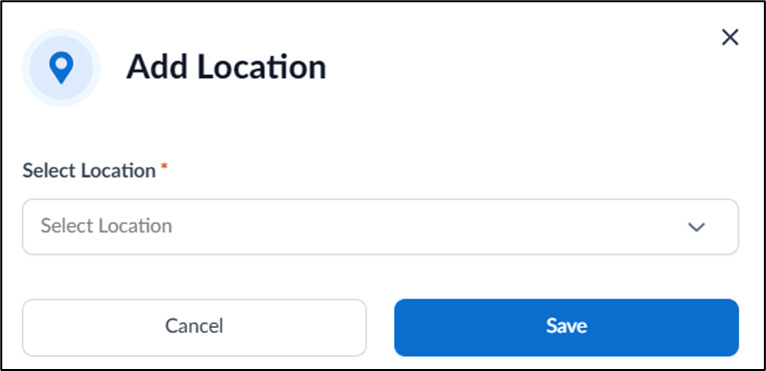
- On the pop-up box do the following:
- Click Select Location field.
The search result lists existing locations.
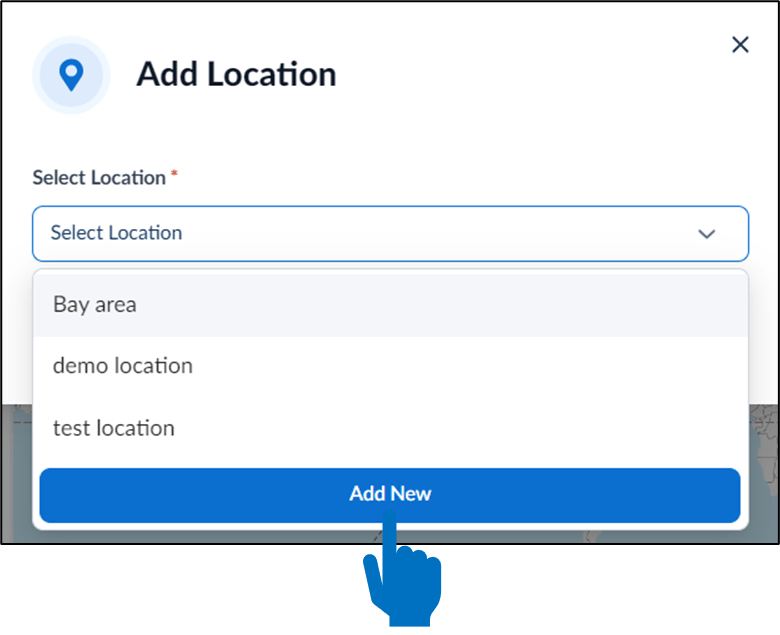
- Click Add New.
The Create Location pop-up box is displayed.
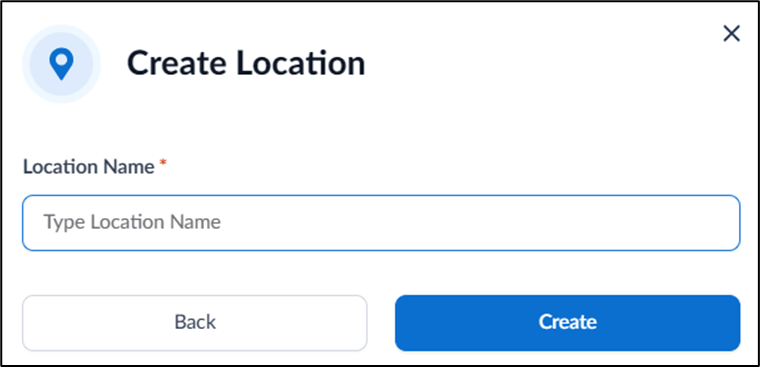
- Enter Location Name.
- Click Create.
The location name is created and listed on the Location Settings page.
- Click Select Location field.
The search result lists existing locations.
Adding location details
- Log in to the Oloid Portal.
- On the home page of the portal, click Transactions on the left menu panel.
- Click Location Settings at the bottom of the left menu panel.
- Select location name from the listed locations.
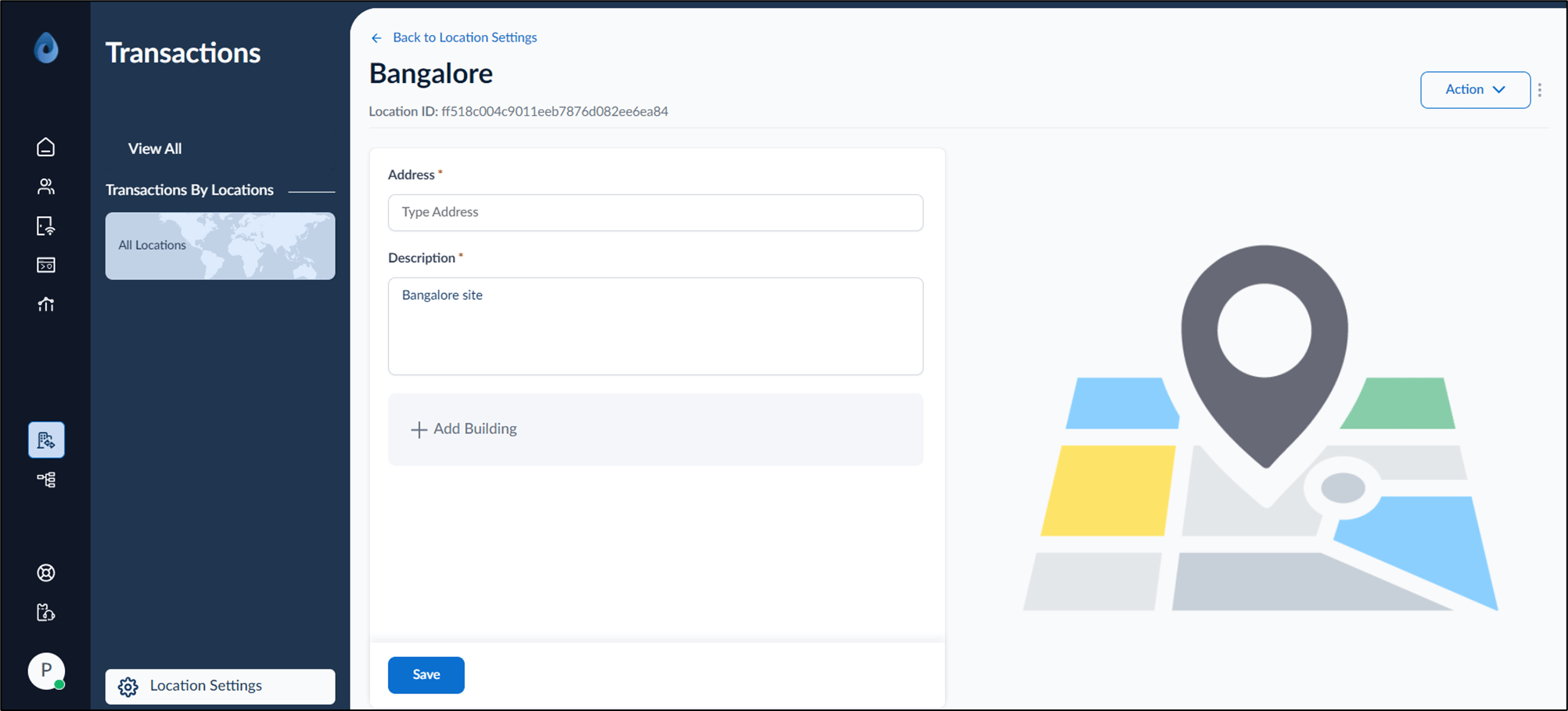
- Enter Address.
- Enter Description.
- Click + Add Building to enter Building Name (optional).
- Click Save.
The location address is updated.