Introduction
The Capture Face feature in the Tenant Admin Portal allows admins to enroll or add a user’s face by capturing it directly from the Tenant Admin Portal.Prerequisites
- You must have admin access to Tenant Admin Portal.
- User must be created. For more, refer toTenant Admin Portal - How to Create User
Steps to Capture Face
- Log in to the Tenant Admin Portal.
-
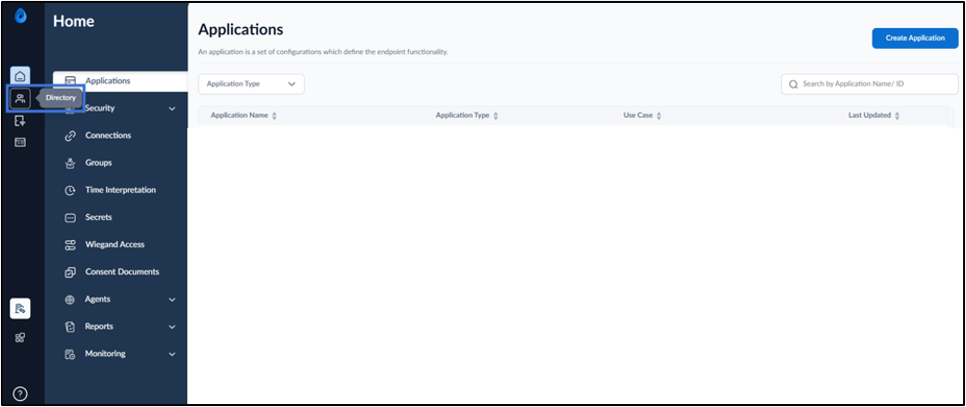
On the home page of the portal, click Directory.
-
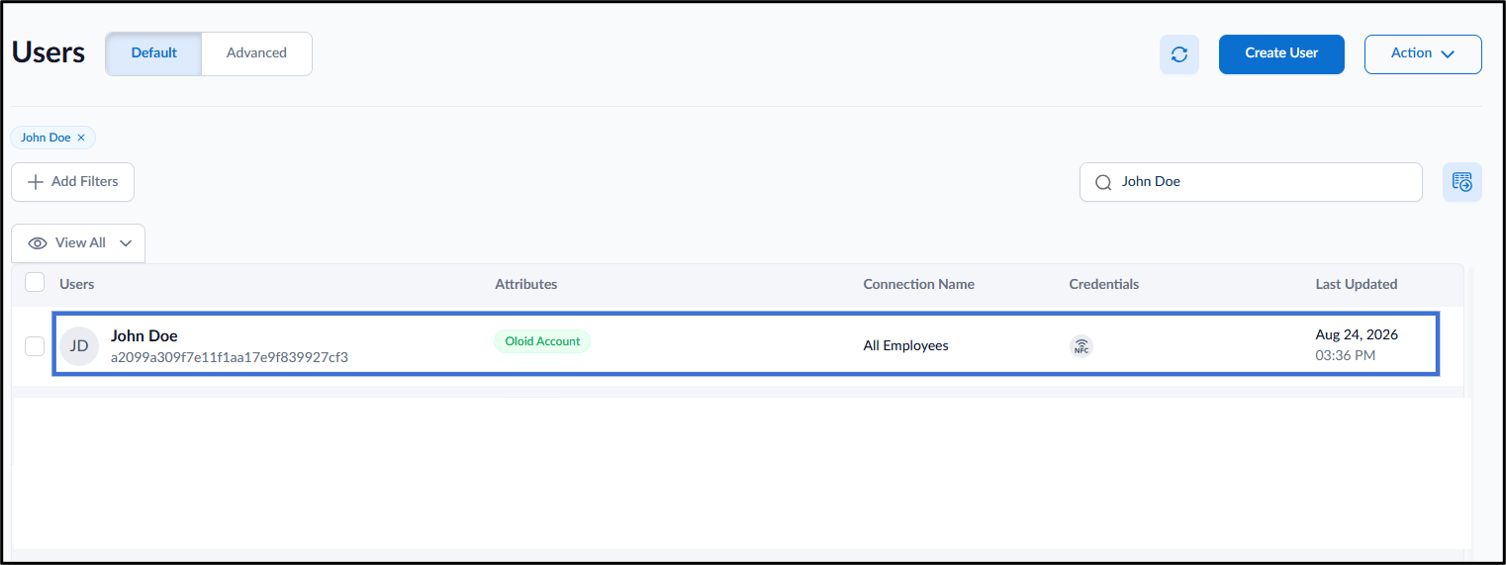
Click user name to edit.
-
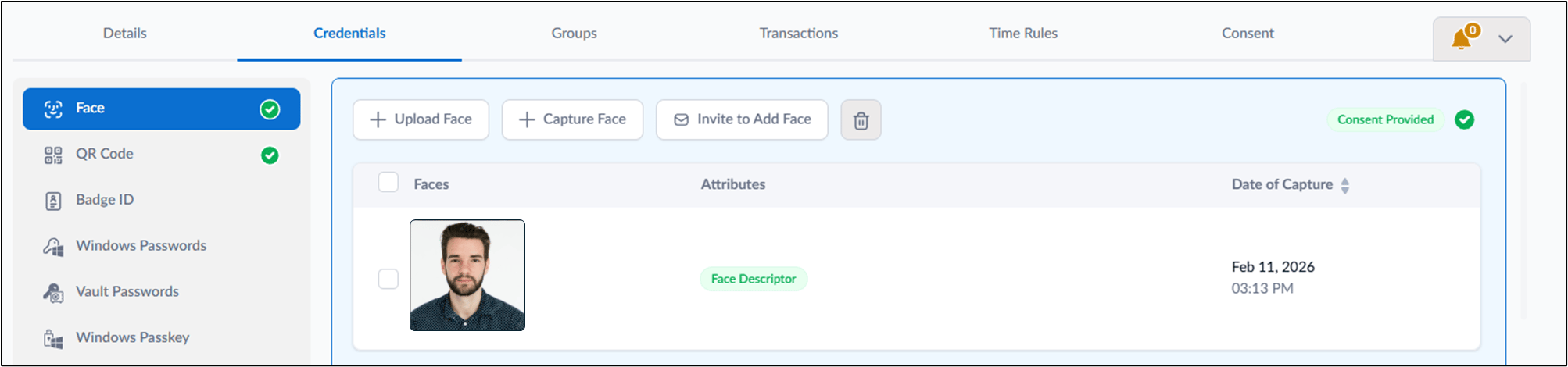
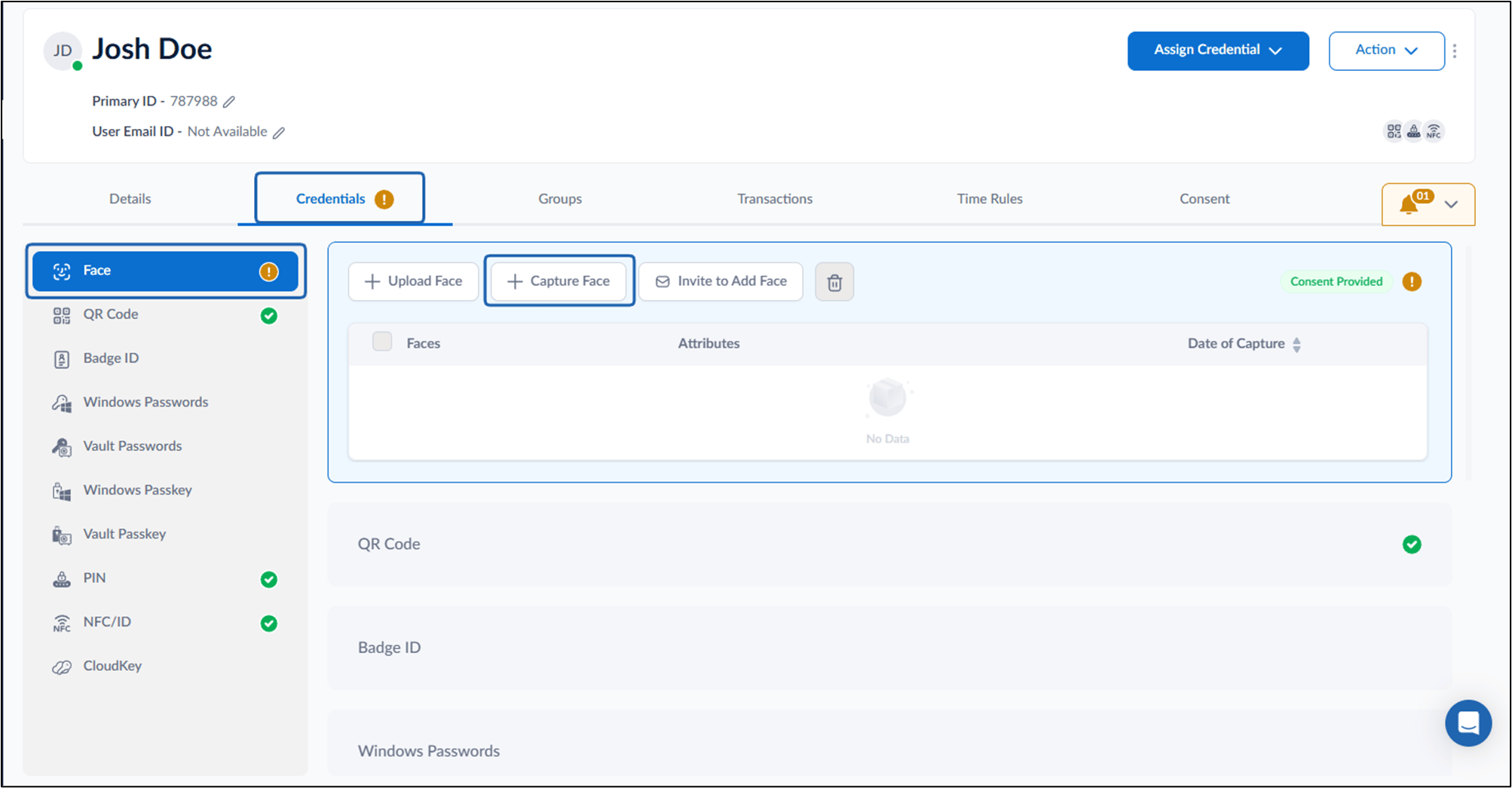
Click Credentials tab > select Face.
-
Click Capture Face.
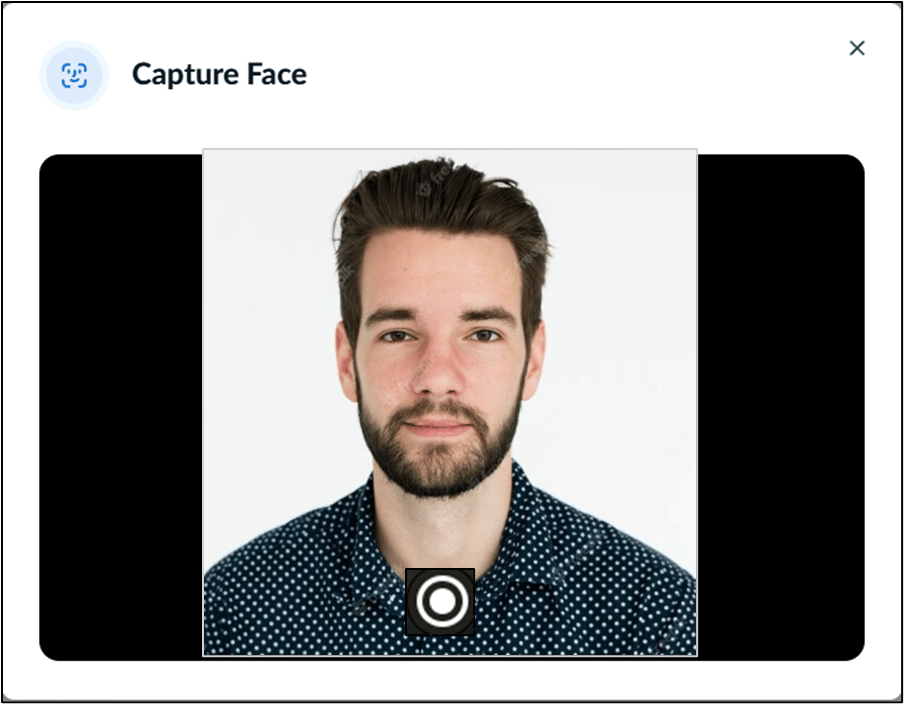
The camera opens.
Note: If the user’s consent status is Denied, the Capture Face button is disabled.
-
Position your face in front of the camera and click the Capture button to enroll your face.
-
Do one of the following:
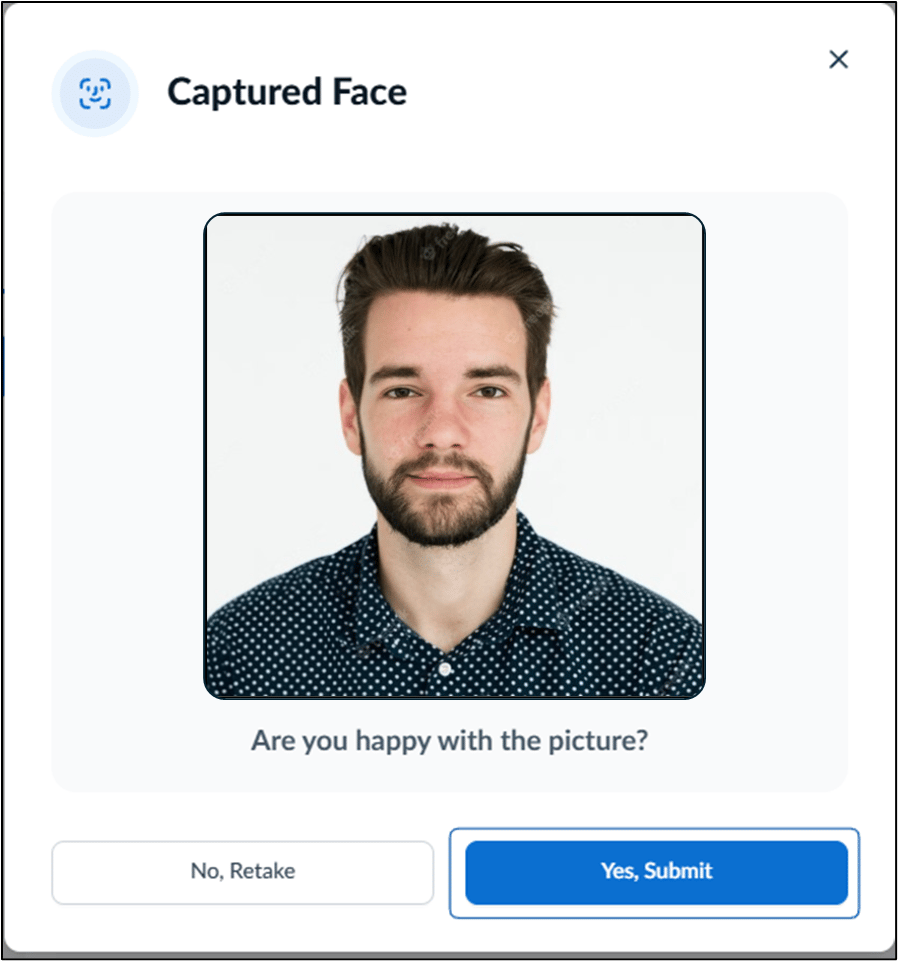
- Click Yes- Submit to submit the image. The face is submitted successfully and is displayed on the details screen.
-
Click No- Retake to take the photo again.
The camera turns on to retake the photo.
Note: A maximum of five faces can be added.