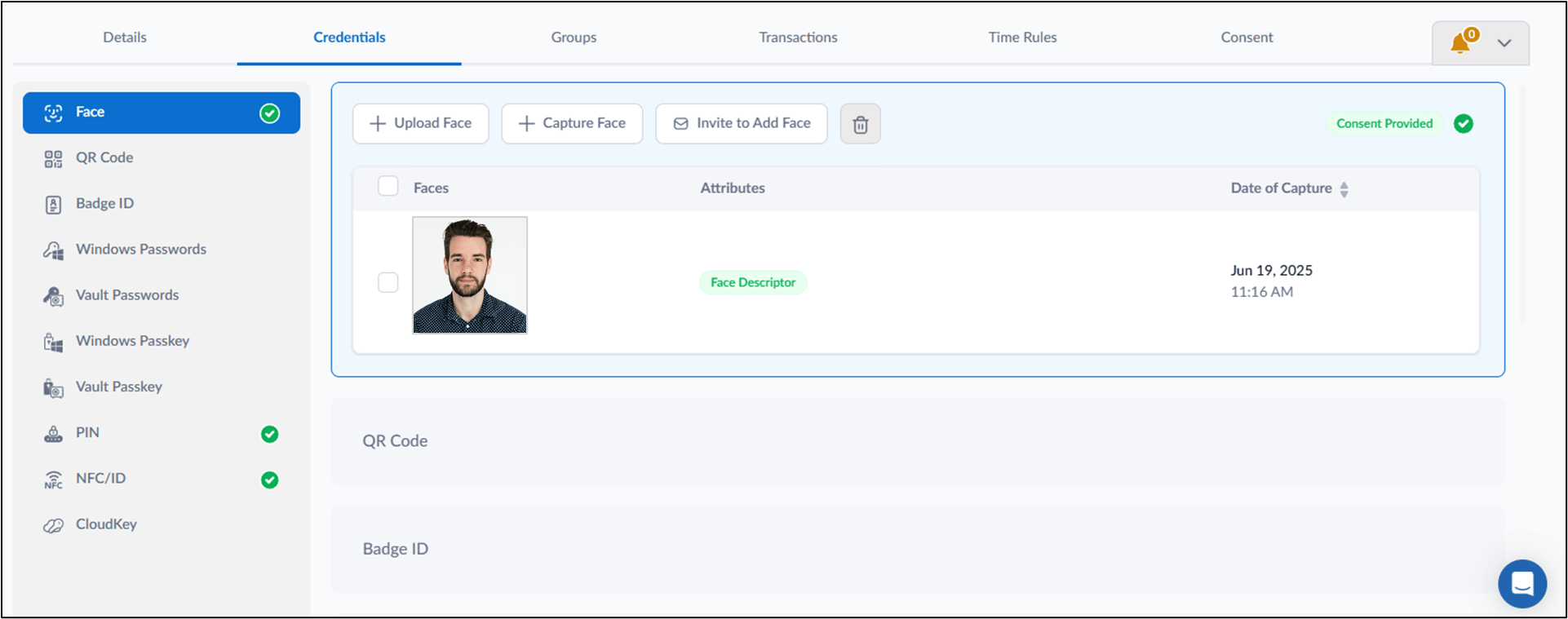
Introduction
The HR Picture Verification feature enables Tenant Admins to verify employee identities by comparing uploaded HR images with user-submitted photos for enrollment and authentication.Prerequisites
- You must have Tenant Admin access to Tenant Admin Portal.
- The user’s picture must be added under HR Picture Verification. For more, refer to How to Import Faces for HR Picture Verification
Steps to Configure HR PictureVerification
- Log in to the Tenant Admin Portal.
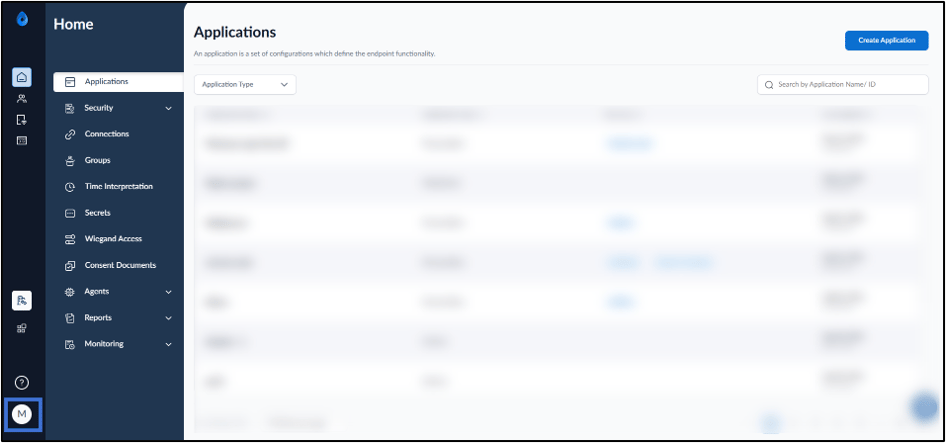
- On the homepage of the portal, click user profile icon on the bottom left corner of the menu panel.
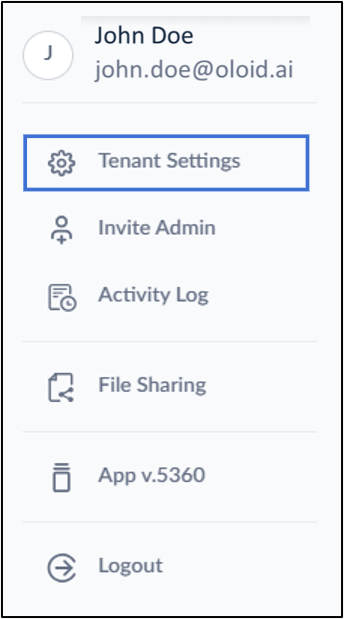
- Click Tenant Settings.
- Select App Settings > select User Portal > select Login Page
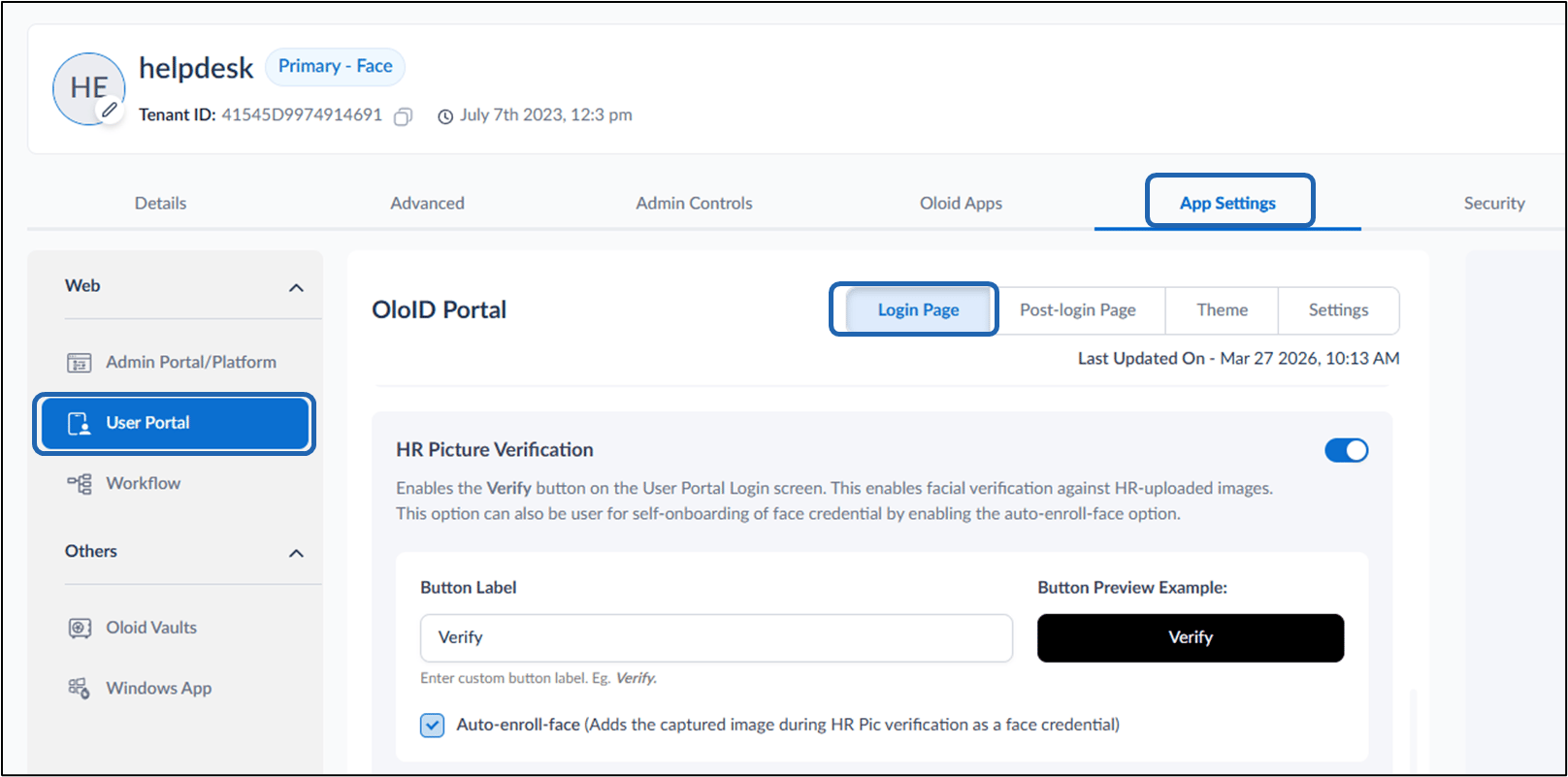
- Do the following:
- Enable the HR Picture Verification toggle.
-
Select the Auto Enroll Face checkbox. (Optional)
Note: Enabling Auto Enroll Face allows the image captured for login to be saved as credential if the user face was not previously added.
-
Enter Button Label. (Optional)
Note: The Button Label entered here will show on the User portal login screen as authentication option.
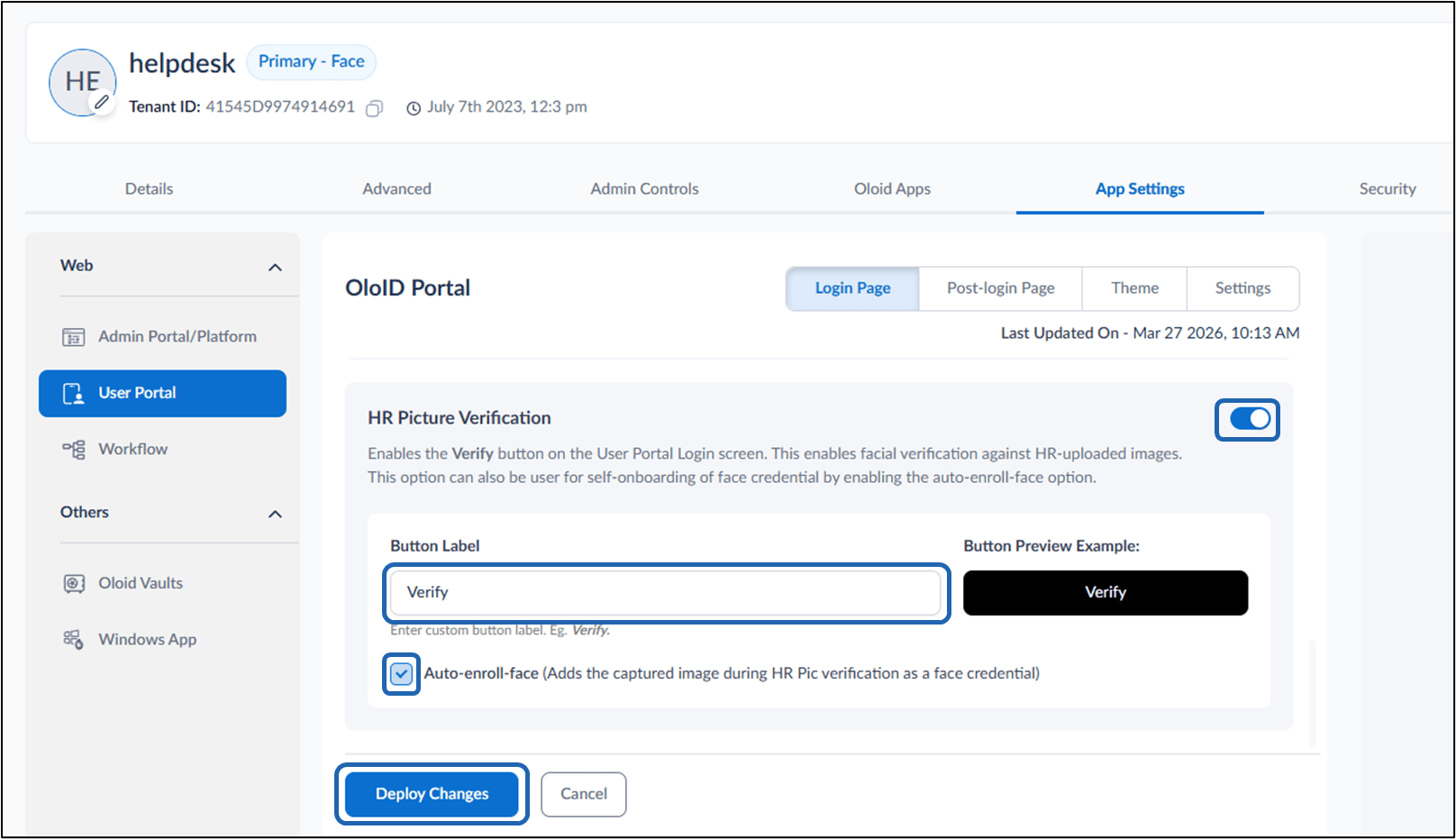
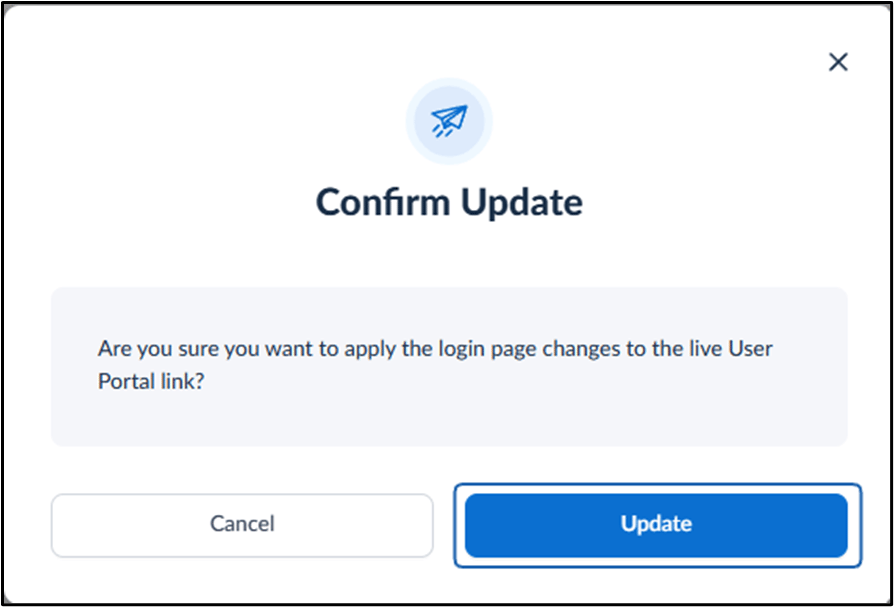
- Click Deploy Changes. The Confirmation pop-up box is displayed.
Sample screen on the User Portal Login Page
On the User Portal login page, the HR Picture Verify button is displayed.Note: Button label will appear based on configuration in the Tenant Admin Portal.
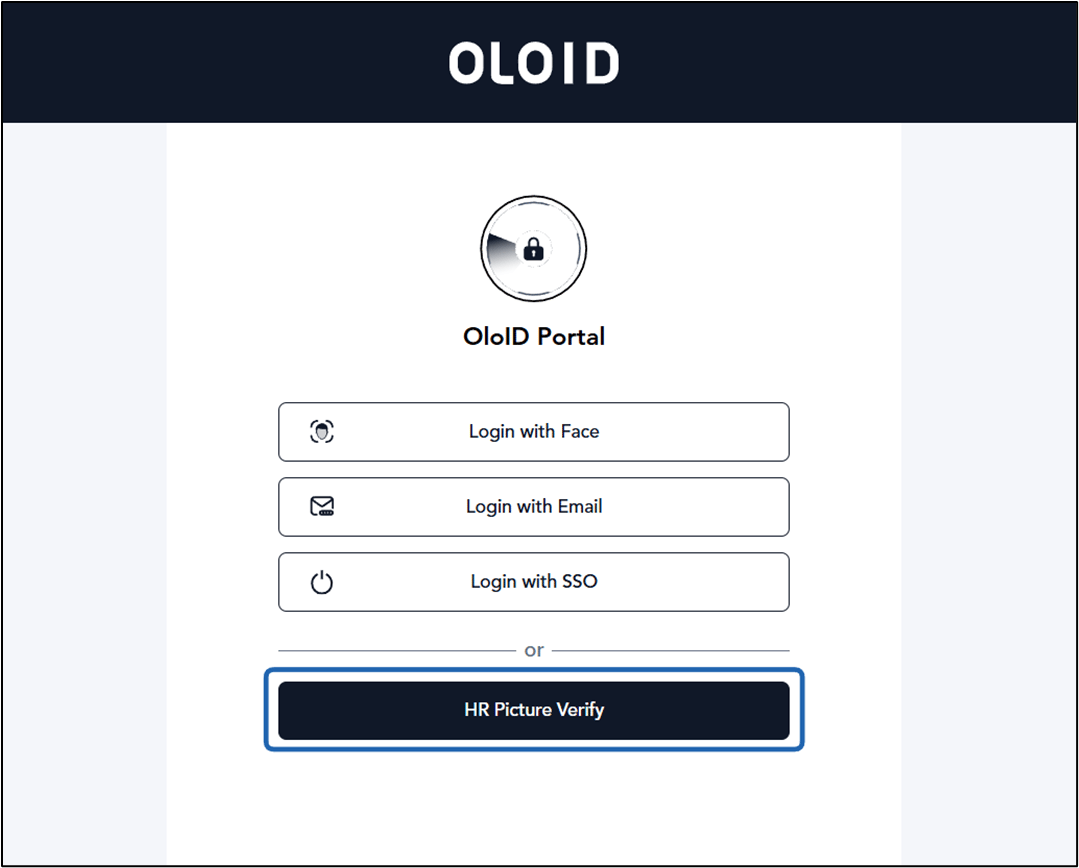
Note: When Auto Enroll Face is enabled, a user’s face is added to the Credentials tab after login if it has not already been enrolled.