

Introduction
A Supervisors Reports provides supervisors details of all the supervisors of the associated applications, including details regarding connections, assigned applications, assigned connections, and assigned groups.Pre-Requisite
You must have a Tenant Admin account.Steps to create & download Supervisors Reports
- Log in to the Oloid Portal.
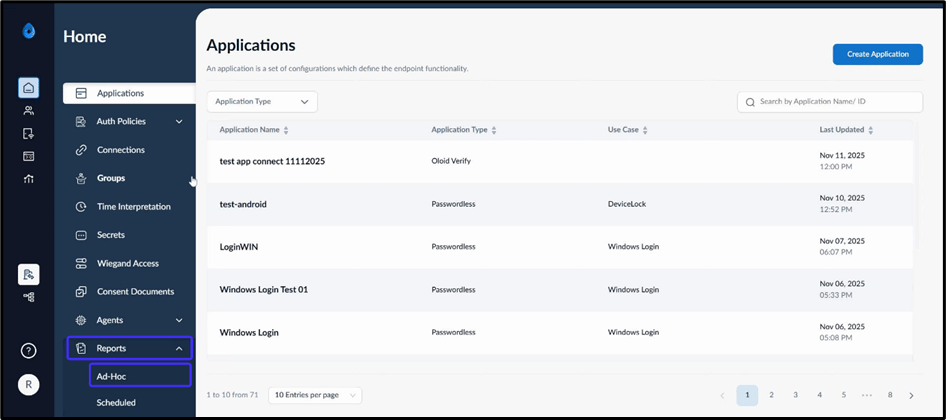
- On the homepage, click Reports > Ad-Hoc on the left menu panel.
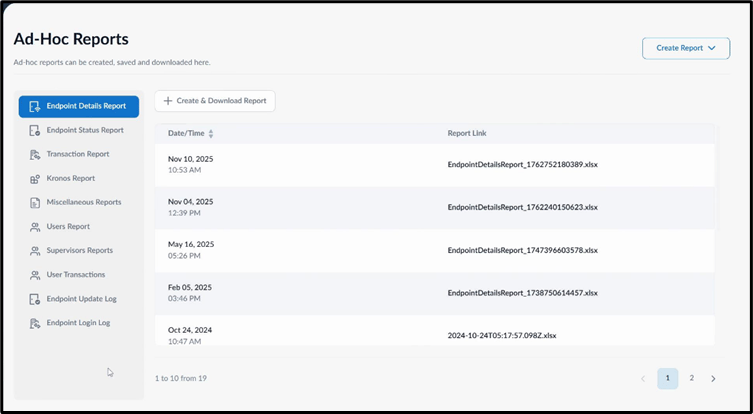
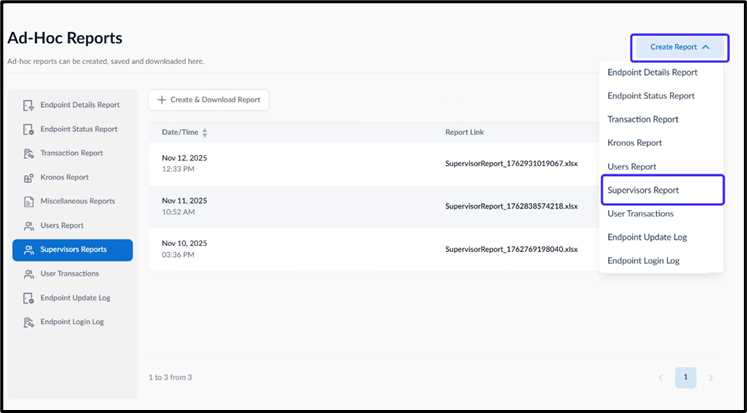
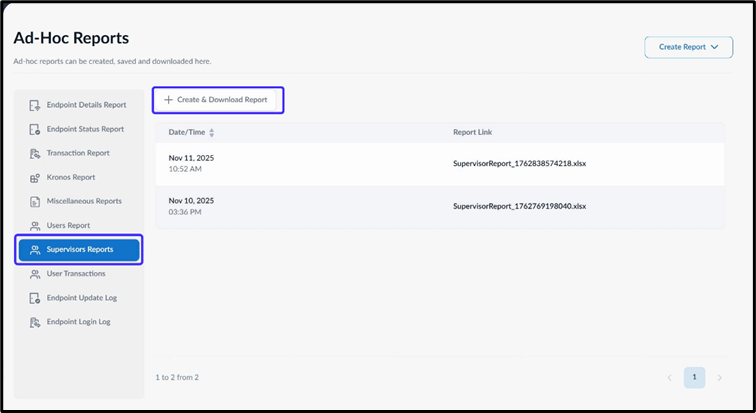
- Use one of the following methods to download the report:
- On the top right, click Create Report > Supervisors Reports.
- Select Supervisors Report from the left menu panel then click Create & Download Report.
- On the top right, click Create Report > Supervisors Reports.
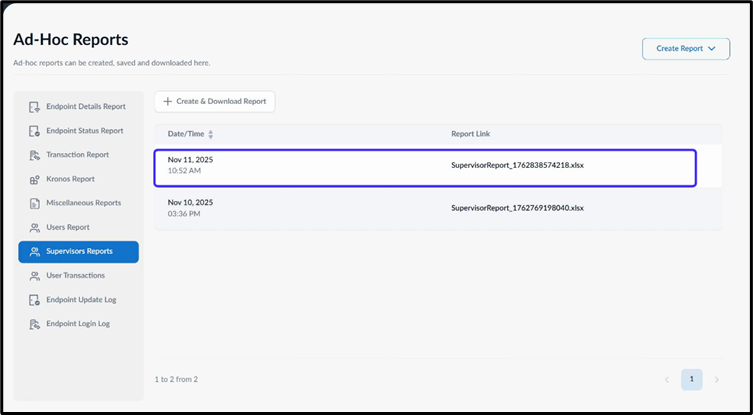
Note:
- Ensure you have sufficient permissions as a Tenant Admin before attempting to create the report.
- The downloaded file format for reports is XLSX.