

Introduction
The PingOne feature in the Tenant Admin Portal allows admins to enable PingOne as a second factor authentication for the Windows Login application. When enabled with other primary factors, users can log in to endpoints using PingOne credentials as a second factor.Prerequisite
You must have a Tenant Admin access in the Tenant Admin Portal.Steps to Enable PingOne MFA
- Log in to the Tenant Admin Portal.
-
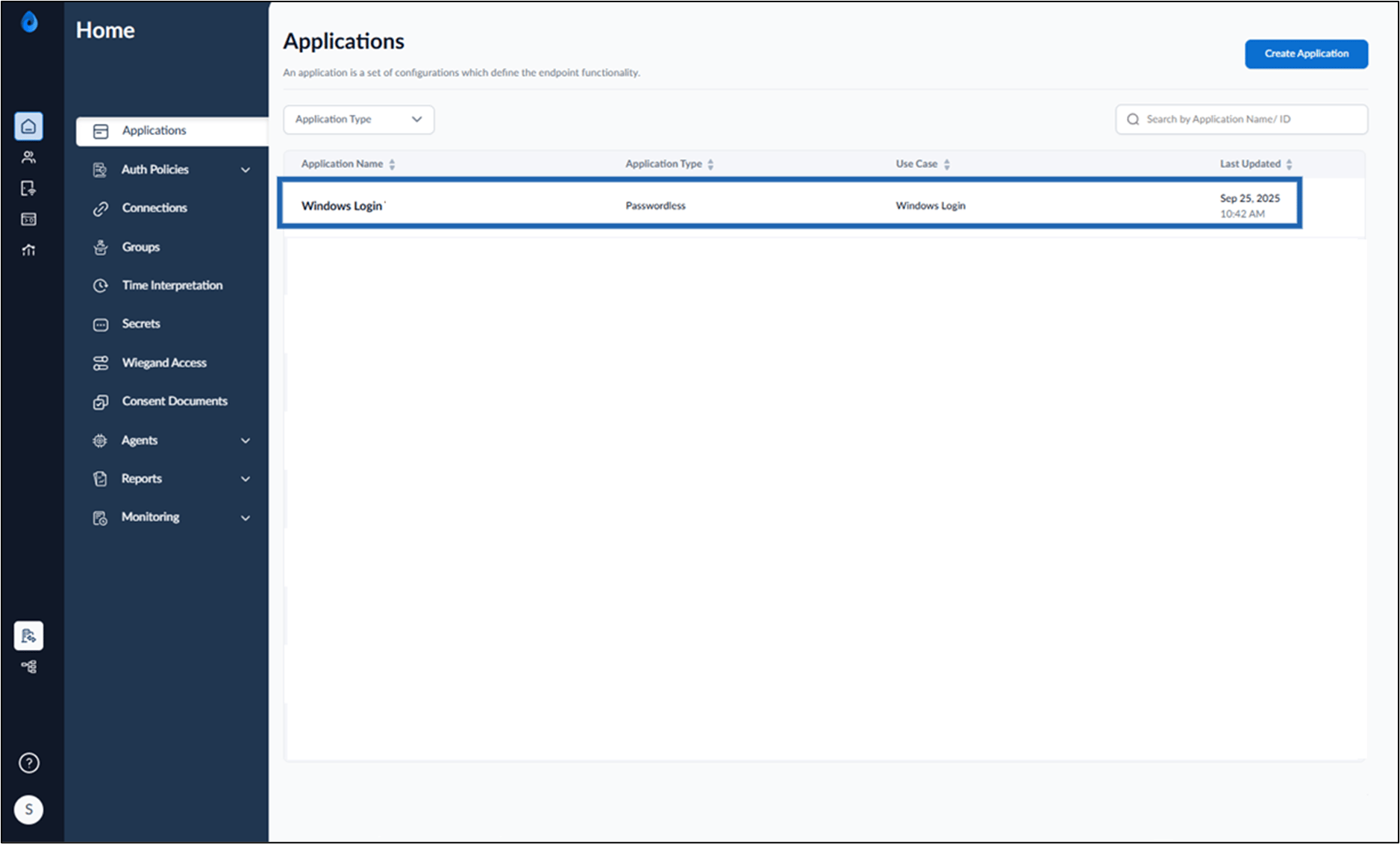
On the Applications page, select the Windows Login application.
-
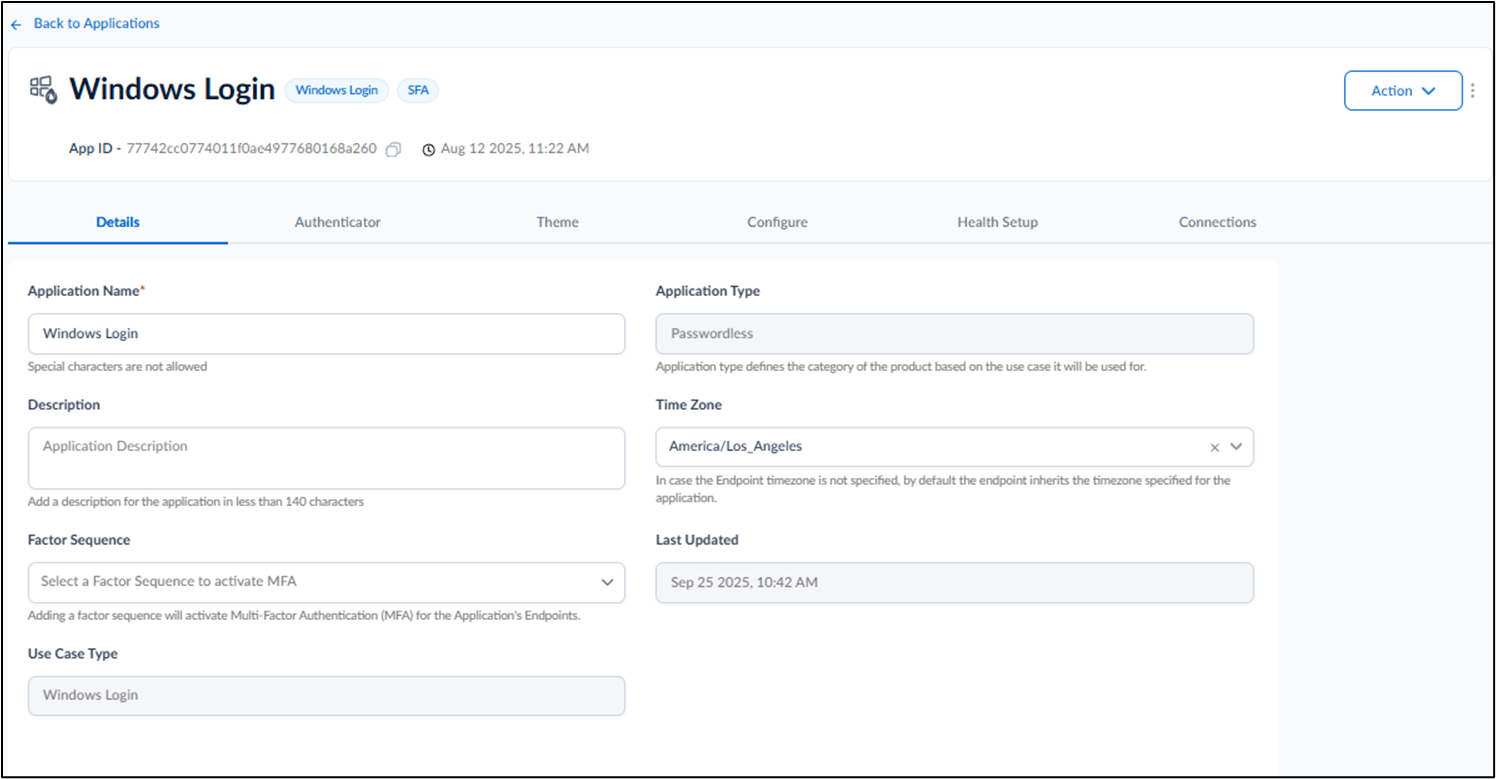
Go to the Authenticator tab > MFA Credential > turn on PingOne toggle.
 Note: You must do the Sync Configuration to apply changes.