Introduction
This document describes how to configure OKTA Multi-Factor Authentication (MFA) in the Oloid Tenant Admin Portal. Enabling OKTA MFA adds an additional verification step during login and requires configuring the necessary parameters from the OKTA Administrator Console.Prerequisites
- You must have Tenant Admin access in the Tenant Admin Portal.
- Ensure OKTA Multi Factor Authentication toggle is enabled in the Windows Login Application. To enable, refer How to Enable OKTA MFA Credential for Windows Login Application in the Tenant Admin Portal
- Ensure Token ID is created. To create, refer How to Create Token ID in OKTA for Windows Login Application
Steps to Configure OKTA MFA
- Log in to the Tenant Admin Portal.
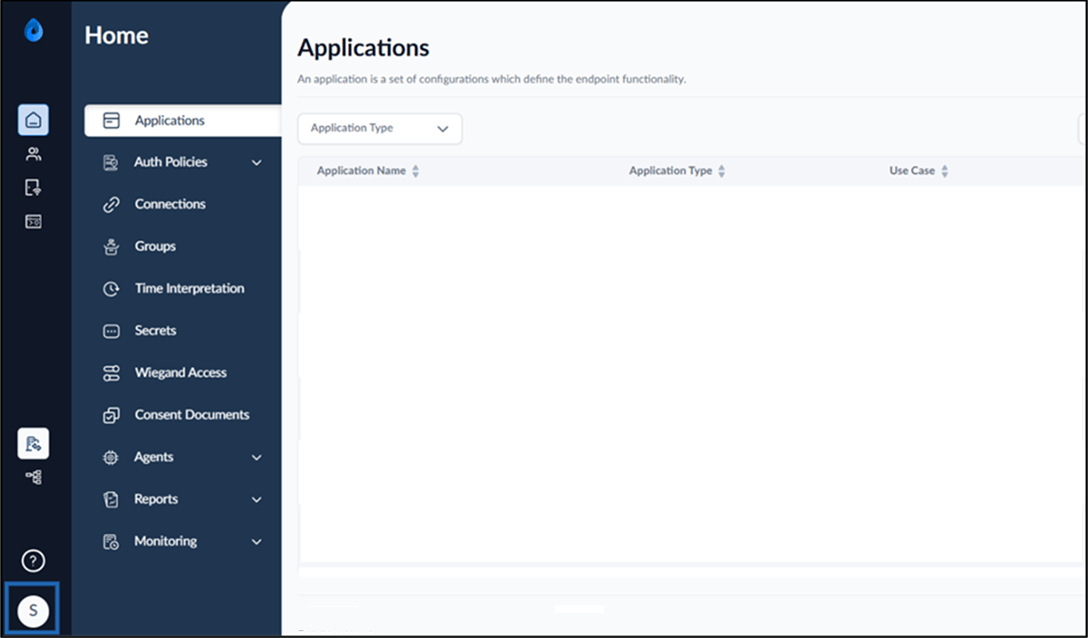
- On the homepage of the portal, click user profile icon on the bottom left corner of the menu panel.
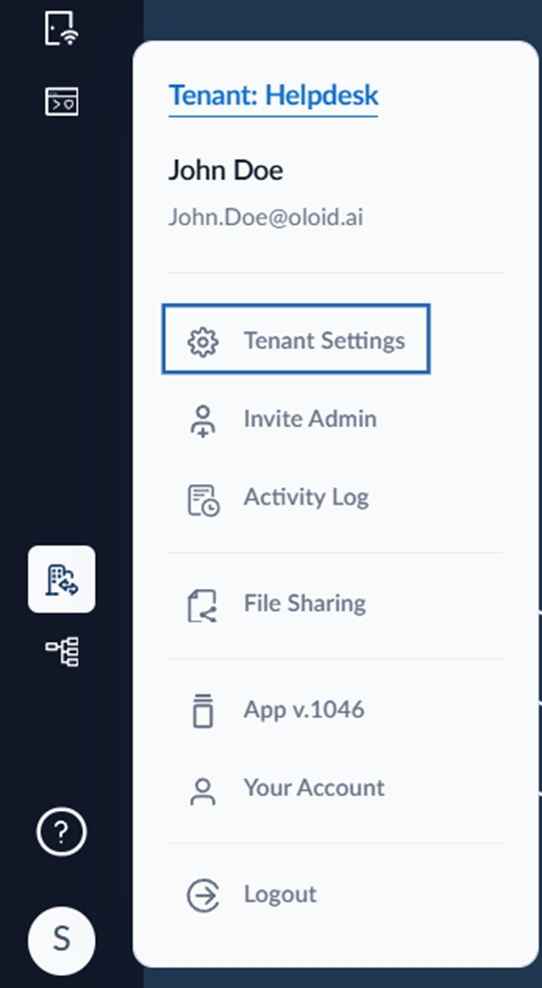
- Click Tenant Settings.
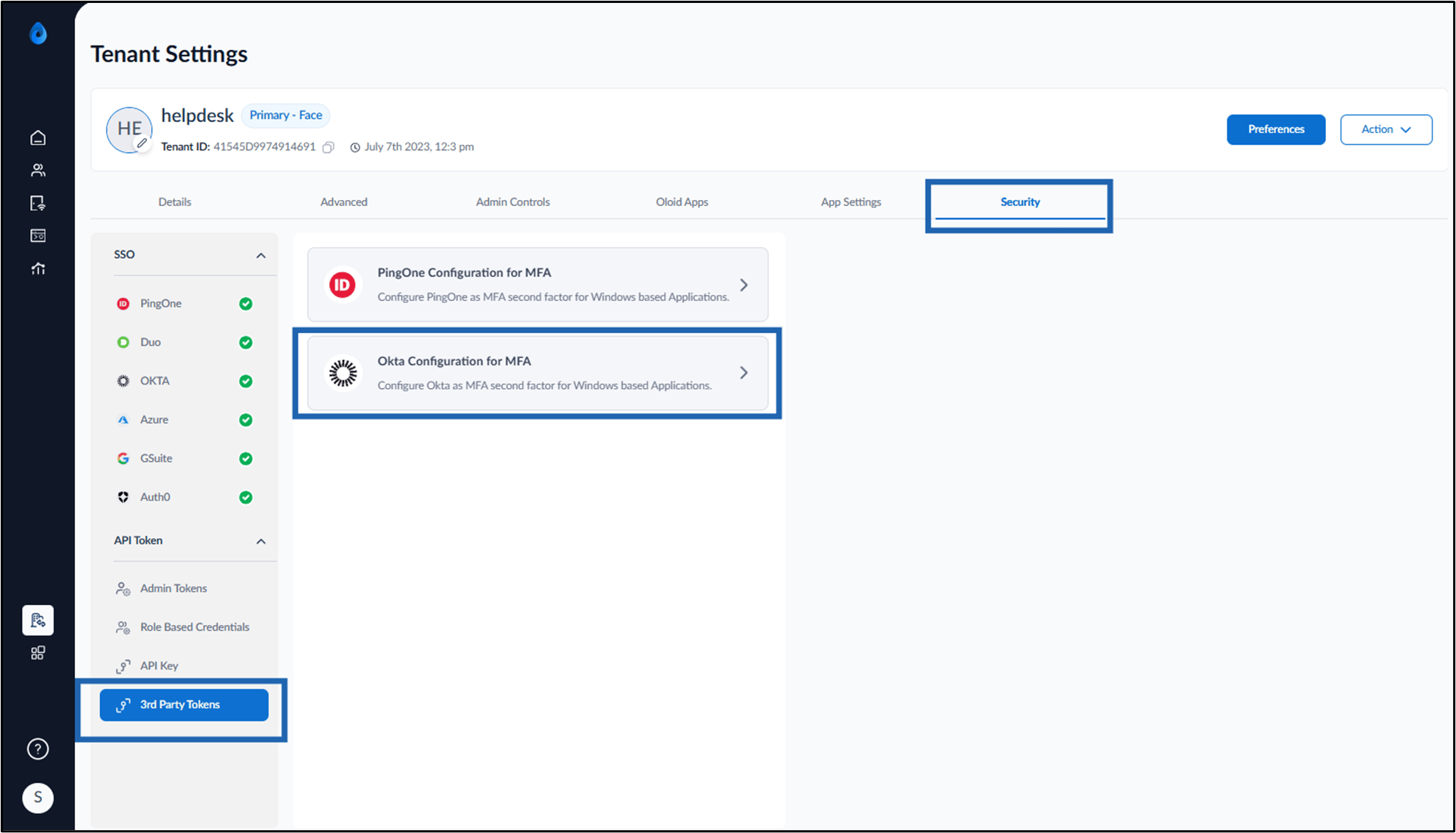
- Click Security > 3rd Party Tokens > OKTA Configuration for MFA.
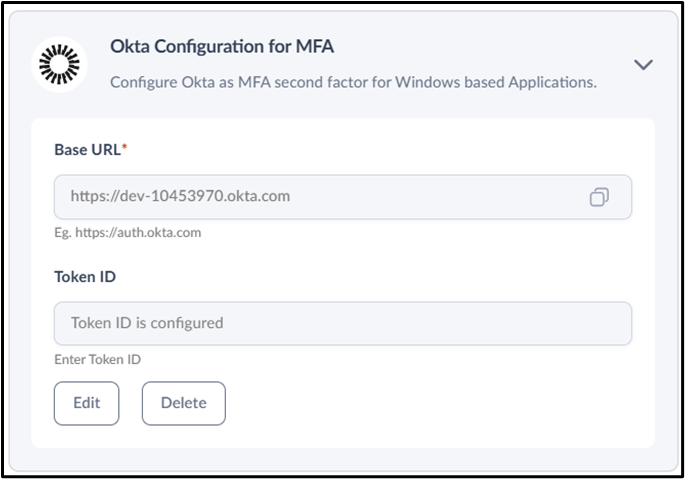
- Do the following:
- Base URL: Add the Base URL in the Base URL field.
- Token ID: Enter the Token ID in the Token ID field.
- Click Save.