Introduction
PingOne provides authentication and MFA capabilities that can be integrated with Oloid applications. Configuring PingOne allows admin to establish a secure environment, create applications, and enable MFA for users.Prerequisites
- You must have admin access to the PingOne Identity Administrator Console.
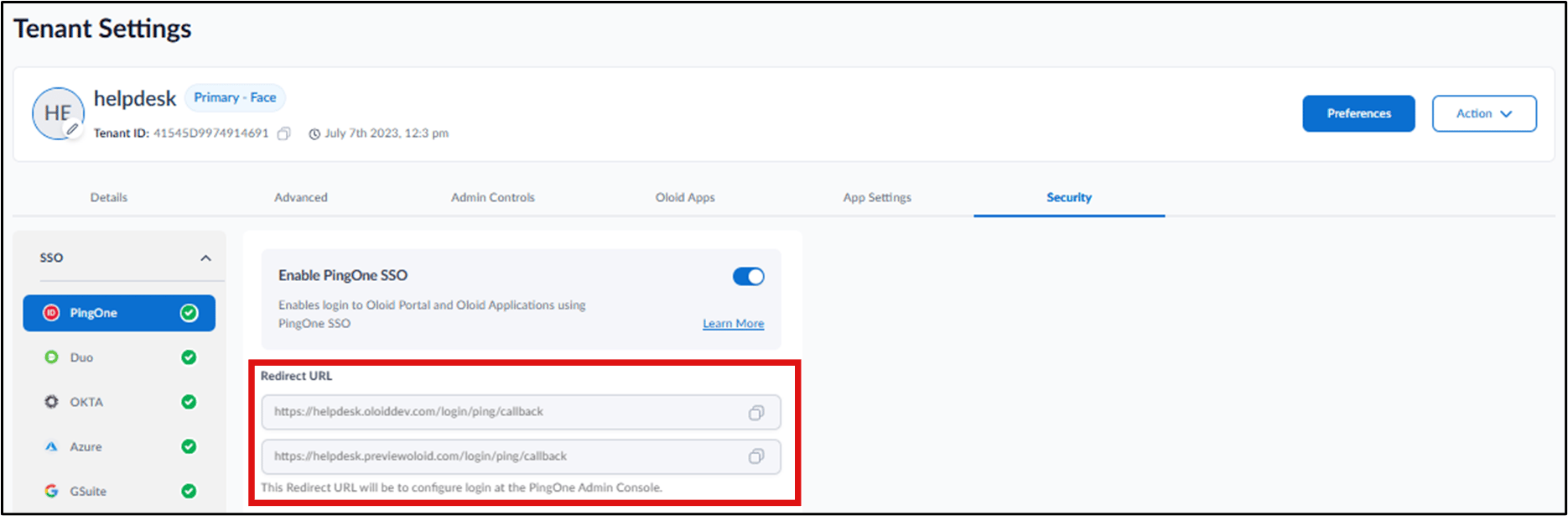
- You must have the redirect URLs from the Oloid team to complete the SSO configuration. If you don’t have the redirect URLs, contact Oloid Support.
Steps to Configure PingOne
Create Environment Create Applications Configure Application Create UserSteps to Create Environment
- Sign in to the Ping Identity Administrator Console using your PingOne account credentials.
- Go to Environments > Environments+.
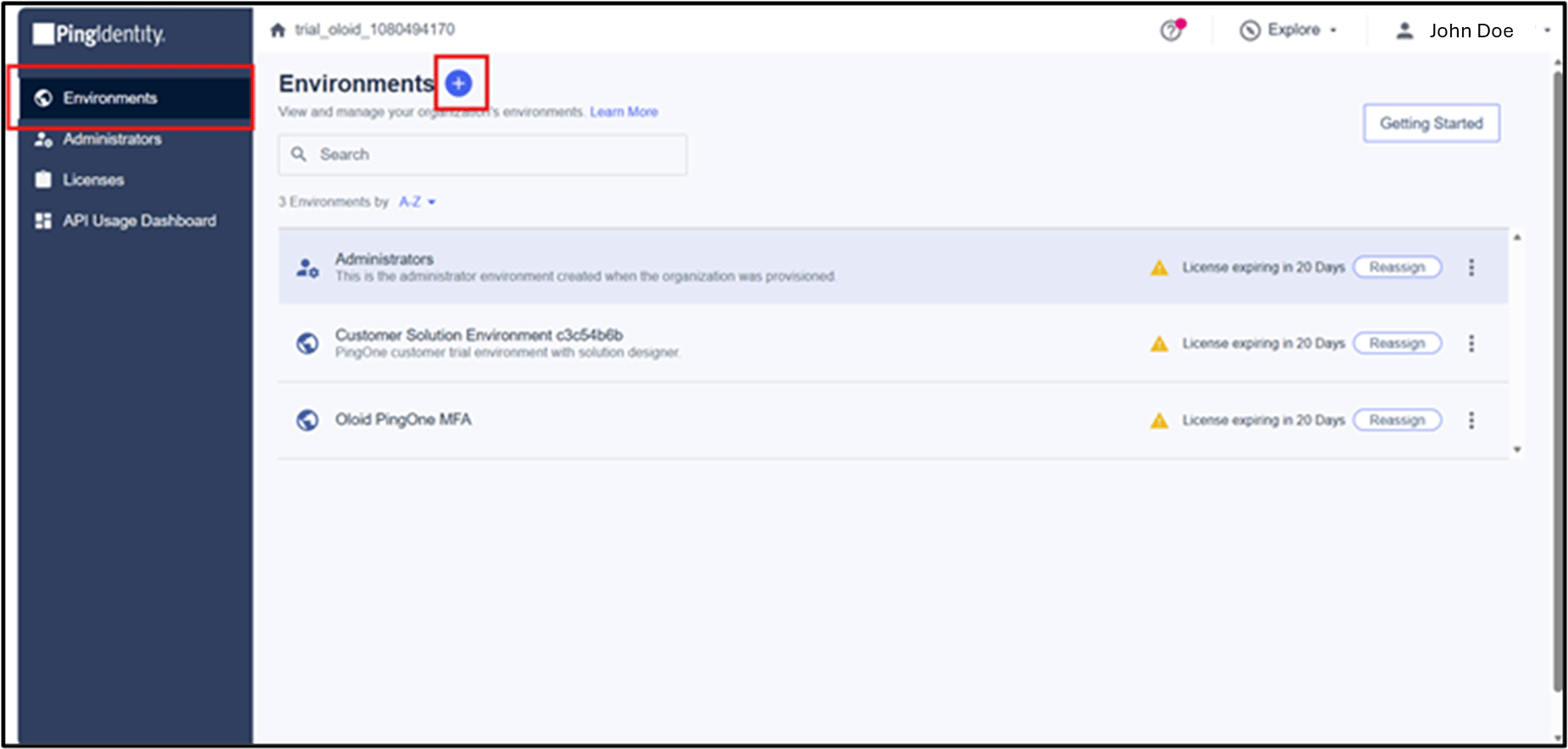
- Select Workforce Solution and click Next.
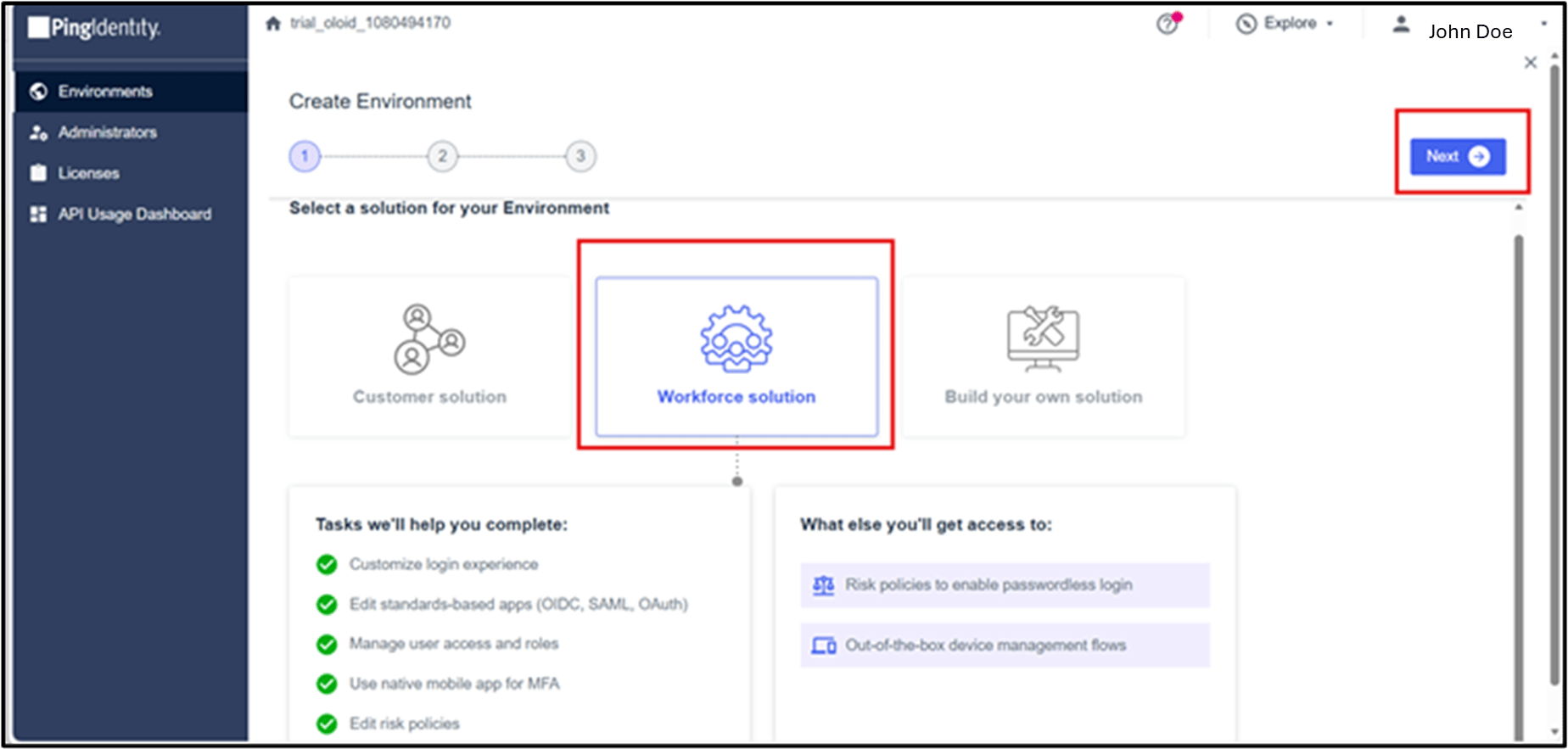
- Click Next.
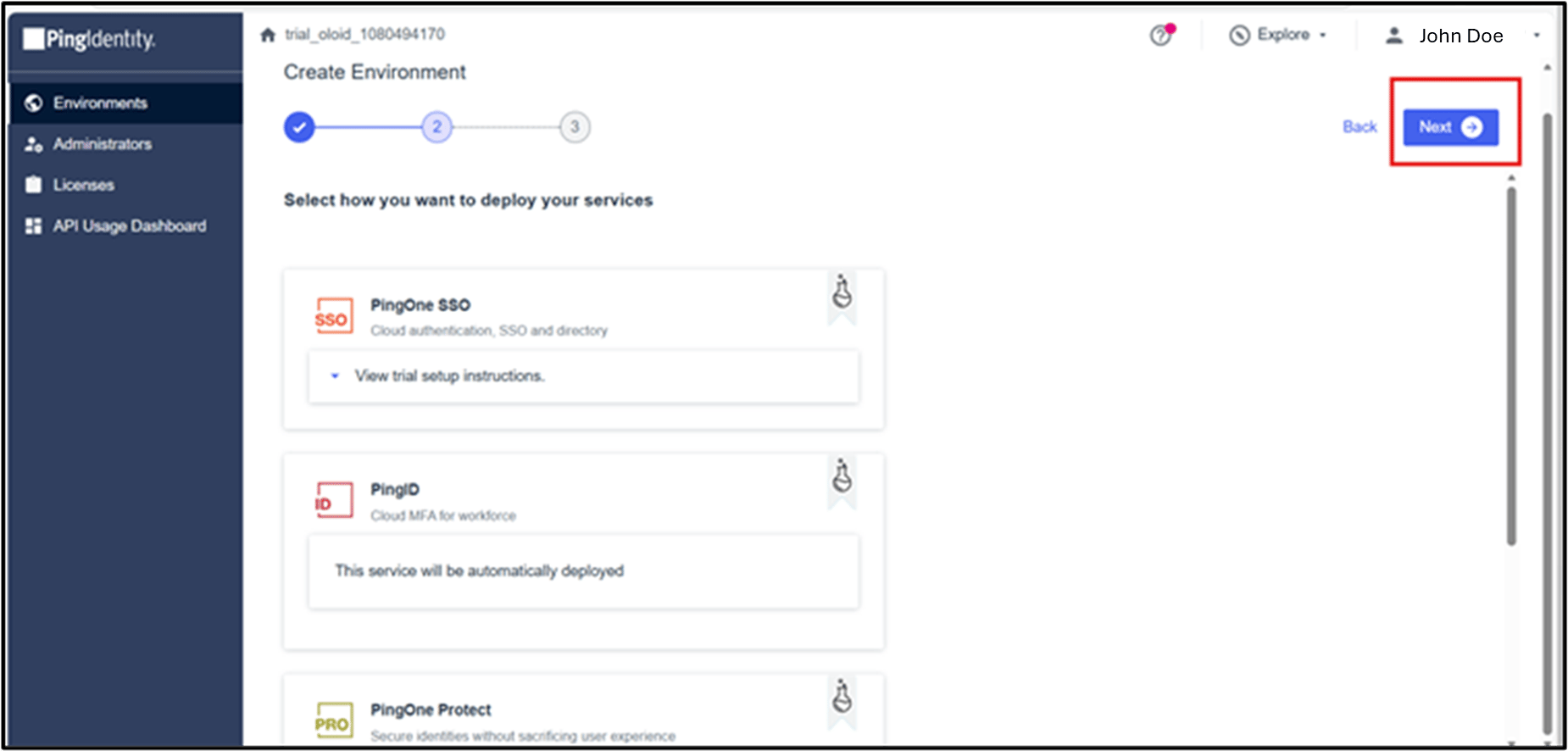
- Enter the Trial Environment Name and click Finish.
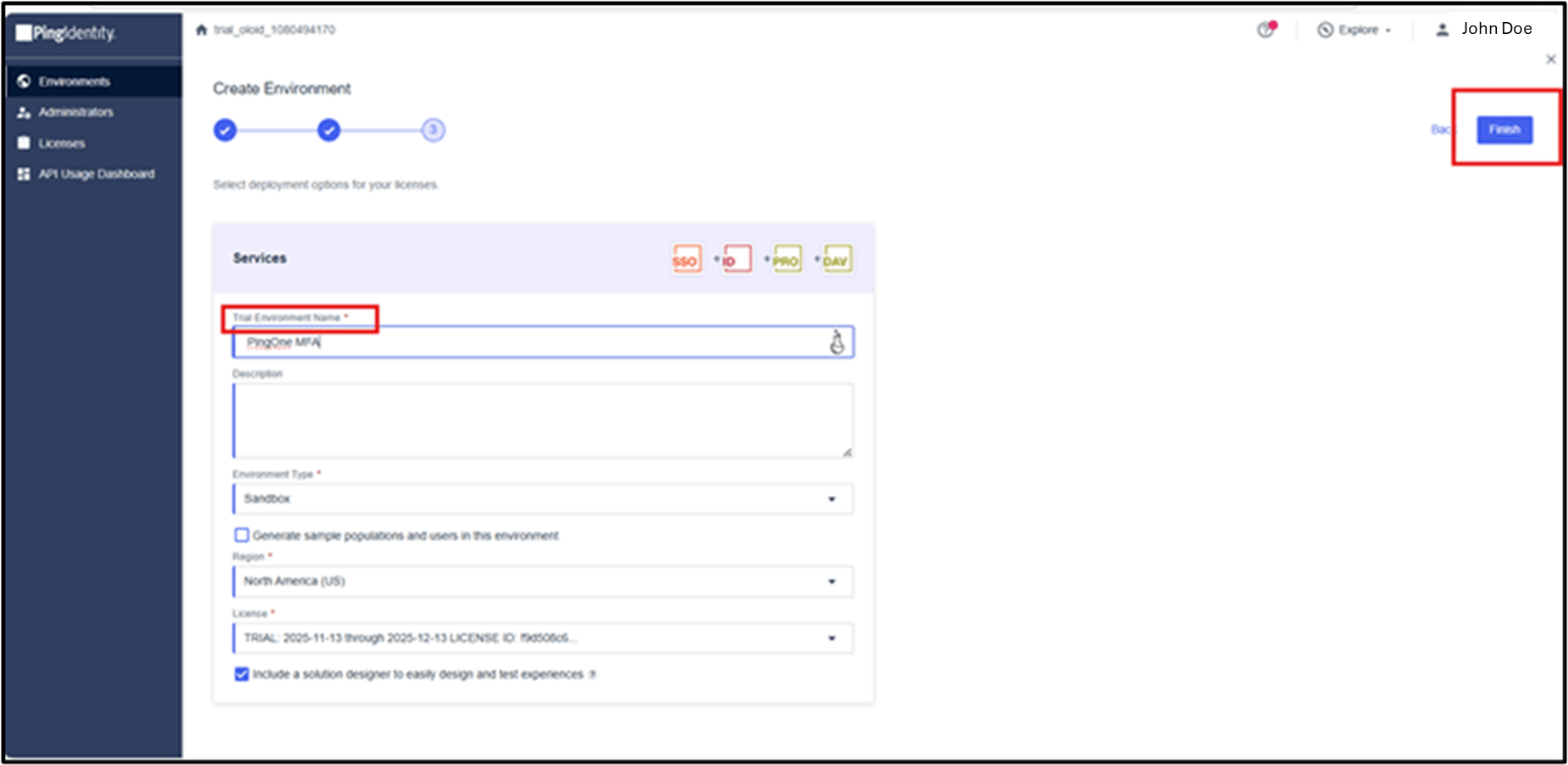
- Click Created Trial Environment.
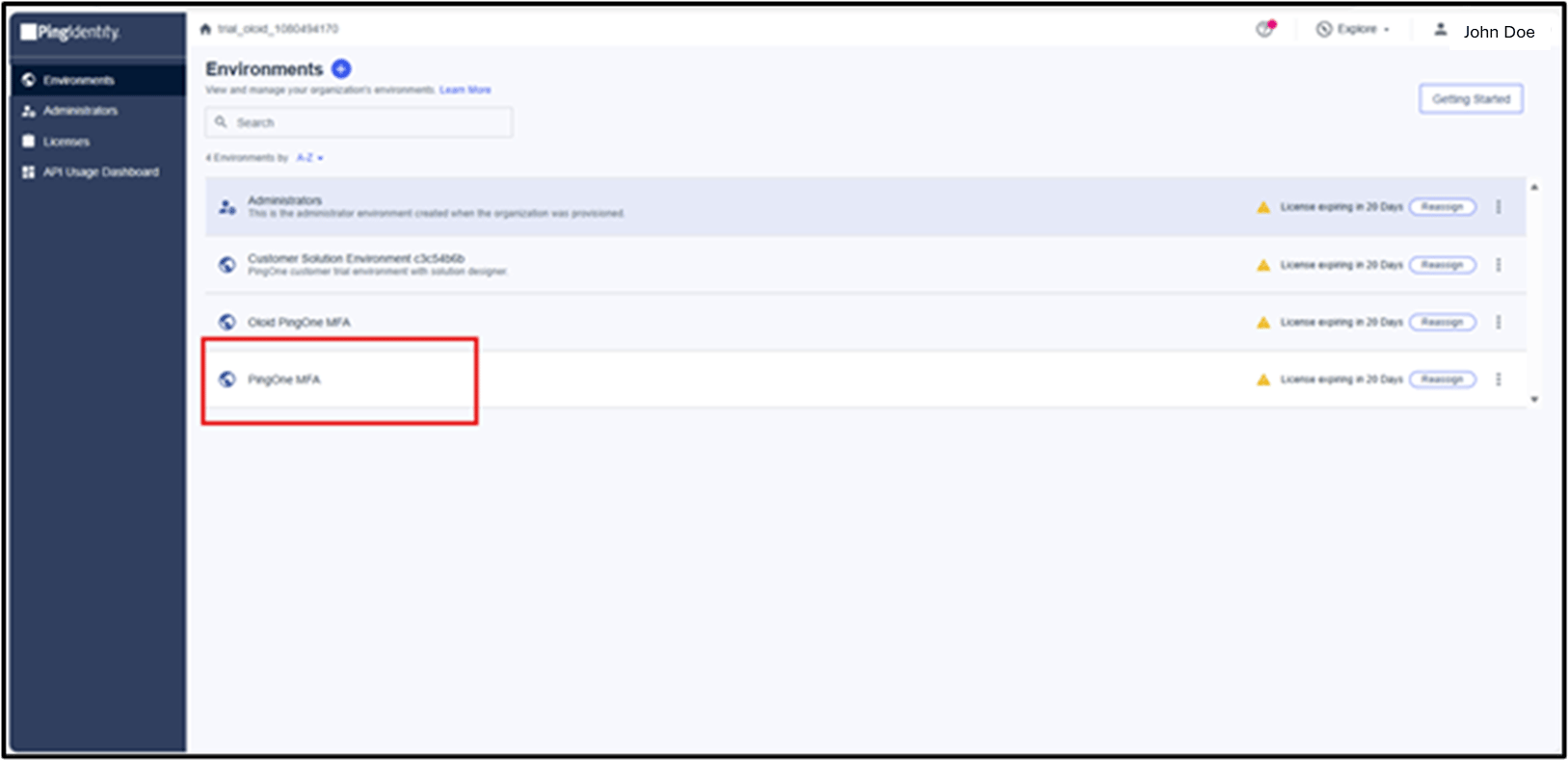
- Click Manage Environment.
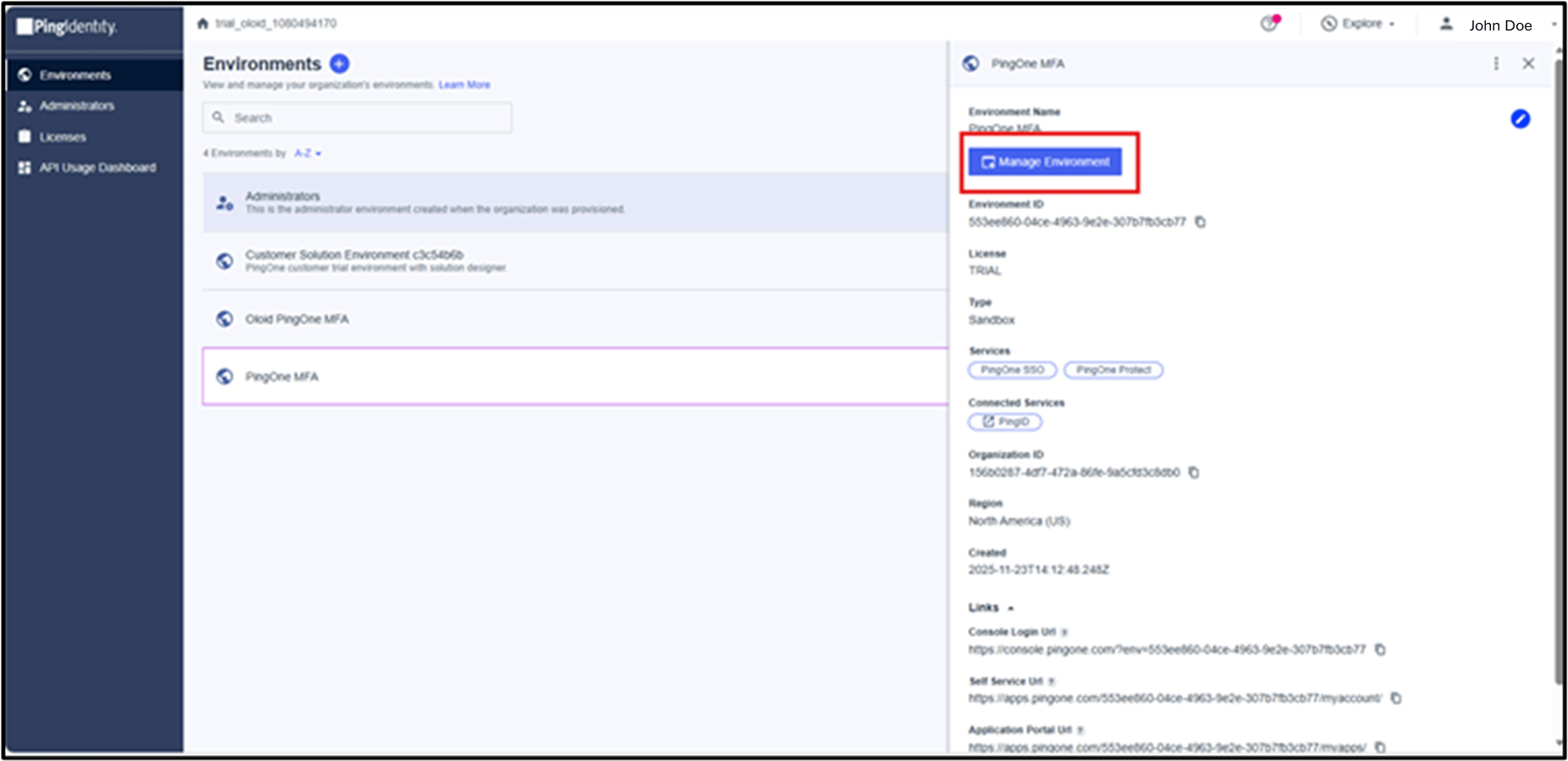
Steps to Create Application
- On PingOne home page, go to Applications > Applications.

- Click Application +.
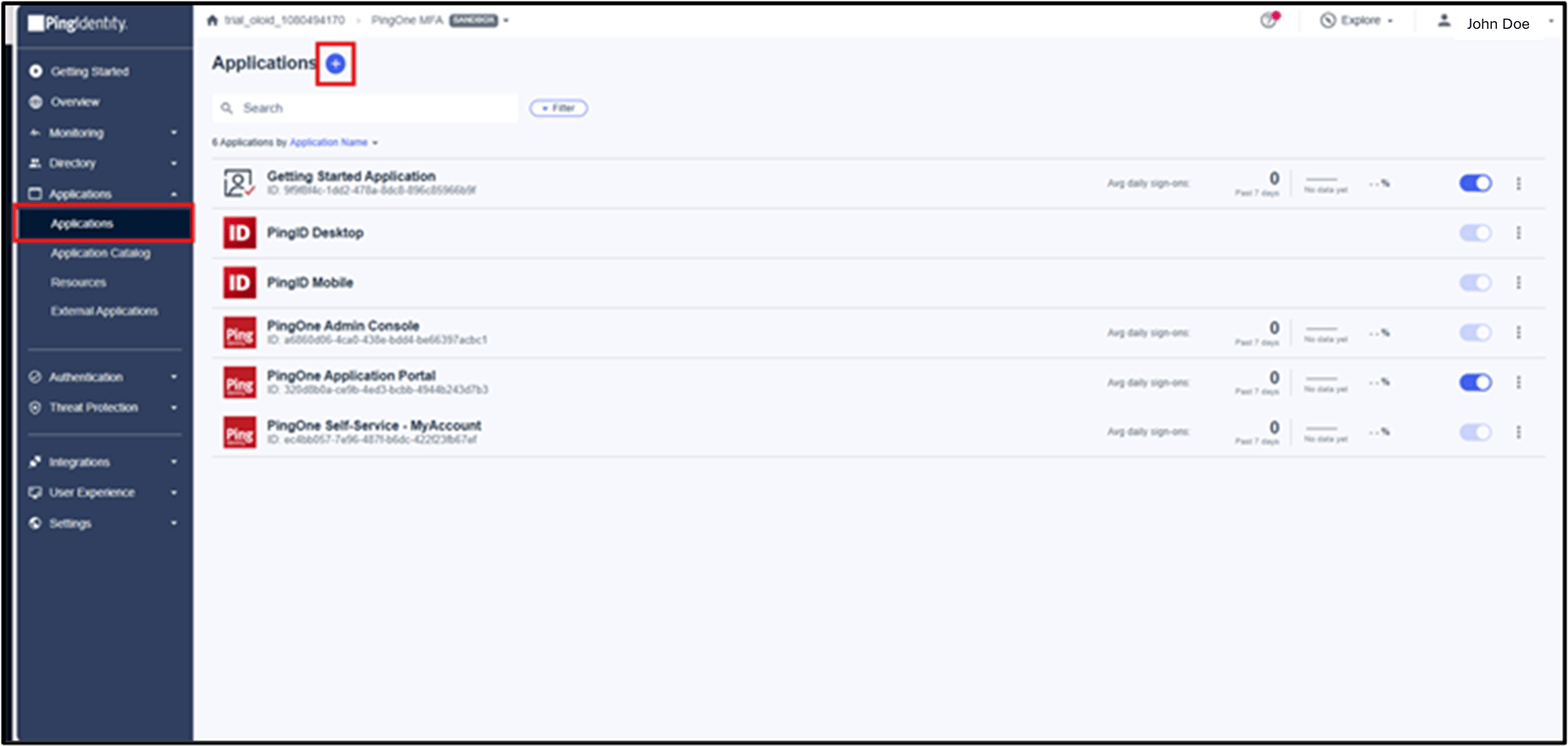
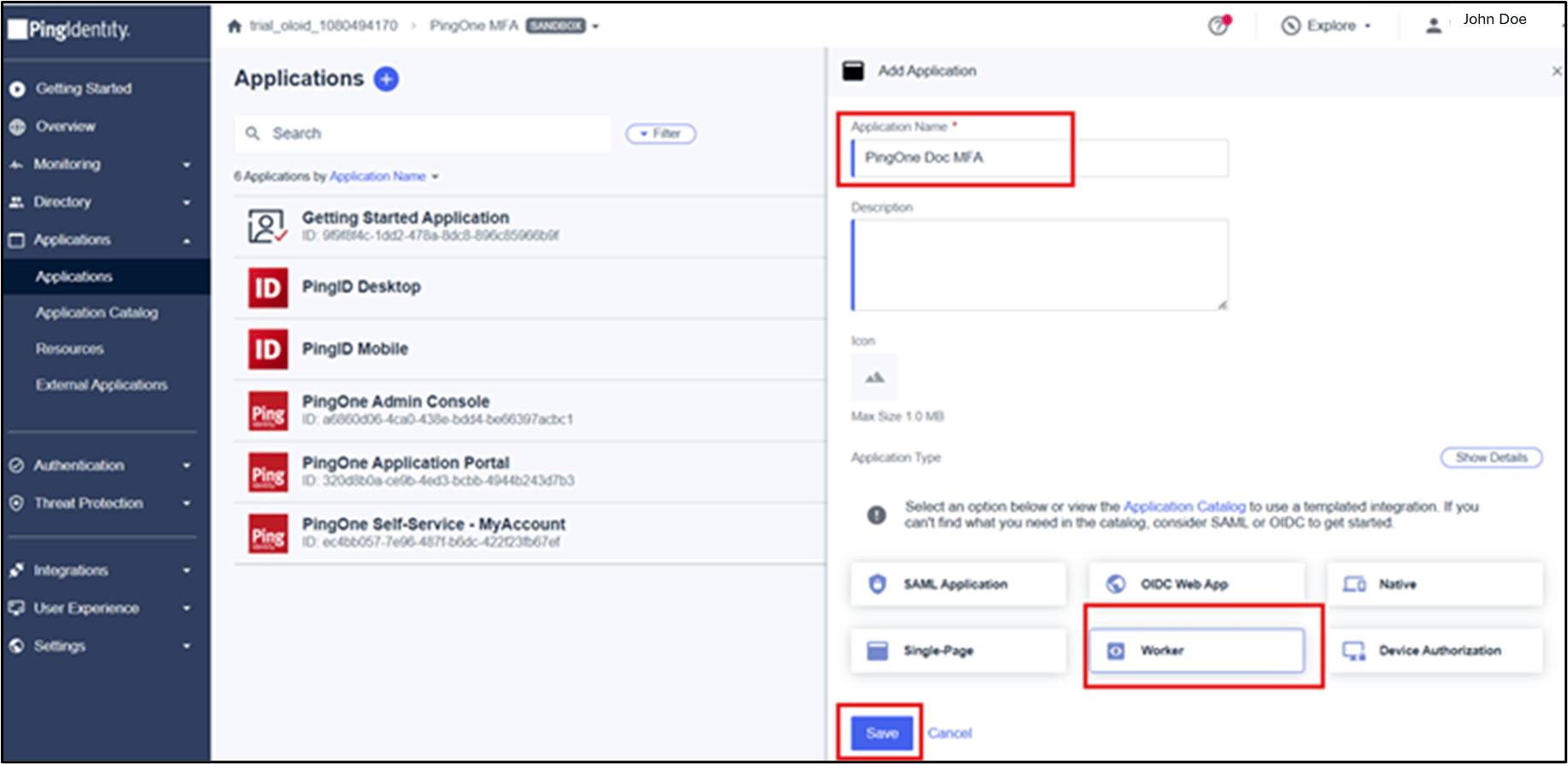
- Do the following:
- Enter the Application Name.
- Select Worker.
- Click Save
Steps to Configure the Application
- Enable the Application toggle.
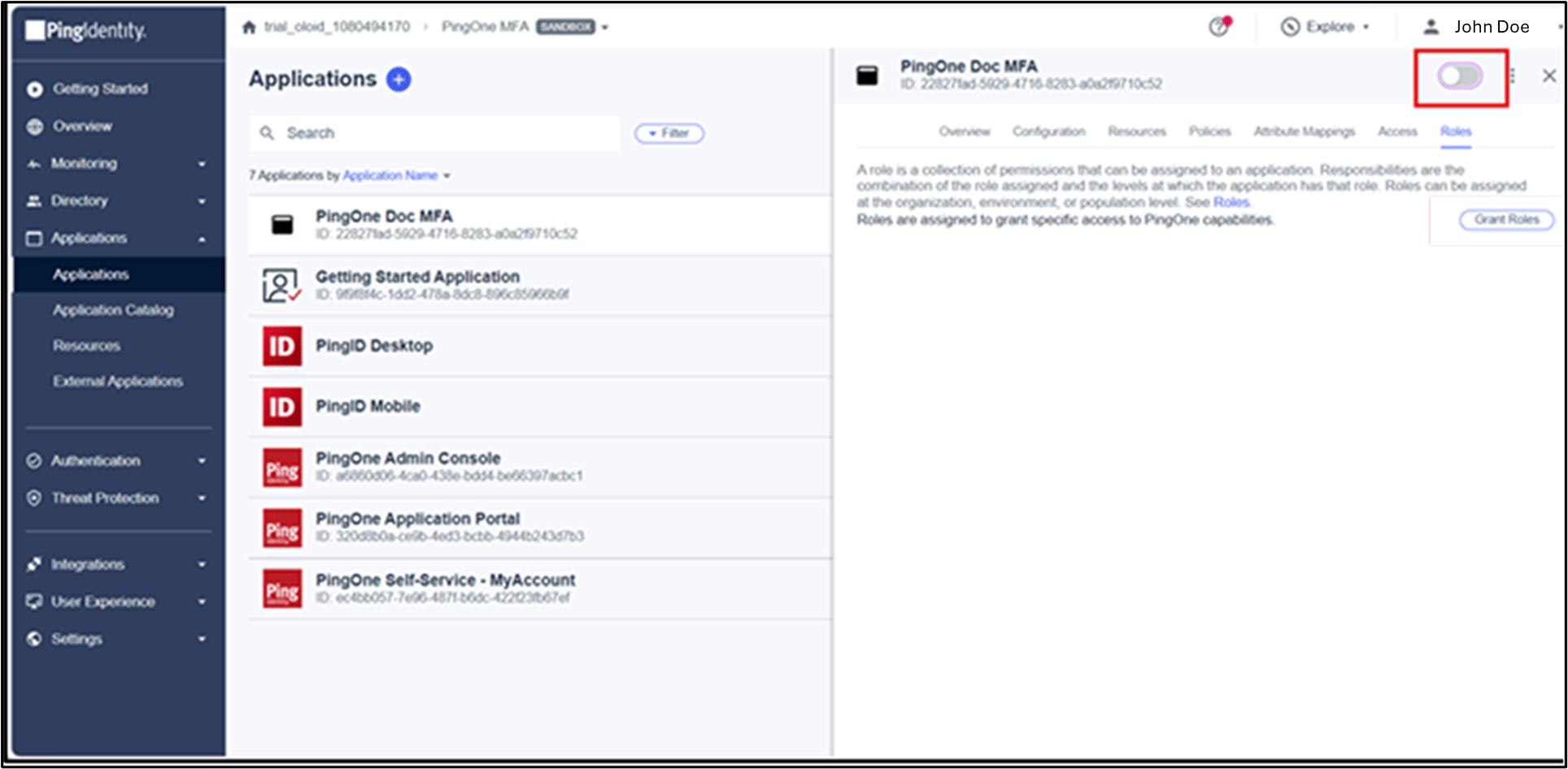
- Setup the following tabs:
- Configure Roles Tab
- Configure the Resources Tab
- Setup Configuration Tab
Steps to Configure the Roles Tab
- On Application detail page, click Roles > Grant Roles.
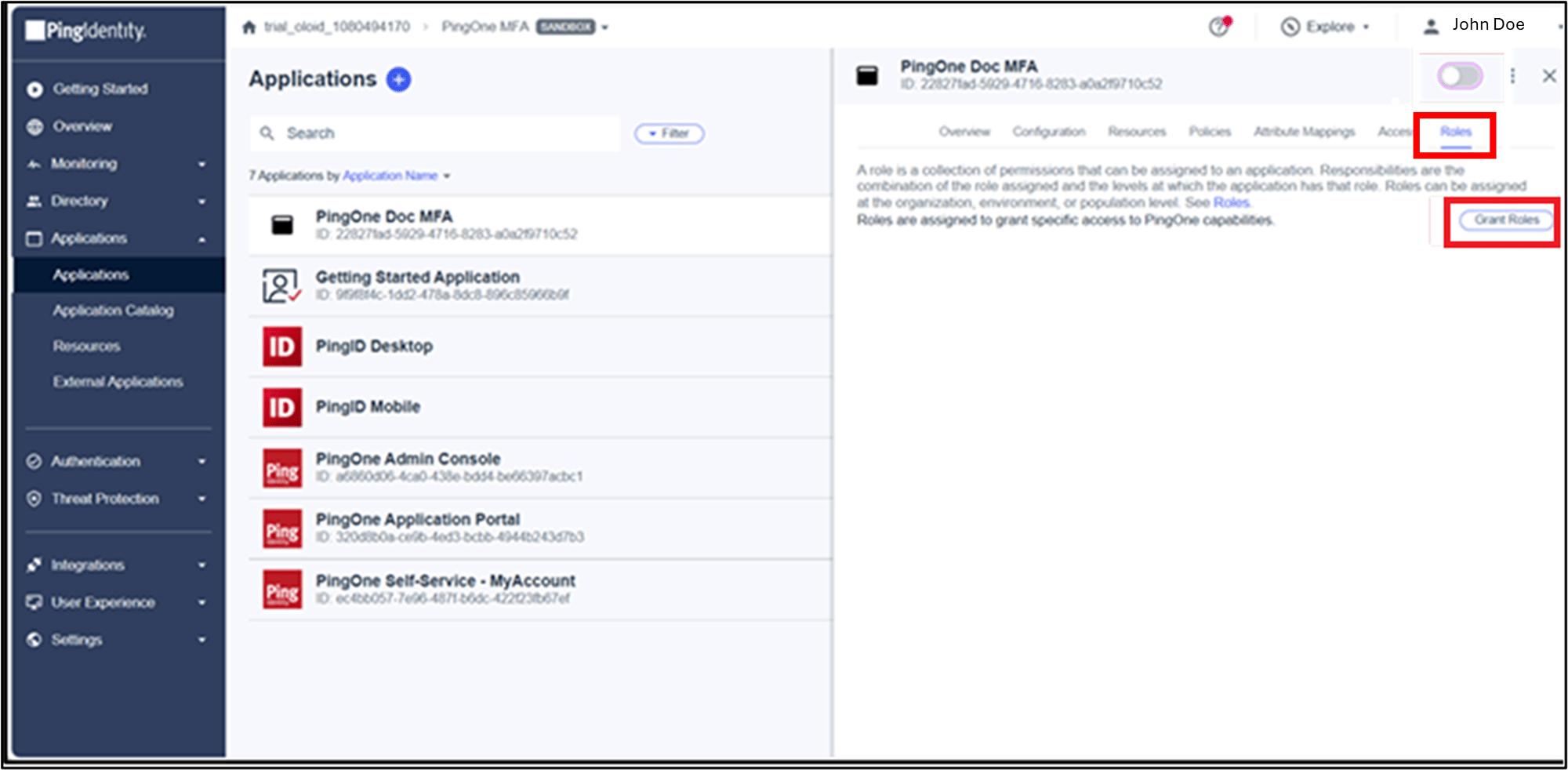
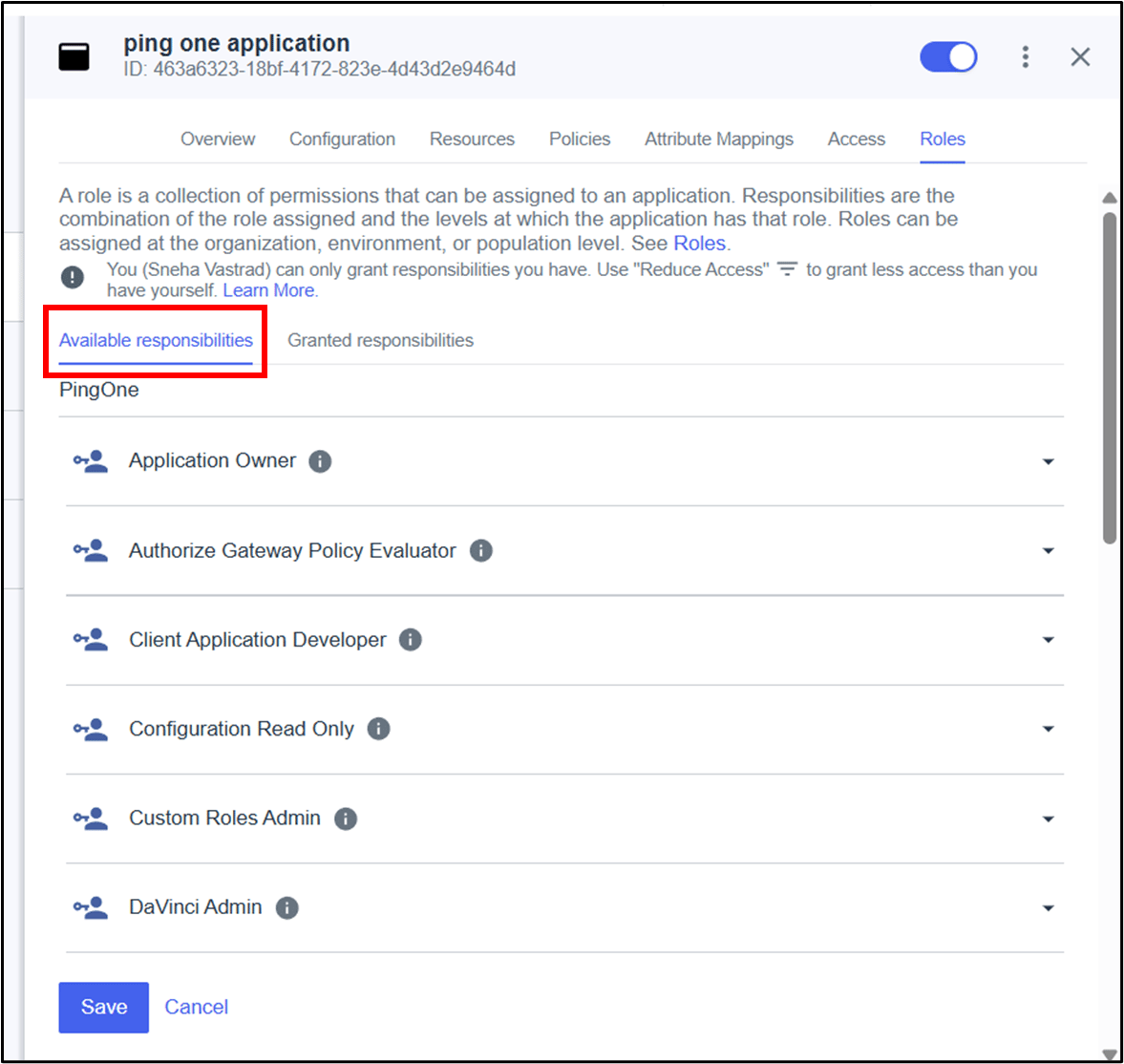
- Add the following roles from the Roles list.
- Environment Admin.
-
Identity Data Admin.
Note: Always click on Select All.
- Organization Admin.
-
Click Save.


Steps to Configure the Resources Tab
- On Application detail page, click on Resources > Allowed Scopes Edit icon > select Email > Save.


Steps to Setup the Configuration Tab
- On Application detail page, go to Configuration > click Edit icon.

- Do the following:
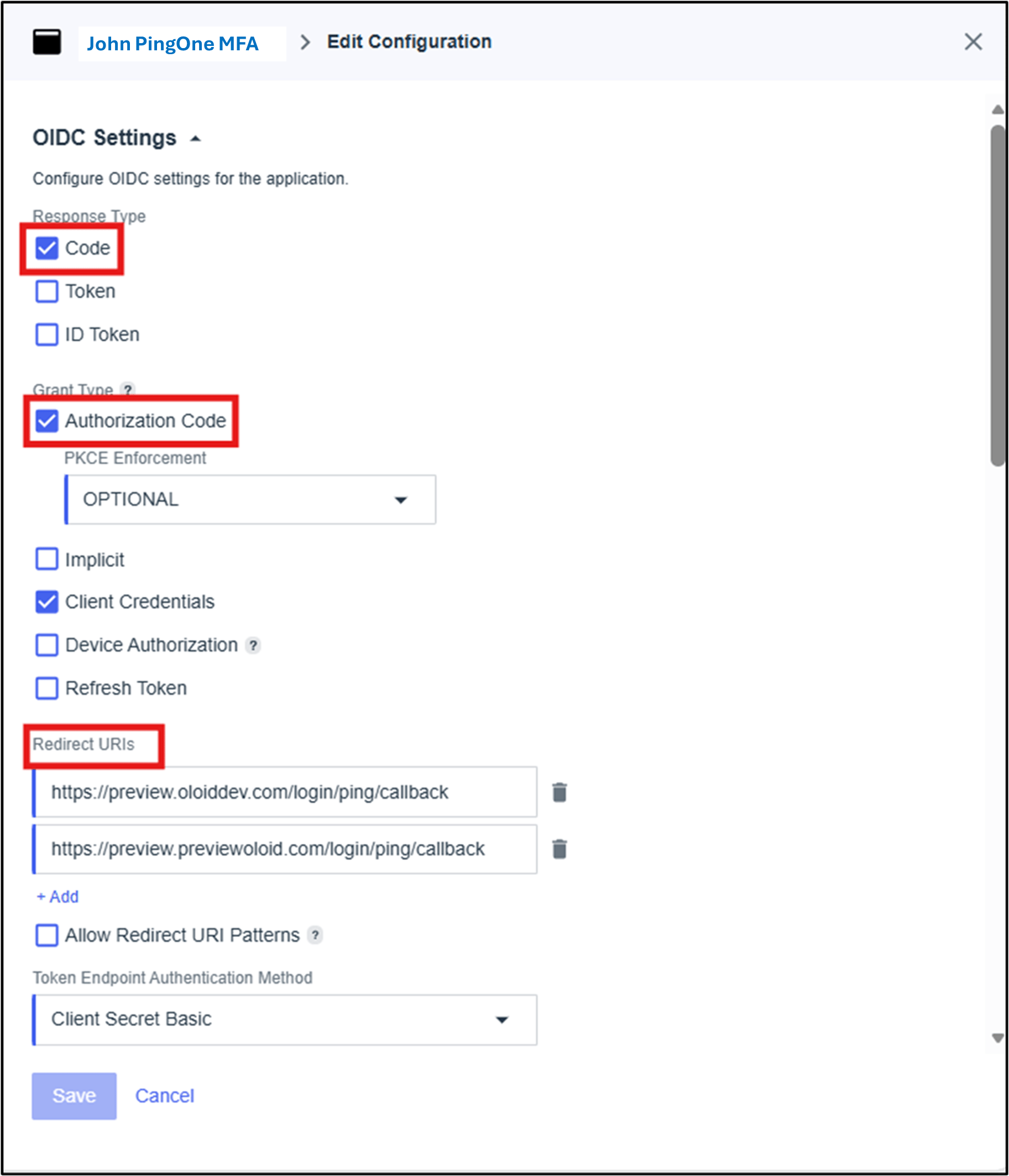
- Select Code as Response Type.
- On Grant Type select the following:
-
Authorization Code.
Note: PKCE Enforcement is set to Optional by default. Keep this setting as Optional.
- Client Credentials.
-
Authorization Code.
- Enter the Redirect URls.
-
The redirected URLs are added for the Tenant Admin Portal and Oloid User Portal.
Note: To add more redirect URL, click + Add to add another Sign-In Redirect URL field in this section.
-
The redirected URLs are added for the Tenant Admin Portal and Oloid User Portal.
- Click Save. The Application is configured Successfully.
Steps to Configure MFA Parameter in the Oloid Tenant Admin Portal
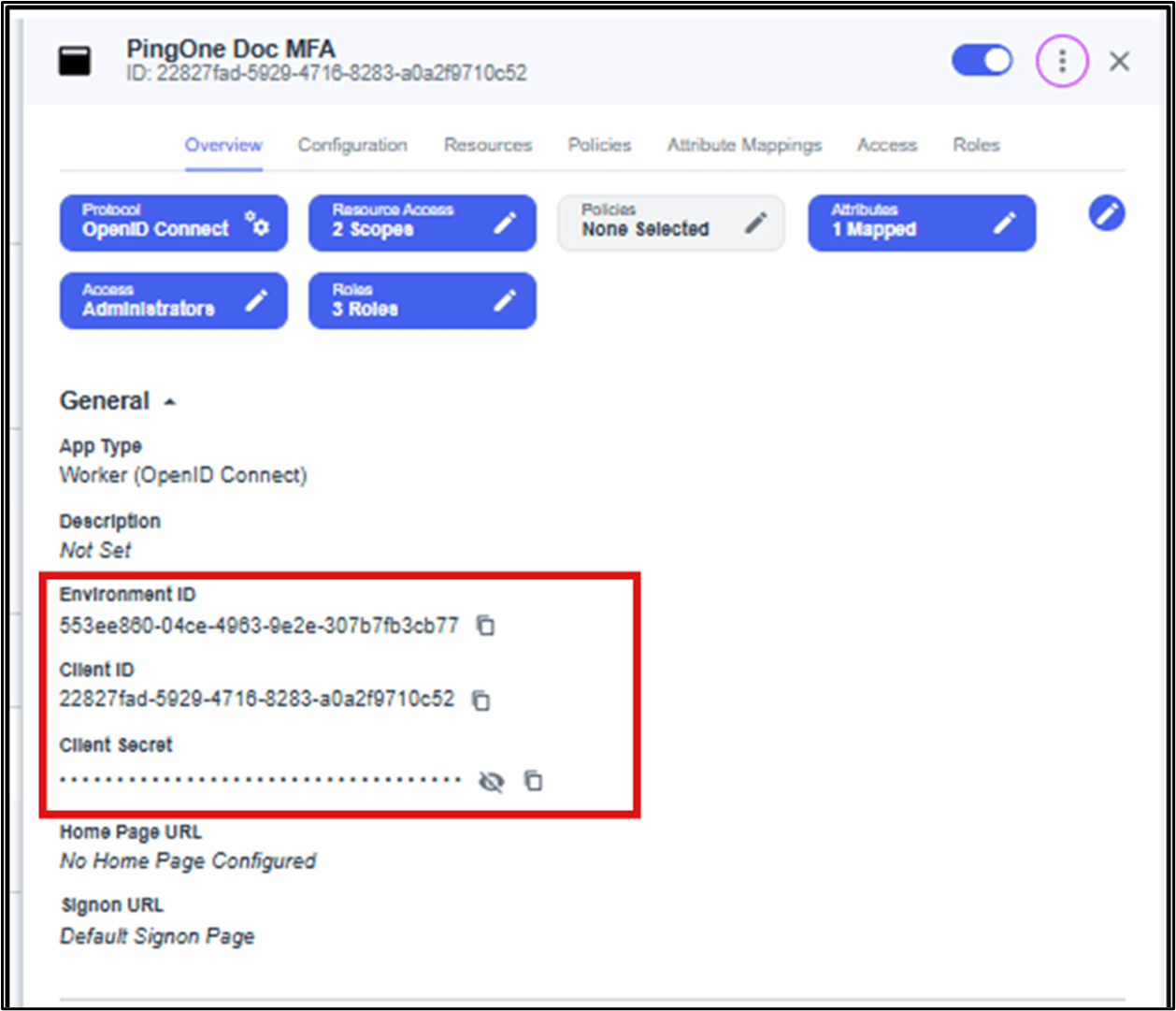
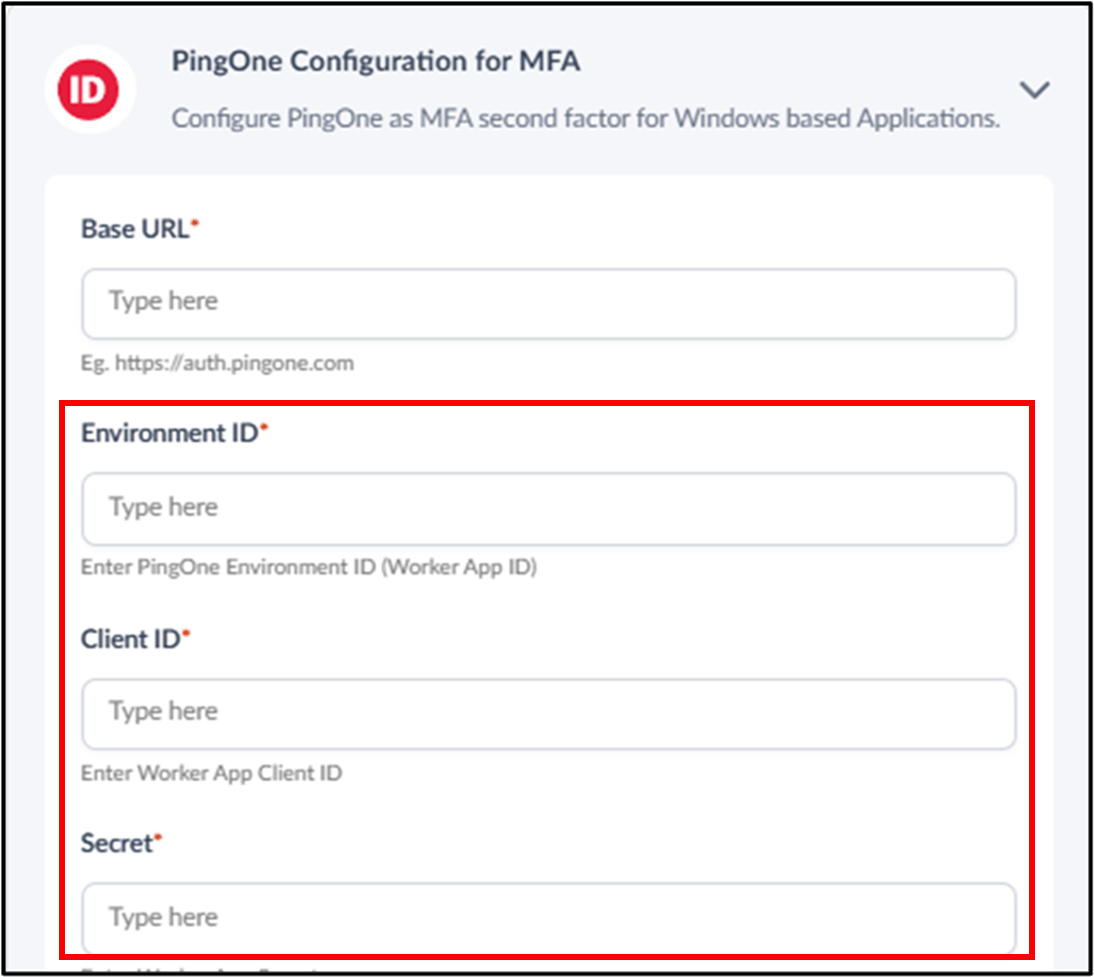
- Click Overview and copy next to each of the following parameter and then add these values into the corresponding field in the Tenant Admin Portal.
- Environment ID.
- Client ID.
- Client Secret.
Steps to Create User
-
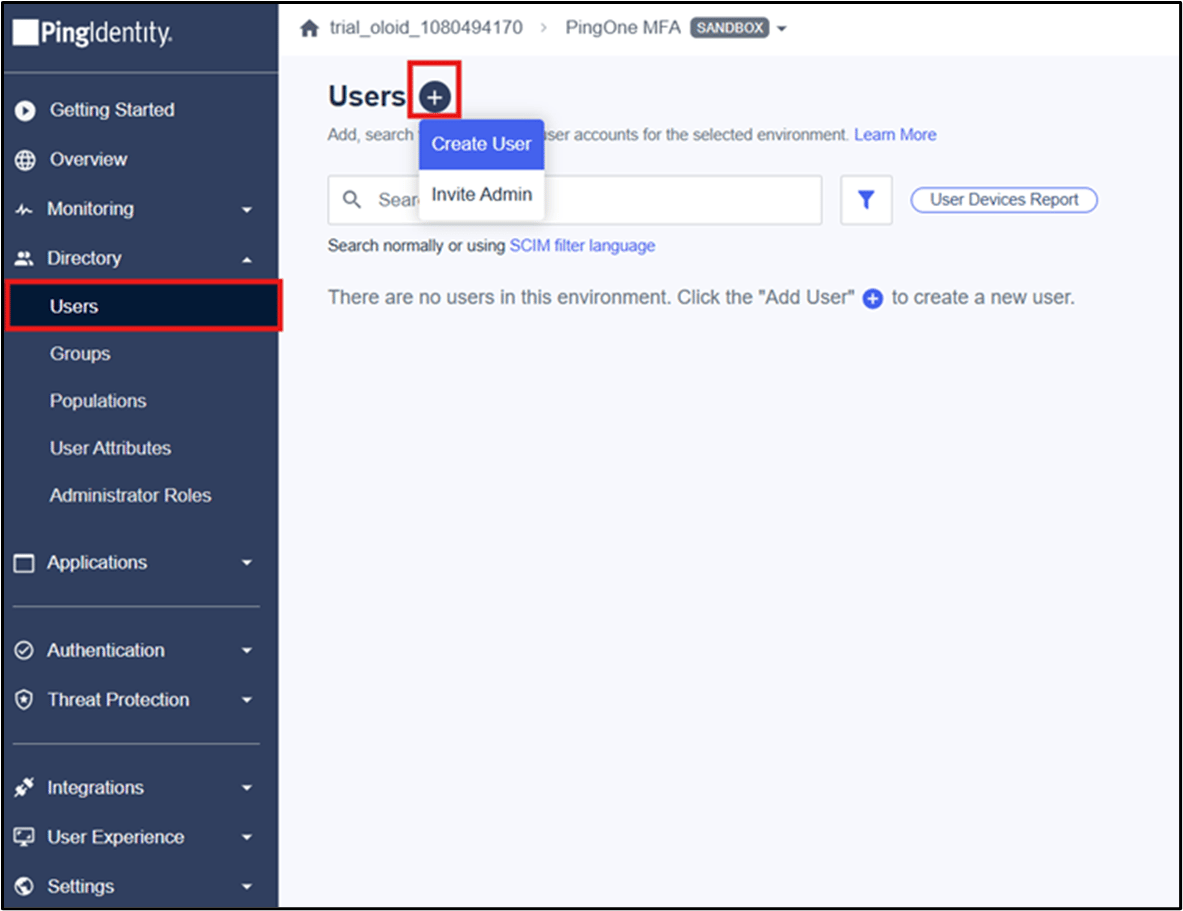
Go to Directory > Users > Users + > Create User.
-
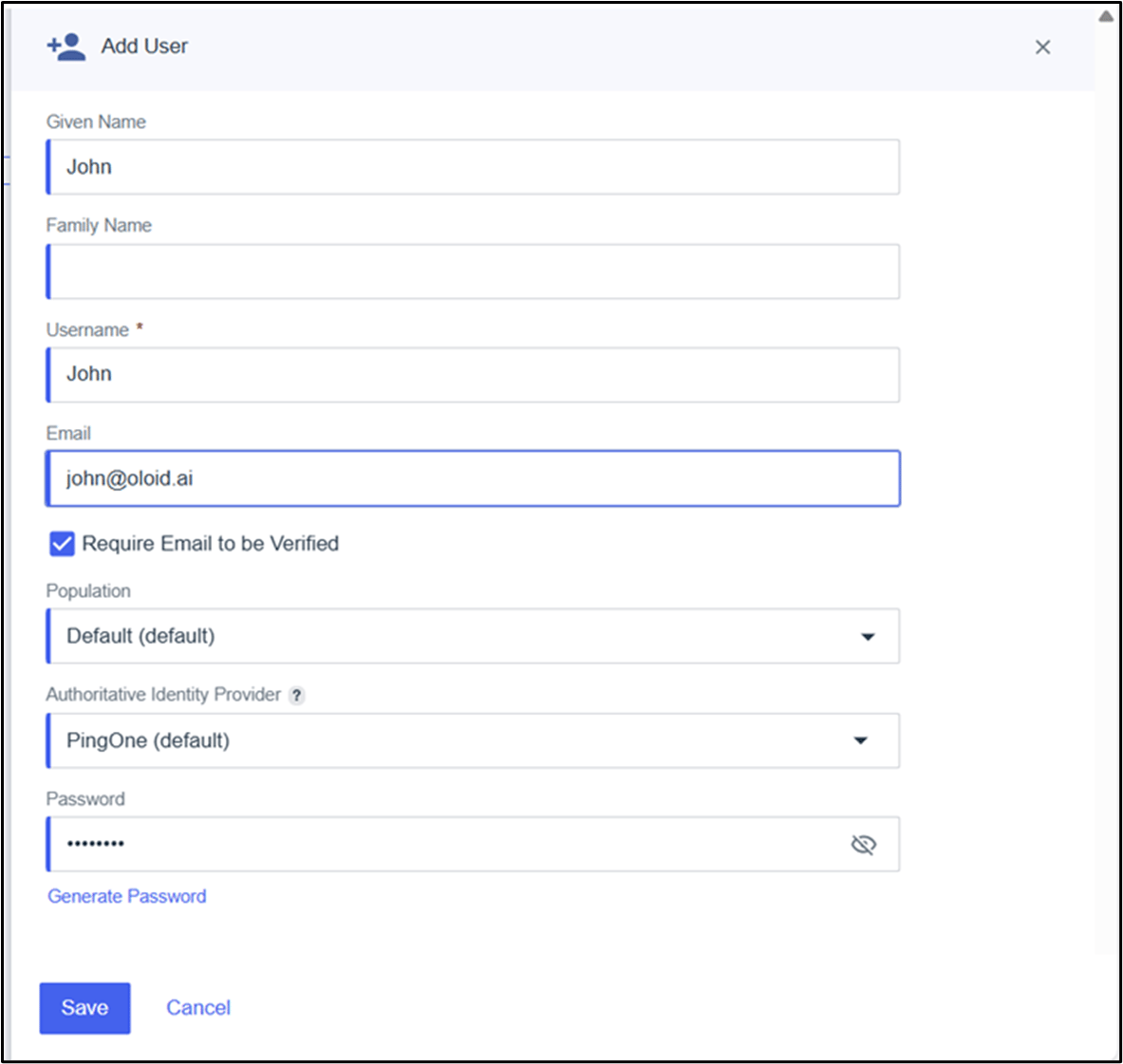
Do the following:
- Enter Username.
-
Enter Email ID.
Note: Select the checkbox to verify the mail ID. A verification email is sent to the entered email ID after the checkbox is selected.
-
Enter Password or click Generate Password.
Note: When click on Generate Password, a temporary password is generated.
-
Click Save.
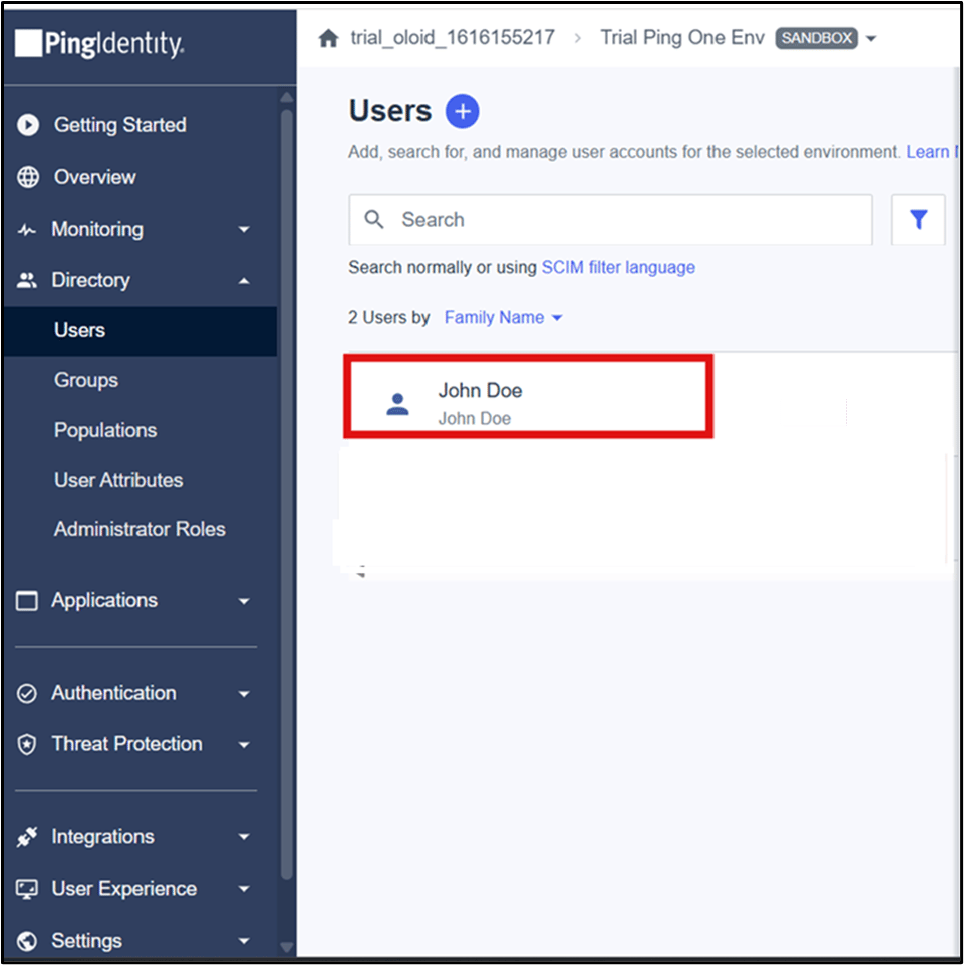
-
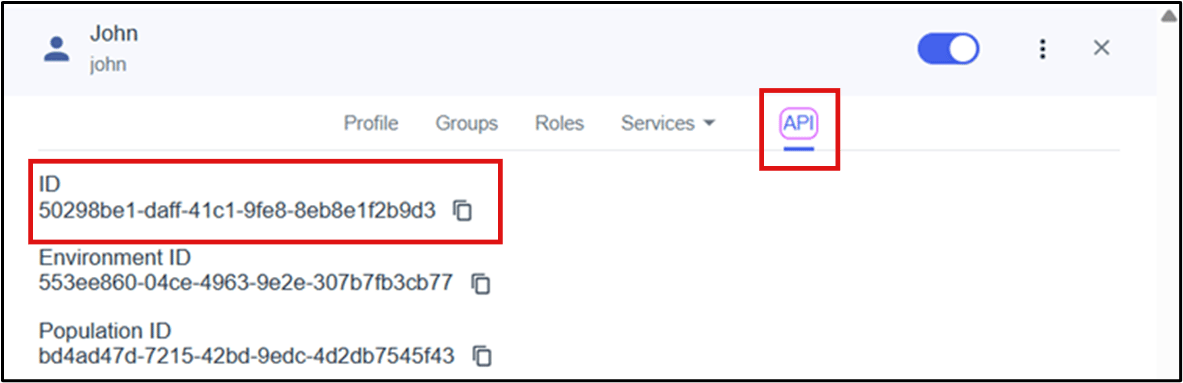
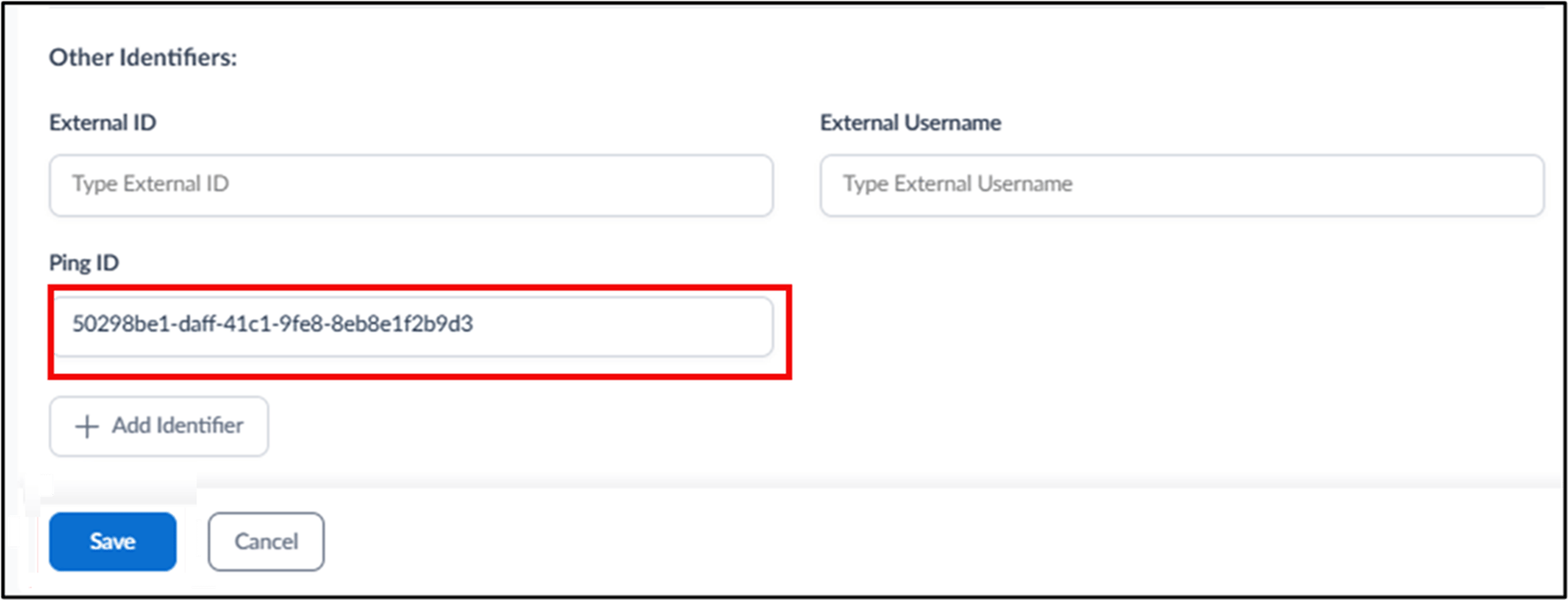
On User detail, click API and copy the ID value. Use this ID in the Ping ID field under User Details in the Tenant Admin Portal.
Steps to Setup the Multi Factor Authentication
-
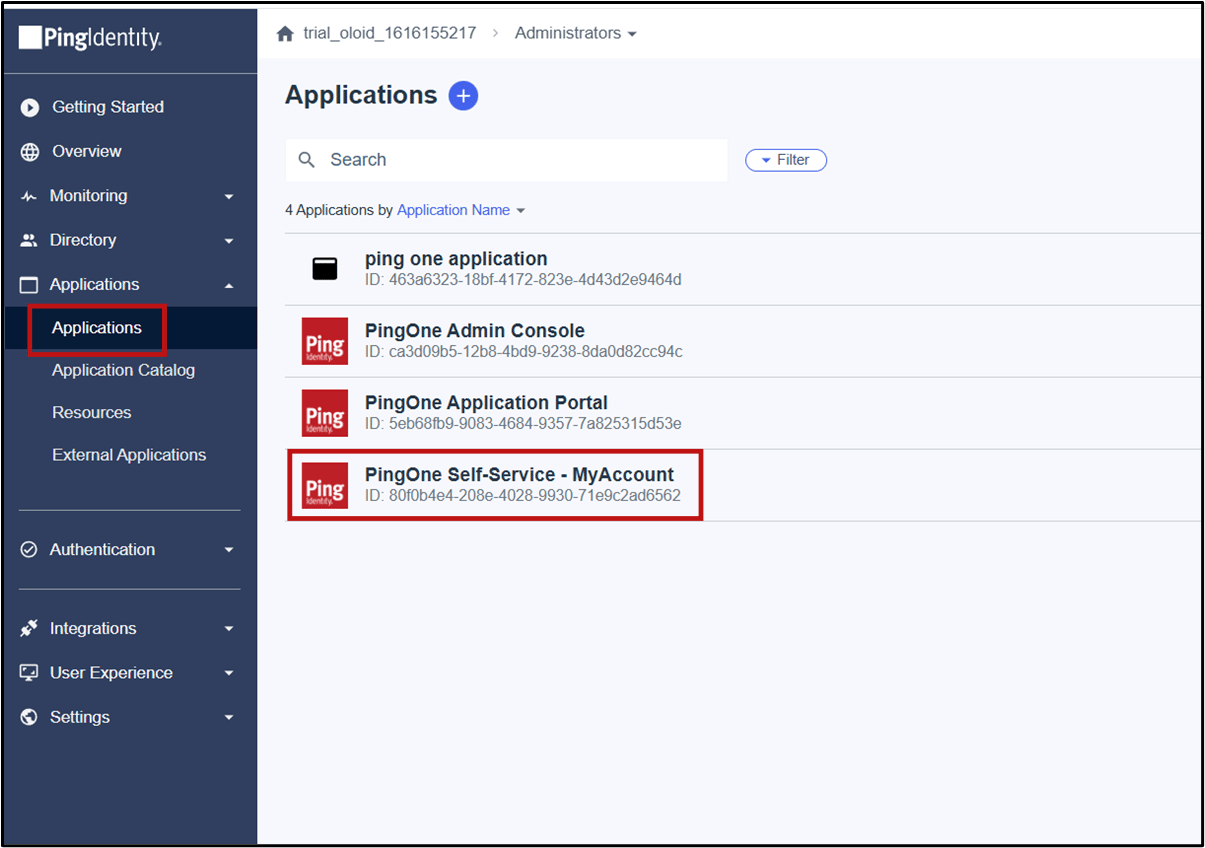
Go to Applications > PingOne Self-Service - MyAccount.
-
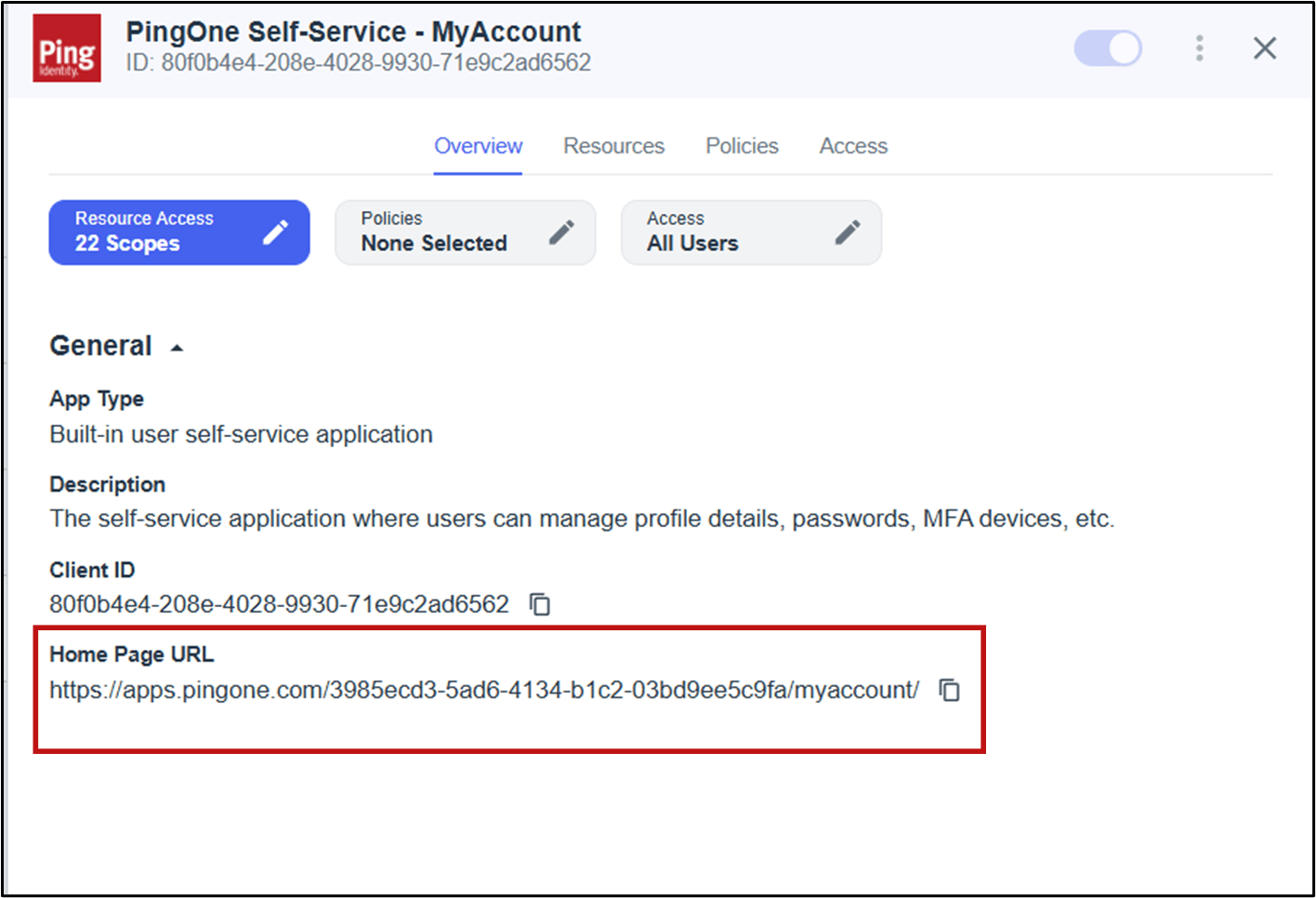
Copy the Home Page URL and open it in a web browser.
-
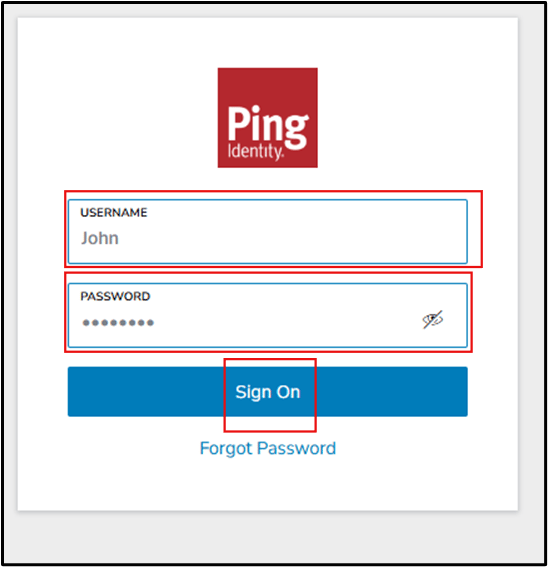
Do the following:
- Enter UserName.
-
Enter Password.
Note: Use the password that you added/generated when creating the user account.
-
Click Sign On.
-
Do the following:
-
Enter the Current Password in the Current Password field.
Note: Use the password that you added/generated when creating the user account.
- Enter New Password in the New Password field.
- Enter the Password in the Verify New Password field.
-
Click Save.
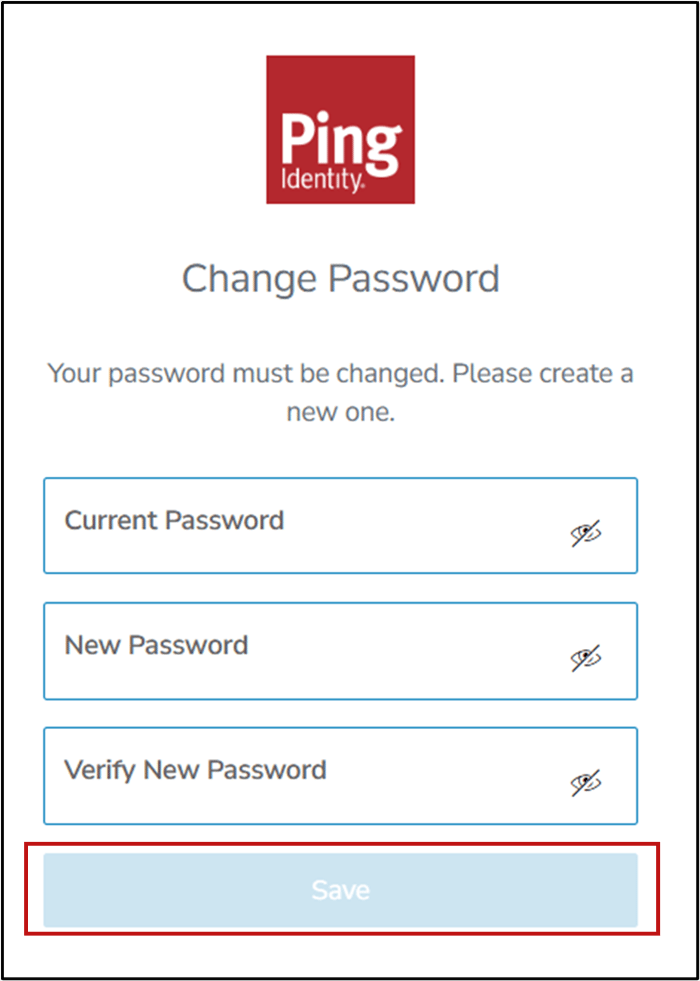
-
Enter the Current Password in the Current Password field.
-
Do the following:
-
Enter the Verification Code.
Note: The verification code is sent to your registered email address.
-
Click Verify.
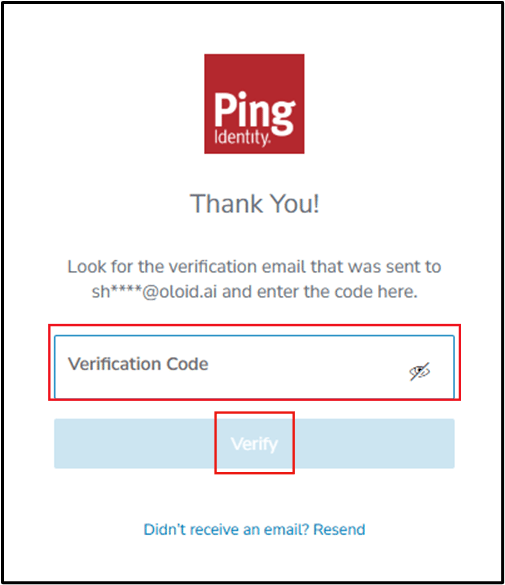
-
Enter the Verification Code.
-
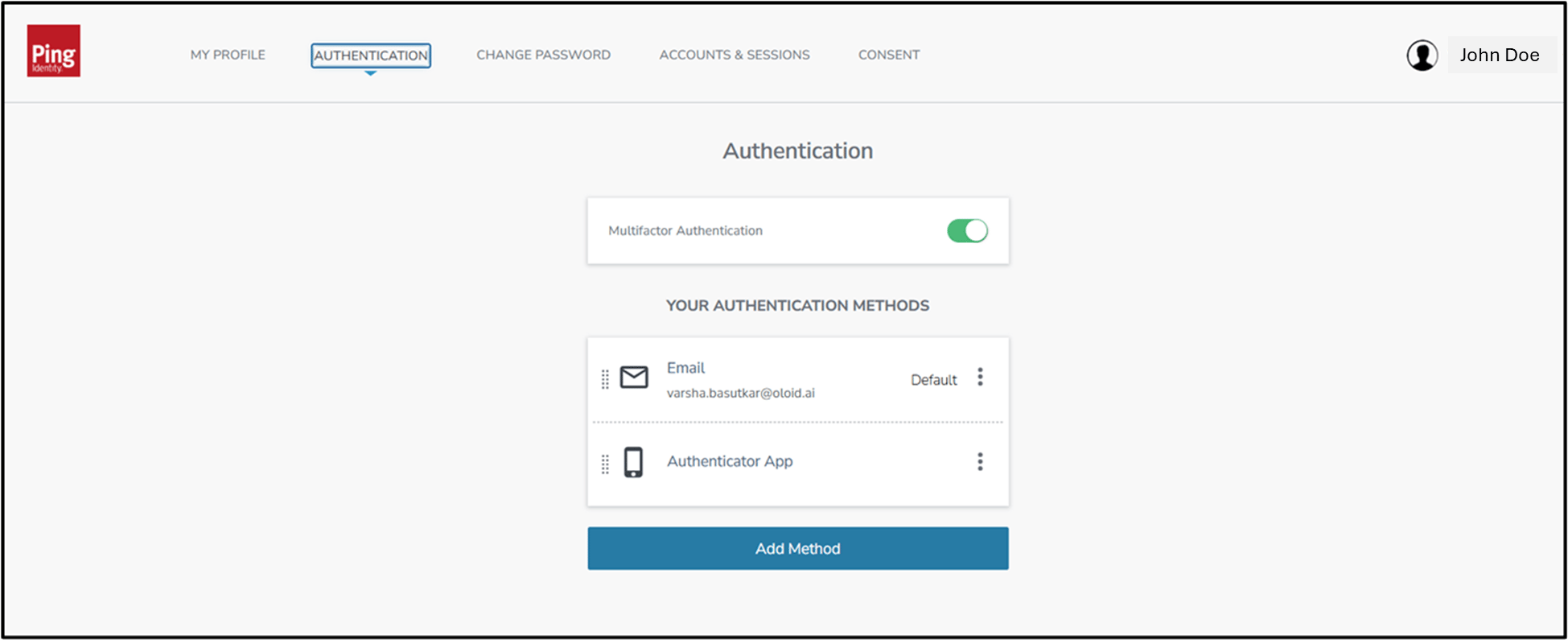
Go to Authentication tab > click Add Method.
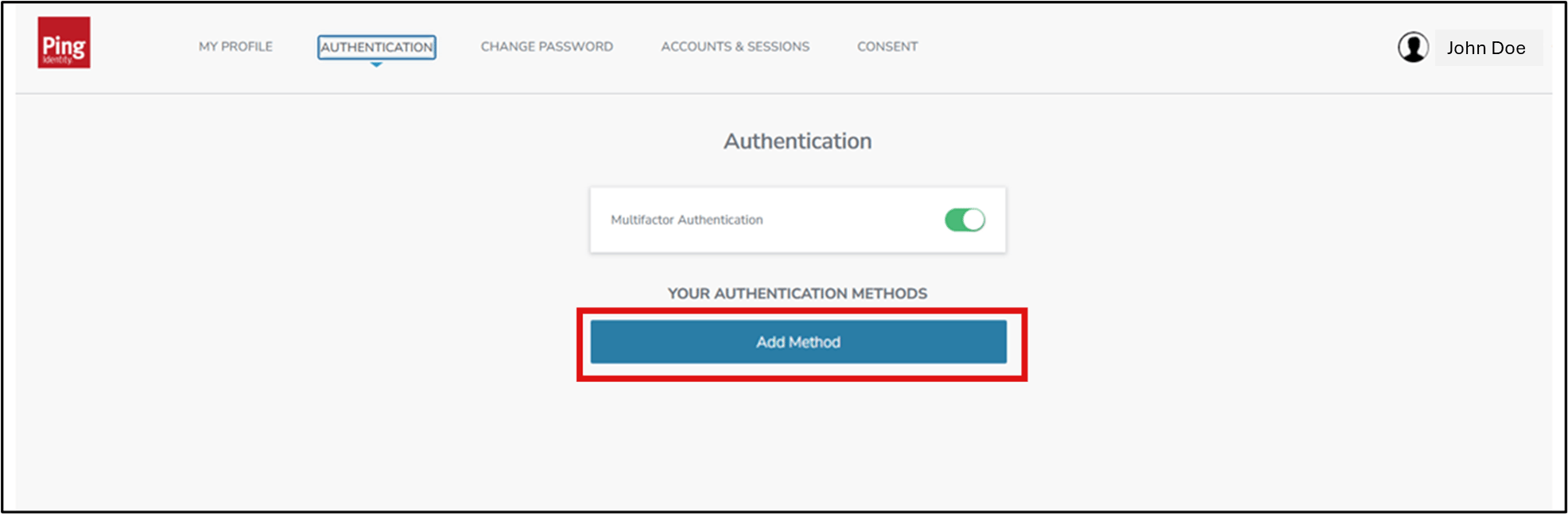
-
Select PingID Mobile Application.
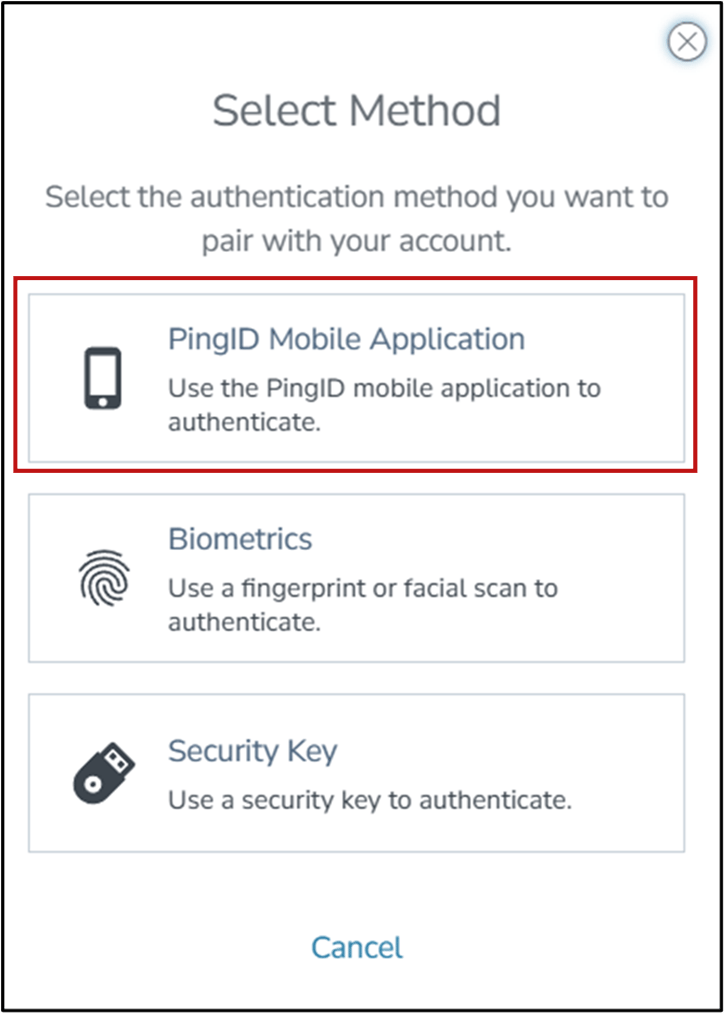
-
Open the PingOne application from your device and scan the QR Code.
The PingOne MFA setup is configured successfully.Note: Make sure that PingOne application is installed in your device.