Introduction
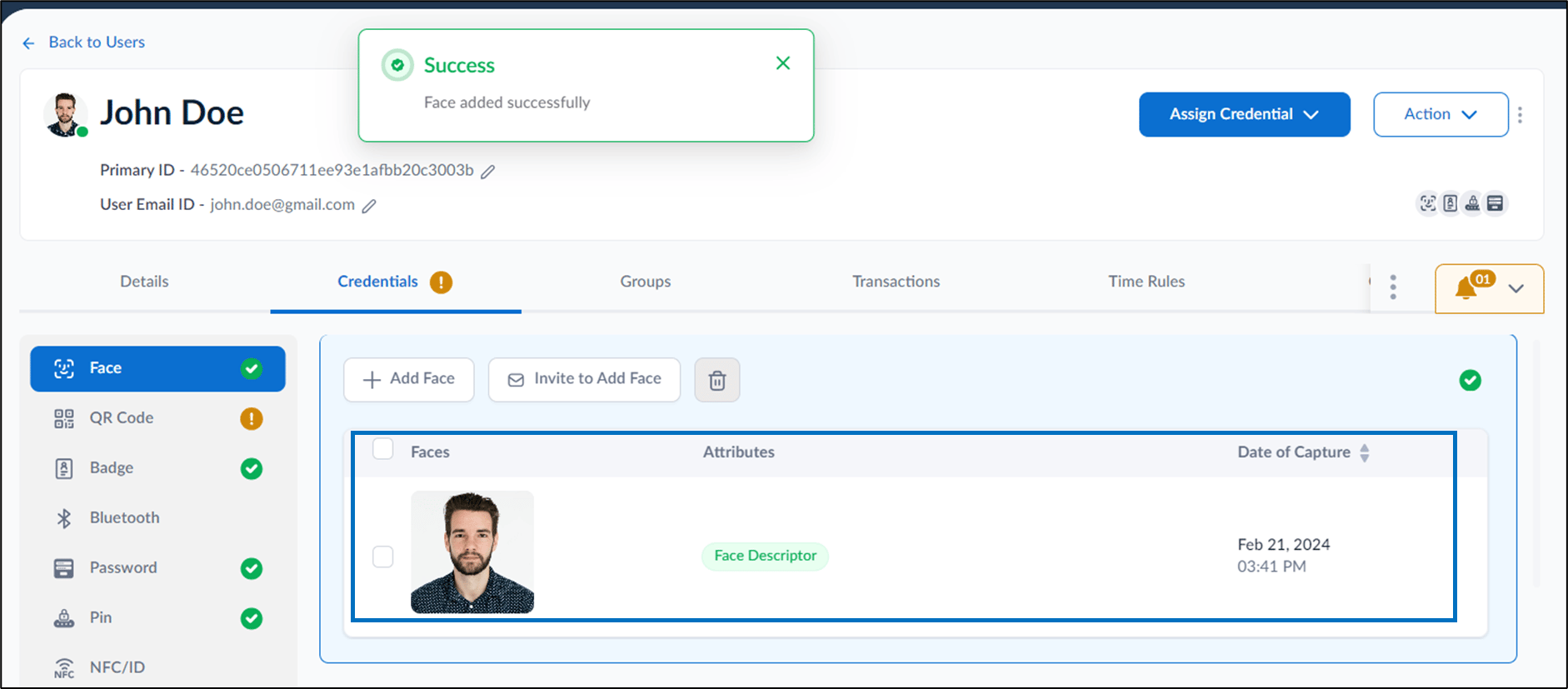
This document provides step-by-step instructions to add a face credential for a single user in the Tenant Admin Portal.Prerequisites
- You must have Tenant admin access to the Tenant Admin Portal.
- User must be created. For more, refer toTenant Admin Portal - How to Create User
Steps to Add Face of a Single User
- Log in to the Tenant Admin Portal.
-
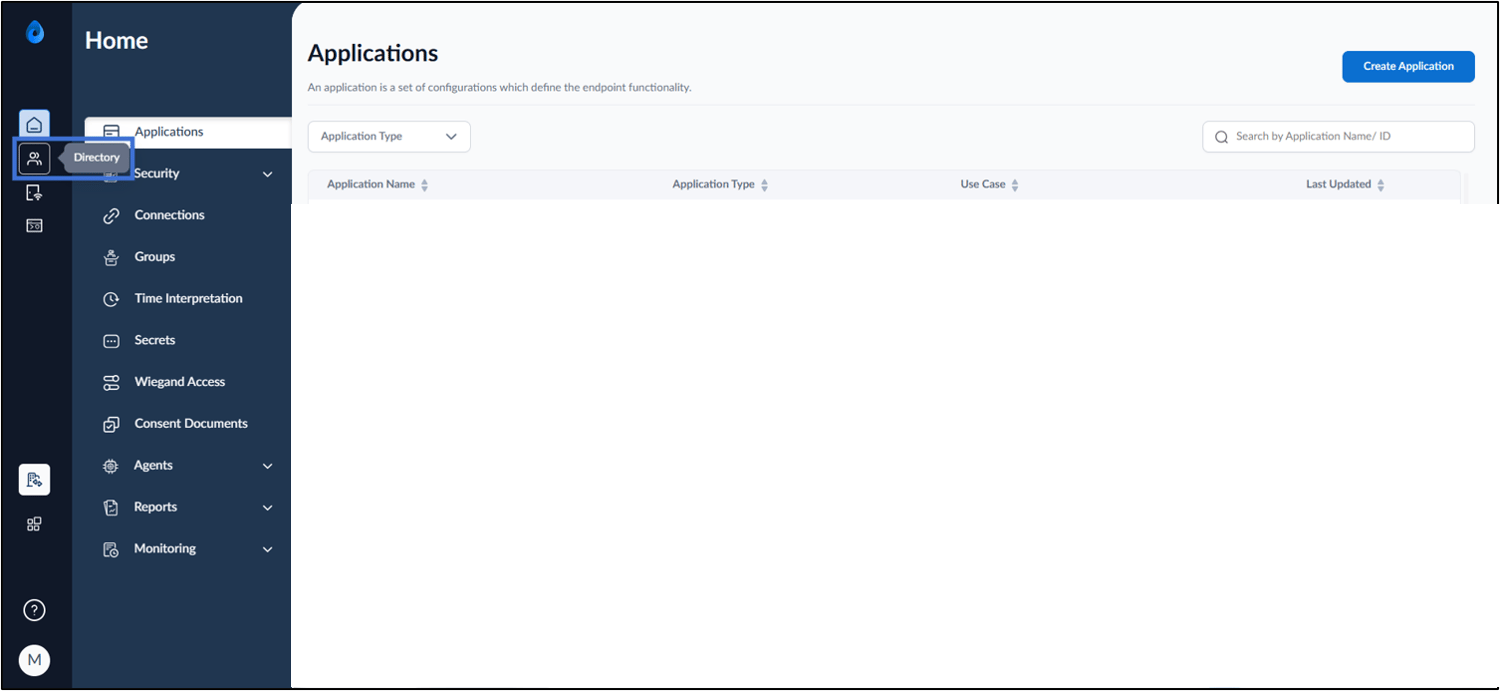
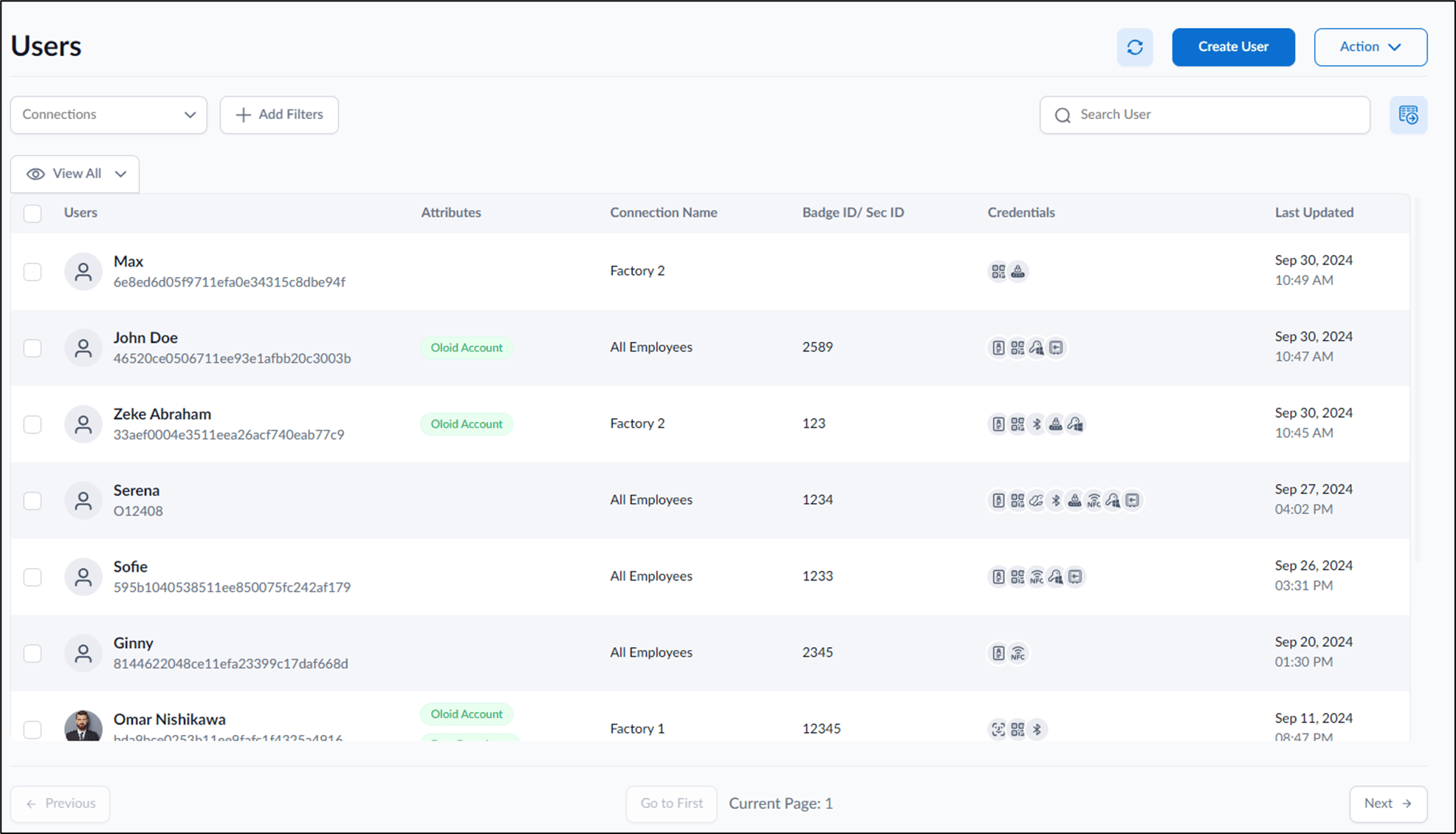
On the home page of the portal, click Directory on the left menu panel.
-
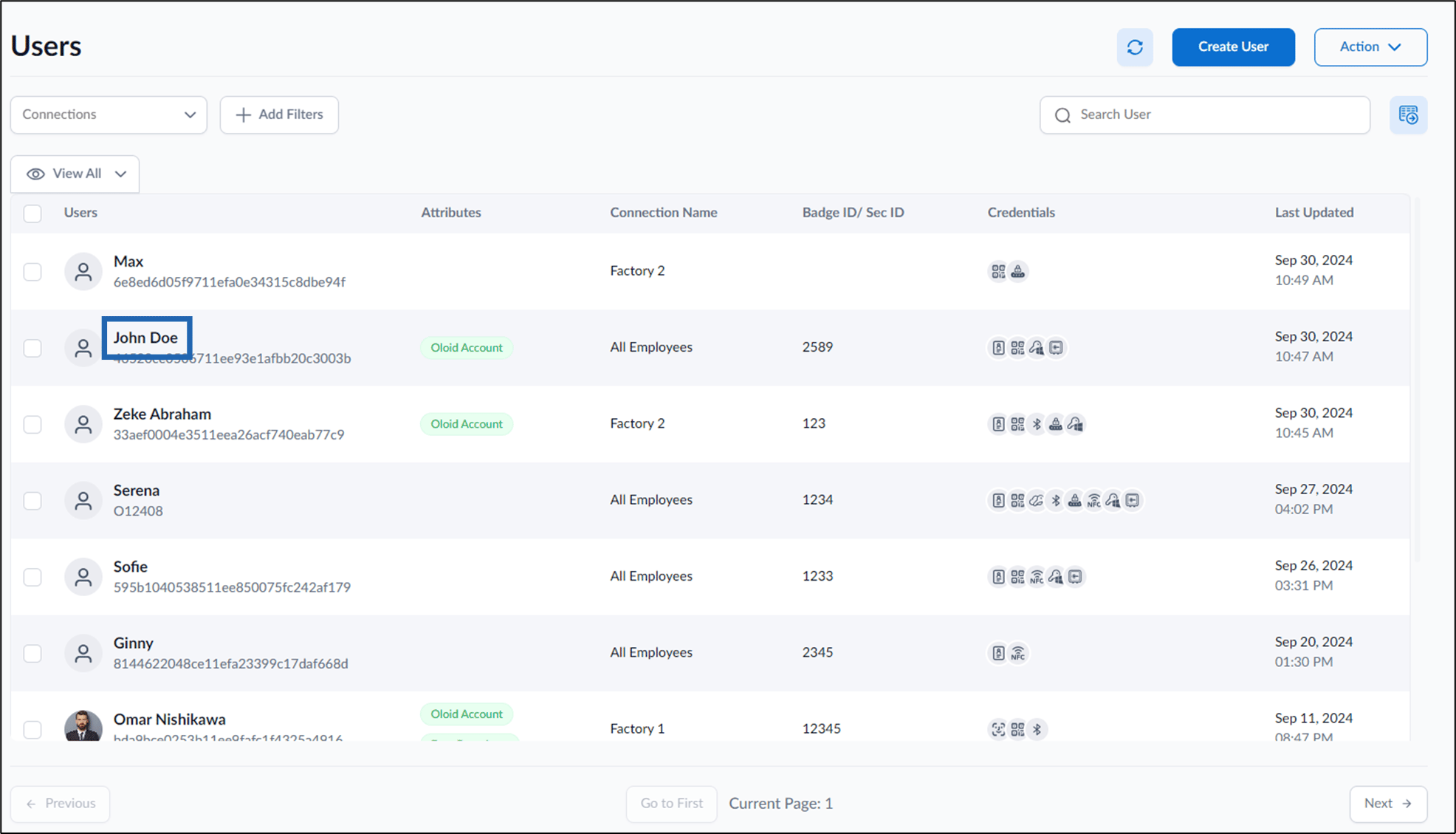
Click username to edit.
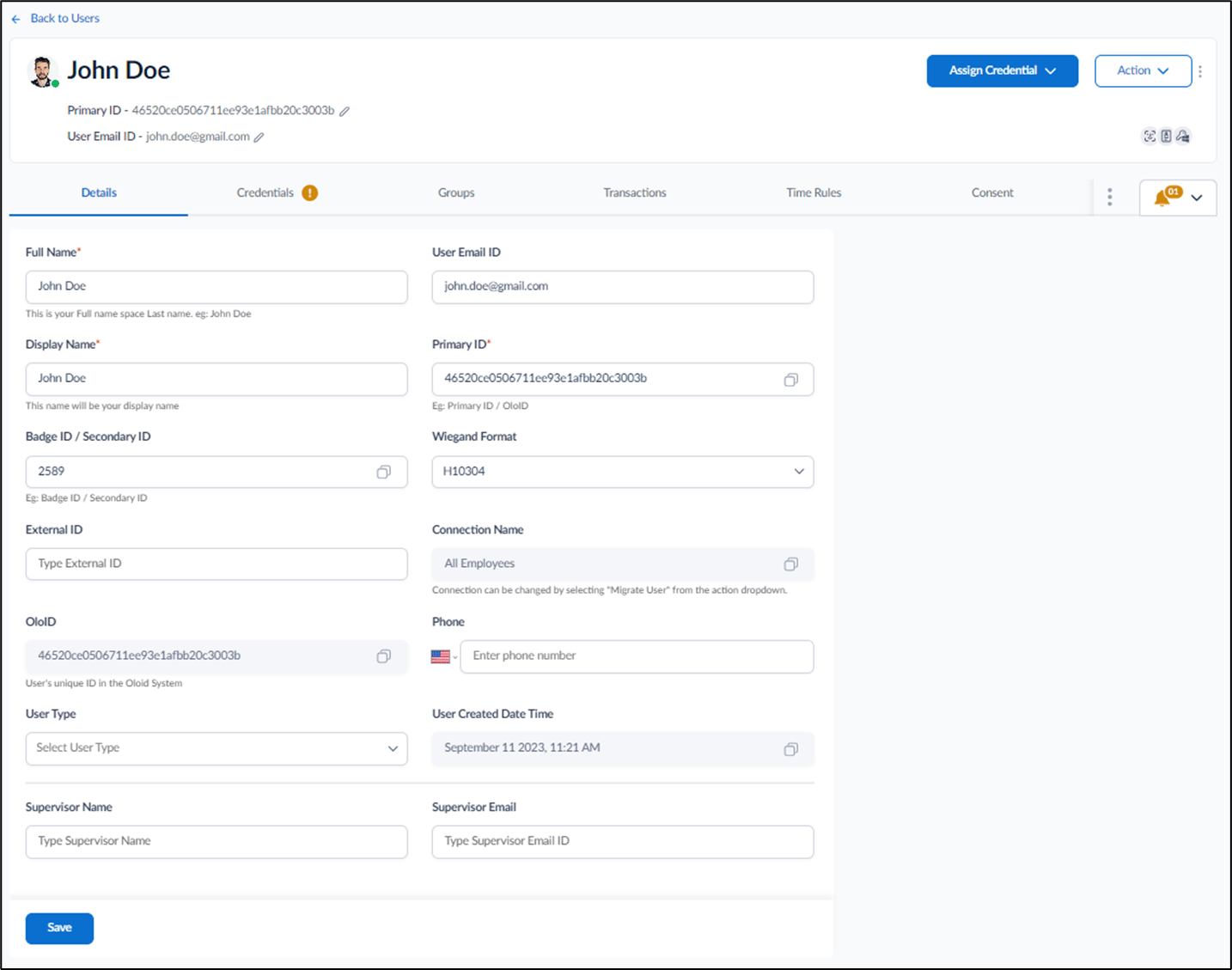
-
Do one of the following:
- Go to Credentials > Face > + Add Face.

- Go to Assign Credential > Add Face.
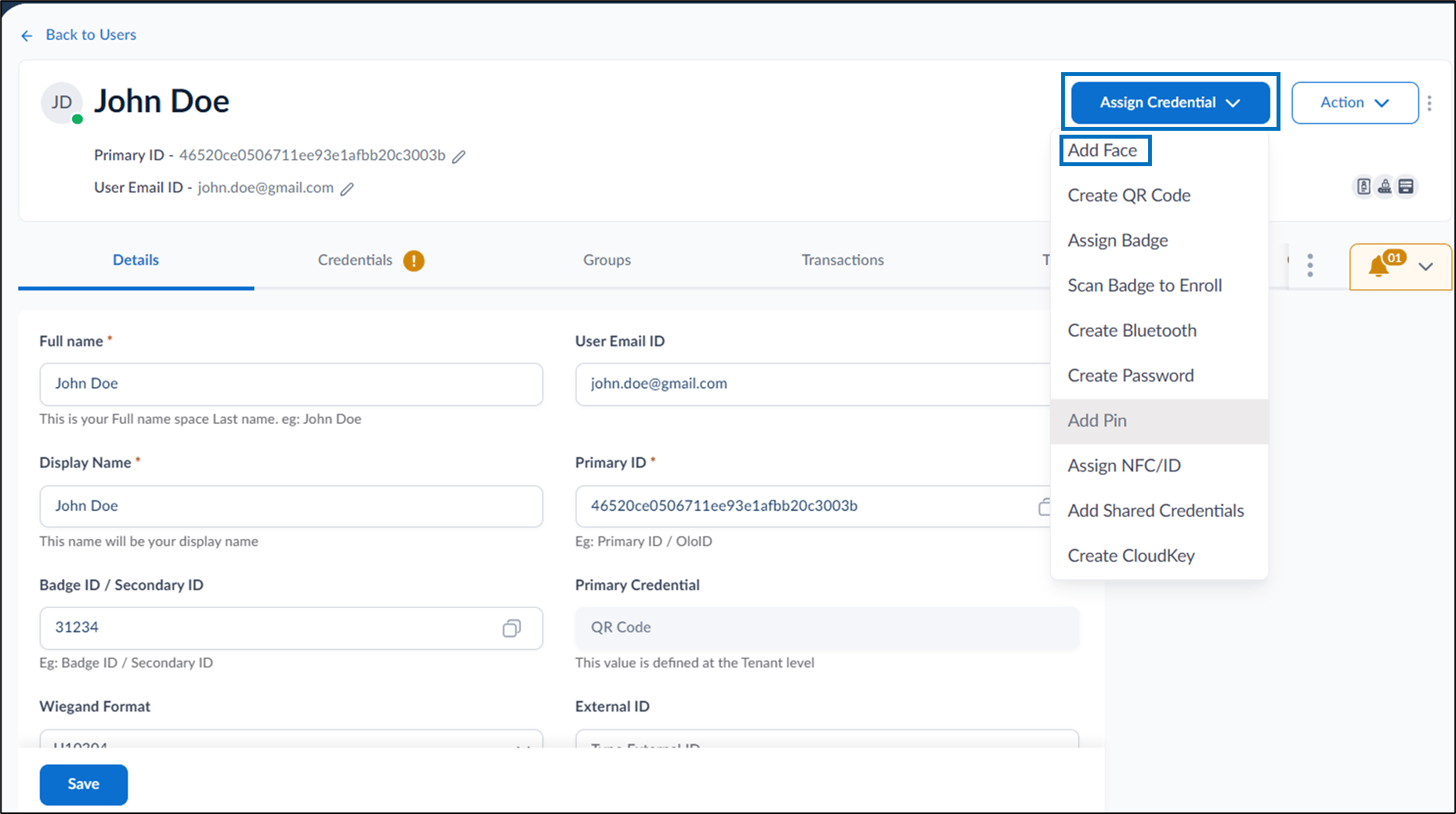
- Go to Credentials > Face > + Add Face.
-
Click or Drag and Drop an image to be uploaded.
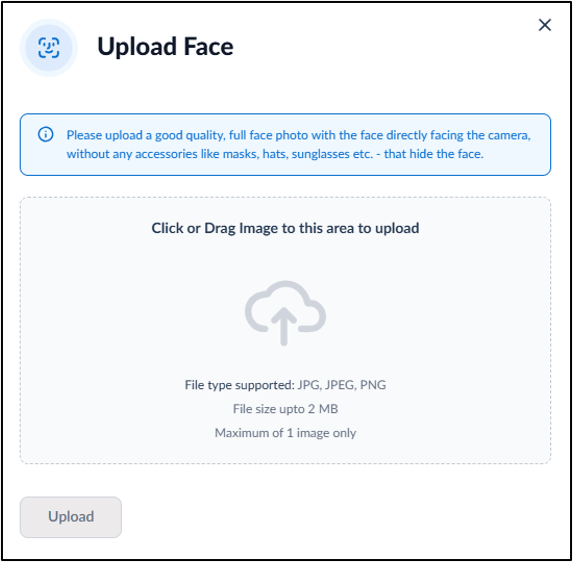
-
Click Upload.
 Note: You can add a maximum of five faces per user.