

Introduction
This document provides instructions on how to configure a Data Mapper Table for OKTA - Inbound in the Tenant Admin Portal.Prerequisites
- You must have access to the Tenant Admin Portal.
- Data Mapper Table for OKTA - Inbound must be created.
Steps to Configure Data Mapper Table for OKTA - Inbound
- Log in to the Tenant Admin Portal.
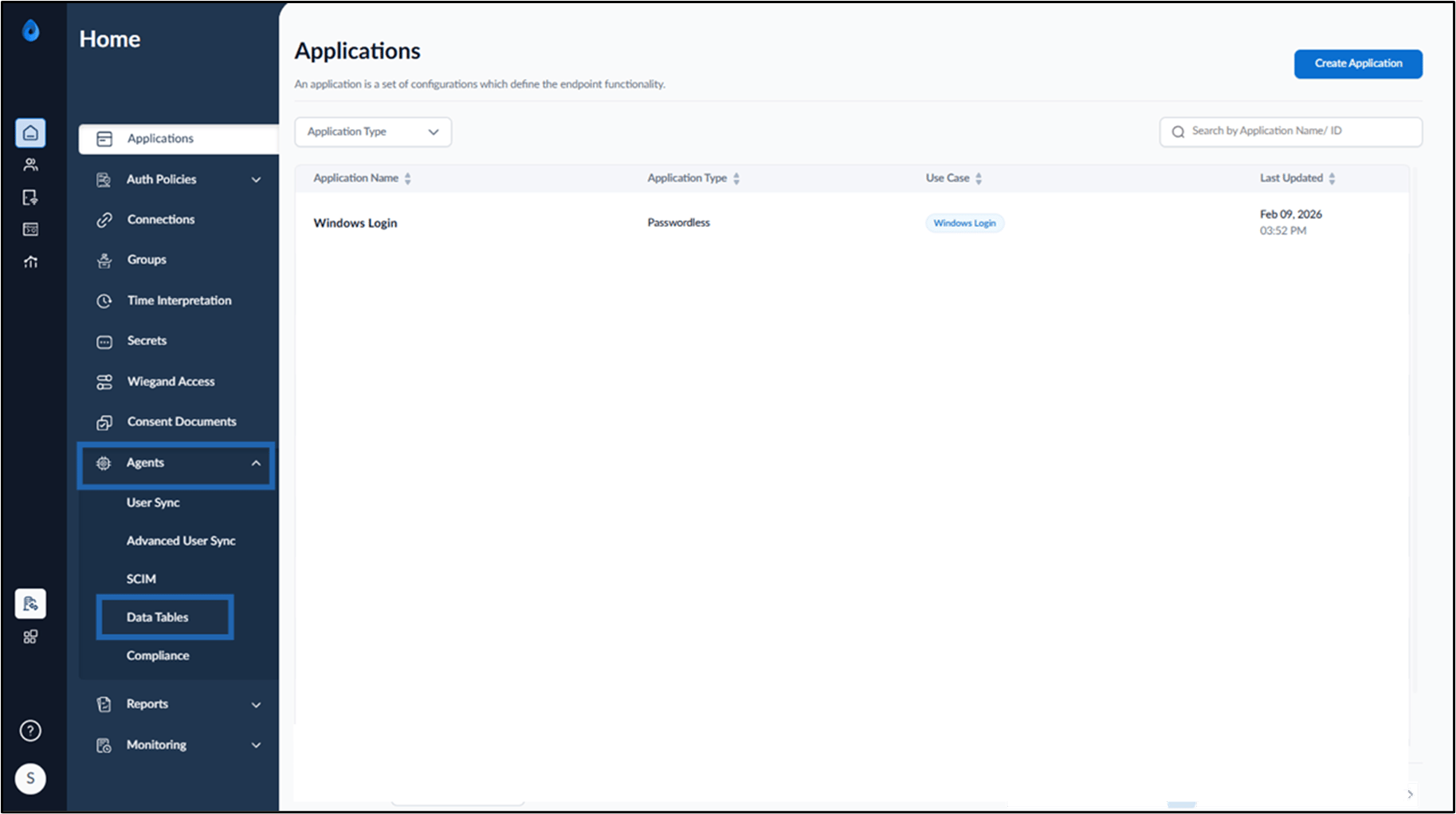
- On the home page of the portal, go to Agents > Data Tables.
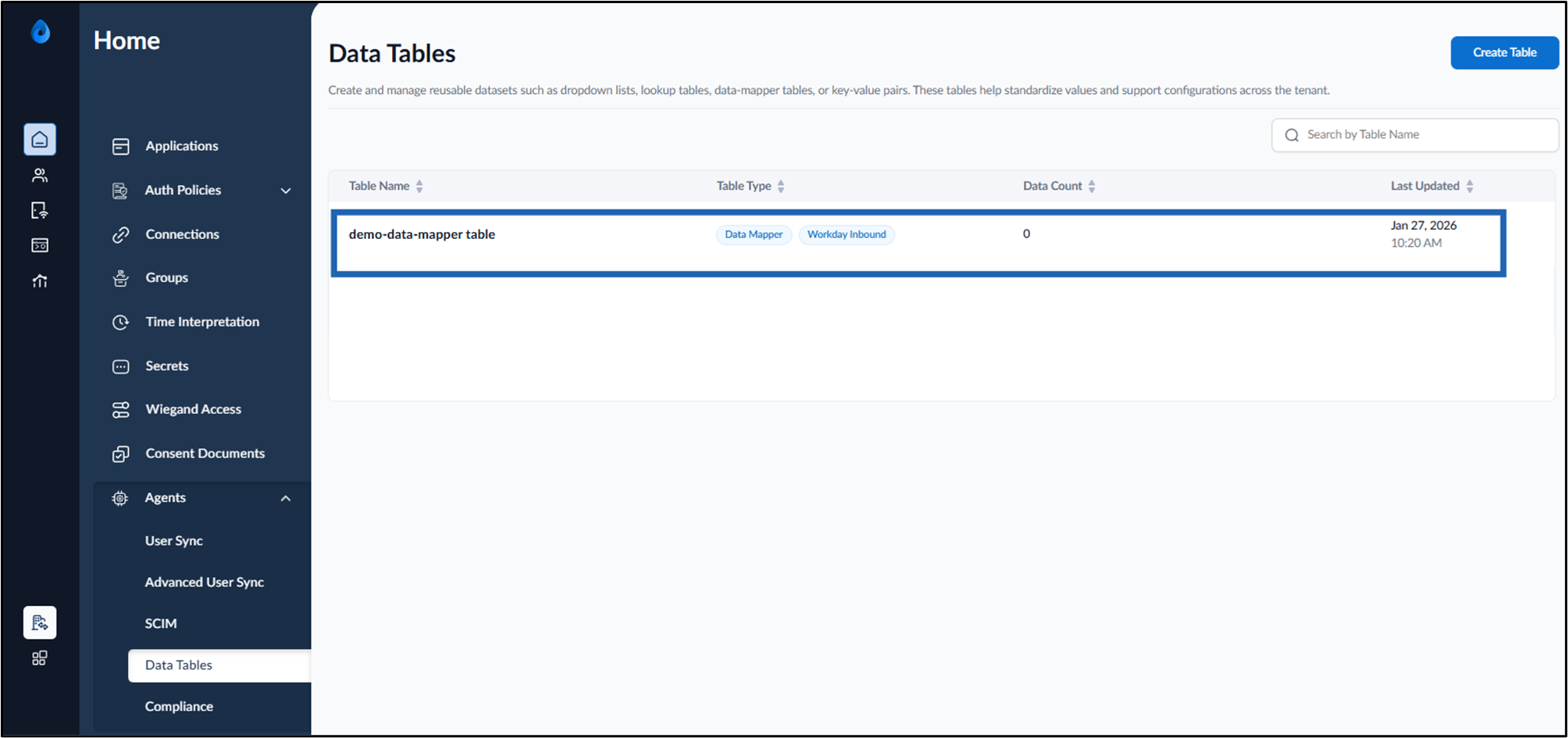
- Click preferred data table.
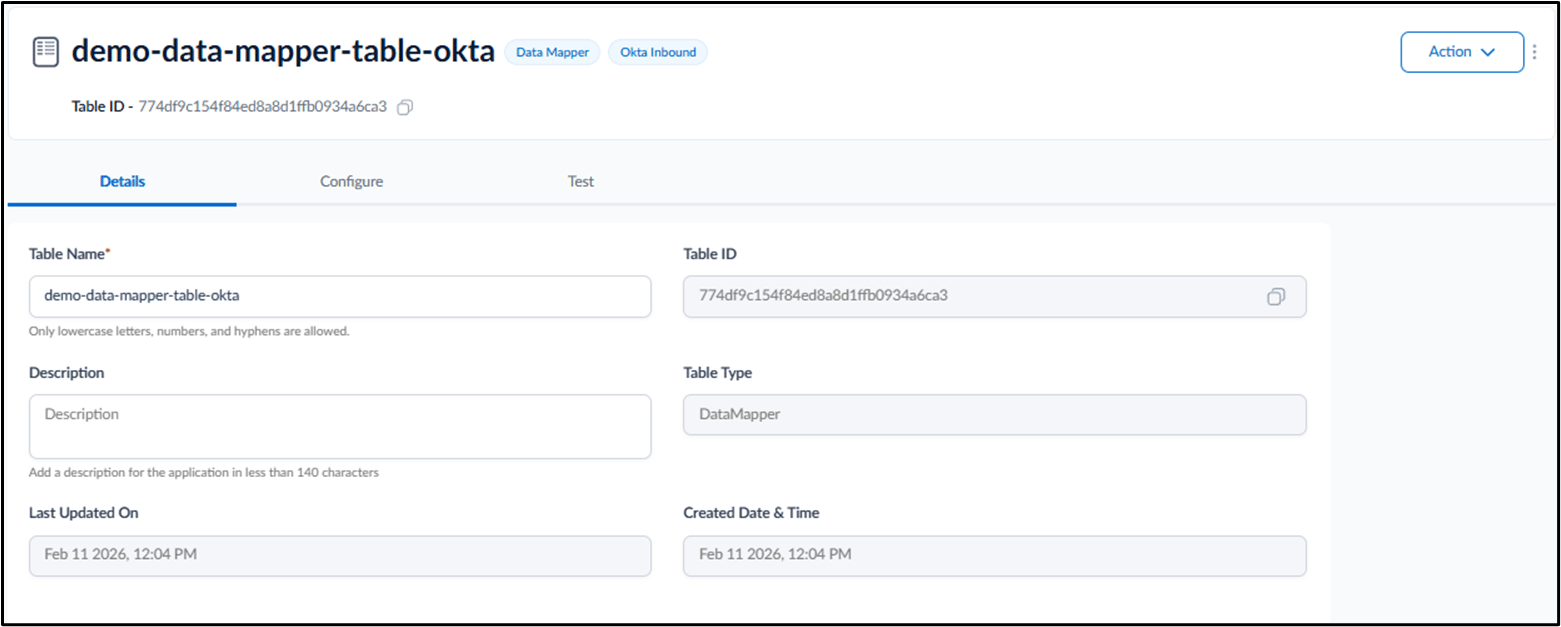
- Do the following:
- Configure Details Tab
- Setup Configure Tab
Configure Details Tab
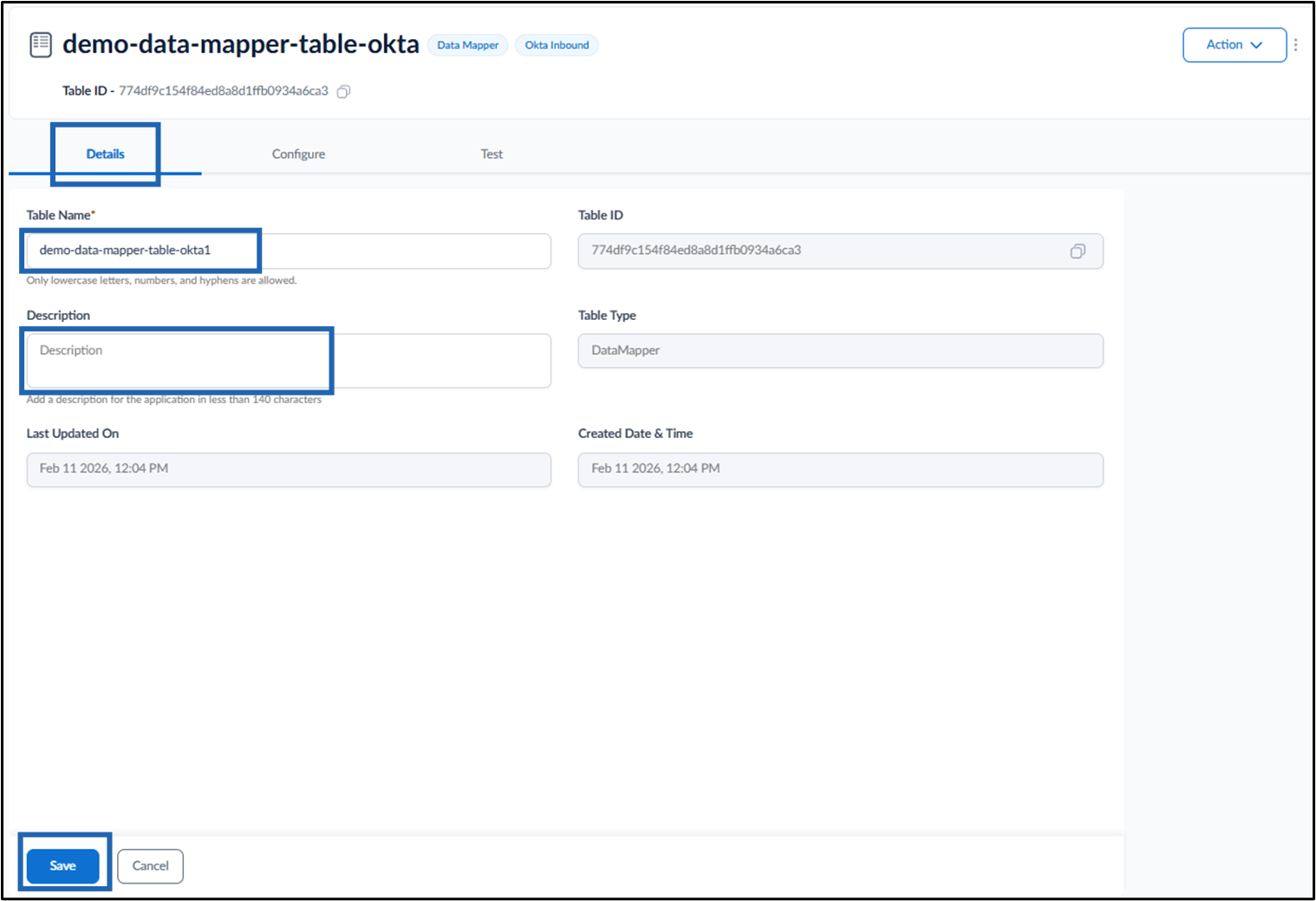
This tab is used to view and edit basic information about the data mapper table. Do the following:- Update the Table Name (if required).
- Enter Description (Optional).
- Click Save.
Setup Configure Tab
This tab is used to configure data field mappings between OKTA and Oloid.Note: The FullName, DisplayName, PrimaryID, and Status fields are mandatory and must be mapped to corresponding source fields or expressions before saving the configuration.
- Inline OR
- Upload File
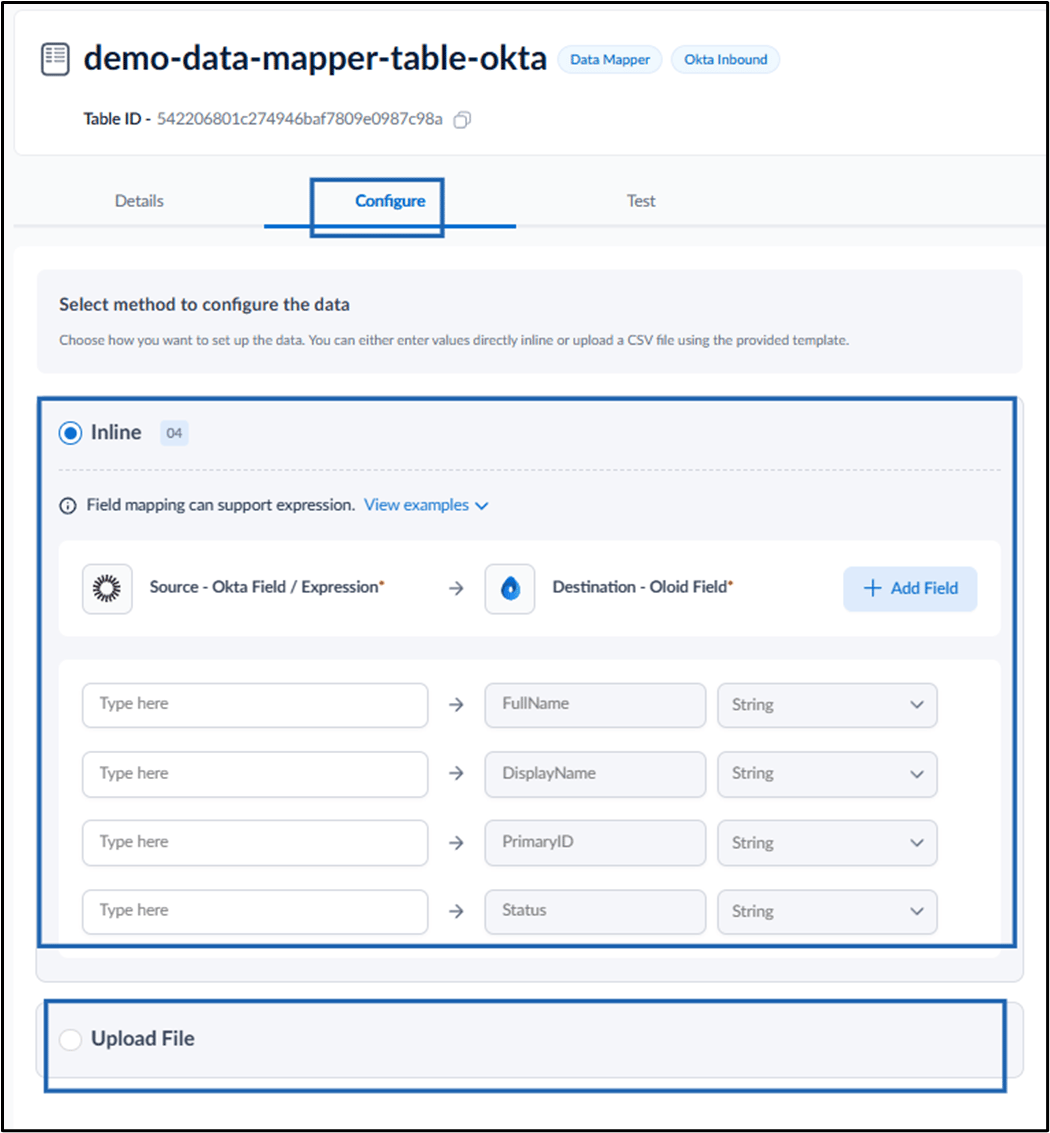
Inline
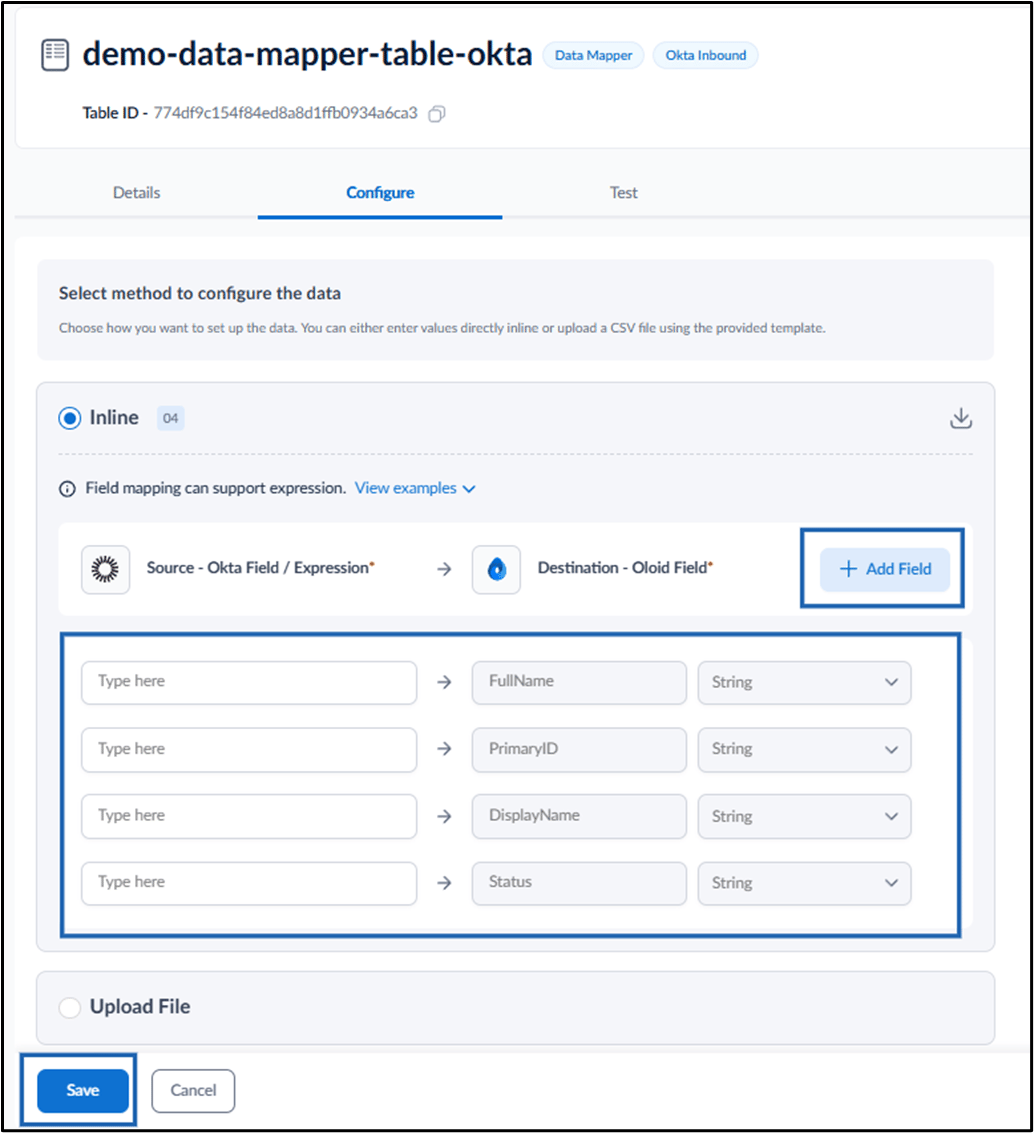
In the Inline section, define the fields as follows:- Source - OKTA Field / Expression: Enter the OKTA field name or expression that provides the source value.
- Destination – Oloid Field: Enter the Oloid field name to which the source value is mapped.
- Data Type: Select the data type from the drop-down.
-
Click Add field to add more fields.
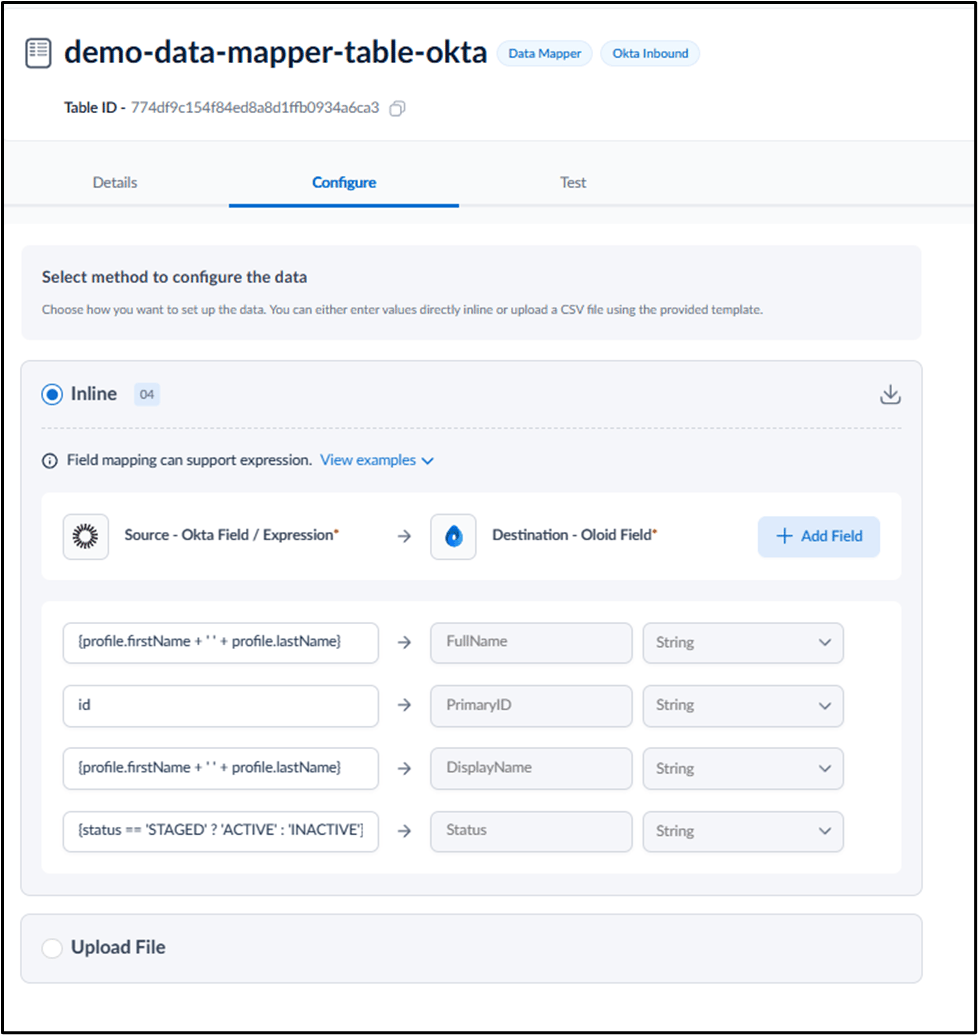
Note: For mapping the table, refer Data Mapping Table.
-
Click Save.
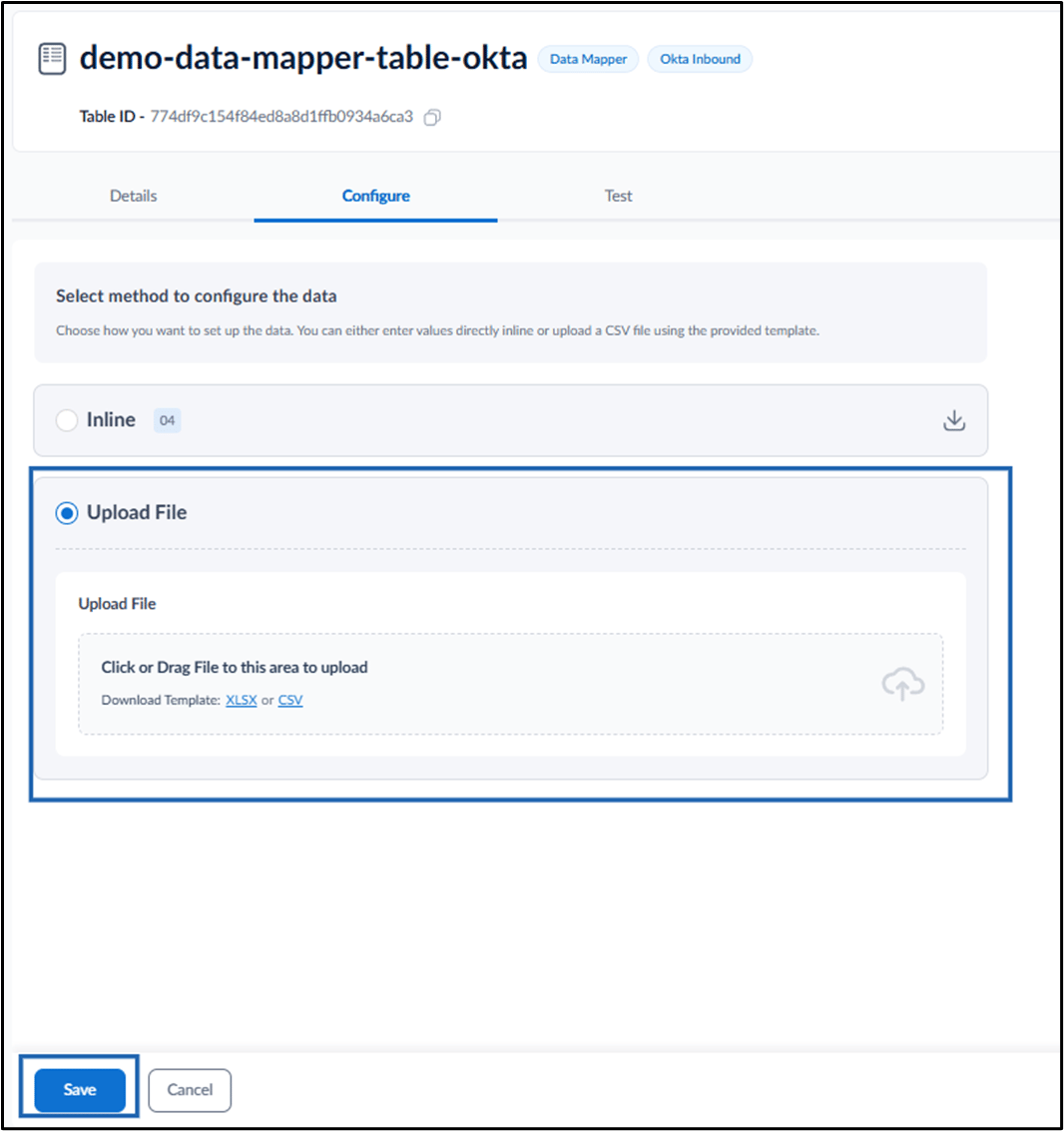
Upload File
In the Upload File section, do the following:-
Select Upload File and upload the mapping file.
Note: The file format must be in .XLSX or .CSV.
-
Click Save.
Additional Information
Data Mapping Table
Use the following fields to define data mappings when configuring the Data Mapper Table. OKTA Use Field Oloid User Field Data Type id PrimaryID String {profile.firstName+”+ profile.lastName} DisplayName String email Email String {profile.mobilePhone} {UserMatadata.MobilePhone} String {status==‘STAGED”?’ACTIVE’ : ‘INACTIVE’} Status StringNote: Contact Oloid support if you need assistance while configuring the Data Mapper table.