

TOC
Introduction Pre-requisite Accessing Oloid Portal Create and Manage Users Create and Invite Tenant Admin Create and Manage Credentials Create and Manage Shared CredentialsIntroduction
This document provides step-by-step instructions to create password and shared credential for users in the Oloid Portal.Pre-requisite
You must be a user in the Oloid Portal.Accessing Oloid Portal
To access Oloid Portal, you should be a tenant admin. Once the tenant admin account is created, you will receive the URL and credentials (username and temporary password) for the portal on your registered email id.To set new Password
- Launch your browser.
- Enter the URL provided for you in the browser’s address bar. Then, press Enter on your keyboard.
-
Enter your login information in the appropriate fields.
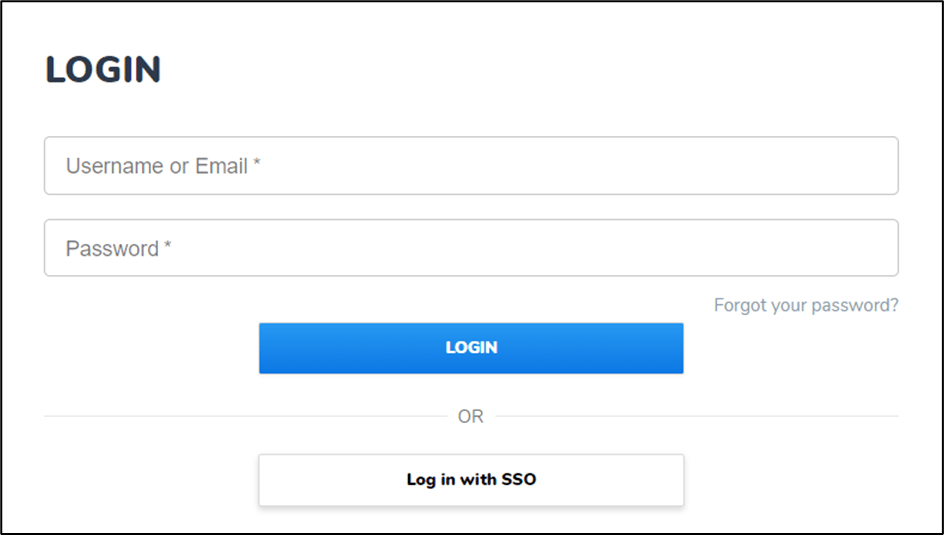
-
Click LOGIN.
The Set New Password screen is displayed.

-
Enter New Password.
Note: Password must contain at least one uppercase, one lowercase letter, one number, no consecutive or sequence characters The password should not contain any part of username.
- Enter Confirm Password.
- Click LOGIN. The Oloid Portal is displayed.
To Access Oloid Portal
Pre-requisite: You should be a user with Oloid Portal.- Launch your browser.
- Enter the URL provided for you in the browser’s address bar. Then, press Enter on your keyboard.
-
Enter your login information in the appropriate fields.
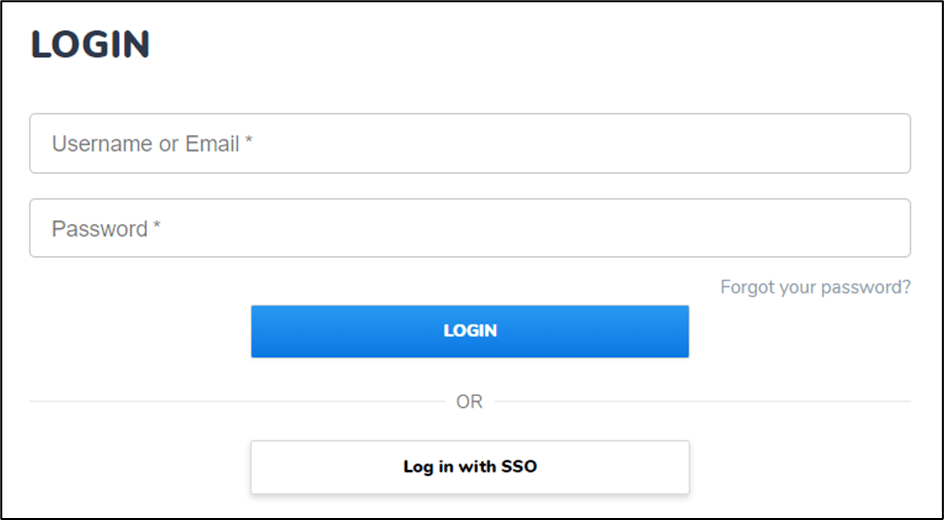
-
Click LOGIN.
The Oloid Portal is displayed.
Note: Oloid uses SSO login and also allows you to log in to the portal with your Google, Microsoft, Okta, or with your Email account.
Create and Manage Users
Tenant Admin is granted rights to manage and access the users related to the tenant.To Create a User
For detailed instructions, see How to add user.To Import Users
For detailed instructions, see How to add users in bulk.Create and Invite Tenant Admin
A Tenant Admin has complete access to Oloid Portal and all the Oloid connected devices. You must be an Oloid user to be a Tenant Admin.To invite Tenant Admin
For detailed instructions, see How to invite Tenant Admin.To Create and Invite Tenant admin
For detailed instructions, see How to add and invite Tenant Admin.Create and Manage Credentials
Credentials allow a user to access and authenticate themselves on the Oloid Portal.To Create Password
- Log in to the Oloid Portal.
- On the home page of the portal, click Directory on the left menu panel.
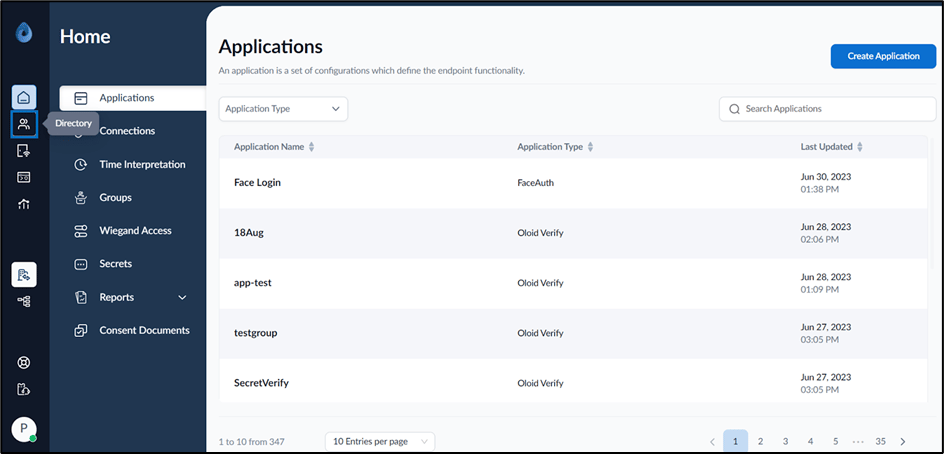
- Click User Name to edit.
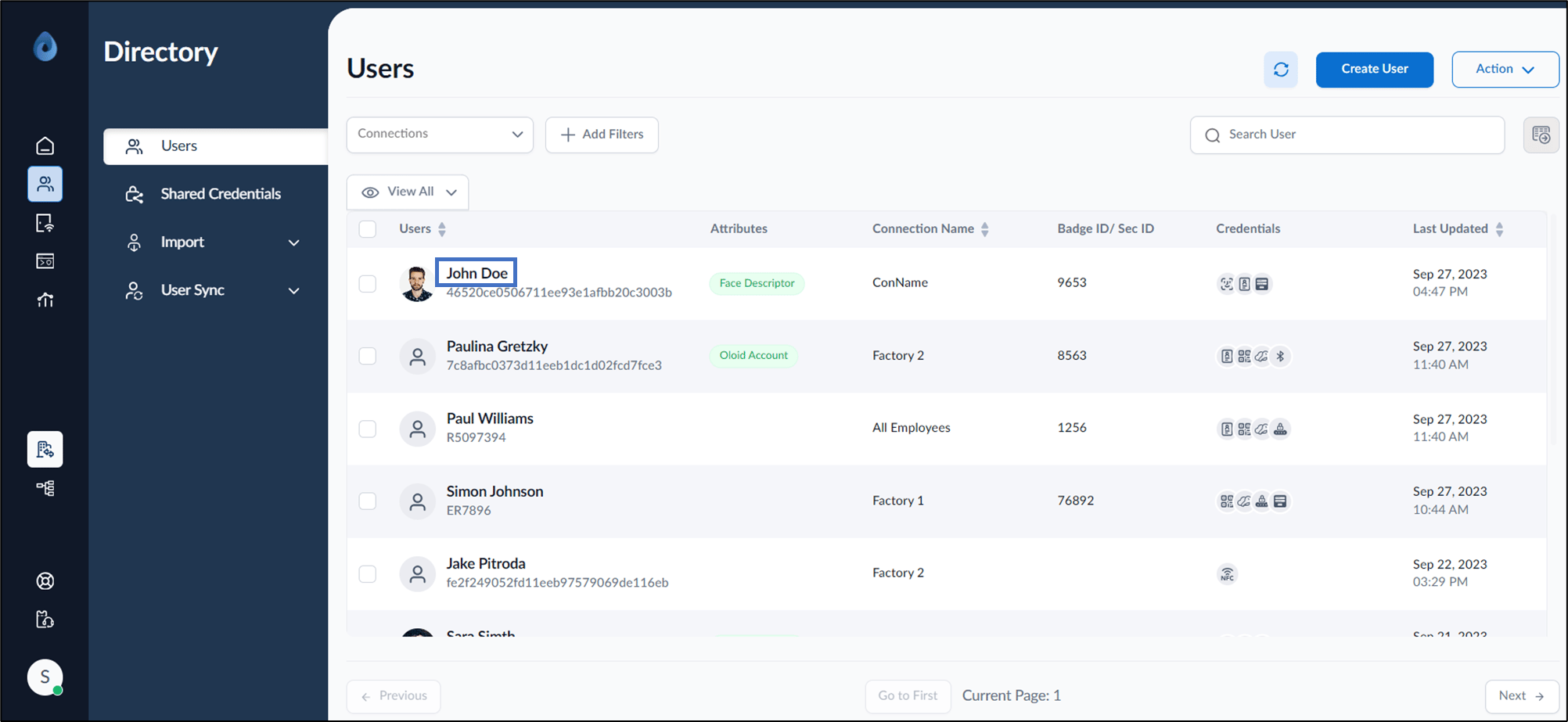
- Go to Credentials > Passwords tab > CREATE PASSWORD.
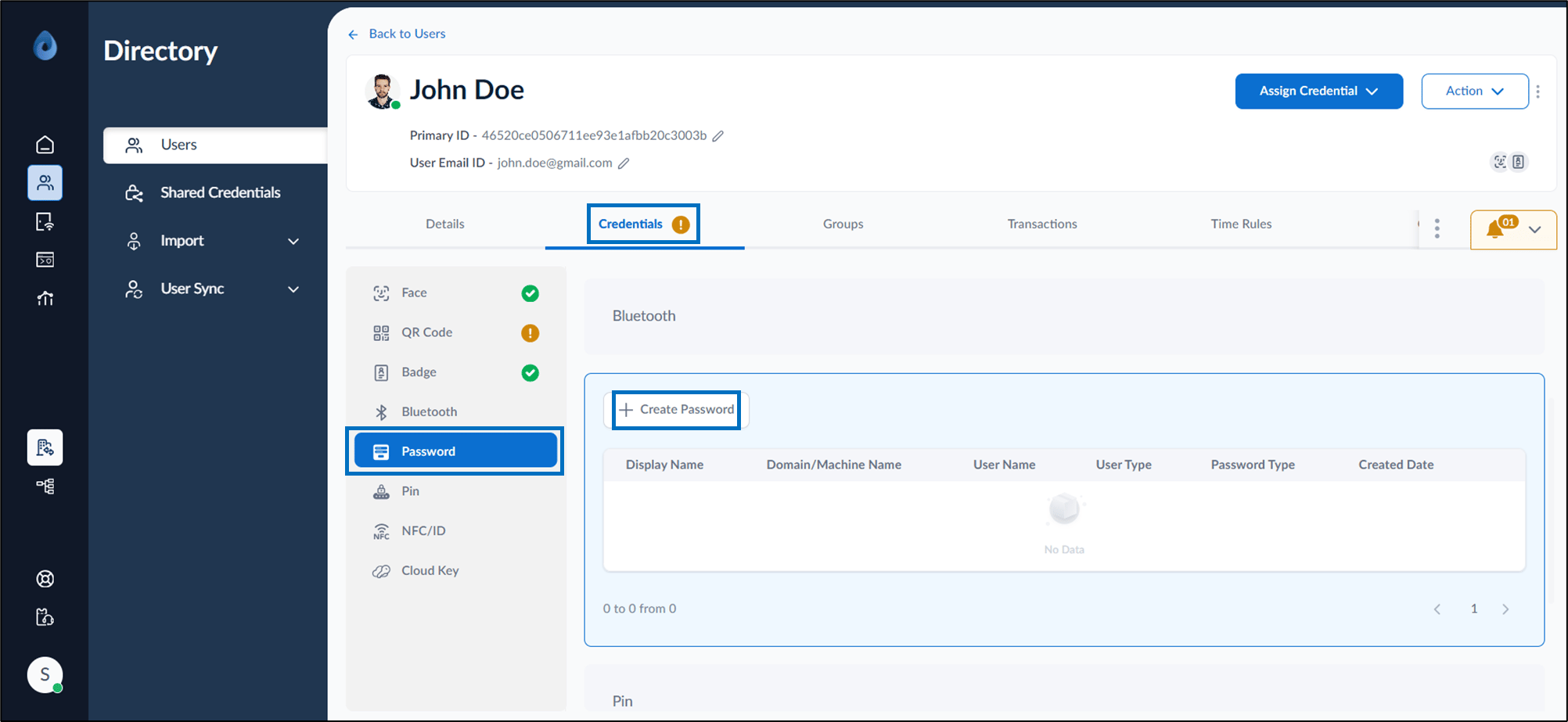
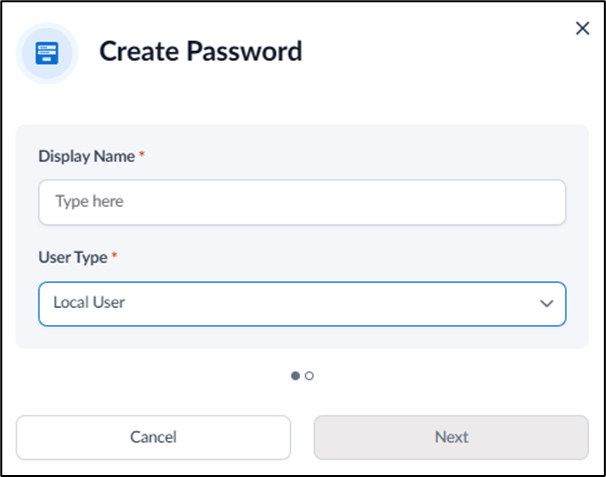
- On the pop-up box, do the following:
- Enter Display Name that displays on the Windows Login page.
- Select a user type from User Type dropdown list.
- Enter Machine Name.
- Enter Username of your Windows Login.
- Enter Password of your Windows Login.
- Click Save.
The password is created and listed in the Passwords tab.

To Edit Password
- Go to the Users page.
-
Click User Name to edit.
- Go to Credentials > Passwords tab.
-
Click edit icon for a particular user.


-
Enter the new password in the Password field.
Note: You should update the password only when you update the Windows password.
- Click Update. The password is updated successfully.
To Delete Password
- Go to the Users page.
- Click Display Name to edit.
- Go to Credentials > Passwords tab.
- Click delete icon for a particular user.


- Select DELETE. The user is successfully deleted.
To Create Pin
For detailed instructions, see How to add Pin as credential to users.To Add Badge
For detailed instructions, see How to assign Badge ID as credential to users.Create and Manage Shared Credentials
Shared Credentials are passwords that can be used to access a local windows machine or a domain. It is shared among users to which they are assigned to.To Create shared Credential
- Log in to the Oloid Portal.
- On the home page of the portal, click Directory on the left menu panel.
- Click Shared Credentials on the left menu panel.
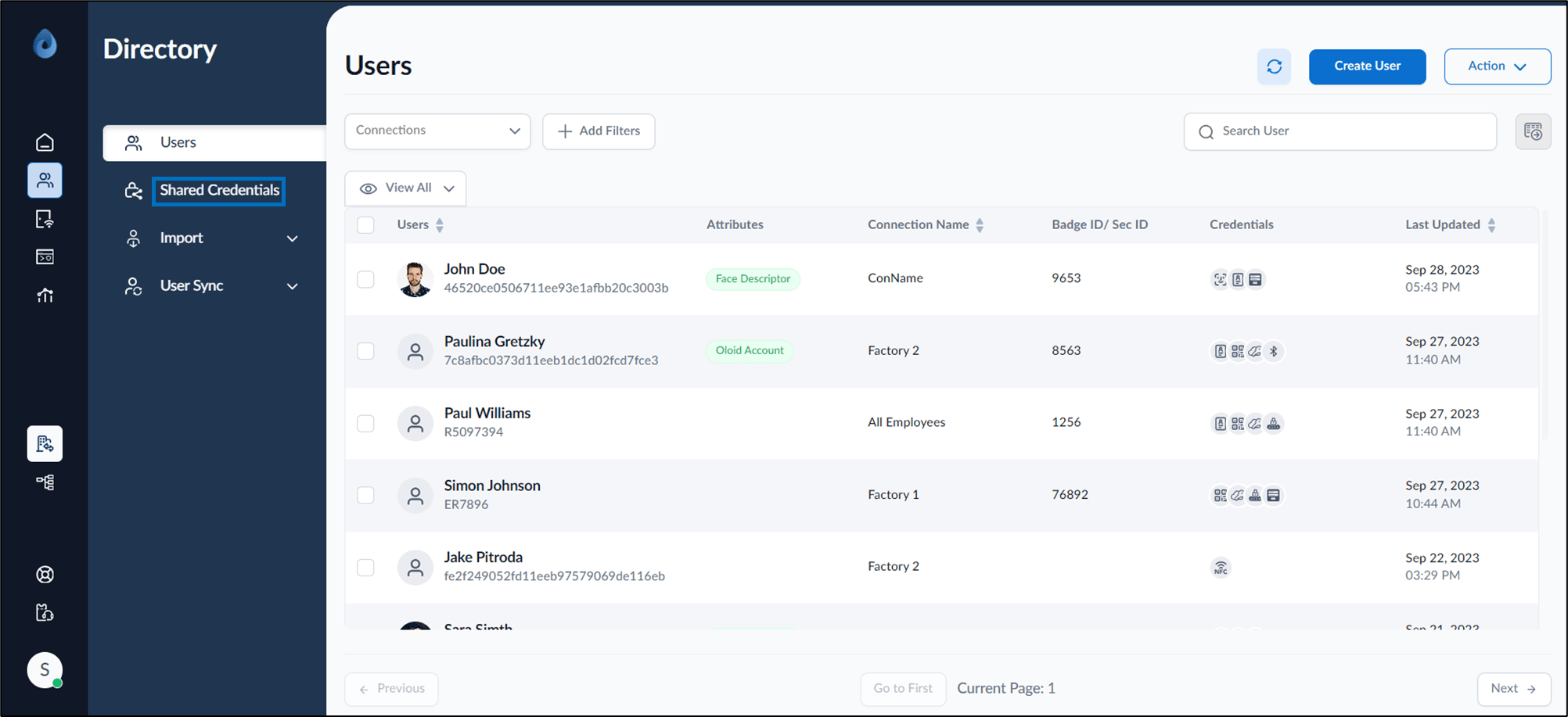
- On the top right, click Create Credentials.


- On the pop-up box do the following:
- Enter Display Name that displays on the Windows Login page.
- Select user type from User Type dropdown.
- Enter user name then select Credential Owner from the dropdown list.
- Select Next.
- Enter Machine Name.
- Enter Username of your Windows Login.
- Enter Password of your Windows Login.
- Click Save.
The credential is created and listed on the Shared Credentials page.

To Edit Shared Credential
- Go to the Users page.
-
Click Shared Credentials on the left menu panel.
-
Click edit icon for a particular user.


-
Enter the new password in the Password field.
Note: You should update the password only when you update the Windows password.
- Click Update. The password is updated successfully.
To Delete Shared Credential
- Go to the Users page.
- Click Shared Credentials on the left menu panel. The Shared Credentials page is displayed.
- Click delete icon for a particular user.
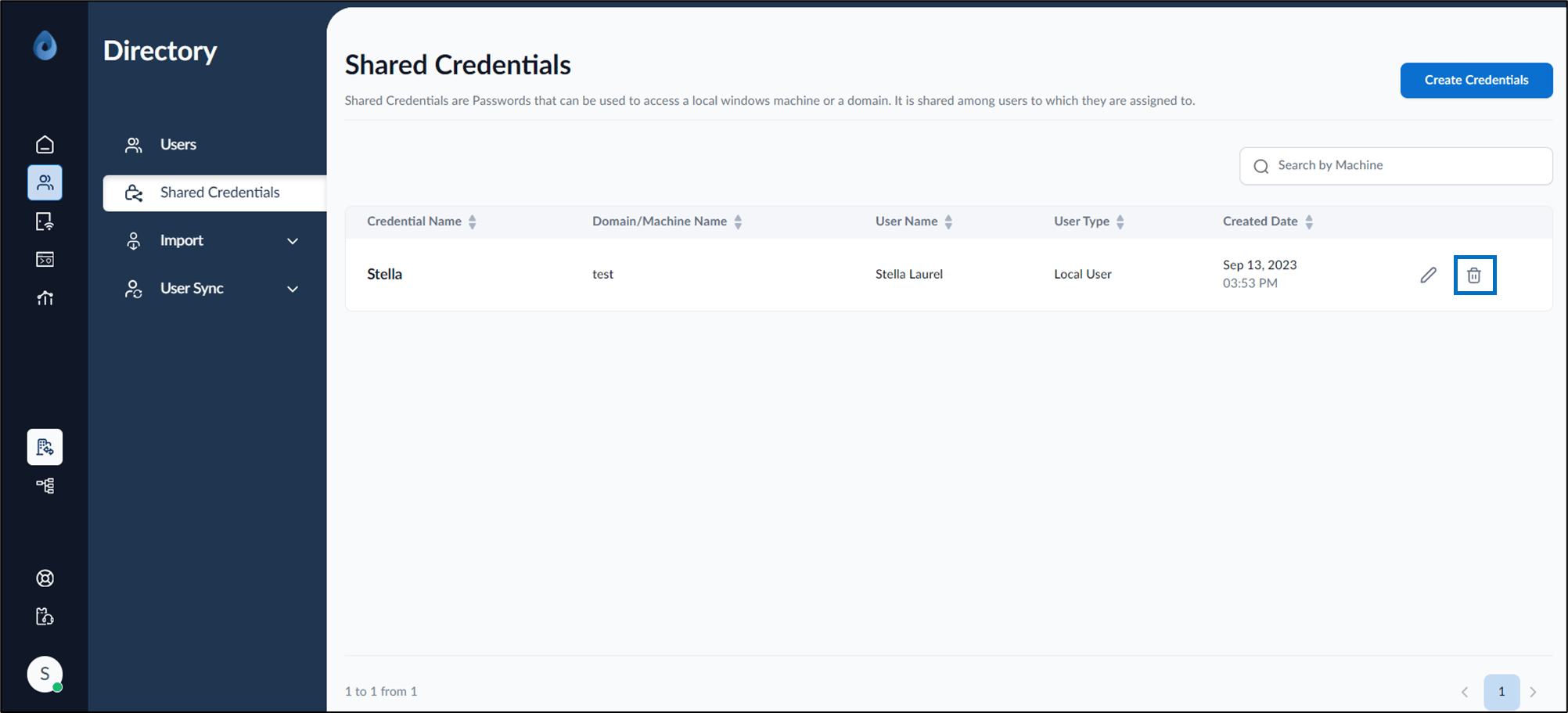
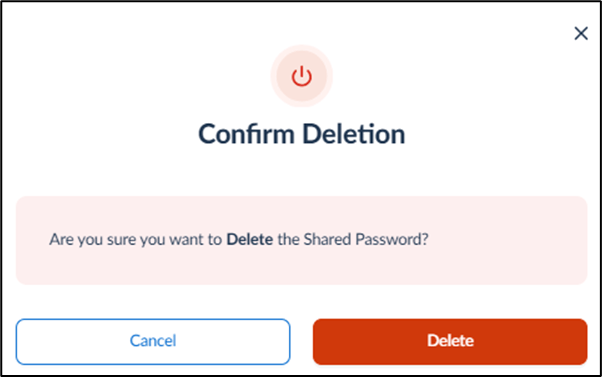
- Select DELETE. The credential is removed from the Shared Credentials page.