Introduction
The Data Mapper Table in the Tenant Admin Portal allows admins to map employee data from external systems such as ADP ETime Inbound to Oloid. This document provides instructions on how to create the Data Mapper table for ADP ETime Inbound.Prerequisite
You must have access to the Tenant Admin Portal.Steps to Create Data Mapper Table
- Log in to Tenant Admin Portal.
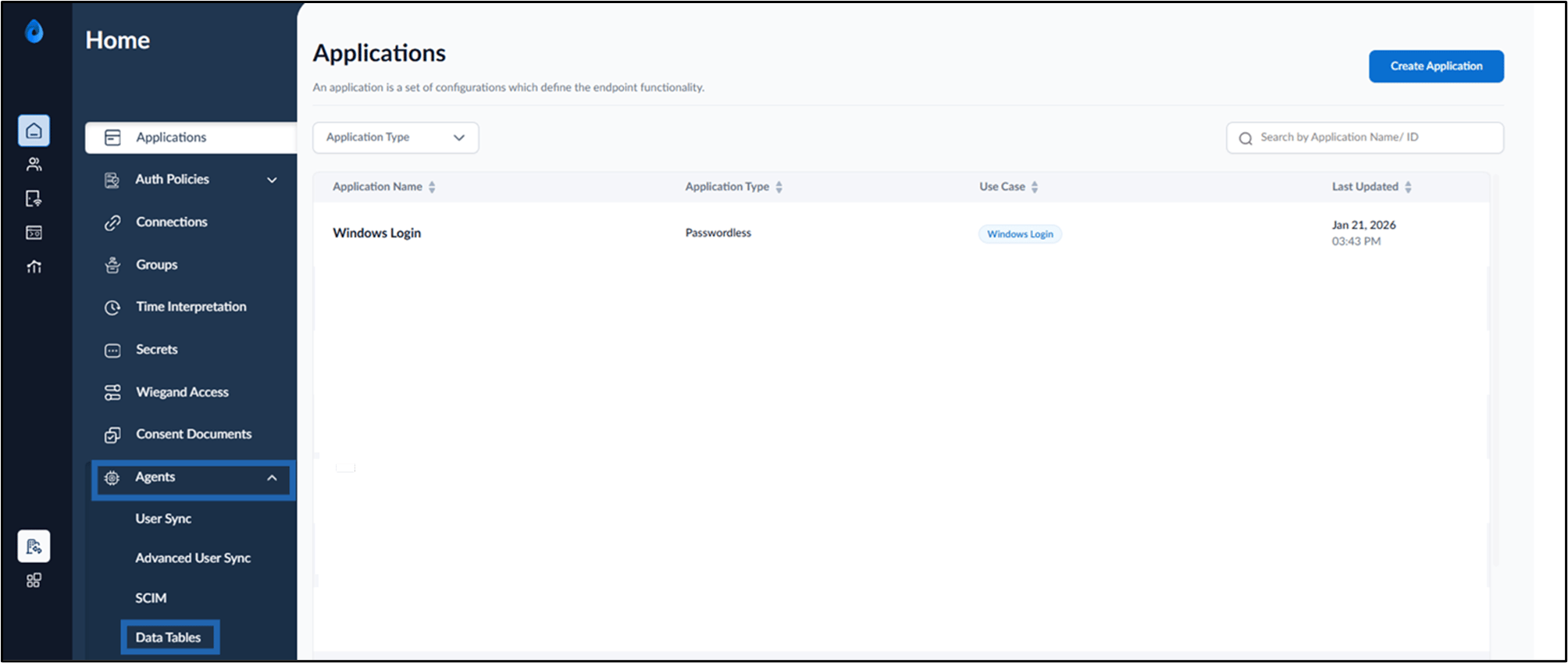
- Go to Agents tab > click Data Tables.
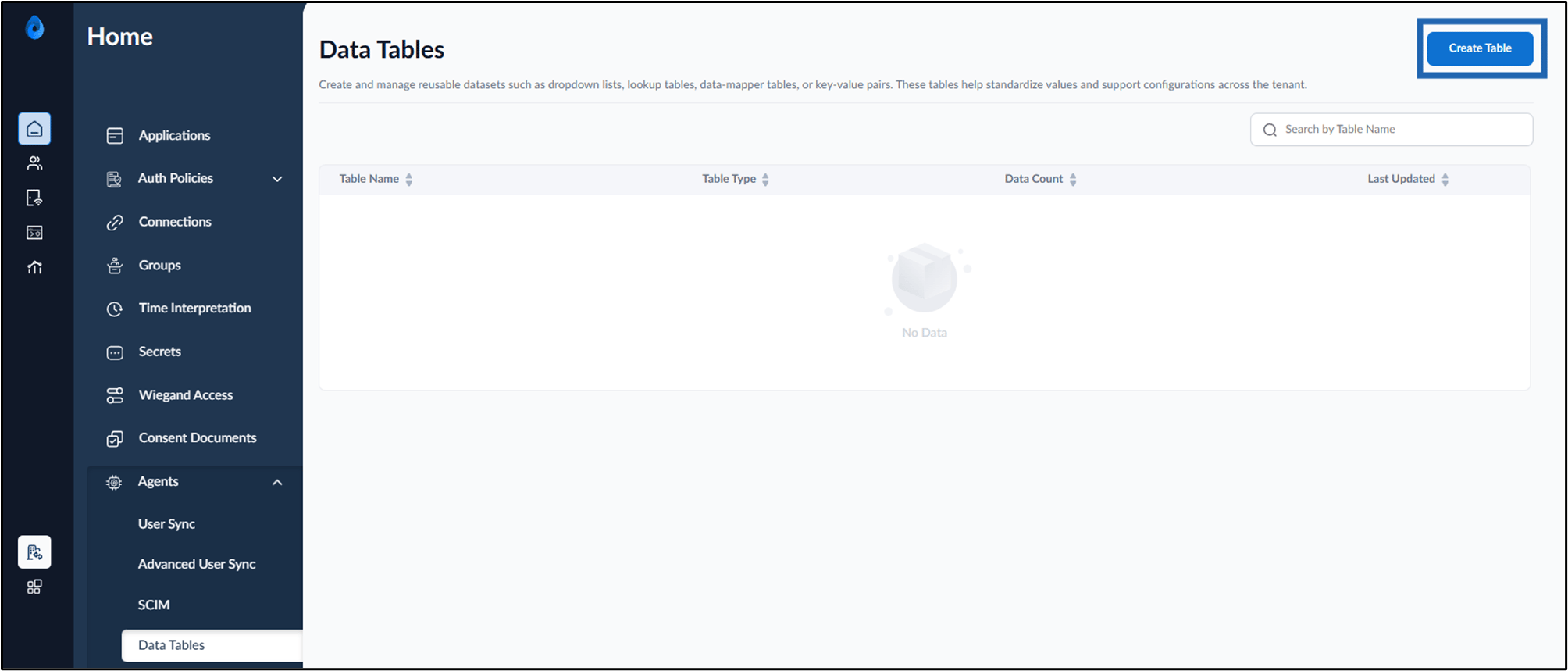
- Click Create Table.
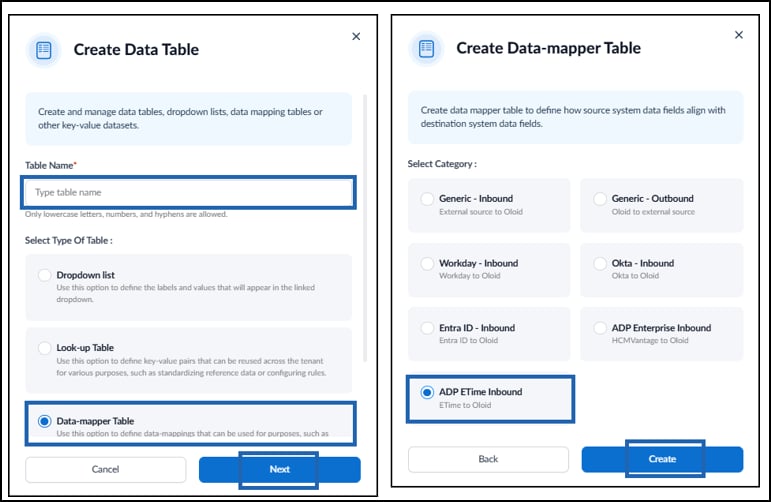
- Do the following:
- Enter Table Name.
- Select Data-mapper Table in Type of Table.
- Click Next.
- Select ADP ETime Inbound as a Category.
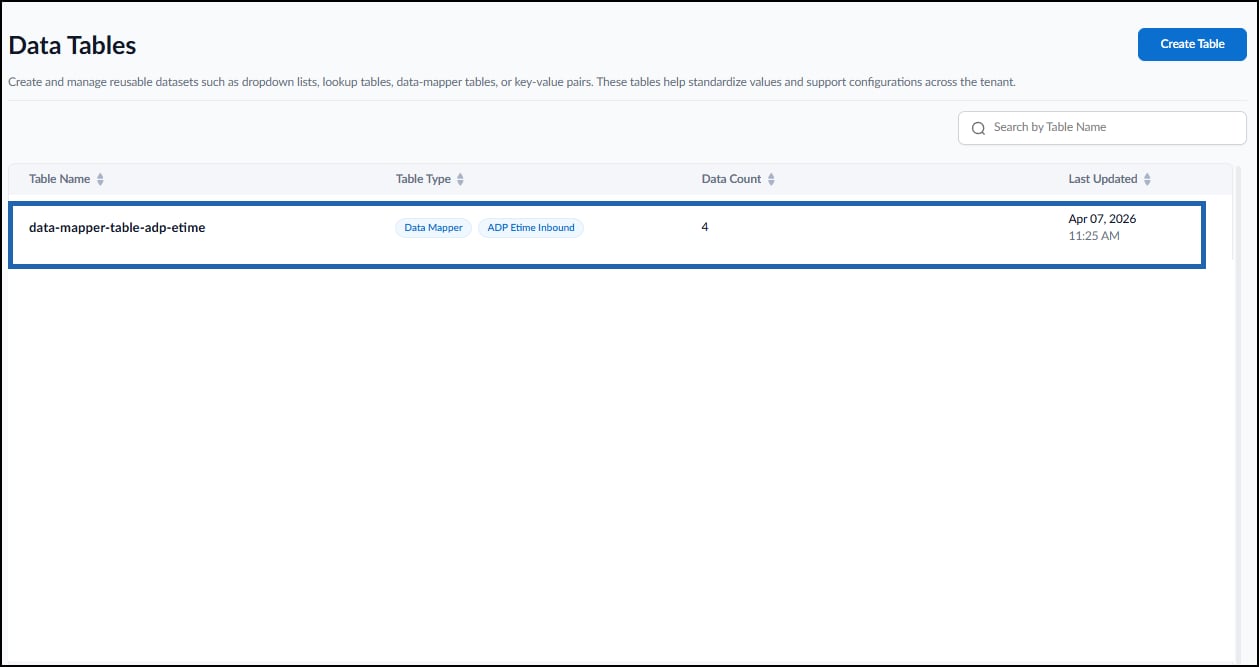
- Click Create.